
Losing your iPhone—even for a few seconds—can feel like losing a part of your digital life. Whether it’s buried under couch cushions, left in a café, or misplaced during a busy morning, the panic is real. But if you’re wearing an Apple Watch, you already have a powerful tool strapped to your wrist to help you find it—fast. With just a tap, swipe, or voice command, your Apple Watch can make your phone ring, show its last known location, or even alert you when you’ve walked away from it.
The key? Knowing how to use Apple’s Find My ecosystem effectively—especially after major updates like watchOS 10, which changed how you access critical tools like the “Ping iPhone” feature. No more swipe-up gestures; now, a single press of the side button opens Control Center. If you’re confused or your ping button has vanished, you’re not alone.
This guide walks you through every method to use your Apple Watch to find your phone, including step-by-step instructions, troubleshooting fixes, and pro tips to prevent future losses. Whether you’re using an older watchOS version or the latest update, you’ll learn how to trigger a ring, track your iPhone’s location, and set up automatic alerts—all from your wrist.
Enable Find My iPhone on Your Device
Before you can locate your iPhone from your Apple Watch, both devices must be properly linked through Apple’s Find My network.
Turn On Find My iPhone and Find My Network
- Open Settings on your iPhone.
- Tap your Apple ID at the top.
- Go to Find My > Find My iPhone and toggle it on.
- Also enable Find My Network.
Find My Network allows your iPhone to be located even when it’s offline, powered off, or out of Bluetooth range. Nearby Apple devices anonymously relay its location using Bluetooth signals—no internet required.
Use the Same Apple ID on Both Devices
Ensure your Apple Watch and iPhone are signed in with the same Apple ID. If they’re not, location sharing and remote sound features won’t work.
Family Sharing members can locate each other’s devices too—but only if location sharing is enabled in the Find My app.
Activate Find My Network on Apple Watch
Your Apple Watch must also be part of the Find My network to support full tracking capabilities.
Link Your Watch to Find My
- On your Apple Watch, open Settings.
- Tap your Apple ID at the top.
- Select your Apple Watch under Devices.
- Tap Find My Watch.
- Turn on Find My Network.
This allows your watch to help locate your iPhone—and vice versa—even when they’re far apart.
Use Control Center to Ring Your iPhone

The fastest way to find your phone is making it ring—and Control Center is the quickest route, especially on newer watchOS versions.
Open Control Center (watchOS 10 and Later)
- Press the side button once—do not hold.
– Holding triggers Emergency SOS or power-off. - The Control Center appears with connectivity toggles.
- Tap the Ping iPhone icon (bell or phone symbol).
Your iPhone will ring at maximum volume, even if it’s on Silent or Do Not Disturb. This is perfect for finding it in a quiet room or under a pile of clothes.
Add Ping iPhone to Control Center If Missing
If the icon isn’t visible:
- Open Control Center with a single side button press.
- Scroll to the bottom and tap Edit.
- Find Ping iPhone and tap the green + to add it.
- Drag it to your preferred position and tap Done.
Some users see “iPhone” instead of a bell icon—this is normal and works the same.
Trigger the Ring Using Siri
When your hands are full or you’re across the room, Siri offers a hands-free alternative that works on all watchOS versions.
Activate Siri and Ping Your Phone
- Say: “Hey Siri, ping my iPhone.”
- Or press and hold the Digital Crown, then say: “Ping my iPhone.”
Siri sends a signal through the Find My network, making your iPhone emit a loud, escalating ring for about two minutes—ideal for pinpointing its location.
Other Siri Commands That Work
You can also say:
– “Where is my phone?”
– “Play sound on my iPhone.”
– “Find my iPhone.”
Siri bypasses Control Center entirely, making it the most consistent method across software updates.
Use the Find Devices App to Play Sound
For more control and status updates, use the dedicated Find Devices app on your Apple Watch.
Play Sound from the App
- Open Find Devices.
- Tap your iPhone.
- Tap Play Sound.
What Happens Based on iPhone Status
| iPhone Status | Result |
|---|---|
| Online (Wi-Fi/Bluetooth) | Rings immediately; a Find My alert appears on screen |
| Offline or powered off | Shows “Sound Pending”—will play next time iPhone connects |
| Low Power Mode | Still locatable if Find My Network is enabled |
You’ll get a notification when the sound finally plays if the iPhone was offline.
View iPhone Location and Get Directions
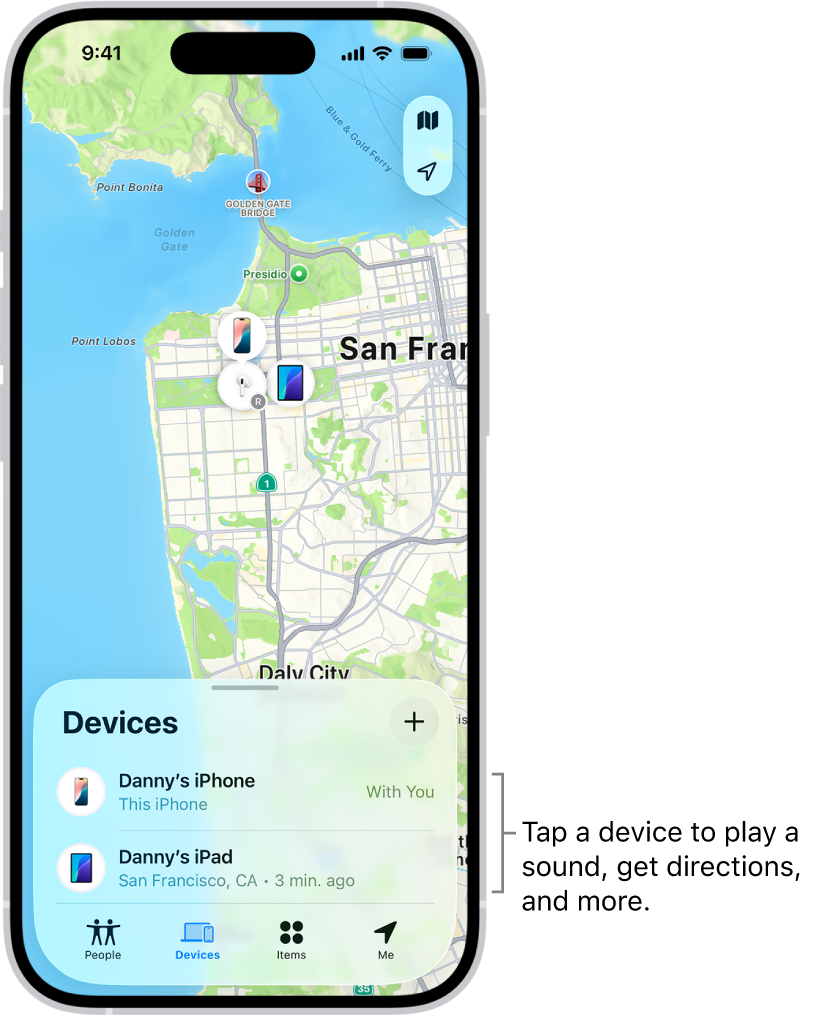
If your phone is out of earshot, seeing its location on a map can save time.
Open Map View in Find Devices
- Launch Find Devices.
- Tap your iPhone.
- Tap View on Map.
This shows your iPhone’s last known GPS location using Apple Maps. Accuracy improves if the phone had Wi-Fi or cellular access before going offline.
Navigate to Your Phone
- After viewing the location, tap Directions.
- Apple Maps opens with a route from your current position.
This is especially useful in parking lots, airports, or large buildings where visual search fails.
Prevent Loss With Leave-Behind Alerts
Stop misplacing your phone before it happens—set up automatic alerts when you walk away.
Enable Notify When Left Behind
- Open Find Devices on your Apple Watch.
- Tap your iPhone.
- Scroll to Notifications.
- Tap Notify When Left Behind and turn it on.
You’ll get a haptic alert on your watch and a notification on your iPhone if you leave it behind.
Set Trusted Locations to Avoid False Alerts
To prevent alerts at home or work:
- On iPhone, open Find My.
- Go to Devices > [Your iPhone] > Notify When Left Behind.
- Tap Add Trusted Location.
- Choose home, work, or a custom address.
- Save.
Trusted Locations sync across devices and suppress alerts only in those zones.
Fix Missing Ping iPhone Button in Control Center
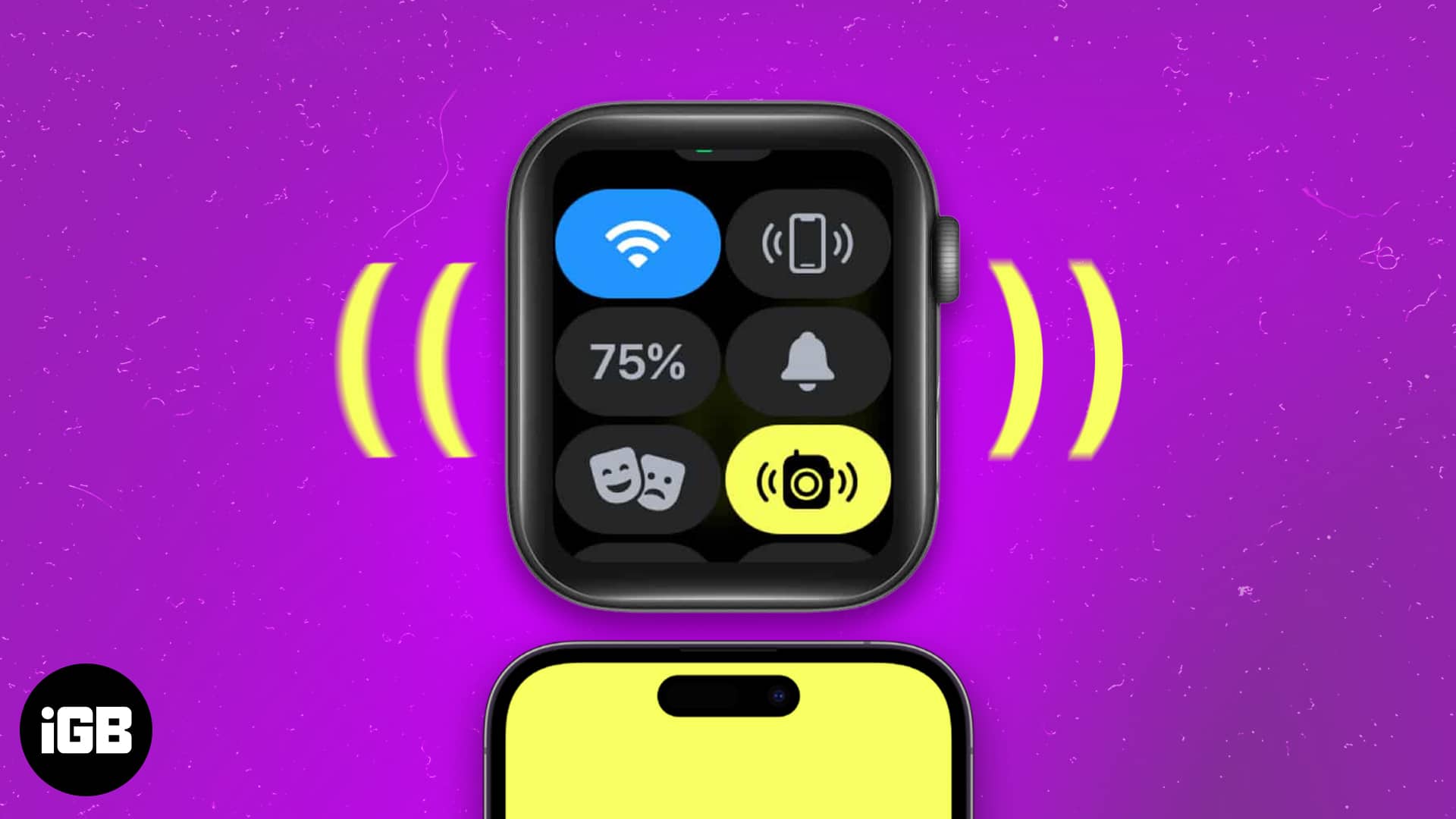
Many users can’t find the ping icon after updating to watchOS 10—usually because they’re swiping instead of pressing the side button.
Correct Way to Open Control Center
- Press the side button once—do not swipe up.
- If the icon is missing, open Control Center > Edit > add Ping iPhone.
The swipe-up gesture was removed in watchOS 10. Pressing the side button (the flat oval below the Digital Crown) is now the only way.
iPhone Won’t Ring? Try These Fixes
Even with proper setup, issues can occur. Here’s how to fix them.
Check Find My iPhone Setting
- Go to Settings > [Apple ID] > Find My > Find My iPhone.
- Ensure it’s enabled.
Disabling this turns off remote sound and location tracking.
Confirm Bluetooth and Airplane Mode
- Turn off Airplane Mode on iPhone.
- Ensure Bluetooth is on.
Without Bluetooth, your Apple Watch can’t detect proximity or send signals.
Update iOS and watchOS
Outdated software breaks compatibility.
- On iPhone: Settings > General > Software Update.
- On Apple Watch: Settings > General > Software Update.
Always keep both devices updated to avoid glitches.
Siri Won’t Respond? Troubleshoot Voice Commands
If Siri doesn’t react to “ping my iPhone,” check these settings.
Enable Hey Siri
- On Apple Watch: Settings > Siri.
- Turn on Listen for “Hey Siri”.
If disabled, you must press the Digital Crown to activate Siri.
Clean Microphone and Restart
- Wipe the microphone (near the Digital Crown) with a dry cloth.
- Restart Apple Watch: press and hold side button > slide Power Off > restart after 30 seconds.
Dirt can block voice input and reduce Siri accuracy.
Find Devices App Not Showing iPhone?
If your iPhone doesn’t appear in the app, it may be a sync issue.
Re-pair Apple Watch
- On iPhone: Settings > Bluetooth.
- Tap [i] next to your Apple Watch.
- Select Unpair Apple Watch.
- Restart Watch.
- Re-pair via Watch app.
This clears connection errors and often restores missing device listings.
Customize Side Button for Easier Access
For users with motor challenges, adjusting the side button click speed helps prevent accidental SOS triggers.
Change Click Speed
- On Apple Watch: Settings > Accessibility > Side Button Click Speed.
- Choose:
– Default (instant)
– Slow (up to 1 second)
– Slowest (up to 2 seconds)
Slower settings make Control Center easier to open without triggering Emergency SOS.
Summary: Quick Reference Guide
| Function | How to Use |
|---|---|
| Ping iPhone | Press side button → Control Center → Tap bell icon |
| Use Siri | Say “Hey Siri, ping my iPhone” |
| See location | Find Devices → Tap iPhone → View on Map |
| Get directions | Find Devices → Tap iPhone → Directions |
| Enable alerts | Find Devices → Notifications → Notify When Left Behind |
| Trusted Locations | Set via iPhone: Find My app → Device → Notify When Left Behind |
| Sound pending | Plays when iPhone reconnects to network |
| Fix missing features | Update software, re-pair watch, check Find My settings |
Final Tips to Keep Your Phone Found
- Use Siri daily—it’s the most reliable method across all watchOS versions.
- Customize Control Center immediately after updates—don’t wait until you lose your phone.
- Charge both devices nightly—low battery disables Find My features.
- Test the ping feature weekly—ensure everything works before you need it.
- Submit feedback to Apple if features feel clunky: apple.com/feedback/watch.html
The Apple Watch is one of the most reliable tools for finding a lost iPhone—but only if you’ve set it up correctly. With Find My enabled, Control Center customized, and leave-behind alerts active, you’ll spend less time searching and more time moving forward.





