Is your Apple Watch microphone not working? You’re speaking into it during a call, but the other person can’t hear you. Siri stays silent when you say “Hey Siri.” Voice Memos records nothing—even though you’re clearly talking. It’s frustrating, especially when you rely on your Apple Watch for calls, messages, or voice commands on the go.
The good news: in most cases, the Apple Watch microphone not working issue isn’t permanent. It’s usually caused by something simple—like a blocked mic port, a misconfigured setting, or a temporary software glitch. And the best part? You can fix it yourself, without visiting an Apple Store.
This guide walks you through every possible cause and solution, based on official Apple recommendations, real user reports, and proven troubleshooting steps. We’ll start with the quickest fixes and move to more advanced solutions—so you can get your mic working again in minutes, not days.
Disable Silent Mode and Unmute the Microphone
Before diving into complex repairs, check your Apple Watch’s Control Center. A single mis-toggled setting could be silencing your mic.
Turn Off Silent Mode
- Swipe up from the watch face to open Control Center.
- Look for the bell icon. If it has a red slash, Silent Mode is on.
- Tap the icon to disable it.
Silent Mode mutes alerts and can interfere with voice input. While it doesn’t disable the microphone entirely, it may prevent proper audio processing during calls.
Unmute the Microphone Icon
- In the same Control Center, locate the microphone icon.
- If it shows a red slash, your microphone is manually muted.
- Tap it to unmute.
This setting disables microphone access across all apps—Siri, Phone, Walkie-Talkie, and more. It’s easy to toggle by accident, especially after workouts or water exposure.
Disable Airplane Mode
- Check the airplane icon in Control Center.
- If it’s active, tap to turn it off.
Airplane Mode disables Bluetooth, Wi-Fi, and cellular, which can disrupt microphone functionality in connected apps. Even if you’re not traveling, this mode might activate accidentally during a long press on the side button.
Restart or Force Restart Your Apple Watch
A quick restart can clear temporary software glitches that may be blocking the microphone.
Standard Restart
- Press and hold the side button until the Power Off slider appears.
- Drag the slider to turn off the watch.
- Wait 10 seconds, then press the side button again until the Apple logo appears.
Use this after changing settings or if the watch feels sluggish.
Force Restart (For Frozen or Unresponsive Watches)
- Press and hold both the Digital Crown and side button at the same time.
- Keep holding for 10–15 seconds until the Apple logo appears.
- Release both buttons.
A force restart resets the system memory and audio drivers. Many users report that their microphone starts working again after this simple step—especially after a software update.
Pro Tip: If your watch freezes or doesn’t respond to taps, a force restart is your best first move.
Clean the Microphone Port to Remove Debris
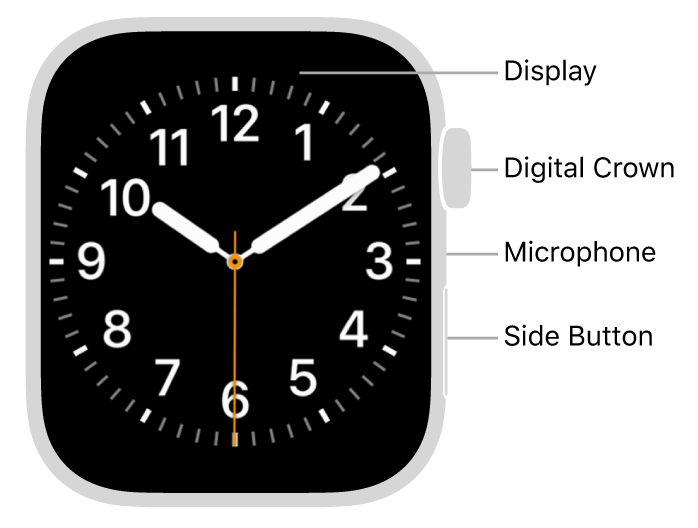
One of the most common causes of the Apple Watch microphone not working issue? A tiny blockage in the mic port.
Locate the Microphone
- The microphone is a small pinhole between the Digital Crown and the side button on the right edge.
- On Apple Watch Ultra, it’s slightly recessed for protection.
Even a speck of lint, sweat, or dust can block sound. Many users restore full functionality just by cleaning this port.
Safe Cleaning Methods
- Wipe the area with a dry, soft, lint-free cloth.
- Gently brush the port with a clean makeup brush or soft toothbrush.
- For post-swim use: Rinse under lightly running fresh water (Series 2 and later only).
- After water exposure, use Water Lock to clear moisture.
Never:
– Insert needles, pins, or SIM ejector tools—risk of internal damage.
– Use compressed air—it can push debris deeper.
– Apply cleaning sprays or liquids.User Report: One person fixed their mic by carefully removing lint with a needle. While effective, this method is risky—only attempt if you’re extremely careful.
Dry the Watch After Water Exposure
Moisture in the microphone port can mute or distort audio—even on water-resistant models.
Check for Trapped Water
- Place your watch microphone-side down on a dry microfiber cloth.
- Look for visible moisture in the pinhole.
- Let it air dry for several hours—do not use heat sources.
Internal heating from charging may help evaporate moisture overnight.
Apple Advice: Avoid rice and silica gel—they don’t help and can introduce dust.
Disable Water Lock
- After swimming or showering, Water Lock may still be active.
- Press and hold the side button until the Water Lock screen appears.
- Swipe to unlock. The watch will emit a tone to clear water from the speaker and mic.
Many users forget this step, leaving the microphone disabled. If your mic stopped working after a swim, this could be the fix.
Update Both Apple Watch and iPhone Software

Outdated software is a frequent culprit behind microphone issues.
Update Apple Watch
- Open Settings on your watch.
- Go to General > Software Update.
- Download and install any available updates.
Update iPhone
- On your iPhone, go to Settings > General > Software Update.
- Install the latest iOS version.
Why it matters: Apple often releases patches for audio bugs. For example, watchOS 2.2.1 and 2.2.2 caused microphone failures on older models—later fixed in updates.
Pro Tip: Always update both devices together. Mismatched software can cause connectivity and audio problems.
Test the Microphone with Built-In Apps
Before assuming hardware failure, test the microphone to confirm the issue.
Record in Voice Memos
- Open the Voice Memos app.
- Tap record and speak for 5–10 seconds.
- Play back the recording.
- No audio? Microphone isn’t detecting input.
- Faint or crackling? Partial blockage or hardware issue.
- Clear audio? The mic works—problem may be app-specific.
This test helps isolate hardware from software issues.
Test Siri
- Say “Hey Siri” or press the Digital Crown.
- Ask a simple question like, “What’s the weather?”
If Siri doesn’t respond, the mic may be blocked, muted, or disabled.
Note: Ensure “Hey Siri” is enabled in Settings > Siri.
Try Walkie-Talkie or Another App
Use Walkie-Talkie or Phone to test the mic during a real-time transmission.
Warning: Shazam on Apple Watch may use your iPhone’s microphone via Bluetooth—so it’s not a reliable test.
Check Microphone Permissions and Dictation Settings
Even with a clean port and updated software, incorrect settings can block the mic.
Enable Dictation
- On Apple Watch, go to Settings > General > Dictation.
- Make sure it’s turned ON.
Dictation is required for voice input in Messages, Siri, and more.
Fix: Some users resolved mic issues by toggling Dictation off and on—this resets audio routing.
Reset Dictation
- Turn Dictation off.
- Wait 10 seconds.
- Turn it back on.
- Test the microphone.
This workaround helped users on Apple Watch Series 7 and later.
Check Microphone Permissions
- Go to Settings > Privacy & Security > Microphone.
- Ensure Siri, Voice Memos, and other apps have access.
- Toggle permissions off and on to refresh.
Permissions can reset after software updates—always double-check.
Try the VoiceOver Workaround for Software Bugs
Some users report that the microphone only works when VoiceOver is enabled—indicating a software bug.
How to Test
- Go to Settings > Accessibility > VoiceOver.
- Turn VoiceOver ON.
- Test the microphone (e.g., use Siri).
- Turn VoiceOver OFF.
- Test again.
If the mic works only with VoiceOver on, it’s likely a software bug in audio routing—not hardware failure.
Known Issue: Affects certain watchOS versions. Apple may address it in a future update.
Unpair and Re-Pair Your Apple Watch
Corrupted pairing data can cause audio problems.
Steps
- On iPhone, open the Watch app.
- Tap My Watch > All Watches.
- Tap the (i) next to your watch.
- Select Unpair Apple Watch.
- Confirm and wait.
- Set up the watch again.
Note: Your data is saved if you have a backup.
This resets Bluetooth, audio profiles, and system caches—often fixing stubborn mic issues.
Reset All Settings (Factory Reset)
If nothing else works, a full reset may be needed.
How to Reset
- On Apple Watch, go to Settings > General > Reset.
- Tap Erase All Content and Settings.
- Enter your passcode.
- Set up the watch from scratch.
Warning: This deletes all data. Ensure you have a backup.
Use this as a last resort—especially if the mic issue persists after cleaning and updates.
Model-Specific Issues: Series 8 and Ultra
Some microphone problems are tied to specific models.
Apple Watch Series 8 and Ultra
- Issue: Mic works after restart but stops working within hours.
- User Reports: Affects calls, Walkie-Talkie, and Siri.
- Apple Response: Many users report warranty replacements at the Genius Bar.
- MacRumors (2022): Suggests a combined hardware-software defect.
If you own a Series 8 or Ultra and the mic keeps failing, contact Apple—you may qualify for a free replacement.
When to Contact Apple Support
If your microphone still doesn’t work after trying all fixes, it may be a hardware failure.
Signs of Hardware Failure
- No audio in Voice Memos despite cleaning and resetting.
- Issue persists after factory reset.
- Mic fails on multiple watches (if tested).
Support Options
- Apple Support Website: support.apple.com
- Genius Bar: Schedule in the Apple Store app.
- AppleCare+: Covers out-of-warranty repairs.
- Feedback App: Report bugs directly to Apple engineers.
Pro Tip: Use the Feedback app on your Apple Watch to report microphone bugs—Apple monitors this more closely than forum complaints.
Prevent Future Microphone Issues
Avoid problems with these tips:
- Clean monthly with a soft brush.
- Update software regularly.
- Avoid thick cases that cover the mic.
- Test monthly with a quick voice memo.
Final Diagnostic Flowchart
Follow this order:
- Check Control Center → Disable Silent Mode, Unmute Mic, Turn Off Airplane Mode
- Restart Watch → Standard or Force Restart
- Clean Port → Use soft brush
- Test with Voice Memos → Confirm mic input
- Update Software → Both devices
- Check Permissions → Dictation, Microphone Access
- Toggle VoiceOver → Test for software bug
- Unpair & Re-pair → Reset system config
- Reset All Settings → Factory reset (backup first)
- Contact Apple → For hardware repair
Final Note: Most Apple Watch microphone not working issues are fixable at home. Start with settings and cleaning, then move to software resets. If the problem persists—especially on Series 8 or Ultra—contact Apple. You may qualify for a free replacement under warranty.
Leave a Reply