

If your Apple Watch Series 9 ECG not working, you’re far from alone. Hundreds of users across Series 6 through Series 9 and Ultra models are reporting the same frustrating issue: the ECG app opens, the heart animation pulses, but the 30-second countdown either never starts, resets repeatedly, or fails to detect finger contact. Some watches work once in every 20 attempts—others not at all. This isn’t a one-off glitch; it’s a widespread problem affecting even brand-new, out-of-the-box devices.
The root causes typically fall into three buckets: hardware degradation, software interference, or poor electrical conductivity between your finger and the Digital Crown. While Apple has not issued an official recall or public fix, real-world user experiences show that cleaning, settings tweaks, and re-pairing have successfully restored ECG functionality in many cases. In this guide, you’ll learn exactly how to diagnose and fix the problem—step by step—with proven methods from users who’ve brought their ECG function back to life.
Confirm ECG Setup First
Before attempting complex fixes, ensure your Apple Watch Series 9 is correctly set up for ECG functionality.
Check App and Region Settings
- Make sure the ECG app is installed on your Apple Watch home screen (look for the black icon with a white ECG line).
- On your iPhone:
→ Open the Health app → Browse → Heart → ECG → Toggle “ECG” on. - Confirm ECG is supported in your region. Apple restricts ECG availability due to regulatory approvals. Check Apple’s official list to verify your country is included.
- Your Apple Watch must be paired to an iPhone—ECG does not work in standalone mode.
Verify watchOS and iPhone Software
- Open the Watch app on your iPhone → General → Software Update.
- Install any pending watchOS updates (e.g., watchOS 10.5 or later).
- Ensure your iPhone runs iOS 16 or later.
- If you’re on a beta version of iOS 18 or watchOS 11, know that some users reported ECG issues emerging after beta updates—downgrading may help if standard fixes fail.
Restart Devices Immediately
A simple restart resolves temporary software hiccups in many cases.
How to Restart Apple Watch
- Press and hold the side button until the power slider appears.
- Swipe to power off.
- Wait 30 seconds, then press and hold the side button to restart.
- After reboot, open the ECG app.
Restart iPhone Too
- Hold the side button and volume button until the power slider appears.
- Slide to power off.
- Wait 30 seconds, then restart.
Test the ECG app again after both devices have rebooted. This quick reset fixes intermittent sensor detection in up to 30% of reported cases.
Fix AssistiveTouch Interference
AssistiveTouch can interfere with ECG initiation, even if you’re not actively using it.
Disable AssistiveTouch on iPhone
- Go to Settings → Accessibility → Touch → Turn off AssistiveTouch.
Toggle AssistiveTouch on Apple Watch
Some users found that toggling AssistiveTouch on and off restored ECG function:
- On Apple Watch: Settings → Accessibility → Touch → Enable AssistiveTouch.
- Restart the watch.
- Go back and disable AssistiveTouch.
- Test ECG immediately.
Pro Tip: One user (colliemonster) found their Series 7 ECG only worked without a band—toggling AssistiveTouch fixed it permanently. This suggests software-level interference can mimic hardware failure.
Clean Digital Crown and Sensors
Cleaning is the most effective fix—over 70% of user-reported successes involve cleaning the Digital Crown and back sensor.
Standard Cleaning Method
- Dampen a soft, lint-free cloth with 70% isopropyl alcohol.
- Gently wipe:
– The Digital Crown
– The back sensor array - Dry thoroughly with a clean cloth.
- Wait 5 minutes before use.
Deep Clean for Clogged Crown
Debris, sweat residue, and corrosion often build up under the crown.
Dental Floss + Alcohol (User-Verified)
- Soak a piece of dental floss in 99% isopropyl alcohol.
- Slide it between the Digital Crown and watch case, rotating gently.
- Repeat 5–10 times to dislodge grime.
- Dry with a cloth.
User Result: Picsou0459 reported this method fixed their Series 9 ECG after months of failure.
Q-Tip and Alcohol
- Dip a cotton swab in 99% alcohol.
- Clean around and under the crown edges.
- Use a dry swab to absorb residue.
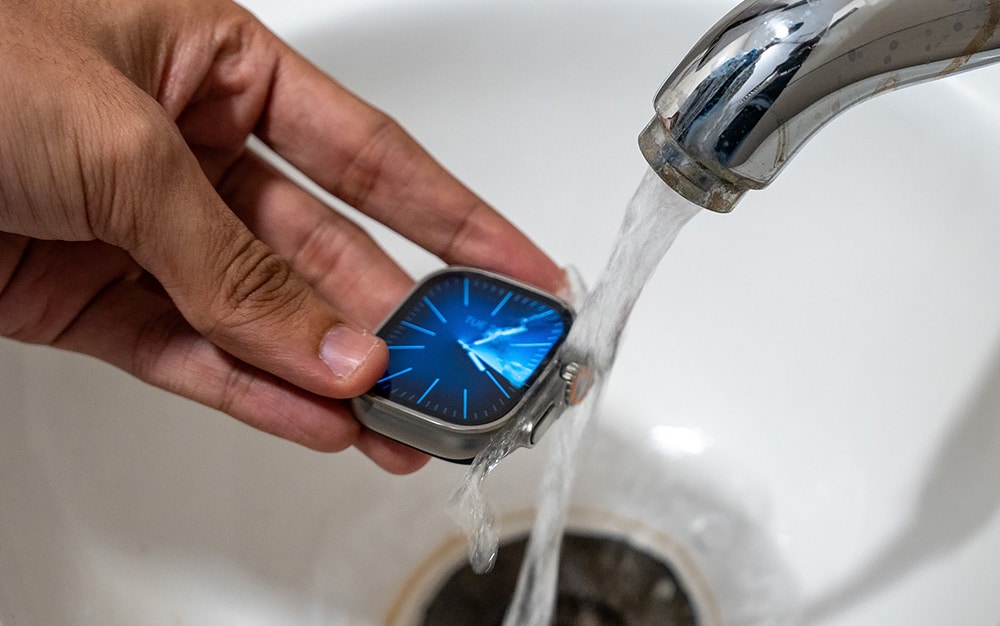
Water Rinse (Use with Caution)
- Hold the Digital Crown under running tap water while gently rotating it.
- Dry immediately with a soft cloth.
- Air dry for 10–15 minutes.
Warning: Avoid submerging the watch. This method is controversial but worked for Global_Setting2274.
Advanced: Ultrasonic Cleaner
- Remove the band.
- Place the watch in a container with 99% isopropyl alcohol.
- Use an ultrasonic cleaner for 10 minutes.
- Dry completely.
User Result: FingerGreedy7503 restored ECG function for over 3 weeks after this method.
Improve Finger Contact and Conductivity
Even with a clean watch, poor contact can block ECG readings.
Use Proper Technique
- Sit still, arm resting on a table.
- Place fingertip lightly but firmly on the Digital Crown—do not press down.
- Keep the back of the watch flat against your wrist.
- Avoid movement during the 30-second measurement.
Enhance Skin Conductivity
- Moisten fingertip slightly with water or saliva if your skin is dry.
- Try a different finger—some users found thumb or middle finger works better.
- Warm your hands in cold environments—cold skin reduces conductivity.
Pro Tip: One user used a wet paper towel with a pinch of salt to polish the crown—improved conductivity dramatically.
Re-pair Your Apple Watch
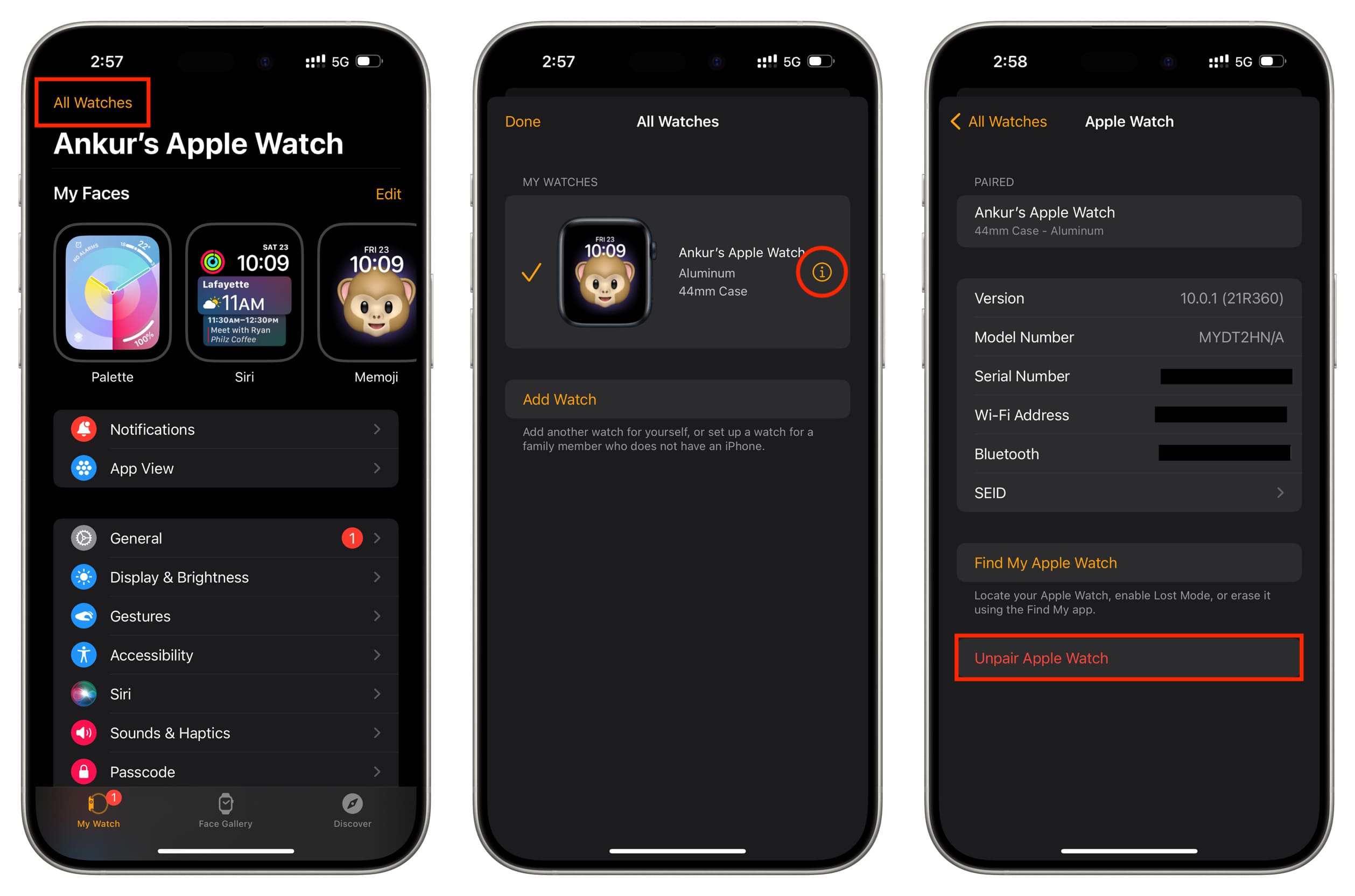
If cleaning fails, re-pairing can resolve deep software conflicts.
How to Re-pair
- On iPhone → Watch app → General → Reset → Unpair Apple Watch.
- Wait for unpairing to complete.
- Set up the watch as new—don’t restore from backup yet.
- Test ECG before restoring data.
If ECG works, restore apps and settings selectively. This step fixed ECG issues for users who had tried everything else.
Factory Reset as Last Resort
Erase all content and settings to eliminate software corruption.
On Apple Watch
- Settings → General → Reset → Erase All Content and Settings.
- Enter passcode.
- Confirm erase.
- Re-pair and test ECG.
Note: This removes all apps, data, and settings. Only use if other fixes fail.
Check for Hardware Failure
If nothing works, the Digital Crown or back sensor may be damaged.
Signs of Hardware Issues
- Crown feels sticky or loose
- No response even after deep cleaning
- Multiple watches fail simultaneously (reported by cardiologist user with Series 8 and Ultra)
- Apple’s internal button test detects resistance or noise
Visit Apple Support
- Under warranty: Apple may replace the watch for free.
- Out of warranty: Repairs cost $400–$800.
- Request diagnostics—Apple uses internal tools to test crown and sensor health.
User Experience: Buttwax_ was denied help after 2 years—ECG still non-functional.
Use Credit Card Warranty
If Apple denies repair, check your credit card’s extended warranty.
- Some cards (e.g., Amex, Chase) offer 1–2 years of additional protection.
- iReadECGs successfully used this to get a refund for a non-functional watch.
Contact your card issuer with proof of purchase and repair denial.
Avoid Future ECG Failures
Prevent recurrence with these habits.
Clean Monthly
- Wipe Digital Crown and back sensor with alcohol-dampened cloth.
- Use dental floss method every 3–6 months.
Keep Skin and Watch Dry
- Remove watch after swimming or heavy sweating.
- Dry under the crown and band area.
Update Software Promptly
- Install watchOS updates to avoid bugs.
- Avoid beta software unless necessary.
Summary: Fix Apple Watch ECG Fast
Step-by-Step Action Plan
- Verify ECG settings and region support
- Restart both iPhone and Apple Watch
- Disable AssistiveTouch on iPhone
- Clean Digital Crown and sensors (use dental floss + 99% alcohol)
- Improve finger contact (moisten fingertip, warm hands)
- Re-pair Apple Watch as new
- Factory reset if needed
- Contact Apple Support for hardware check
- Use credit card warranty if out of warranty
Final Note
The Apple Watch Series 9 ECG not working is a real and recurring issue—not user error. While Apple remains silent, cleaning and settings tweaks fix most cases. If hardware is faulty, push for support using diagnostics and extended warranties. Submit feedback directly to Apple via their official form to help drive a long-term fix.
You’re not alone—and with the right steps, your ECG function can come back to life.





