

You charge your Apple Watch overnight, only to see it drop to 20% by midday. If your Apple Watch is losing battery fast, you’re not alone. Thousands of users report rapid drain—sometimes dropping into Power Reserve mode in under 12 hours—despite normal usage. While Apple claims up to 18 hours of battery life (36 on Ultra models), real-world performance often falls short due to hidden settings, background apps, or aging hardware.
The good news? Most cases of fast battery drain are fixable. This guide reveals 20 proven fixes backed by Apple’s specs, user reports, and technical diagnostics. From simple toggles to advanced resets, you’ll learn how to diagnose the cause, extend daily life, and preserve long-term battery health—all without needing a replacement… yet.
Fix the Display Settings
The screen is the biggest power draw on your Apple Watch. Tweaking how it behaves can dramatically improve battery life.
Turn Off Always-On Display
The Always-On Display (Series 5 and later) keeps your watch face visible even when your wrist is down. While convenient, it constantly powers the screen and increases brightness when raised—draining battery fast.
How to fix:
1. Open Settings on your Apple Watch.
2. Tap Display & Brightness.
3. Toggle Always On to Off.
⚠️ This single change can extend battery life by 30–40%. Re-enable only when needed.
Lower Screen Brightness
Running at full brightness isn’t necessary for daily use and significantly increases power consumption.
How to fix:
– Swipe up for Control Center, then drag the brightness slider down.
– Or go to Settings > Display & Brightness and set brightness to 40–50%.
Use Auto-Brightness if you frequently move between indoor and outdoor lighting.
Reduce Wake Duration
By default, the screen stays on for 70 seconds after waking. That adds up with dozens of daily glances.
How to fix:
1. Go to Settings > Display & Brightness > Wake Duration.
2. Change from 70 Seconds to 15 Seconds.
You’ll save power without sacrificing usability.
Disable Raise to Wake
Every time you lift your wrist, the screen lights up—even if you’re not checking anything.
How to fix:
– Settings > Display & Brightness > Raise to Wake > Off
Now, tap the screen or press a button to wake it instead.
Use a Simple Watch Face
Complicated faces with live updates (e.g., weather, stocks, animations) refresh constantly, using extra energy.
Best practice:
– Choose static, dark-themed faces like Simple, Activity Analog, or Solar.
– Avoid faces with real-time data if battery life is critical.
OLED screens turn off black pixels—so darker = less power.
Optimize Connectivity
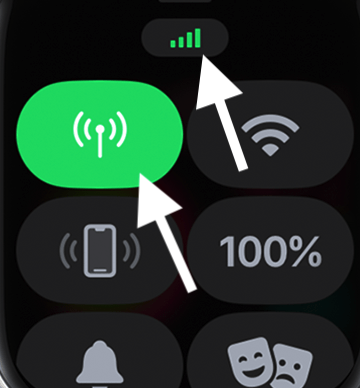
Your Apple Watch uses Bluetooth, Wi-Fi, and cellular to stay connected. But these radios consume power, especially when struggling to maintain signal.
Keep iPhone Nearby for Bluetooth
Bluetooth uses the least power when your iPhone is within range (about 30 feet). When it’s out of reach, your watch switches to Wi-Fi or cellular—draining battery faster.
Tip: Carry your phone when possible, especially during long days away from a charger.
Avoid Unnecessary Cellular Use
If you own a GPS + Cellular model, the cellular radio can run in the background, searching for towers.
How to fix:
– Swipe up for Control Center.
– Tap the cellular icon to disable it.
– Or go to Settings > Cellular > Cellular and toggle off.
Only enable cellular when your iPhone isn’t with you.
Turn On Airplane Mode in Low-Signal Areas
In weak signal zones, your watch boosts radio power to stay connected—killing the battery.
How to fix:
– Swipe up > Tap Airplane Mode.
– Manually turn on Wi-Fi if needed for messages or updates.
This cuts cellular and Bluetooth until you disable it.
Ensure iPhone Bluetooth Is On
If Bluetooth is off on your paired iPhone, your Apple Watch will keep trying to reconnect—wasting energy.
Fix: Make sure Bluetooth is enabled on your iPhone at all times.
Stop Background App Drain

Apps running behind the scenes can silently sap your battery, even if you don’t open them often.
Disable Background App Refresh
This feature lets apps update content automatically, but many do so too frequently.
How to fix:
1. On your Apple Watch: Settings > General > Background App Refresh > Off
2. Or on iPhone: Open Watch app > General > Background App Refresh > Off
You’ll still receive notifications—just not constant background syncing.
Check Battery Usage by App
Find out which apps are guzzling power.
How to check:
1. On iPhone: Open Watch app > Battery.
2. View Last 24 Hours or Last 10 Days.
3. Look for apps with disproportionate usage.
Action: Delete or restrict apps that use more than 15–20% per day with little use.
Limit Notifications
Each alert wakes the screen, triggers haptics, and plays sound—all draining power.
How to fix:
1. On iPhone: Open Watch app > Notifications.
2. Disable alerts for non-essential apps (e.g., social media, games).
3. Allow only calls, messages, health alerts, and calendar.
Fewer pings = longer battery life.
Reduce Sensor and Workout Drain
Fitness tracking is core to Apple Watch, but constant sensor use eats battery.
Turn Off Automatic Workout Detection
If you don’t exercise daily, this feature checks for movement every few minutes.
How to fix:
– Settings > Workout > Automatic Workout Detection > Off
Start workouts manually when needed.
Enable Workout Power Saving Mode
On newer models (Series 8+, SE 2nd gen, Ultra), this reduces GPS and heart rate sampling during walks, runs, or hikes.
How to enable:
– Settings > Workout > Fewer GPS and Heart Rate Readings > On
Ideal for casual tracking where precision isn’t critical.
Disable Blood Oxygen Monitoring
Overnight SpO2 scans use sensors continuously, causing high overnight battery drain.
How to fix:
1. On Apple Watch: Settings > Privacy > Health > Blood Oxygen > Off
2. Also disable in Sleep app if enabled.
Only turn it back on if you rely on health monitoring.
Update and Reset the System

Software bugs or glitches can cause unexpected battery drain—especially after updates.
Update to Latest watchOS
Apple regularly patches battery issues. For example, watchOS 11.0.1 fixed major drain problems reported after 11.0.
How to update:
1. On iPhone: Open Watch app > General > Software Update.
2. Ensure watch has 50%+ charge and is on charger.
3. Download and install.
Wait 2–3 days after any major update—background indexing can cause temporary high usage.
Restart Weekly
A simple restart clears stuck processes and resets connectivity.
How to restart:
1. Press and hold Side Button.
2. Slide to Power Off.
3. Wait 30 seconds, then press side button to turn back on.
Do this weekly for best performance.
Recalibrate the Battery
Over time, the battery percentage display becomes inaccurate. A full recalibration helps.
How to recalibrate:
1. Use the watch until it shuts down (0%).
2. Charge uninterrupted to 100%.
3. Keep it plugged in for an extra 60 minutes.
Improves accuracy and may stabilize power reporting.
Manage Siri, Haptics, and Audio
Small features add up. Turning off non-essential feedback saves meaningful power.
Turn Off “Hey Siri”
Listening for “Hey Siri” keeps the microphone and processor active 24/7.
How to fix:
– Settings > Siri & Search > Listen for ‘Hey Siri’ > Off
You can still activate Siri by pressing the Digital Crown or side button.
Reduce Haptic Strength
Strong vibrations use more power than subtle ones.
How to fix:
– Settings > Sounds & Haptics > Haptic Strength > Set to 1 or 2
You’ll still feel alerts, but with less drain.
Use Bluetooth Headphones, Not Speaker
Playing audio through the built-in speaker (e.g., calls, music) drains battery quickly.
Best practice: Always use AirPods or Bluetooth headphones for calls and audio.
Protect Battery Health Long-Term
Even with perfect settings, battery capacity degrades over time. But smart habits can slow it down.
Avoid Extreme Temperatures
Lithium-ion batteries hate heat and cold:
– Above 95°F (35°C): Causes permanent damage.
– Below 32°F (0°C): Temporarily reduces performance.
Tips:
– Don’t leave your watch in a hot car.
– Avoid direct sunlight while charging.
– Remove thick cases during charging to prevent overheating.
Charge Smartly
Poor charging habits accelerate wear.
Do:
– Charge nightly to avoid deep discharges.
– Use original or MFi-certified chargers.
– Plug into wall adapter (not computer USB).
Don’t:
– Leave at 0% or 100% for days.
– Charge while wearing during intense workouts.
Lithium-ion prefers partial cycles (e.g., 40% to 80%) over full swings.
When to Replace the Battery
If you’ve tried everything and your Apple Watch still dies by lunchtime, it may be time for a new battery.
Check Battery Health
Apple Watch shows battery health directly.
How to check:
– Settings > Battery > Battery Health
– Look at Maximum Capacity
| Status | Action |
|---|---|
| 80% or higher | Normal; optimize settings |
| Below 80% | Battery needs service |
| “Service Recommended” | Book replacement |
Apple considers <80% degraded and eligible for replacement under AppleCare+.
Know the Cost
Out-of-warranty replacements cost:
– $99 in the U.S.
– £79–£99 in the UK (cheaper at independent shops like iWatchRepair.co.uk)
Important: Never attempt DIY battery replacement. The unit is glued and sealed—risking water damage and display issues.
Try These Last-Resort Fixes
When software tweaks fail, deeper resets can resolve hidden bugs.
Unpair and Re-Pair
This clears deep system glitches without losing data.
Steps:
1. Back up your watch via iCloud or iPhone.
2. On iPhone: Open Watch app > My Watch > Tap (i) > Unpair Apple Watch.
3. Wait for backup to complete.
4. Set up as new, then restore from backup.
Many users report dramatic improvement after this step.
Factory Reset
Last resort before service.
How to reset:
– Settings > General > Transfer or Reset Apple Watch > Erase All Content and Settings
– Re-pair from scratch.
Only do this if other fixes fail.
User-Reported Fixes That Work
Real users have found unexpected solutions that Apple doesn’t officially document.
Overnight Power-Off Trick
Reported by user kandaq (Series 4), confirmed by others:
Steps:
1. Power off the watch.
2. Leave it off overnight (6–8 hours).
3. Charge to 100%.
4. Use normally.
Result: Restored >24-hour battery life in multiple cases.
May clear stuck background loops or sensor processes.
Full Reset After Update
User ddpacino (Series 8) noticed drain after watchOS update. Tried app removal and settings changes—no fix.
Solution: Full reset and re-setup.
Outcome: Drain stopped completely.
Suggests some updates corrupt background services.
Follow These Best Practices Daily
Prevent future drain with consistent habits.
| Practice | Why It Helps |
|---|---|
| Charge nightly | Prevents deep discharge cycles |
| Use Low Power Mode when needed | Disables non-essentials instantly |
| Disable unused features | Always-On, Noise, SpO2 all add up |
| Limit background apps | Stops silent syncing |
| Keep software updated | Patches known bugs |
| Use dark, simple faces | Saves OLED power |
| Wear with iPhone nearby | Keeps low-power Bluetooth active |
Final Checklist: 20 Fixes That Work
| # | Fix | Where to Apply |
|---|---|---|
| 1 | Turn Off Always-On Display | Settings > Display & Brightness |
| 2 | Lower Brightness (40–50%) | Control Center or Settings |
| 3 | Reduce Wake Duration to 15s | Settings > Display & Brightness |
| 4 | Disable Raise to Wake | Settings > Display & Brightness |
| 5 | Enable Low Power Mode | Control Center or Settings |
| 6 | Turn Off Background App Refresh | Settings > General |
| 7 | Limit Notifications | Watch app > Notifications |
| 8 | Use Wi-Fi Instead of Cellular | Control Center |
| 9 | Turn Off “Hey Siri” | Settings > Siri & Search |
| 10 | Reduce Haptic Strength | Settings > Sounds & Haptics |
| 11 | Disable Noise Monitoring | Settings > Privacy > Health |
| 12 | Turn Off Blood Oxygen | Settings > Privacy > Health |
| 13 | Avoid GPS for Indoor Workouts | Workout app settings |
| 14 | Use Simpler Watch Faces | Edit Watch Face |
| 15 | Restart Weekly | Side Button > Power Off |
| 16 | Update to Latest watchOS | Watch app > Software Update |
| 17 | Remove High-Usage Apps | Watch app > Battery |
| 18 | Unpair and Re-pair | Watch app > Unpair |
| 19 | Recalibrate Battery (0% to 100%) | Drain fully, then charge fully |
| 20 | Replace Battery if Health <80% | Apple Store or Authorized Service |
Implementing all 20 steps can extend usable battery life by 30–50%.
What to Do Next: Decision Tree
Still losing battery fast? Follow this flow:
- Check Battery Health → Below 80%? → Replace battery.
- Drain started after update? → Wait 48 hours → Update to latest patch.
- One app using most power? → Delete or restrict it.
- Sudden drain with no changes? → Try overnight power-off or restart.
- No improvement? → Unpair and re-pair.
- Still draining? → Contact Apple Support for hardware diagnosis.
Final Note: Fast battery drain on Apple Watch is rarely permanent. Most cases stem from settings, apps, or software—not hardware. By systematically applying these fixes, you can reclaim hours of daily use and delay costly replacements. Start with display and connectivity tweaks, then dig deeper if needed. Your watch wasn’t designed to die by noon—and with the right care, it won’t.





