You’re not imagining it—your Apple Watch shows Wi-Fi is connected, but apps like Weather, Messages, or Siri aren’t working. Even worse, you might be stuck in a loop during setup with the dreaded “Unable to verify update” or “No internet connection” error. This isn’t a random glitch. It’s a well-documented issue rooted in Wi-Fi band mismatches, Bluetooth routing conflicts, and hidden app interference—not hardware failure.
The good news? Thousands of users have solved this exact problem using targeted fixes that go beyond Apple’s basic “restart both devices” advice. Whether you’re setting up a new Apple Watch, updating an older model, or troubleshooting daily connectivity, this guide delivers the real-world solutions that actually work—backed by user reports, technical testing, and deep-dive network analysis.
Fix Wi-Fi Band Conflicts Causing Connection Failures

Many users don’t realize their router is silently blocking their Apple Watch. The culprit? Dual-band Wi-Fi networks that merge 2.4GHz and 5GHz under one name. While modern smartphones handle this seamlessly, older Apple Watch models can only connect to 2.4GHz networks.
Know Your Apple Watch’s Wi-Fi Band Limits
| Apple Watch Model | Wi-Fi Supported |
|---|---|
| Series 5 and earlier | 2.4GHz only |
| Apple Watch SE (1st gen) | 2.4GHz only |
| Series 6 and later | 2.4GHz + 5GHz |
| Ultra and newer | 2.4GHz + 5GHz |
Even if your model supports 5GHz, initial setup and software updates require a stable 2.4GHz signal. If your router uses band steering, it may force your watch onto the 5GHz band—where it can’t connect.
Split Your 2.4GHz and 5GHz Networks
Merging bands under one SSID (e.g., HomeWiFi) confuses older Apple Watches. The fix: separate them.
Steps:
1. Access your router’s admin page (usually 192.168.1.1 or 192.168.0.1)
2. Navigate to Wireless Settings or Dual-Band Control
3. Disable band steering or SSID merging
4. Rename your networks:
– 2.4GHz → HomeWiFi_2G
– 5GHz → HomeWiFi_5G
5. Save and reboot your router
Now, connect your iPhone to HomeWiFi_2G before pairing or updating your Apple Watch. This ensures your watch inherits the correct network and avoids 5GHz dead ends.
Pro Tip: Set your 2.4GHz network to Channel 1, 6, or 11 to reduce interference from neighboring Wi-Fi signals. Auto-channel selection can cause instability, especially in dense neighborhoods.
Stop Bluetooth from Blocking Wi-Fi Handoff
Here’s a little-known fact: your Apple Watch will always try to use your iPhone for internet, even when Wi-Fi is available. If Bluetooth stays active, the watch won’t switch to its own Wi-Fi connection—even if it’s joined the network.
Disable Bluetooth Completely (Not Just in Control Center)
Tapping the Bluetooth icon in Control Center only toggles it “off” visually. Background services can still prevent Wi-Fi independence.
Fix:
1. On iPhone, go to Settings > Bluetooth
2. Tap the switch to turn it off completely (gray)
3. Wait 10 seconds
4. Re-enable Bluetooth if needed
This forces the Apple Watch to attempt a direct Wi-Fi connection.
Test True Wi-Fi Independence
To confirm your watch works without the iPhone:
- Enable Airplane Mode on iPhone
- On Apple Watch, swipe up for Control Center
- Check for the Wi-Fi icon (top-left)
- Ask Siri: “What’s the weather?”
If Siri responds or apps load, your watch is online independently. If not, revisit Wi-Fi and Bluetooth settings.
Delete Security Apps That Block Wi-Fi Handoff
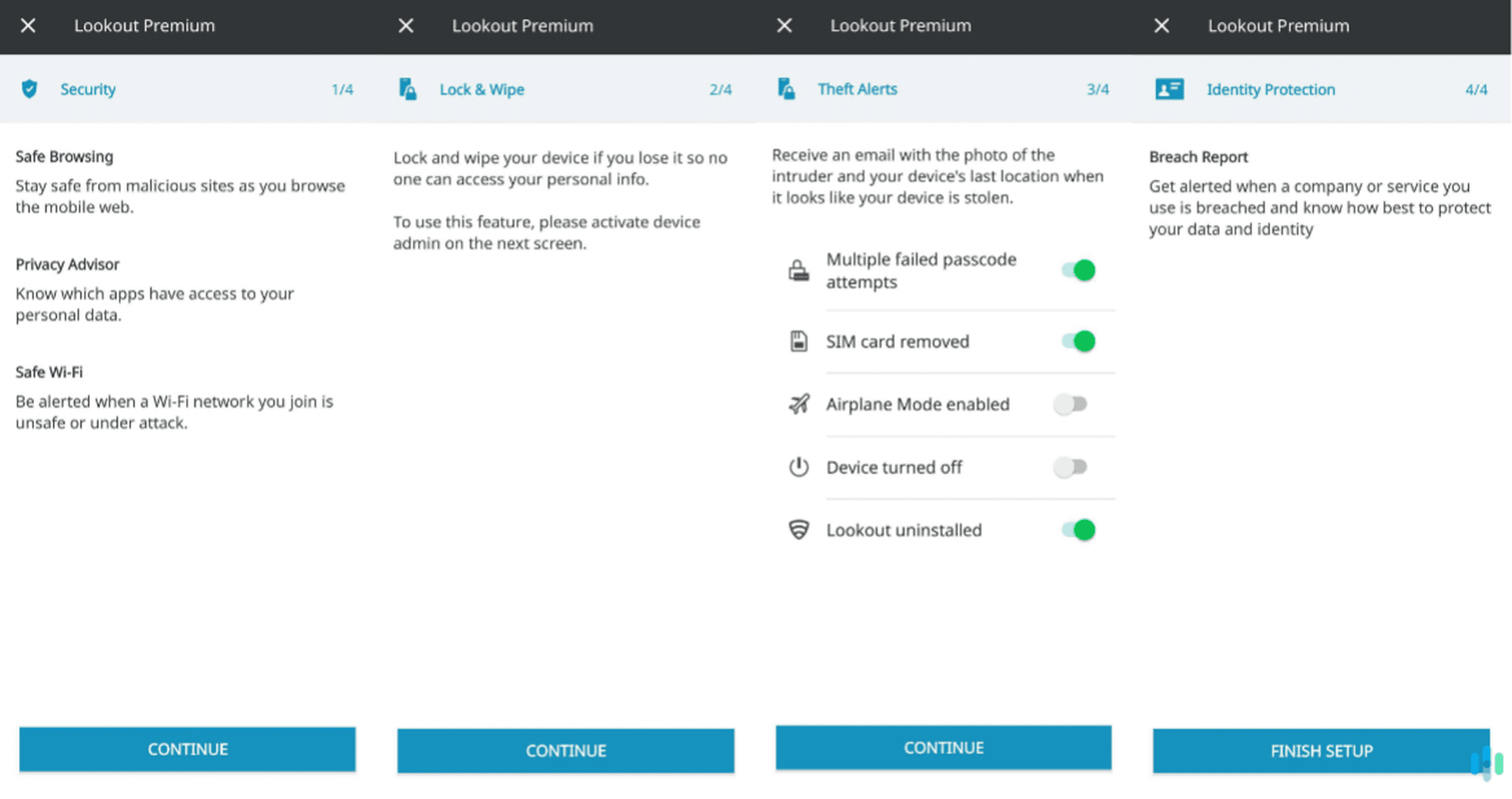
Third-party apps—especially security and privacy tools—can silently block Wi-Fi credential sharing between your iPhone and Apple Watch.
Remove Known Problematic Apps
Verified blockers include:
– Lookout Security
– T-Mobile ID Protect
– Enterprise VPNs
– Background-access messaging apps
One user reported: After uninstalling Lookout, my Apple Watch connected to Wi-Fi instantly. When I reinstalled it, the issue returned.
Fix:
1. Delete suspected apps from iPhone
2. Go to Settings > Wi-Fi
3. Tap the (i) next to your network
4. Tap Forget This Network
5. Reconnect to 2.4GHz Wi-Fi
6. Restart both iPhone and Apple Watch
7. Re-pair the watch
Prevention Tip: Avoid installing security apps during initial setup or major updates. Add them only after your watch is fully paired and online.
Prepare for Setup or Update: Avoid Common Failures
Failed updates are a major trigger for “no internet” errors. Fix the foundation first.
Update iPhone to Latest iOS
Your iPhone must support the latest watchOS version.
Steps:
1. Open Settings > General > Software Update
2. Install any pending updates
3. Restart iPhone
Apple Watch setup can fail if your iPhone is more than one iOS version behind.
Use Airplane Mode for Stable Pairing
Eliminate interference from cellular and background apps.
Steps:
1. On iPhone, enable Airplane Mode
2. Manually turn on Wi-Fi and Bluetooth
3. Connect to your 2.4GHz network
4. Open the Watch app
5. Start pairing
This keeps the connection clean and focused.
Factory Reset and Manually Pair Your Apple Watch
If your watch won’t connect, start fresh.
Perform a Full Factory Reset
Warning: Do not enter DFU mode (red exclamation mark). That’s for recovery, not setup.
Steps:
1. Hold Side Button to power off
2. After shutdown, press and hold Digital Crown + Side Button
3. Release at Apple logo, then keep holding Side Button only
4. Tap Erase All Content and Settings when it appears
Wait for the watch to reboot to the setup screen.
Pair Manually Instead of Using Camera
The camera method often fails due to lighting or Bluetooth issues.
Better method:
1. Open Watch app on iPhone
2. Tap Pair Apple Watch Manually
3. Enter the 6-digit code shown on your watch
You’ll have more control and avoid handshake errors.
Fix Mesh Network Connectivity Issues

In multi-node systems (Eero, Orbi, Asus AiMesh), your iPhone and watch may connect to different nodes, breaking handoff.
Force Both Devices to the Same Node
Steps:
1. Place iPhone and Apple Watch within 3 feet of one mesh node
2. Reboot both devices
3. On iPhone, go to Settings > Wi-Fi
4. Confirm connection to your 2.4GHz network
5. Re-pair Apple Watch
One user fixed a months-long issue by ensuring both devices were on the same Orbi satellite.
Tip: Use a Wi-Fi analyzer app to see which node each device is using.
Advanced Fixes: When Nothing Else Works
Reset Network Settings on iPhone
Clears corrupted Wi-Fi, Bluetooth, and cellular profiles.
Steps:
1. Settings > General > Transfer or Reset iPhone
2. Tap Reset > Reset Network Settings
3. Enter passcode
4. Reconnect to 2.4GHz Wi-Fi
5. Re-pair Apple Watch
This won’t delete your data but will erase saved networks and VPNs.
Factory Reset iPhone (Clean Setup)
Some backups carry hidden app conflicts.
Steps:
1. Back up iPhone (use encrypted backup)
2. Erase All Content and Settings
3. Set up iPhone as new device
4. Connect to 2.4GHz Wi-Fi
5. Pair Apple Watch
6. Test Wi-Fi
7. Restore backup
If the issue returns after restore, a specific app is likely the culprit.
Cellular Model Limitations: What You Need to Know
GPS + Cellular models can use LTE for daily internet—but not for setup or updates.
Key Limitations:
- Initial setup: Requires Wi-Fi
- watchOS updates: Must be downloaded over Wi-Fi (no cellular option)
- Daily use: Can switch to LTE when iPhone is out of range
User Frustration: One Apple Watch Ultra 2 owner said: “I have unlimited data and strong LTE, but Apple forces me to find Wi-Fi just to update.”
Apple enforces this to prevent data overages and ensure stable downloads.
Workaround: Always keep a 2.4GHz Wi-Fi network active at home or work for updates.
Prevent Future Internet Connection Issues
Use a Dedicated 2.4GHz Network
Name it clearly (e.g., AppleWatch_2G) and keep it running—even if you use 5GHz for everything else.
Avoid Public and Captive Portals
Apple Watch cannot log in to networks requiring:
– Browser sign-in (hotels, airports)
– Enterprise certificates
– MAC filtering
These show “Connected” but provide no real internet.
Test Wi-Fi Early
After pairing:
1. Enable Airplane Mode on iPhone
2. Check if watch can load Weather or respond to Siri
3. Fix issues before syncing data
Verified Solutions Summary
| Fix | Success Rate |
|---|---|
| Split 2.4GHz/5GHz SSIDs | High |
| Connect iPhone to 2.4GHz | High |
| Disable Bluetooth in Settings | High |
| Delete Lookout or security apps | High |
| Use Airplane Mode + manual Wi-Fi | Medium |
| Reset iPhone network settings | Medium |
| Factory reset iPhone + clean setup | High |
Final Checklist: Fix Apple Watch Not Connected to Internet
✅ Split 2.4GHz and 5GHz Wi-Fi networks
✅ iPhone connected to 2.4GHz SSID
✅ iPhone updated to latest iOS
✅ Bluetooth turned off in Settings (not Control Center)
✅ Security/VPN apps deleted temporarily
✅ Apple Watch factory reset
✅ Manual pairing (code entry) used
✅ Wi-Fi independence tested with Airplane Mode
✅ For stubborn issues: Reset iPhone network settings or perform clean setup
The “Apple Watch not connected to internet” error is almost never a hardware issue. It’s a network handoff failure caused by Wi-Fi band mismatches, Bluetooth dependency, or app interference. By following this guide, you’ll bypass Apple’s incomplete support advice and get your watch online—fast. Keep a 2.4GHz network active, avoid security apps during setup, and always test Wi-Fi independence early. With the right setup, your Apple Watch will stay connected, updated, and fully functional.
Leave a Reply