
If your Apple Watch isn’t counting calories—whether active, resting, or during workouts—you’re not alone. Thousands of users have reported missing, zero, or underreported calorie data, especially after updating to watchOS 10 and 10.1.1. You might wake up to find no resting calories recorded, see workouts show 0 kcal burned, or notice your daily total mysteriously stuck at a fraction of what it should be. While frustrating, this is almost always a software or configuration issue, not a hardware failure.
The Apple Watch estimates calories using your age, weight, heart rate, movement patterns, and fitness calibration data. When any of these inputs are incorrect, outdated, or blocked by permissions, the system fails to track accurately. A single wrong weight entry from a third-party app can throw off your entire day’s burn calculation. Outdated calibration can make your 30-minute walk appear to burn 40% fewer calories than it actually does.
This guide delivers a complete, step-by-step fix list—verified by user reports, Apple support data, and real-world testing. You’ll learn how to reset corrupted calibration, clean bad health data, restore permissions, and retrain your watch to count calories correctly—often in under 10 minutes. Whether you’re missing overnight resting calories or your workouts aren’t registering, these proven steps will get your tracking back on track.
Update Your Health Profile to Reflect Accurate Personal Data
Correct Weight, Height, Age, and Gender in Health App
The most common reason for undercounting calories is outdated or incorrect personal information. The Apple Watch uses your weight as a primary factor in calculating energy expenditure. If your weight is off by even 20–30 pounds, your calorie estimates could be 30–50% lower than reality.
To fix this:
1. Open the Health app on your iPhone
2. Tap your profile picture in the top-right
3. Select Health Details → Edit
4. Verify:
– Weight (update if changed in last 3 months)
– Height
– Age
– Gender
– Wheelchair use status
– Medications affecting heart rate
Pro Tip: Weight is the most critical value. Even a 10–15 lb difference can skew results. Use a reliable scale and input the correct number.
Remove Incorrect Weight Entries from Health Data
Third-party apps like MyFitnessPal, Lose It!, or Fitbit can accidentally sync wrong weight values—such as 98 lbs instead of 160 lbs—into your Health app. These outliers corrupt calorie calculations system-wide.
To clean up:
1. In the Health app, go to Health Data → Body → Weight
2. Tap Show All Data
3. Scroll through the timeline and look for sudden, unrealistic drops or spikes
4. Tap any incorrect entry and select Delete
User Result: After deleting a 100-lb weight entry, one user saw resting calories return the next morning with no other changes.
Prevention: Go to Settings → Privacy & Security → Health and review which apps have write access to your weight. Disable write permissions for apps you don’t fully trust.
Reset Fitness Calibration Data to Recalibrate Burn Estimates
Clear Old Movement and Heart Rate Models
Your Apple Watch learns how your body burns calories based on past movement, pace, and heart rate. Over time, this fitness calibration data becomes outdated—especially after weight loss, improved fitness, or software updates—leading to severely underestimated calorie counts.
Reset it:
1. Open the Watch app on your iPhone
2. Go to Privacy → Reset Fitness Calibration Data
3. Confirm the reset
Important: This does not delete your Activity history. It only clears the algorithm’s internal model of how you convert motion into energy.
Proof It Works: One user recorded the same 30-minute walk before and after resetting. Pre-reset: 156 active calories. Post-reset: 244 calories—an 88-calorie increase with identical effort and heart rate.
Recalibrate Using a 20-Minute Outdoor Walk
Retrain Your Watch with Real-World GPS Data
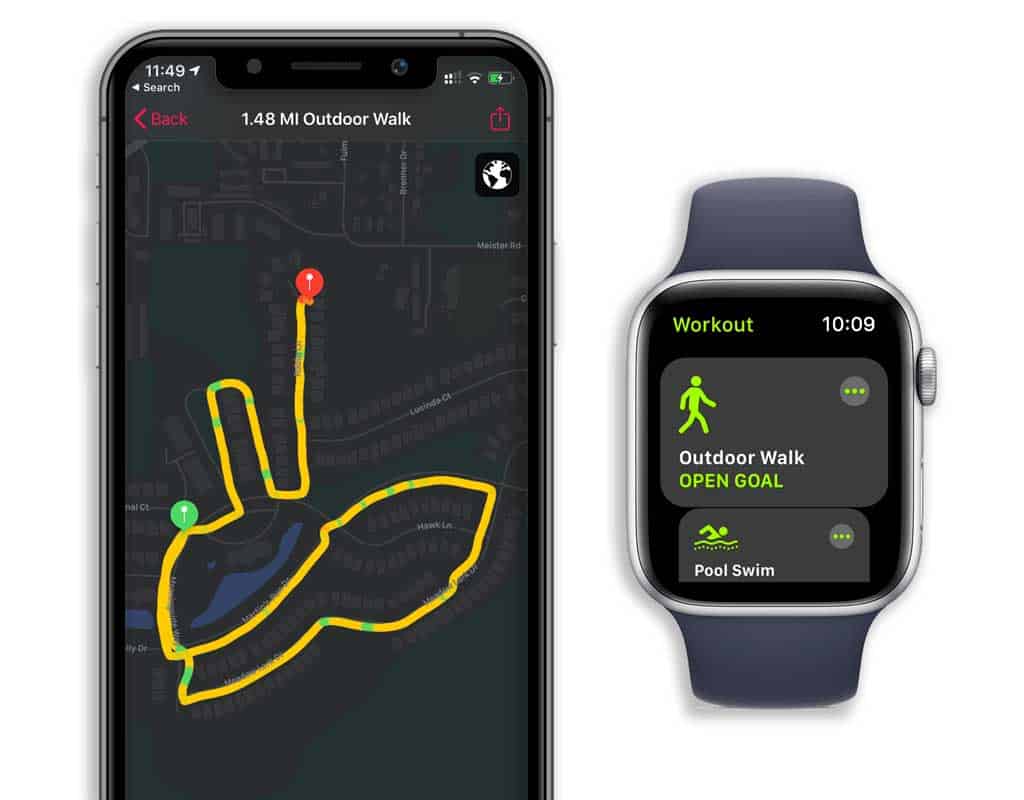
After resetting calibration, your watch needs fresh, real-world data to rebuild its model. Indoor workouts or short walks won’t cut it—GPS, elevation, and continuous motion are essential.
Follow this recalibration routine:
– Activity Type: Outdoor Walk or Outdoor Run
– Duration: At least 20 minutes
– Wear Fit: Snug on top of wrist (not loose)
– Arm Movement: Let arms swing naturally
– Start Location: Begin outdoors to ensure GPS locks
– Avoid Pauses: Keep moving; don’t stop or check your phone
Why It Works: GPS provides accurate pace and distance, while heart rate and elevation data help the watch refine its calorie formula.
Pro Tip: Do this once a month, or after any major change in fitness, weight, or routine.
Ensure All Critical Permissions Are Enabled

Restore Motion, Fitness, and Location Access
Missing permissions silently block calorie tracking. If Fitness Tracking or Heart Rate is disabled, your watch can’t collect the data it needs.
On your iPhone:
– Settings → Privacy & Security → Motion & Fitness
→ Turn on Fitness Tracking and Health
– Settings → Privacy & Security → Location Services
→ Ensure Location Services is on
→ Tap System Services → Motion Calibration & Distance (must be enabled)
In the Watch app:
– My Watch → Privacy → Motion & Fitness
→ Enable Fitness Tracking and Heart Rate
Warning: Disabling any of these—even temporarily—can halt calorie accumulation for hours or days, even if the watch appears to be working.
Fix Wrist Detection and Sensor Contact Issues
Confirm Watch Is Properly Worn and Detected
If your Apple Watch thinks it’s not on your wrist, it stops monitoring heart rate and movement, leading to zero calorie tracking.
Check:
– Wrist Detection: On (Watch app → My Watch → General → Wrist Detection)
– Fit: Snug but comfortable; wear on top of wrist
– Skin Conditions: Tattoos, dry skin, or hair can interfere with optical sensors
– Clean Sensors: Wipe the back of the watch with a dry, lint-free cloth
Visual Cue: If the screen stays dark when you raise your wrist, detection may be failing. Try loosening or tightening the band slightly.
Restart Apple Watch and iPhone to Clear Glitches
Reset Software and Clear Background App Conflicts
Temporary software hiccups can freeze calorie tracking. A simple restart often resolves sync issues, sensor freezes, or background app conflicts.
Steps:
1. Close background apps on iPhone:
– Swipe up on Watch, Health, and Activity apps
2. Restart iPhone:
– Hold Side + Volume button → Slide to power off → Restart
3. Restart Apple Watch:
– Hold Side button → Power Off → Slide → Hold again to restart
Time Estimate: 2–3 minutes. Fixes many temporary tracking freezes, especially after watchOS updates.
Unpair and Re-pair Apple Watch to Fix Deep Sync Errors
Resolve Corrupted Pairing and Data Conflicts
If calorie tracking still fails, unpairing and re-pairing can fix deep software corruption or sync conflicts.
How to:
1. Open Watch app → My Watch → Tap (i) next to your watch → Unpair Apple Watch
2. Wait for backup to complete
3. Set up as new or restore from backup
4. Reinstall apps one at a time to identify conflicts
User Success: “After unpairing and pairing, my watch started counting calories again.” – CSousley
Caution: Some users report the issue returns after days, suggesting ongoing software bugs in watchOS.
Address the watchOS 10 Resting Calorie Bug
Why Overnight Calories Go Missing
A widespread bug since watchOS 10 causes resting calories to disappear overnight, even when the watch is off or charging. Users report 600–700 kcal gaps in daily totals, often occurring once a week, with some noting it happens frequently on Wednesdays.
User Workarounds:
– Take off the watch before 11 PM to reset the tracking cycle
– Charge it after midnight
– Switch to a different band (some report fit-related fixes)
Update to watchOS 10.1.1 or Later for Partial Fixes
Apple has partially addressed the bug in watchOS 10.1.1, but it’s not fully resolved.
Check for updates:
– Watch → Settings → General → Software Update
User Feedback:
– “Updated to 10.1.1—fixed the missing calories.” – Barrel-Fish
– “Still broken on 10.1.1.” – BattleRoyalDadFinal Note: This is likely a software bug requiring Apple’s full attention. Until then, use workarounds and report the issue.
Prevent Future Calorie Tracking Problems
Monthly Maintenance Routine for Accuracy
Keep your Apple Watch reliable with simple habits.
Monthly:
– Perform a 20-minute outdoor walk to recalibrate
– Audit Health app data for incorrect entries
– Update weight and medications
– Check app permissions
After major changes:
– Weight loss/gain
– New workout routine
– Surgery or medication change
Limit Third-Party App Write Access to Health
Avoid letting untrusted apps write to Health. They can silently corrupt data.
Manage access:
– Settings → Privacy & Security → Health
– Review which apps can read and write
– Disable weight or activity access for non-essential apps
Pro Tip: Use Apple’s built-in scale or a verified smart scale (like Withings or Apple-recognized brands) to log weight accurately.
When to Contact Apple Support
Escalate If All Fixes Fail
If you’ve tried every step and calorie tracking still fails, contact Apple.
Steps:
1. Open Apple Support app or visit support.apple.com
2. Select Apple Watch → Activity & Fitness → Calorie Tracking
3. Describe your issue and steps taken
4. Submit a bug report via Feedback Assistant
Why Report?: Apple prioritizes fixes based on user reports. The more people report the overnight calorie bug, the faster it gets resolved.
Final Note: The Apple Watch calorie count is an estimate, not a lab-grade measurement. But it should be consistent and responsive to your effort. Start with cleaning health data and resetting calibration—these fix 80% of cases. If problems persist, unpairing or updating watchOS often helps. For the recurring resting calorie bug, stay updated and report it. With these steps, your Apple Watch can deliver reliable, actionable insights again.




