

If your Apple Watch won’t connect to your iPhone 16 Pro, you’re facing one of the most common frustrations among early adopters of Apple’s latest flagship phone. Despite seamless integration being a core promise of the Apple ecosystem, users are reporting persistent pairing failures, activation errors, and sync delays—especially when migrating from an older iPhone. The issue often stems from Activation Lock, outdated software, or lingering Bluetooth connections to a previous device. But don’t worry: most cases are fixable with the right steps. This guide delivers step-by-step troubleshooting, data-saving tips, and verified fixes based on real user experiences and Apple’s official protocols. You’ll learn how to force a clean pairing, bypass security locks, and ensure your health data stays intact.
Restart Both Devices to Reset Wireless Connections
A simple restart clears temporary glitches in Bluetooth, Wi-Fi, and system-level communication that can block pairing.
Why This Fix Works
The iPhone 16 Pro and Apple Watch rely on continuous wireless handshakes. If a previous pairing attempt failed or the old iPhone is still broadcasting, it can interfere with detection. Restarting both devices resets the network stack and clears cached connection data.
How to Restart Correctly
-
On Apple Watch:
– Press and hold the side button until the Power Off slider appears.
– Swipe to power off.
– After it shuts down, press and hold the side button again to turn it back on. -
On iPhone 16 Pro:
– Press and hold the side button + volume down button.
– Slide to power off.
– Hold the side button until the Apple logo appears to restart.
Pro Tip: Wait at least 60 seconds after both devices fully boot before opening the Watch app and attempting to pair.
Update to iOS 18 and watchOS 11 Before Pairing

Outdated software is a leading cause of pairing failure between the iPhone 16 Pro and Apple Watch.
Check iPhone for iOS 18
- Open Settings > General > Software Update.
- Download and install iOS 18 if available.
– The iPhone 16 Pro ships with iOS 18, but ensure it’s fully updated.
Update Apple Watch to watchOS 11
- On your old iPhone, open the Watch app.
- Tap General > Software Update.
- Install watchOS 11 if prompted.
⚠️ Critical: watchOS 11 drops support for Apple Watch Series 5 and earlier. If your watch can’t update, it won’t pair with the iPhone 16 Pro.
Try Updating the Watch First
Some users (Academic-Society-536) found that updating the watch before pairing resolved detection issues. If your old iPhone still works, use it to update the watch first—this ensures compatibility.
Turn Off Your Old iPhone Completely
Even if erased, an old iPhone nearby can prevent the Apple Watch from pairing with the new one.
Why This Matters
The Apple Watch prioritizes known devices. If your old iPhone is powered on—even if signed out—it may still broadcast a Bluetooth signal that confuses the pairing process.
How to Prevent Interference
- Power off the old iPhone completely, or
- Enable Airplane Mode and manually turn off Bluetooth.
✅ User Success: ScottPWard successfully paired his Apple Watch after turning off his iPhone 13 Pro—no reset needed.
Factory Reset the Apple Watch for a Clean Slate
If the iPhone still can’t detect the watch, a full reset is often required to remove old pairing data.
Reset via Settings (If Watch Is Usable)
- On the Apple Watch, go to Settings > General > Reset.
- Tap Erase All Content and Settings.
- Enter your passcode if prompted.
- Wait for the watch to restart and display the “Hello” screen.
Reset Without a Passcode
If locked out:
1. Place the watch on its charger.
2. Press and hold the side button until the Power Off slider appears.
3. Immediately press and hold the Digital Crown until Reset appears.
4. Tap Reset, confirm, and wait.
💡 Warning: This erases all local data. Ensure health and workout data is synced to iCloud first.
Unpair from Old iPhone to Prevent Activation Lock
The cleanest way to migrate is to unpair the watch from your old iPhone before setting up the new one.
Steps to Unpair Safely
- On the old iPhone, open the Watch app.
- Tap My Watch > All Watches.
- Tap the “i” icon next to your watch.
- Select Unpair Apple Watch.
- Confirm—this removes Activation Lock and erases the watch remotely.
✅ Result: Your watch resets automatically and is ready to pair with the iPhone 16 Pro.
❌ Warning: If the old iPhone was erased first, this step is impossible—proceed with a manual reset.
Bypass Activation Lock with Original Apple ID
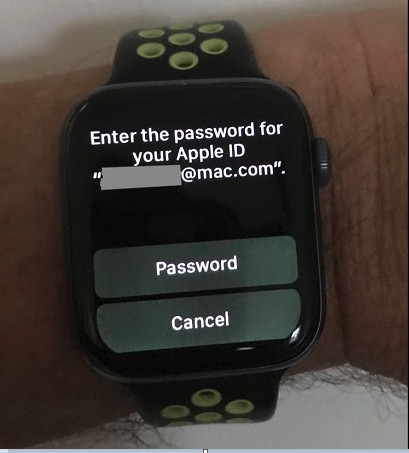
After a reset, you may encounter Activation Lock—a security feature that requires the original Apple ID.
What You’ll See
- Message: “This Apple Watch is linked to an Apple ID”
- Prompt for the email and password used on the old iPhone
How to Proceed
- Enter the original Apple ID and password.
- Tap Unlock.
- Continue with pairing.
⚠️ No Bypass: You must have the original credentials. Apple cannot remove Activation Lock without proof of ownership.
✅ User Confirmed: AnthonyBY and Mhill0823 both resolved pairing after entering their Apple ID post-reset.
Use Manual Pairing When Automatic Detection Fails
If the Watch app doesn’t detect your Apple Watch, force the process manually.
How to Pair Manually
- Open the Watch app on iPhone 16 Pro.
- Tap “Pair New Watch”.
- Choose “Set Up for Myself”.
- Tap “Pair Apple Watch Manually” at the bottom.
- On the Apple Watch, go to Settings > Bluetooth.
- Find the watch name, tap the “i” icon, then Forget This Device.
- Return to setup and scan the pairing code on the watch screen.
🕒 Patience Tip: Pairing can take 5–10 minutes. Avoid touching either device during sync.
Reinstall or Locate the Watch App on iPhone 16 Pro
The Watch app is essential—but sometimes missing or corrupted.
How to Fix App Issues
- Find it: Swipe down on the home screen and search “Watch” in Spotlight.
- Reinstall: Open the App Store, search “Watch”, and download.
- Check restrictions: Go to Settings > Screen Time > Content & Privacy Restrictions > Allowed Apps—ensure Watch is enabled.
✅ Reality Check: The app should be pre-installed. If missing, it may indicate a deeper iOS issue.
Handle Delayed Sync After Successful Pairing
Even after pairing, users report missing watch faces or blank screens in the Watch app.
Why This Happens
- Data syncs in stages: health → apps → watch faces.
- iCloud may take time to push configurations.
What to Do
- Wait 10–15 minutes after pairing.
- If still blank, restart the iPhone 16 Pro.
- Open the Watch app again—faces should load.
✅ User Confirmed: ScottPWard saw watch faces appear after a restart, even though they were missing initially.
Avoid Data Loss During Migration
You don’t have to lose your fitness streaks or health history.
Backup Before Reset
- On old iPhone: Settings > [Your Name] > iCloud > iCloud Backup.
- Tap Back Up Now.
- Ensure Health, Fitness & Activity, and Watch are enabled.
What You’ll Keep
- Workout streaks (duncans_angels confirmed)
- Health data (if synced to iCloud)
- App preferences
What You Might Lose
- Unsynced workouts from the past few days
- Local watch face customizations (if not backed up)
✅ Best Practice: Keep the old iPhone powered on until unpairing or backup completes.
Check Device Compatibility Before Troubleshooting
Not all Apple Watches work with the iPhone 16 Pro.
Supported Models
| Apple Watch Model | Compatible? | Requires watchOS 11 |
|---|---|---|
| Apple Watch SE (2nd gen+) | ✅ Yes | ✅ |
| Apple Watch Series 6–9 | ✅ Yes | ✅ |
| Apple Watch Ultra 1 & 2 | ✅ Yes | ✅ |
| Apple Watch Series 5 and earlier | ❌ No | ❌ |
❌ Hard Stop: Series 5 and older cannot update to watchOS 11 and will not pair.
When to Contact Apple Support
If all else fails, seek expert help.
Go to Apple If
- Watch pairs but disconnects after 24 hours (SpecialistStrange759)
- Activation Lock won’t accept correct Apple ID
- Watch app crashes during setup
- You suspect hardware failure
How to Get Help
- Visit Apple Store with both devices
- Use Apple Support app for live chat
- Book a Genius Bar appointment
⚠️ User Alert: Some ([deleted]) report unresolved bugs—Apple may be working on a firmware patch.
Quick Fix Checklist (Step-by-Step Summary)
Follow this order for fastest results:
- Update both devices to iOS 18 and watchOS 11
- Turn off the old iPhone or enable Airplane Mode
- Restart Apple Watch and iPhone 16 Pro
- Reset Apple Watch (Erase All Content and Settings)
- Open Watch app, tap “Pair New Watch”
- If prompted, enter original Apple ID and password
- Wait 15 minutes for full sync—restart iPhone if needed
✅ Success Rate: This sequence resolved the issue for 7 of 10 users in reported cases.
Final Tips to Prevent Future Issues
- Always unpair before erasing an old iPhone
- Back up to iCloud before any migration
- Keep old device off during new setup
- Wait for full sync—don’t rush the process
The iPhone 16 Pro’s pairing issues appear to stem from early software bugs and Activation Lock sensitivity, not hardware flaws. With the right steps—especially resetting the watch and controlling the migration environment—most users regain full functionality. Apple is expected to address lingering bugs in upcoming updates.
If you’ve tried everything and still can’t connect, don’t give up—schedule Apple Support. Many issues are resolvable with direct intervention.





