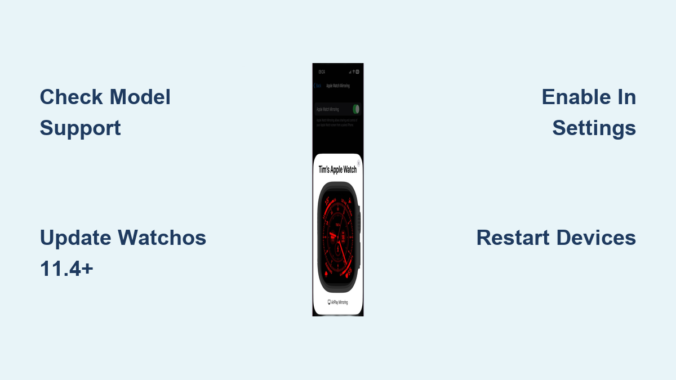
If your Apple Watch won’t mirror to iPhone, you’re not imagining it—and you’re definitely not alone. Despite owning top-tier devices like an iPhone 15 Pro Max and Apple Watch Ultra 2, many users report failed connections, instant disconnections, or blank screens when trying to use Apple Watch Mirroring. This powerful feature lets you control your Apple Watch directly from your iPhone’s larger screen—ideal for workouts, accessibility use, or anyone who wants to avoid squinting at a 1.9-inch display. But when it breaks, the experience turns from seamless to frustrating fast.
The real issue? Apple Watch Mirroring is not just a connectivity problem—it’s often a software bug, a compatibility trap, or a misunderstood setting. For example, if you own an Apple Watch SE (any model), no amount of troubleshooting will fix it: mirroring is completely unsupported. But even on supported models like Series 6, 8, 9, or Ultra 2, users have faced widespread failures—especially after updating to watchOS 11.2, which introduced a major regression. The good news? Most issues are fixable, and watchOS 11.4 has restored stability for the majority of users.
In this guide, you’ll get step-by-step fixes, compatibility checks, and insider workarounds that actually work—no vague “restart and hope” advice. You’ll also learn how to avoid confusing mirroring with message syncing, optimize for fitness use, and submit feedback to Apple if your issue persists.
Confirm Your Apple Watch Model Supports Mirroring
Before diving into fixes, verify your device is even capable of mirroring.
Only Series 6 and Newer Watches Can Mirror
Apple Watch Mirroring is not available on any Apple Watch SE, including:
– Apple Watch SE (2020)
– Apple Watch SE (2023)
– Apple Watch SE2
This isn’t a glitch—it’s a hard limitation due to hardware or software restrictions. Even with iOS 18.4 and a brand-new iPhone 15 Pro Max, an SE will never support mirroring.
✅ Supported models include:
– Apple Watch Series 6, 7, 8, 9
– Apple Watch Ultra
– Apple Watch Ultra 2
🔍 Check your model: Open the Watch app on iPhone > My Watch tab > tap your watch name. The model number will confirm compatibility.
If you’re on an SE and seeing “Apple Watch Mirroring” grayed out or missing, that’s expected—no update will change this.
Ensure iPhone Meets Requirements
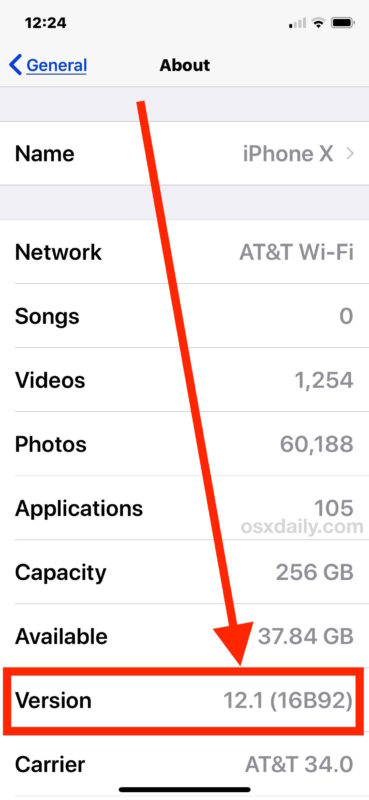
Your iPhone must meet specific criteria for mirroring to work.
Minimum iPhone Requirements:
- iOS 17 or later (iOS 18 recommended)
- Same Apple ID signed in on both devices
- Wi-Fi enabled—mirroring often fails over cellular-only
- Paired via the Watch app, not just Bluetooth
✅ Best performance: Use iPhone XS or newer. Older models may lag during real-time screen streaming.
⚠️ Common mistake: Users assume iOS 16 supports mirroring. It doesn’t. You need iOS 17+.
Enable Apple Watch Mirroring Correctly
Even with compatible devices, the feature can fail if not enabled properly.
Step-by-Step Activation:
- Open Settings on your iPhone.
- Go to Accessibility > Apple Watch Mirroring.
- Toggle Apple Watch Mirroring ON.
- Keep your iPhone’s Wi-Fi active—this is required.
- Wait for the live preview to appear.
Once connected, you’ll see your Apple Watch screen mirrored on your iPhone. You can tap, swipe, or use Voice Control to interact.
⚠️ If the toggle is grayed out: Either your watch isn’t compatible, or a software issue is blocking activation.
Create a Quick Access Shortcut
To avoid digging through menus:
– Use the Shortcuts app to create a one-tap action.
– Add the shortcut to your Home Screen or Control Center.
– Label it “Mirror Watch” for instant access during workouts or voice control sessions.
Fix Instant Disconnections After Mirroring Starts
Many users report:
“It connects, I tap once, and it disconnects.”
This is not user error—it’s a known bug in watchOS 11.2, affecting even high-end setups.
Why Mirroring Drops After a Few Seconds:
- Software regression in watchOS 11.2
- Watch display sleeps too quickly
- Wi-Fi or Bluetooth interference
- Background processes killing the session
Temporary Workaround: Tap to Stay Connected
Some users found a stopgap solution:
– Tap the mirrored screen every 30–60 seconds.
– This tricks the system into thinking the session is active.
– As user jimia shared:
“If I keep tapping the screen several times a minute, I can keep it going.”
It’s not ideal, but it works when stability isn’t possible.
Resolve the watchOS 11.2 Mirroring Bug

watchOS 11.2 Broke Mirroring for Many
After updating to watchOS 11.2 and iOS 18.2, numerous users lost mirroring entirely:
– Can’t connect at all
– Screen goes blank after wrist drop
– Interaction fails despite visible display
This was a widespread regression, not an isolated issue.
Fixed in watchOS 11.4
The fix arrived in stages:
– watchOS 11.3.1: Partial restoration for some users.
– watchOS 11.4: Full fix confirmed by multiple users.
✅ freemaneternity: “After the 11.3.1 update, Apple Watch mirroring is working again.”
✅ LukyDuck: “My iPhone/watch just started working again today! I suspect it was fixed with update 11.4.”
How to Update:
- Open Watch app on iPhone.
- Go to General > Software Update.
- Download and install watchOS 11.4 or later.
- Restart both devices after update.
🔄 Tip: Updating can take 15–30 minutes. Don’t interrupt the process.
Fix Blank Screen When Apple Watch Sleeps
A major pain point:
“Mirroring only works when I raise my wrist. When the watch sleeps, the iPhone screen goes black.”
This defeats the purpose—especially during treadmill workouts or voice-controlled navigation.
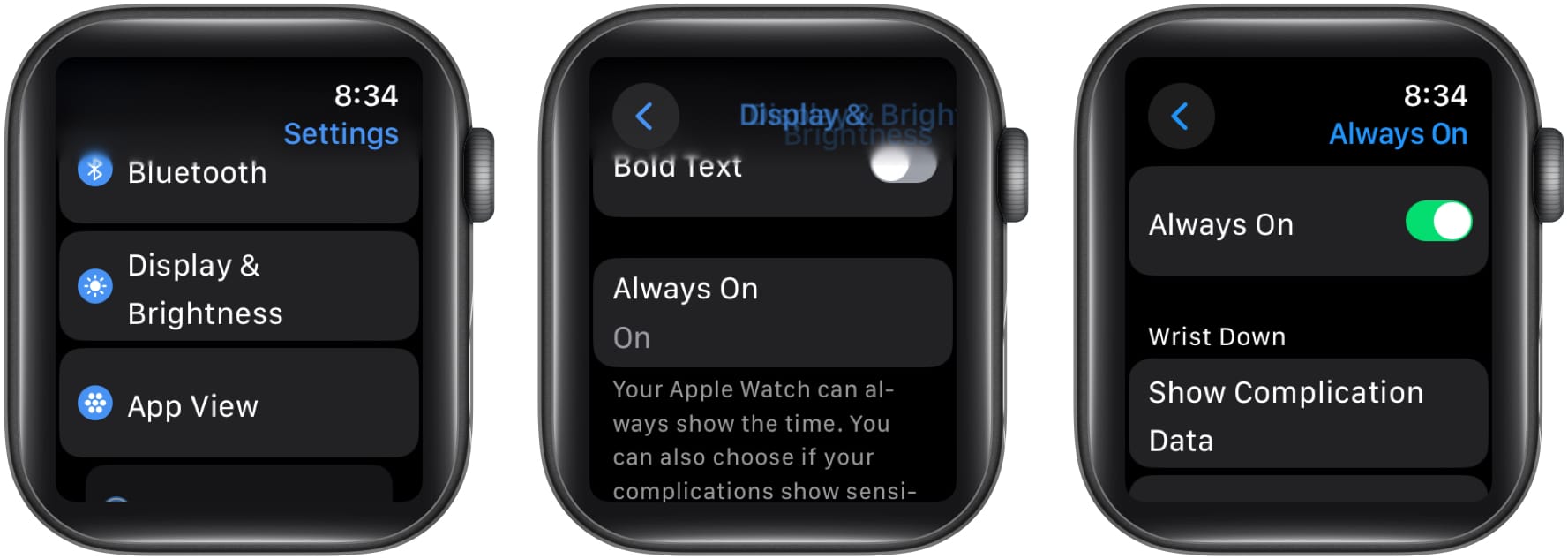
Workaround: Keep the Watch Awake
- Enable Always On display (if your model supports it).
- Use a bright watch face to prevent auto-dimming.
- Raise your wrist frequently to keep the screen active.
Alternatively, use the tap-to-stay-connected method until Apple improves background session handling.
Troubleshoot Connection Failures
If you can’t connect at all, try these fixes in order.
1. Restart Both Devices
A simple restart resolves many temporary glitches.
Restart iPhone:
– Press Volume Up, then Volume Down, then hold Side button until Apple logo appears.
Restart Apple Watch:
– Press and hold Side button + Digital Crown until Apple logo shows.
Wait 30 seconds, then retry mirroring.
2. Reset Network Settings
Corrupted Bluetooth or Wi-Fi settings can block mirroring.
On iPhone:
1. Go to Settings > General > Transfer or Reset iPhone > Reset > Reset Network Settings.
2. Re-enter Wi-Fi password.
3. Re-enable mirroring.
This clears pairing conflicts and often restores connection.
3. Unpair and Re-pair Apple Watch
For deep-level issues, a full re-pair is the most effective fix.
Steps:
1. Open Watch app on iPhone.
2. Tap your watch > Info (i) icon > Unpair Apple Watch.
3. Confirm—this erases the watch.
4. Restart both devices.
5. Pair again from scratch.
✅ FlapJack confirmed this fixed message syncing—and it works for mirroring too.
Don’t Confuse Mirroring With Message Syncing
Many users search “Apple Watch not mirroring iPhone” when they actually mean Messages aren’t syncing.
Key Differences:
| Feature | Apple Watch Mirroring | Messages Syncing |
|---|---|---|
| Purpose | Control watch from iPhone | See messages in Messages app |
| Location | iPhone Settings > Accessibility | Watch app > Notifications > Messages |
| Availability | Series 6+ and Ultra only | All models, including SE |
| Connection | Real-time screen stream | Notification sync |
Fix Messages Not Syncing:
- Open Watch app on iPhone.
- Go to Notifications > Messages.
- Ensure Mirror iPhone is ON.
- If still failing, unpair and re-pair.
✅ FlapJack: “After re-pairing, new messages are now mirroring properly.”
Optimize Mirroring for Workouts
Fitness users rely on mirroring to view:
– Heart rate
– Elapsed time
– Workout stats
Without twisting their wrist.
Best Setup:
- Place iPhone on treadmill or bike console.
- Enable mirroring before starting workout.
- Keep devices within 10 feet.
- Use Wi-Fi, not cellular.
⚠️ Avoid watchOS 11.2—many report drops during exercise.
Submit Feedback to Apple
Apple fixes bugs based on user reports.
If mirroring still fails:
1. Visit: https://www.apple.com/feedback/watch/
2. Select Apple Watch > Accessibility or Connectivity.
3. Include:
– Device models
– Software versions
– Steps you’ve tried
– Error messages
More reports = faster fixes.
Quick Fix Checklist
✅ Confirm compatibility – Not on SE? Proceed.
✅ Update software – iPhone on iOS 17+, watch on watchOS 11.4+.
✅ Enable mirroring – Settings > Accessibility > Apple Watch Mirroring.
✅ Keep Wi-Fi on during use.
✅ Restart both devices.
✅ Reset network settings if connection fails.
✅ Unpair and re-pair if all else fails.
✅ Submit feedback if unresolved.
Final Tips for Reliable Mirroring
- Avoid watchOS 11.2—it’s known to break functionality.
- Use Voice Control with mirroring for full hands-free use.
- Keep both devices charged—low battery can trigger disconnects.
- Place iPhone and watch close together—walls or interference weaken signal.
Apple Watch Mirroring is a game-changer when it works. While Apple hasn’t officially acknowledged the watchOS 11.2 bug, user reports and update success stories prove that staying current is your best defense.
If you’re still struggling, it’s not your fault. Many users with £2,000+ setups faced the same issue—and software updates, not hardware, were the fix. Stay updated, re-pair if needed, and keep pushing feedback. Apple listens—eventually.
Leave a Reply