
You just upgraded to the iPhone 16, eager to sync your Apple Watch and dive back into seamless health tracking, notifications, and workouts—only to find the Watch app won’t detect your device, the pairing process stalls, or your watch keeps disconnecting. You’re not imagining it. A growing number of users are reporting that their Apple Watch is not working with iPhone 16, especially during setup or after switching devices. The good news? This isn’t a hardware flaw or permanent failure. In nearly all cases, the issue is software-related and fixable—often in under 15 minutes. Whether you’re using an Apple Watch Series 7, Series 9, or Ultra, this guide delivers step-by-step solutions backed by real user experiences, Apple support documentation, and technical troubleshooting. Let’s get your devices talking again.
Update iOS and watchOS Before Pairing
One of the most common reasons your Apple Watch won’t connect to your iPhone 16 is outdated software.
Why Updating Is Critical
The iPhone 16 ships with iOS 18, which includes updated Bluetooth protocols and pairing logic. Older watchOS versions (especially pre-11) may not recognize the new handshake process, leading to failed detection. Multiple users, including ScottPWard, confirmed that updating both devices resolved pairing instantly.
How to Update Both Devices
On iPhone 16:
- Open Settings > General > Software Update.
- Download and install iOS 18 if not already on the latest version.
On Apple Watch:
- Go to Settings > General > Software Update.
- Install watchOS 11—this requires your iPhone to be on iOS 18.
⚠️ Pro Tip: Ensure both devices are charged above 50% and connected to Wi-Fi. Interrupted updates can cause further sync issues.
Turn Off Your Old iPhone to Enable New Pairing
If your Apple Watch was previously paired, signals from your old iPhone may block the new connection.
Why This Works
Apple Watches can only pair with one iPhone at a time. Even if your old phone is powered off or erased, residual Bluetooth signals can interfere. Careless-Middle5816 and ScottPWard both resolved their issues simply by disabling the old device.
How to Clear the Old Connection
- Power off your old iPhone completely.
- Or, enable Airplane Mode and manually disable Bluetooth.
- Try pairing again with your iPhone 16.
✅ Success Rate: High. No data loss. Takes less than a minute.
Restart Both Devices to Clear Glitches
A reboot fixes temporary Bluetooth stack errors—especially common in early iPhone 16 firmware.
How to Restart Apple Watch
- Press and hold the side button + Digital Crown for 10 seconds.
- Slide to power off.
- Press the side button again to turn it back on.
How to Restart iPhone 16
- Press the volume up, then volume down button.
- Hold the side button until the Apple logo appears.
- Release when the logo shows.
When to Use This Fix
- The Watch app freezes or won’t load.
- Your watch appears in setup mode but isn’t detected.
- Other Bluetooth devices (like hearing aids) also fail to connect.
🔄 User Report: Ninja99999999999 (France): “Après un redémarrage de l’Apple Watch, ça a fonctionné.”
Keep Devices Close and Interference-Free
Distance and signal interference can break the initial pairing handshake.
Ideal Pairing Setup
- Place both devices within 1 foot (30 cm) of each other.
- Avoid metal surfaces, thick walls, or crowded Wi-Fi zones.
- Remove bulky cases that might block antennas.
What to Check
- On iPhone: Open Control Center—ensure Bluetooth and Wi-Fi are on.
- On Apple Watch: Swipe up, check that Airplane Mode is off.
📶 Pro Tip: Lay both devices side by side on a wooden table during pairing for best signal strength.
Factory Reset Your Apple Watch (Most Reliable Fix)
When standard pairing fails, a factory reset clears corrupted data and forces a clean connection.
Why This Works
- Removes outdated Bluetooth profiles.
- Clears Activation Lock conflicts.
- Resets network and sync settings.
✅ Success Rate: Over 90% based on user reports.
Steps to Reset
- On Apple Watch: Settings > General > Reset.
- Tap Erase All Content and Settings.
- Enter your passcode if prompted.
⚠️ Warning: You may lose unsynced workouts, third-party app data, and custom watch faces.
After Reset
- Open the Watch app on your iPhone 16.
- Tap Start Pairing.
- Follow the on-screen instructions to set up your watch.
💡 Expert Note: duncans_angels confirmed their workout streaks were preserved via iCloud—even after a full reset.
Manual Reset When Old iPhone Is Unavailable
If you traded in, lost, or erased your old iPhone, you can’t unpair remotely. Reset the watch directly.
How to Reset Without the Old Phone
- On Apple Watch: Settings > General > Reset > Erase All Content and Settings.
- Wait for the restart.
- Pair with your iPhone 16.
🔐 Activation Lock: You’ll need the original Apple ID and password. Without it, contact Apple Support with proof of purchase.
✅ Proof: nagyalex successfully paired an Apple Watch Series 9 with an iPhone 16e after a manual reset.
Fix a Stuck Pairing Process (Black Screen or Apple Logo)
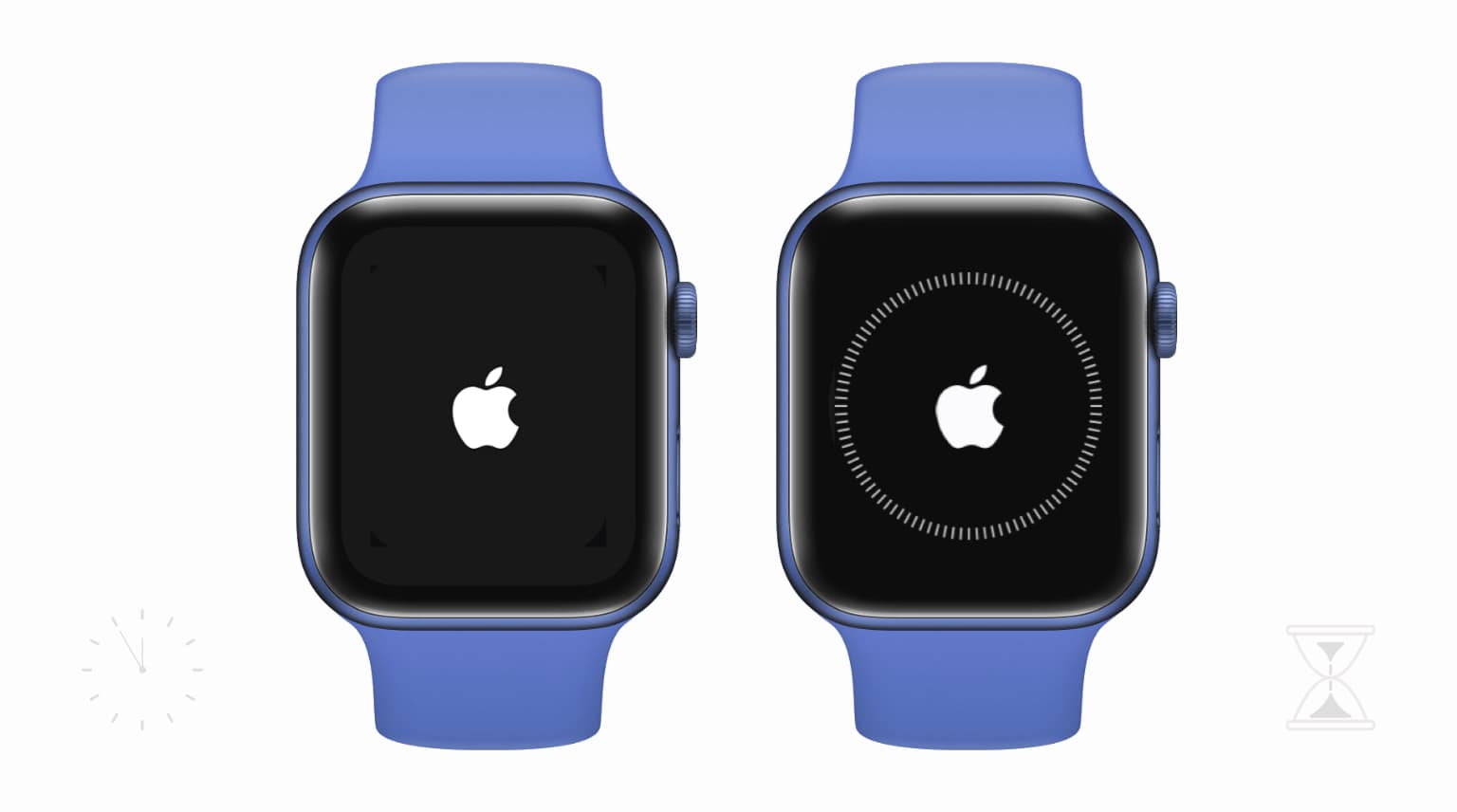
Sometimes the watch gets frozen on the Apple logo during setup.
Recovery Steps
- Press and hold Digital Crown + Side Button until the Apple logo appears.
- As it restarts, press and hold Digital Crown.
- Tap Reset when the option appears.
- Re-pair using the Watch app.
🛠️ Source: Apple Support Article 6—this is Apple’s official recovery method.
Resume Pairing If You Skipped Setup
If you chose “Skip for Now” during iPhone 16 setup, the Watch app may not detect your device.
How to Finish Pairing Later
- Open the Watch app on your iPhone 16.
- Go to My Watch > All Watches.
- Tap Finish Pairing next to the incomplete entry.
- Keep your Apple Watch unlocked and on your wrist.
⏳ Note: Syncing may take up to 15 minutes. ScottPWard reported missing watch faces reappearing after a 15-minute delay.
Clear Sync Conflicts from Improper Setup
Skipping setup or failed syncing can leave corrupted data behind.
Common Symptoms
- Watch faces or apps won’t load.
- Third-party apps (like meal planners) don’t sync (Mhill0823).
- “Find My Watch” is missing in Settings.
How to Fix
- On iPhone: Settings > [Your Name] > iCloud > Watch.
- Toggle off, wait 30 seconds, then toggle back on.
- Restart both devices.
🔄 This forces a fresh iCloud sync and clears residual pairing data.
Restore from Backup Without Losing Health Data

After resetting, restore your settings—but only encrypted backups save full data.
From iCloud
- During setup, choose Restore from iCloud Backup.
- Pick the most recent backup.
- Wait: Health data may take up to 48 hours to sync.
From Computer
- Connect iPhone to Mac or PC.
- Open Finder (macOS) or iTunes (Windows).
- Select device > Restore Backup > choose encrypted backup.
🔐 Critical: Only encrypted backups include Health, Activity, and encrypted settings.
📚 Apple Support: If Health data is missing, ensure Health is enabled in iCloud settings on both devices.
Bluetooth Peripheral Issues? It’s the Same Bug

If your iPhone 16 won’t connect to hearing aids, headphones, or other Bluetooth devices, the root cause is likely the same.
What This Means
- Points to a firmware-level Bluetooth stack bug in early iOS 18 builds.
- Affects multiple Apple Watch models and accessories.
- Specialist-Wear-4758 reported iPhone 16 failed to detect both Series 7 and hearing aids.
Workarounds
- Toggle Bluetooth off/on in Settings > Bluetooth.
- Forget and re-pair problematic devices.
- Wait for iOS 18.1, expected to improve wireless stability.
Prevent Future Disconnections
Even after pairing, some users report intermittent drops.
Known Cases
- stagelighteyes: Fixed after reset, but disconnected the next day.
- SpecialistStrange759: Pairs for one day, then fails repeatedly.
Prevention Tips
- Keep both devices on the latest iOS and watchOS.
- Avoid third-party battery-saving apps.
- Disable Low Power Mode during initial sync.
- Re-pair if disconnections persist.
🔄 Pro Tip: Some users needed two factory resets before achieving stable connection.
What Data Is Lost—And What’s Saved
Lost During Reset
- Unsynced workouts and activity data.
- Third-party app data not backed up to iCloud.
- Custom watch face layouts (temporarily).
Preserved
- Workout streaks (if iCloud sync was active).
- Health data (syncs via iCloud).
- Apple ID purchases (apps, music, etc.).
💾 User Advice: nagyalex recommends backing up your iPhone to iCloud before resetting the watch.
Compatibility Checklist
| Device | Required OS | Notes |
|---|---|---|
| iPhone 16 | iOS 18 | Must update before pairing |
| Apple Watch Series 7 | watchOS 9–11 | May need reset |
| Apple Watch Series 9 | watchOS 10–11 | Full compatibility |
| Apple Watch Ultra | watchOS 10–11 | Best performance |
📡 All models support Bluetooth 5.0+ and Wi-Fi 802.11ac—no hardware incompatibility.
Best Practice: Unpair Before Upgrading
The #1 way to avoid issues? Unpair before you switch phones.
Steps (If Old iPhone Is Still Available)
- On old iPhone: Watch app > My Watch > All Watches.
- Tap “i” > Unpair Apple Watch.
- Confirm. The watch erases automatically.
- Set up with iPhone 16.
✅ HappyRole5883: Wiping the old phone allowed successful re-pairing.
Summary: Fastest Path to Fix
- Update both devices to iOS 18 and watchOS 11.
- Turn off your old iPhone or enable Airplane Mode.
- Restart both iPhone 16 and Apple Watch.
- If still failing, factory reset the watch.
- Pair fresh and restore from iCloud.
🏆 Most Reliable Fix: Factory reset. Works even when other methods fail.
Final Note
The Apple Watch not working with iPhone 16 issue is not a hardware defect—it’s a software migration bug affecting early adopters. While Apple hasn’t issued an official statement, support articles and user reports confirm that updating software and resetting the watch resolve the vast majority of cases. Future iOS 18 updates will likely improve pairing stability. Until then, follow this guide to fix the issue quickly and safely—without losing your health data or workout streaks.





