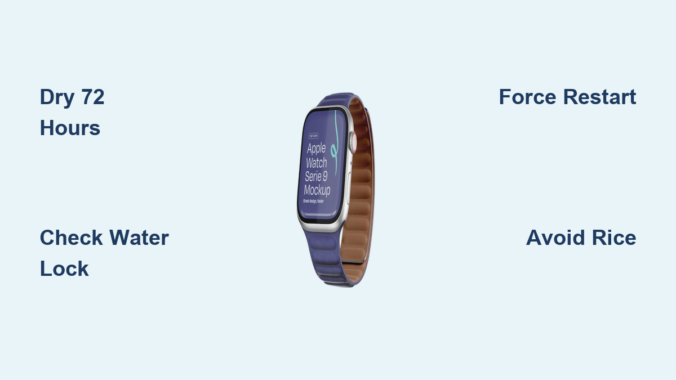
You finish your morning laps, proud of your 30-minute swim perfectly tracked by your Apple Watch—only to find the screen is completely black. No response. No haptics. No sign of life. Or worse: it’s stuck in an endless loop of the Apple logo, overheating when you plug it in, or even triggering SOS on its own. You followed all the rules—activated Swim Mode, stayed in shallow water, rinsed it afterward—yet your Apple Watch is now dead.
This isn’t rare. Users of Apple Watch SE, Series 4 through 9, and even early Ultra models have reported sudden, irreversible failures after swimming, despite using the devices within Apple’s own water-resistant guidelines. The hard truth? Water resistance is not waterproofing, and Water Lock does not protect against water ingress.
In this guide, you’ll learn exactly why your Apple Watch may have failed after swimming, how to troubleshoot it, what Apple will (and won’t) do, and your real options for recovery or replacement. We’ll break down symptoms, causes, fixes, and long-term prevention so you can decide whether to repair, replace, or switch brands.
Decode the Symptoms: Is Your Apple Watch Truly Dead?
Black Screen But Still Alive?
If your Apple Watch screen is dark but you still hear a chime when charging, feel a haptic tap, or see it appear connected in the Watch app on your iPhone, it’s not dead—it’s in a limbo state.
This usually means the logic board is still functional, but the display, digitizer, or a flex cable has been compromised by moisture or early-stage corrosion.
✅ Signs of life: Charging sound, haptic feedback, iPhone connection, Siri responding to “Hey Siri.”
❌ Don’t immediately force restart—if moisture is still inside, pressing buttons could short the system.
Give it 48–72 hours of thorough drying before attempting any restart.
Apple Logo Boot Loop: A Sign of Internal Damage

When your Apple Watch powers on, shows the Apple logo, then restarts repeatedly—sometimes heating up during charging—it’s likely suffering from boot process corruption due to water-related damage.
Common culprits:
– Corrosion on digitizer or NFC flex cables
– Damage to the motherboard
– Battery swelling disrupting internal connections
🔍 Red flags: Rapid flickering, colored screen glitches, or overheating during charging.
⚠️ If it gets hot, unplug immediately—this could signal a short circuit or failing power management IC.
Touch Unresponsive After Swim? It Might Be Water Lock
One of the most common “failures” is actually a simple software state: Water Lock is still active.
Apple Watch disables touch input during swimming to prevent accidental taps. After your swim, you must manually unlock it.
How to Exit Water Lock
- Press and hold the Digital Crown until the screen unlocks.
- Or, swipe up from the watch face to open Control Center, then tap the Water Lock icon to unlock.
💡 Pro tip: If the screen unlocks but touch remains unresponsive, moisture may be trapped under the display. Dry for 24+ hours and retry.
Why Your Apple Watch Failed After Swimming
Water Ingress Despite Water Resistance
Apple Watch is rated WR50 (50 meters) under ISO 22810:2010—suitable for shallow-water swimming, not diving or high-velocity water sports.
But water resistance degrades over time due to:
– Aging rubber seals that dry out and crack
– Wear on the crown shaft seal
– Back plate adhesive failure
– Micro-cracks from drops or pressure changes
Even a pinhole leak can let in enough water to corrode components over days.
🚨 Saltwater and chlorinated pools accelerate seal breakdown. One user’s Series 8 failed after just 3 months of pool use.
Battery Swelling Breaks Seals from the Inside
A swollen battery doesn’t just reduce performance—it pushes against internal components and can break the back plate seal from within.
This is especially common in Series 7 and 8, where users report the back glass lifting slightly after failure. Once the seal is compromised, water can enter even during handwashing.
🔧 Post-mortem findings: Swollen batteries linked to internal water ingress without external damage.
Corrosion Kills Critical Components
Even small amounts of water cause corrosion over time. Saltwater is 10x more corrosive than freshwater.
Key failure points:
– Crown flex cable – corrodes easily, kills input functions
– Microphone and speaker mesh – traps moisture
– Power button assembly – fails due to salt residue
– Motherboard connectors – corrosion prevents boot
🧪 Fact: Corrosion can continue for days after exposure, even if the watch appears dry.
Water Lock Doesn’t Prevent Water Entry
Many users believe Water Lock protects the device. It does not.
Water Lock only:
– Disables touch input
– Uses speaker vibrations to expel water after swimming
It offers zero physical protection. You can still get water inside—even with Water Lock enabled.
🧩 Myth busted: “I used Water Lock, so it should be safe.” → False. It’s a software feature, not a seal.
Immediate Recovery Steps (Do This Now)
Dry It Out Properly—Skip the Rice
Do NOT use rice. While some users report success, rice is ineffective and can introduce dust.
Instead:
1. Rinse under fresh water (if exposed to salt/chlorine)
2. Dry with a lint-free cloth
3. Shake gently to dislodge water from speaker/mic
4. Leave in a dry, ventilated area for 24–72 hours
5. Avoid heat sources—hair dryers, ovens, or sunlight can warp seals
🌬️ Best method: Place near a fan or dehumidifier—not too close.
Try a Full Drain and Recharge
If the watch shows signs of life but won’t boot:
1. Let it drain completely (wait until no response)
2. Plug in and leave on charger for 24–72 hours
3. Do not unplug during this time
Some users report the heat from charging helps evaporate trapped moisture.
⚠️ If it gets hot, unplug immediately—could be a short circuit.
Force Restart (Only When Dry)
Wait at least 48 hours before attempting:
- Press and hold Side Button + Digital Crown for 15 seconds
- Release when Apple logo appears
- If nothing happens, repeat after another 24 hours of drying
❌ Never force restart a damp device—risk of shorting the logic board.
Disable Water Lock Manually
If the screen is on but unresponsive:
– Press and hold Digital Crown
– Or go to Control Center > Water Lock icon > Unlock
If touch is still dead, moisture may be interfering with capacitive sensors—dry longer.
Apple’s Warranty: What They Will (and Won’t) Do
Water Damage Not Covered by Standard Warranty
Apple’s one-year limited warranty does not cover liquid damage.
Even if you followed all guidelines, water ingress voids standard coverage.
📉 User uservpn: Watch failed after 3 months, pool-only use. Apple denied warranty.
AppleCare+ Is Your Only Safety Net
With AppleCare+, you get two incidents of accidental damage coverage, including water exposure.
- Service fee: $69 (standard models), $79 (Ultra)
- Replacement only—no repairs
- No data recovery—your watch is wiped and replaced
💡 User bender_abandons replaced four Series 6 watches under AppleCare+ due to repeated swim failures.
Without AppleCare+, replacement cost starts at $399—often close to buying new.
Liquid Contact Indicators (LCIs) Seal Your Fate
Apple checks for LCIs inside the watch. These stickers turn red when exposed to moisture.
If LCIs are triggered, Apple will deny warranty claims and may charge a diagnostic fee—up to half the price of a new watch.
🚫 Even if you only swam in a pool, LCIs = no repair.
Can It Be Repaired?

Apple Won’t Repair—Only Replace
Apple does not repair water-damaged watches. You get a refurbished unit—your original is scrapped.
🔄 No parts reused. No guarantee of same model or storage size.
Independent Repair: Possible, But Risky
Skilled technicians can sometimes revive a water-damaged Apple Watch.
Example repair (Series 4 after ocean swim):
– Replaced crown flex cable
– Installed new power button assembly
– Swapped digitizer and NFC flex
– Cleaned corrosion with isopropyl alcohol
– Resealed back with cold-press adhesive
Cost: ~$85
Success rate: Low—only if corrosion isn’t too advanced
Trade-off: Permanent loss of water resistance
⚠️ No warranty from Apple after third-party repair.
Prevent Future Failures
Rinse After Every Swim
Always rinse under lightly running fresh water after:
– Saltwater
– Chlorinated pools
– Hot tubs
🚿 Do not submerge while rinsing—hold under tap.
Dry Before Charging
Never charge a damp watch. Moisture in charging pins can cause short circuits or battery swelling.
- Dry with soft cloth
- Wait at least 1 hour after swimming
- Check speaker/mic ports for droplets
Avoid Older Watches for Swimming
After 2–3 years, rubber seals degrade. Even light swimming can cause failure.
📉 User ohh-rg-why: Series 7 failed after 3 years of pool use—likely due to seal fatigue.
Upgrade or retire older models from swim duty.
Skip Screen Protectors
Third-party screen protectors can trap water between the glass and display.
🛑 This creates a moist environment where corrosion thrives.
Better Alternatives for Swimmers

Upgrade to Apple Watch Ultra
If you swim regularly, Ultra is the only Apple option built for serious water use.
- 100-meter water resistance (EN13319 diving standard)
- Titanium case with stronger seals
- Dive app and depth sensor
- Better long-term durability
🏊♂️ Users rsplatpc and Cute-Attention5796 recommend Ultra for daily swimmers.
Still not invincible—but far more reliable than SE or aluminum models.
Switch to Garmin for True Waterproofing
Many users are switching to Garmin, which builds rugged, swim-focused devices.
Top picks:
– Garmin Swim 2 – purpose-built for swimmers
– Garmin Fenix 7/Epix – 100m waterproof, sapphire glass
– Garmin Instinct 2 Solar – built for extreme conditions
🔄 User an_angry_Moose: “Garmin doesn’t die after one saltwater swim.”
Garmin devices are marketed as fully waterproof, not just water-resistant.
Final Verdict: Is Apple Watch Safe for Swimming?
Yes—but with major caveats.
Apple Watch can survive swimming—if:
– It’s less than 2 years old
– You rinse and dry it every time
– You have AppleCare+
– You avoid saltwater or pools with high chlorine
– You don’t rely on it for critical functions
But failure is not rare. The gap between Apple’s marketing (“track every swim”) and reality (“water damage not covered”) has left thousands frustrated.
🗣️ User iP4vo: “This is a big scam.”
What You Should Do Now
If Your Watch Failed After Swimming:
- Dry it for 72 hours (no rice, no heat)
- Try force restart
- Contact Apple with AppleCare+
- If out of warranty, consider independent repair or replacement
If You Plan to Keep Swimming with It:
- Buy AppleCare+
- Rinse and dry after every swim
- Retire watches older than 2–3 years from swim use
- Upgrade to Ultra for serious aquatic activity
If You’re Done with Apple:
- Switch to Garmin for true swim reliability
- Use Apple Watch only for land activities
Bottom Line
Your Apple Watch isn’t supposed to die after a swim. But water resistance isn’t a promise—it’s a temporary feature. Seals degrade, batteries swell, and corrosion creeps in—often without warning.
Apple won’t fix it. The warranty won’t cover it. And recovery is never guaranteed.
So if you swim regularly, treat your Apple Watch like a rental—use it carefully, protect it fiercely, and always have AppleCare+.
Because when the screen goes black after your morning laps, no one’s coming to save it but you.
Leave a Reply