

Your Apple Watch is dead—no light, no vibration, no Apple logo. You tap the screen, press the side button, plug it in, and nothing happens. Panic starts to creep in. Before you assume it’s broken or needs replacing, take a breath. The Apple Watch not turning on issue is incredibly common—and in most cases, completely fixable at home. Whether it’s a drained battery, a software freeze, or an accidentally enabled accessibility setting, the solution is often simple and fast. In this guide, you’ll learn exactly how to diagnose and revive your Apple Watch, step by step, without wasting time or money.
Charge It First—The Most Common Fix

If your Apple Watch won’t turn on, the first and most likely cause is a completely drained battery. Even if the screen is black, the watch may still be alive—just too low on power to boot.
Red Lightning Bolt? Battery Is Critically Low
If you see a red lightning bolt on a black screen, your battery is critically depleted. This isn’t a malfunction—it’s a signal that the watch needs time to charge before it can power up. Plug it in and wait. Some users report no sign of life for 30 minutes or more, especially if the device was unused for days.
Even if you see no symbol at all, don’t assume it’s not charging. Some Apple Watch models only display a charging indicator once the battery reaches a minimum threshold. Be patient—this process can take 2 to 4 hours for deeply drained batteries.
Always Use a Genuine Apple Charger
Stick to Apple’s Magnetic Charging Cable, USB-C Magnetic Fast Charging Cable, or MagSafe Duo Charger. Third-party or non-MFi-certified chargers often deliver inconsistent power, especially for power-hungry models like the Apple Watch Ultra. A cheap cable may appear to work but fail to charge properly, leaving you stranded.
If you’re using a third-party charger and your watch won’t turn on, swap it out immediately with an Apple-branded one. This simple change resolves many “dead” watch issues.
Charge for at Least 30 Minutes Before Acting
Resist the urge to force restart or unpair right away. If the battery is fully drained, your watch needs uninterrupted charging time. Plug it in, lay it flat, ensure the magnets are properly aligned, and wait at least 30 minutes before doing anything else. Avoid moving or handling the watch during this time—disturbing the connection can interrupt charging.
Clean the Charging Contacts—A Hidden Culprit

Dirt, sweat, and lint build up on the charging contacts over time, blocking the flow of power. Even a small obstruction can prevent your Apple Watch from charging, making it appear dead.
Wipe the Back of the Watch with a Lint-Free Cloth
Use a dry, lint-free cloth or cotton swab to gently clean the metal charging contacts on the back of the watch. Focus on the center pins and edges where debris collects. Avoid using liquids unless absolutely necessary—and if you do, ensure the watch is completely dry before charging.
Clean the Magnetic Charging Puck
The charging puck itself can collect grime. Wipe the magnetic surface with a slightly damp cloth, then dry it thoroughly. Check for lint stuck in the grooves or under the magnet—this is a surprisingly common cause of failed charging.
Tap the Buttons to Dislodge Trapped Debris
Remove the watch band and rapidly press the side button and Digital Crown 20–30 times. This can shake loose lint or dust trapped underneath, especially if you’ve worn the watch during workouts or in dusty environments. Many users fix charging issues this way—without replacing a single part.
Force Restart the Watch—Clear Software Freezes
If charging doesn’t bring your watch back to life, it may be stuck in a software freeze. A force restart clears temporary glitches without deleting your data.
Hold Side Button + Digital Crown for 10–30 Seconds
Press and hold both the side button and the Digital Crown at the same time. Keep holding for 10–15 seconds, or longer if the screen stays black. Some unresponsive watches only react after 20–30 seconds of continuous pressure. Do not let go until you see the Apple logo.
Watch for the Apple Logo—Then Wait
Once the Apple logo appears, release the buttons and let the watch boot. This can take up to a minute. If it shuts down again, keep it on the charger and try the force restart one more time.
✅ Pro Tip: If the watch is completely unresponsive, try the force restart while it’s charging—this increases the chances of success.
Check Screen Curtain and VoiceOver—Is the Watch Actually On?
Your Apple Watch might be running—just not showing anything. This happens when Accessibility settings like Screen Curtain or VoiceOver are accidentally enabled.
Screen Curtain Turns Off the Display Completely
When Screen Curtain is on, the screen stays black even though the watch is powered. To check:
1. Open the Apple Watch app on your iPhone.
2. Go to My Watch > General > Accessibility.
3. Turn off Screen Curtain and VoiceOver.
If your watch suddenly lights up, that was the issue.
Test Remotely via iPhone to Confirm Power
Try changing the watch face:
– Open Watch app > My Watch > Watch Faces > Add.
– Choose a new face.
If your watch updates, it’s on—just not displaying. This remote test saves time and confirms the device is functional.
Exit Power Reserve Mode—It’s Not Dead, Just Sleeping
When the battery drops to 0%, your Apple Watch may enter Power Reserve mode. In this state, the screen is black except when you press the side button, showing only the time.
How to Exit Power Reserve Mode
- Press and hold the side button.
- Keep holding until the Apple logo appears.
- Wait for the full boot-up process.
Prevent Deep Discharges in the Future
Avoid letting your battery drop to 0%. Charge your watch when it hits 20% or lower. Enable Low Power Mode during long trips or heavy use to extend battery life.
Try Alternative Fixes When Standard Methods Fail
If nothing works, try these less-known but effective techniques.
Remove and Reattach the Band
Some users fix charging issues just by removing and reinstalling the band. This can reseat internal connections or improve magnetic contact. Clean the attachment points and ensure a snug fit.
Apply Gentle Pressure to the Watch Housing
Place the watch on a flat surface and press gently on the top, sides, and back for 1–2 minutes. This may reseat internal components, especially if the watch was dropped. Follow with a force restart.
Tap the Edges Lightly to Dislodge Micro-Debris
Set the watch on a soft cloth and tap each edge and corner lightly. This can shake loose particles blocking sensors or buttons. Do not use hard surfaces—this is not a drop test.
Fridge Method (Last Resort)
Only attempt if the watch is completely dry and all else fails:
1. Place the Apple Watch (without band) in the fridge for 10 minutes.
2. Remove and let it return to room temperature (30+ minutes).
3. Charge and attempt a force restart.
Why it works: Thermal shock may reset internal systems.
Risk: Condensation can damage electronics—never use if the watch has water exposure.
Unpair and Re-pair the Watch—Reset the Connection
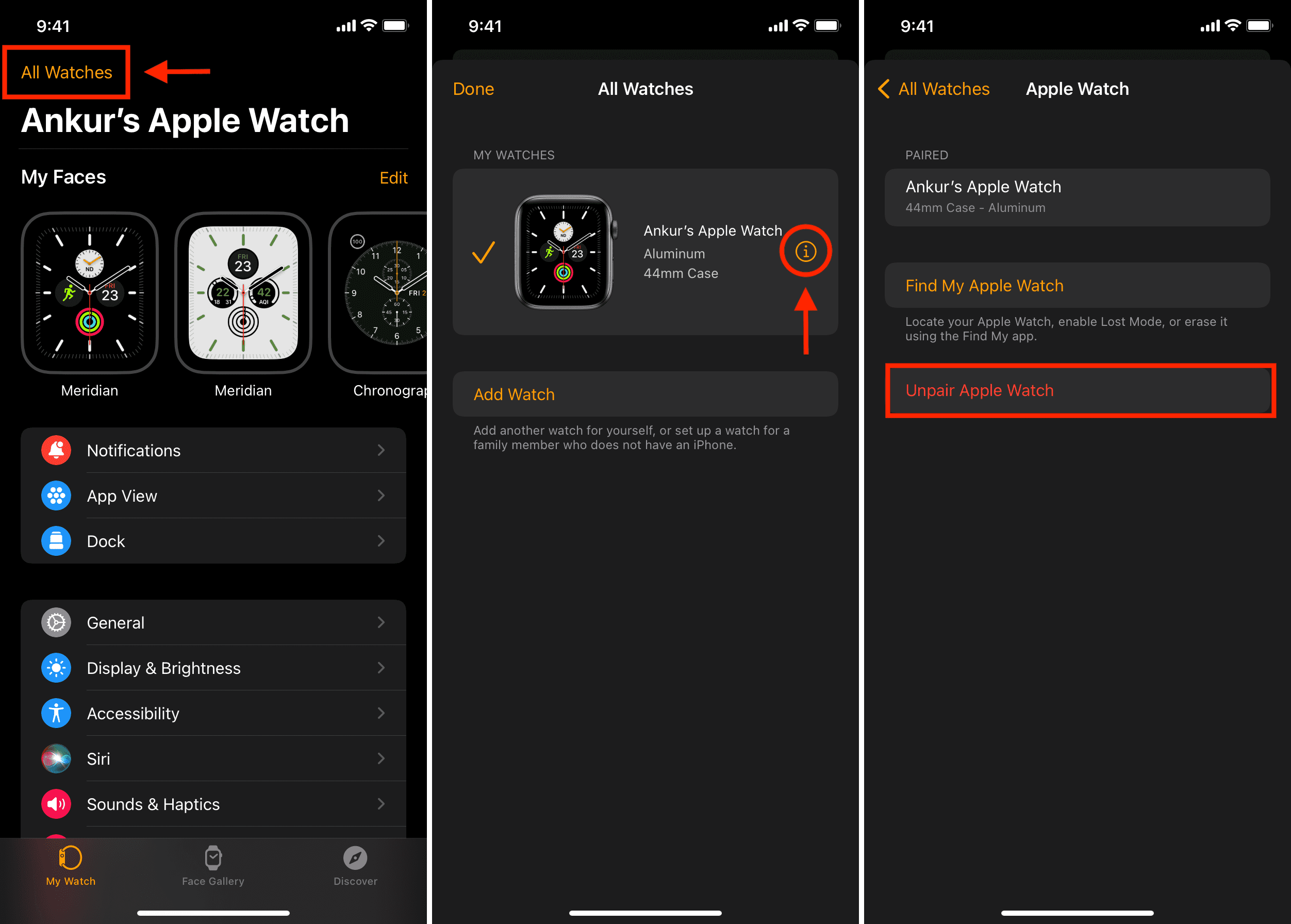
If the watch turns on but behaves strangely, software corruption may be the cause.
How to Unpair via iPhone
- Open Apple Watch app.
- Go to My Watch > All Watches.
- Tap the info button > Unpair Apple Watch.
- Confirm—your data is backed up automatically.
Re-pair and Restore from Backup
After unpairing:
1. Tap Start Pairing.
2. Hold iPhone near the watch.
3. Choose Restore from Backup.
This resets the software link and often fixes deep-seated bugs.
Update WatchOS—Fix Hidden Software Bugs
Outdated software can cause crashes and boot failures.
How to Check for Updates
- Open Apple Watch app on iPhone.
- Go to My Watch > General > Software Update.
- Download and install any available update.
Ensure both devices are charged and on Wi-Fi. Updates often fix power and stability issues.
Inspect for Physical and Environmental Damage
Sometimes the problem is visible—but not always.
Look for Cracks, Dents, or Corrosion
Check the screen, case, and charging pins. Corrosion (green or dull spots) indicates moisture damage. Even water-resistant watches degrade over time with repeated exposure.
Avoid Extreme Temperatures
Never leave your Apple Watch in a hot car or freezing environment. Temperatures above 35°C (95°F) or below freezing can permanently damage the battery.
Seek Professional Repair—When to Call Apple
If all else fails, it’s time for expert help.
When to Contact Apple
Visit Apple Support or an Apple Store if:
– No response after 4+ hours of charging.
– There’s visible damage or corrosion.
– The watch is under warranty or AppleCare+.
Apple can run diagnostics and replace batteries or logic boards.
Common Hardware Failures
- Battery degradation (common after 2–3 years).
- Charging port damage.
- Logic board failure.
- Internal water damage.
Prevent Future Problems—Simple Habits That Help
- Charge nightly—don’t let it die.
- Use genuine Apple chargers.
- Clean contacts monthly.
- Update watchOS regularly.
- Enable Low Power Mode when needed.
- Avoid extreme heat, cold, and moisture.
Final Note: Most “dead” Apple Watches aren’t dead—they’re just asleep. Start with charging, clean the contacts, force restart, and check accessibility settings. 9 out of 10 times, your watch will come back. If not, unpair and re-pair or seek professional help. Don’t replace it until you’ve tried every step. With care, your Apple Watch can last for years—don’t give up too soon.





