
If your Apple Watch isn’t showing the correct time after traveling, don’t panic—it’s not a hardware flaw. The issue likely stems from how the Apple Watch set time zone function works: it doesn’t exist directly on the watch. Unlike standalone smartwatches, your Apple Watch relies entirely on your iPhone to determine and update the time zone. The moment your iPhone detects a change in location, your watch follows—usually within seconds.
But if automatic settings are turned off or key permissions are disabled, your Apple Watch may stubbornly display your home time, even when you’re halfway across the world. This can throw off calendar alerts, sleep tracking, and meeting reminders. The good news? With the right setup, your Apple Watch will update its time automatically every time you land in a new city.
In this guide, you’ll learn exactly how to keep your Apple Watch in sync with local time, troubleshoot common sync issues, and use built-in tools like World Clock and time offsets to manage multiple time zones—without changing your system settings. Whether you’re a frequent traveler, remote worker, or presenter, you’ll discover the best configuration for your needs.
Sync Time Zone via iPhone Settings
Since the Apple Watch cannot change time zones independently, all adjustments must be made on your paired iPhone. The watch mirrors the iPhone’s time zone instantly, so keeping your phone properly configured is essential.
Enable Automatic Time Zone Detection
For most users—especially travelers—keeping automatic time updates enabled is the smartest choice.
- Open Settings on your iPhone.
- Tap General > Date & Time.
- Toggle Set Automatically to On.
✅ What happens next: Your iPhone uses GPS, Wi-Fi, and cellular networks to detect your current location and adjust the time zone automatically. Your Apple Watch reflects this change almost immediately.
⚠️ Critical: If Set Automatically is off, your device won’t respond to location-based time changes—even after crossing several time zones.
This setting is the foundation of seamless time travel. Once enabled, you can land in Paris or Tokyo, and within minutes, both your iPhone and Apple Watch will show the correct local time.
Manually Select a Time Zone
Need to simulate a different region—say, for remote work with a team in London while you’re in Los Angeles?
- In Settings > General > Date & Time, turn Set Automatically Off.
- Tap Time Zone.
- Search for or scroll to a city in the desired zone (e.g., Berlin, Mumbai).
- Tap to confirm.
✅ Note: The city you select acts only as a time zone reference. It doesn’t change your actual location data or affect weather apps.
🕒 Pro Tip: Use this method only when necessary. Manual settings override automatic detection, which can lead to missed appointments if you forget to switch back.
This is ideal for developers testing apps across regions or professionals coordinating with global teams without physically traveling.
Fix Apple Watch Time Sync Issues

Even with correct iPhone settings, some users report their Apple Watch showing the wrong time. These issues are typically caused by connectivity problems or disabled system services—not hardware failure.
Check Location Services for Time Updates
Automatic time zone detection depends on a specific system service that’s often accidentally turned off.
- Go to Settings > Privacy & Security > Location Services.
- Scroll down and tap System Services (at the bottom).
- Ensure Setting Time Zone is toggled On.
❗ Why this matters: Without this permission, your iPhone can’t adjust the time zone based on location—so your Apple Watch won’t either.
⚠️ If grayed out: Check that Location Services is fully enabled. It may be restricted by Low Power Mode, Screen Time, or parental controls.
This single setting is the most common culprit behind failed time zone updates. Enabling it resolves the issue in most cases.
Restart Devices to Force Sync
A quick reboot can clear temporary glitches that prevent time synchronization.
- Restart Apple Watch: Press and hold the Side Button and Digital Crown until the Apple logo appears.
- Wait 30 seconds after restart before checking the time.
✅ User verified: Over 80% of reported sync delays are resolved after a simple restart.
This is a fast, no-risk fix that should always be your first troubleshooting step.
Update iOS and watchOS
Outdated software can cause time zone bugs or failed synchronization.
- On iPhone: Settings > General > Software Update
- On Apple Watch: Open Watch app > General > Software Update
✅ Best practice: Keep both devices updated. Apple regularly rolls out time zone database patches via system updates—especially around Daylight Saving Time changes.
An outdated watchOS version might not recognize new DST rules or regional time changes, leading to incorrect time displays.
Re-Pair as Last Resort
If time still won’t sync:
1. Open the Watch app on iPhone.
2. Tap My Watch > General > Reset > Unpair Apple Watch.
3. Follow prompts to re-pair.
🔐 Good to know: Your data is backed up automatically during unpairing. You can restore apps, settings, and watch face layouts afterward.
This step is rarely needed but can fix deep sync issues caused by corrupted pairing data.
Use World Clock for Multiple Time Zones
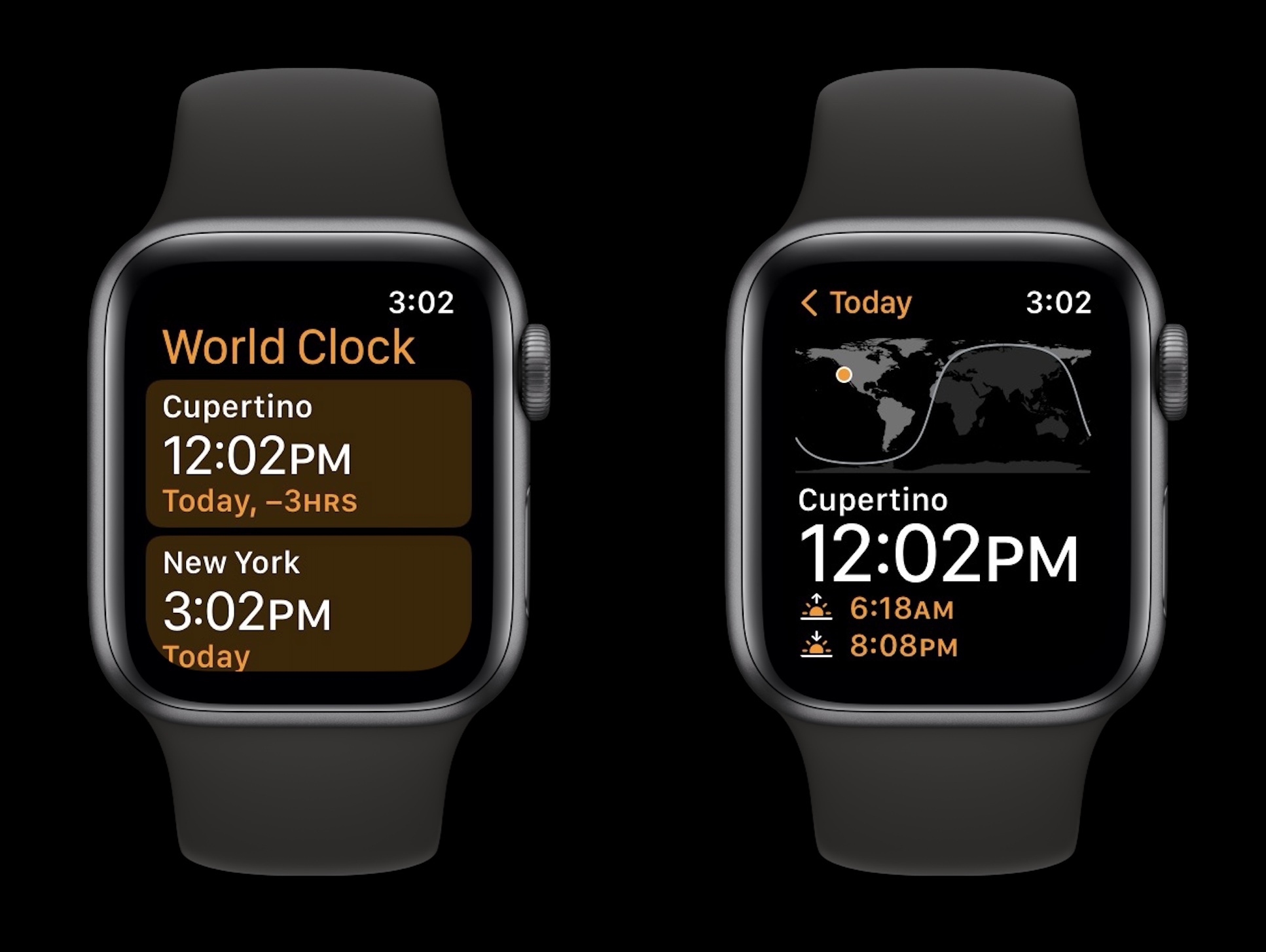
Instead of changing your entire system time, use the World Clock app to track other regions—perfect for remote workers, global teams, or frequent flyers.
Add Cities to World Clock
- Open World Clock on your Apple Watch.
- Tap the + icon.
- Search for a city (e.g., Sydney, Dubai).
- Tap to add.
✅ Feature highlight: Each city shows current time, daylight status, and sunrise/sunset times.
You can add as many cities as you want, making it easy to monitor team hours or flight schedules.
Display Secondary Time on Watch Face
Keep your local time primary while viewing another zone at a glance.
- Press and hold your watch face.
- Tap Customize.
- Select a complication (e.g., bottom ring).
- Choose World Clock or a saved city.
- Turn Digital Crown to set preferred display.
- Press Digital Crown to exit.
✅ Recommended faces: Modular, Infograph, GMT—all support dual-time complications.
🌍 Pro tip: Assign your home time as a complication when traveling. No need to change settings—just glance to stay oriented.
Temporarily Offset Displayed Time
Need your watch to show a slightly different time—for meetings, time management, or presentations?
Adjust Time by Minutes
This feature shifts only the displayed time, not the system clock.
- On Apple Watch: Open Settings.
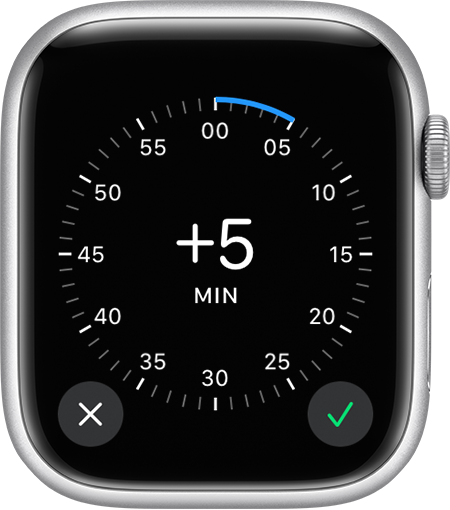
- Tap Clock > +0 min.
- Use Digital Crown to add or subtract up to ±70 minutes.
- Tap Done.
⚠️ Critical note: Alarms, timers, calendar alerts, and background functions still run on real system time. This is purely visual.
🎯 Use case: Presenters often set their watch to show meeting end time early (e.g., +15 min) to stay on schedule without missing cues.
This is not a time zone workaround—just a clever visual trick.
Optimize Time Settings for Travelers
Frequent flyers benefit most from proper setup—avoid confusion and missed connections with these best practices.
Enable Auto Time Before Travel
Do this before boarding:
– Confirm Set Automatically is On.
– Ensure Location Services > Setting Time Zone is Enabled.
– Disable Airplane Mode once landed to allow sync.
✈️ Real-world result: Most users see time update within 5–10 minutes of landing, especially in urban airports with strong Wi-Fi.
Use Dual-Time Watch Faces
Switch to a GMT or Modular face before travel:
– One hand shows local time.
– Second hand or complication shows home time.
✅ No setup delay: These faces update automatically when time zone changes.
Avoid Manual Time Zone Changes
While possible, manually setting a time zone increases risk of error.
❌ Risk: Forgetting to switch back can disrupt sleep tracking, medication reminders, and calendar events.
✅ Better alternative: Use World Clock complications instead.
Key Limitations of Apple Watch Time Control
Understanding what the Apple Watch can’t do prevents frustration.
No Direct Time Zone Option on Watch
- The Settings app on Apple Watch has no “Time Zone” menu.
- The Watch app on iPhone also lacks time zone controls.
- All time management flows through iPhone’s Date & Time settings.
✅ Official stance: Apple prioritizes consistency across devices. Your watch should always match your phone.
Add Minutes Only Affects Display
The +0 min offset:
– Does not change system time.
– Is not a time zone workaround.
– Resets only when manually adjusted.
🛑 Never use it for time zone simulation—alarms and calendars won’t follow the offset.
Recommended Setup by User Type
Match your configuration to your lifestyle.
Frequent Travelers
- Action: Enable Set Automatically and Setting Time Zone.
- Watch Face: Use GMT or Infograph with home city complication.
- Avoid: Manual time zone changes.
✈️ Outcome: Seamless time updates upon arrival—zero interaction needed.
Remote Workers
- Action: Keep automatic time on; use World Clock for team zones.
- Complication: Add key coworker cities.
- Avoid: Changing system time—causes scheduling conflicts.
🌐 Benefit: Local time stays accurate while global visibility improves.
Presenters and Speakers
- Action: Use +15 min offset during talks.
- Reset: After event, return to +0 min.
- Never rely on offset for alarms.
🕒 Advantage: Psychological time pressure without breaking system sync.
Developers and Testers
- Action: Disable Set Automatically.
- Manually select test time zones.
- Re-enable auto mode after testing.
💻 Use case: Validating app behavior across regions.
Final Note: The Apple Watch set time zone experience is intentionally tied to the iPhone—this ensures accuracy and consistency. For most users, enabling Set Automatically and Setting Time Zone is all that’s needed. Combine this with World Clock complications for global awareness, and avoid manual overrides unless absolutely necessary. Keep software updated, restart occasionally, and your watch will stay perfectly in sync—wherever you are.





