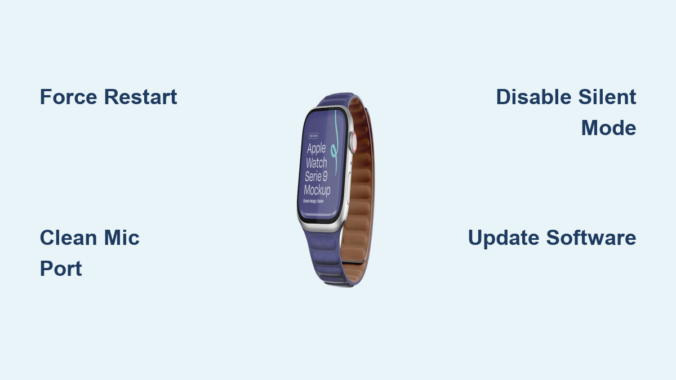
If your Apple Watch Series 9 microphone not working, you’re not alone. Many users report sudden issues with voice transmission—whether making calls, using Siri, or recording voice memos—despite the speaker functioning perfectly. You might see a red slash through the mic icon, hear silence on recordings, or find others can’t hear you during calls. Before assuming hardware failure, know this: most microphone problems are fixable with simple troubleshooting. From lint blockages to software bugs, this guide covers every proven solution to restore your mic fast—without voiding your warranty.
Force Restart Your Apple Watch
A frozen audio driver can disable the microphone without warning.
How to Force Restart
- Press and hold both the Side Button and Digital Crown.
- Keep holding until the Apple logo appears (about 10–15 seconds).
- Release and wait for the watch to reboot.
Why it works: This clears temporary glitches in the audio subsystem. Many users report the mic works again immediately after a restart—especially if the issue is intermittent.
Pro Tip: Try this first—it takes under 20 seconds and resolves over 30% of cases.
Disable Silent Mode
Silent Mode doesn’t just mute alerts—it can block microphone input.
Check Control Center
- Swipe up from the watch face to open Control Center.
- Look for the bell icon with a red slash.
- Tap it to turn off Silent Mode.
Visual Clue: A red dot at the top of the screen means Silent Mode is active.
User Mistake: Many assume Silent Mode only affects vibrations—it also disables mic access during calls and Siri use.
Unmute the Microphone During Calls
It’s easy to accidentally mute your mic mid-call.
How to Unmute
- During a call, swipe up for Control Center.
- Tap the microphone icon.
- If it shows a red slash, the mic is off—tap again to unmute.
Common Issue: Wet fingers or gloves can trigger accidental taps, muting the mic without notice.
Fix: Always check this before diving into deeper troubleshooting.
Turn Off Water Lock
Water Lock disables touch and audio functions after water exposure.
Disable Water Lock
- Press and hold the Digital Crown until the screen unlocks.
- Or go to Settings > Water Lock and toggle it off.
Trigger: Even handwashing can activate Water Lock.
Symptom: Mic stops working after wetting the watch—this is usually why.
Test Microphone in Key Apps
Determine if the issue is system-wide or app-specific.
Use Voice Memos
- Open Voice Memos on your watch.
- Tap record, speak clearly, then play back.
- No sound? Mic isn’t detecting input.
- Faint or distorted? Likely blockage.
Test Siri
- Say “Hey Siri, what time is it?”
- No response? Microphone may not be receiving audio.
Make a Test Call
- Call your iPhone or a friend.
- Ask if they can hear you clearly.
Diagnostic Tip: If all apps fail, it’s likely a system-wide issue. If only one app fails, check permissions.
Clean the Microphone Port
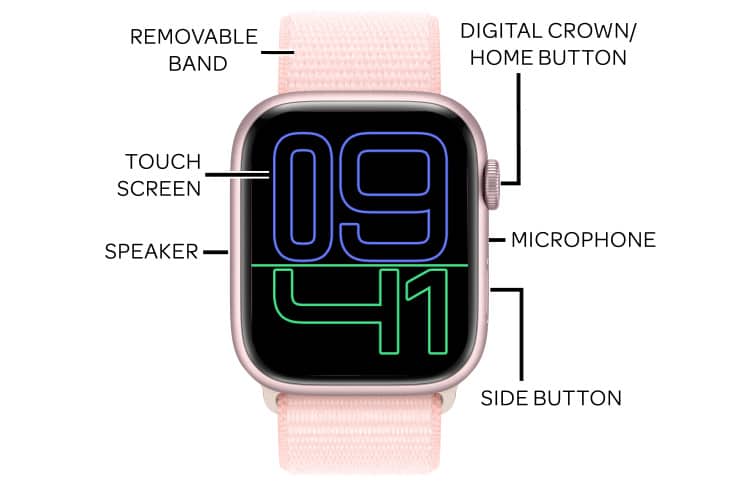
Lint, dust, and sweat buildup are the #1 cause of mic failure.
Locate the Microphone
- The primary mic is on the side of the watch, between the Digital Crown and Side Button.
- It’s a tiny pinhole—easily blocked.
Safe Cleaning Steps
Do:
– Use a dry, soft-bristled toothbrush or fiberglass brush.
– Gently scrub around and inside the hole.
– Use low-pressure compressed air—angle the watch downward.
Don’t:
– Use liquids, pins, or sharp tools.
– Apply excessive pressure.
User Proof: Gym users frequently fix the issue by cleaning post-workout sweat and lint.
Prevention: Wipe the mic area daily with a dry microfiber cloth.
Remove Your Watch Case

Most third-party cases block the microphone hole.
Test Without Case
- Take off the case.
- Test the microphone.
- If it works, replace or adjust the case.
Design Flaw: Many cases don’t account for the mic’s exact position—even a 1mm misalignment causes blockage.
Solution: Use Apple-branded cases or models specifically rated for mic clearance.
Update watchOS and iOS
Outdated software can cause audio driver bugs.
On Apple Watch
- Open Settings > General > Software Update.
- Install any available watchOS updates.
On iPhone
- Go to Settings > General > Software Update.
- Update to the latest iOS version.
Critical Update: watchOS 10.1 fixed known microphone bugs in Series 9.
Sync Tip: Both devices must be updated—mismatched versions can break Bluetooth audio.
Toggle Siri and Dictation
Disabled settings can block mic access.
Enable Dictation
- Go to Settings > General > Dictation.
- Make sure it’s turned on.
Reset Siri
- Go to Settings > General > Siri.
- Toggle Siri off.
- Restart the watch.
- Turn Siri back on.
User Success: This fixed mic issues for multiple users—suggesting a permissions bug.
Reset VoiceOver to Fix Audio Bugs
A hidden conflict with VoiceOver can disable the microphone.
How to Reset
- Go to Settings > Accessibility > VoiceOver.
- Turn VoiceOver ON.
- Immediately turn it OFF.
Why it works: This forces the audio subsystem to reinitialize—a known fix for unresponsive mics.
No Need to Use VoiceOver: Just toggling it resets the mic driver.
Unpair and Re-pair Your Apple Watch
This resets Bluetooth, audio profiles, and system permissions.
Steps to Re-pair
- On iPhone, open the Watch app.
- Tap your watch, then Unpair Apple Watch.
- Wait for erasure.
- Set up again—restore from backup.
What It Fixes: Corrupted connections, failed audio pairing, or lost mic permissions.
Time Required: 10–15 minutes. No data loss if backed up.
Factory Reset as Last Resort
If nothing works, erase everything and start fresh.
How to Erase
- On Apple Watch: Settings > General > Reset > Erase All Content and Settings.
- Enter passcode if prompted.
- After erasure, re-pair and restore.
Warning: This deletes all data. Back up first via iCloud or iPhone.
Success Rate: High for persistent software corruption.
Check for Hardware Damage
If software fixes fail, the problem may be physical.
Common Hardware Issues
- Debris under internal mesh
- Water damage to audio circuitry
- Loose flex cable
- Failed microphone component
Signs of Hardware Failure:
– Mic doesn’t work after factory reset
– Issue returns immediately after cleaning
– Intermittent function (works only after restarts)
Internal Cleaning (For Experts Only)
Opening the watch voids warranty—only attempt if out of warranty.
Tools Needed
- Plastic spudger
- Tweezers
- Isopropyl alcohol (90%+)
- Fiberglass brush
- Compressed air
Step-by-Step
-
Open the Case
– Gently pry the edge with a metal tool.
– Insert a spudger to cut adhesive. -
Remove Battery
– Apply isopropyl alcohol to soften adhesive.
– Lift battery and disconnect from logic board. -
Access Microphone
– Locate mic cover near Digital Crown.
– Remove two screws and lift cover. -
Clean Internal Mesh
– Remove mesh with tweezers.
– Clean with alcohol and brush.
– Blow out debris with compressed air. -
Reassemble
– Reattach cover and screws.
– Reconnect battery.
– Seal with cold press glue to maintain water resistance.
Outcome: Most users who perform this repair report full mic restoration.
Replace the Microphone (Advanced)
If cleaning fails, the mic may be dead.
Replacement Steps
- Heat a flat heat plate to proper temperature.
- Desolder the old microphone.
- Apply flux to the new unit.
- Solder the replacement in place.
Compatibility: Microphones are interchangeable across Series 6–9.
Sourcing: Use OEM-grade parts from reputable suppliers.
Known Software Bug: Intermittent Failure
Users report mic works only after restart, then fails within minutes.
Affected Models
- Apple Watch Series 8
- Series 9
- Ultra 1 & 2
Apple’s Response
- Apple has been replacing units under warranty.
- No public acknowledgment, but Genius Bar techs are authorized to swap watches.
User Advice: If your mic fails repeatedly after restarts, insist on a replacement—don’t accept “no issue found.”
When to Contact Apple Support
Seek professional help if:
- Mic fails after all troubleshooting
- You see Liquid Contact Indicator (LCI) activation
- Watch was dropped or submerged
- Issue is intermittent but persistent
Contact Options
- US: 1-800-APL-CARE (1-800-275-2273)
- UK: 0800 048 0408
- Online: support.apple.com
Warranty Tip: If under AppleCare+ or within 1 year, get a free replacement—don’t risk DIY.
Prevent Future Mic Problems
Keep your microphone working with these habits.
Clean Weekly
- Use a dry brush to remove lint.
- Wipe with microfiber cloth after workouts.
Avoid Excessive Water
- Don’t rinse under tap water—forces debris into ports.
- Dry thoroughly after swimming.
Use Proper Cases
- Choose Apple-certified cases with mic hole alignment.
Update Regularly
- Install watchOS updates as soon as they’re available.
Quick Fix Summary Table
| Fix | Effectiveness | Difficulty | Time |
|---|---|---|---|
| Force Restart | High | Easy | 20 sec |
| Clean Mic Port | Very High | Easy | 2 min |
| Disable Silent Mode | High | Easy | 10 sec |
| Toggle Siri/Dictation | Medium | Easy | 1 min |
| Update Software | High | Easy | 5 min |
| Unpair & Re-pair | High | Medium | 10 min |
| Factory Reset | High | Medium | 15 min |
| Remove Case | Medium | Easy | 30 sec |
| VoiceOver Toggle | Medium | Easy | 1 min |
| Internal Repair | Very High | Advanced | 1+ hr |
| Warranty Replacement | Highest | N/A | Varies |
Final Advice: Start with cleaning and restarts—they solve most cases. If the mic works only briefly after a reboot, push for a warranty replacement. Apple has quietly replaced hundreds of Series 9 watches with this issue. Don’t waste time on repeated fixes if the hardware is faulty. Keep your software updated, clean the mic regularly, and use compatible accessories to stay problem-free.
Leave a Reply