
You’re winding down after a brisk walk, catching your breath post-workout, or simply curious about your resting pulse—your Apple Watch can show you your heart rate in seconds. Thanks to its built-in optical sensor and intuitive design, checking your heart rate is fast, accurate, and always within reach. Whether you’re tracking fitness progress, monitoring recovery, or keeping an eye on long-term heart health, the Apple Watch delivers real-time and historical data right from your wrist.
In this guide, you’ll learn how to check your heart rate on Apple Watch using multiple methods, customize alerts, interpret key metrics, and ensure reliable readings every time. No extra gear or medical device needed—just your Apple Watch and a few taps.
Open the Heart Rate App for Instant Readings
The most direct way to see your current heart rate is through the dedicated Heart Rate app.
Tap the Red Heart Icon to Start
- Press the Digital Crown to exit any screen and return to your home or watch face.
- Locate the Heart Rate app, which has a red circular icon with a white heart.
- Tap it once to launch.
- Keep your arm flat and still, palm facing up, for 15–30 seconds.
- Your current heart rate in BPM (beats per minute) will appear clearly on screen.
The watch uses green LED lights and photodiodes on the back to detect blood flow changes caused by your pulse. If you’ve had a reading recently—within the last 10 minutes—it may display that first, then refresh with a new measurement.
Pro Tip: If no reading appears, double-check that your watch is snug on your wrist and that the sensor is clean and making full contact with your skin.
View Heart Rate Without Opening the App
You don’t need to open an app every time—get instant access at a glance.
Add a Heart Rate Complication to Your Watch Face
- Press and hold your watch face until it enters edit mode.
- Tap “Edit” in the lower-left corner.
- Scroll through the available complications and select one that includes Heart Rate.
- Choose a style (digital, analog, or graph) and place it on your preferred watch face.
- Press the Digital Crown to save.
Now, your heart rate displays directly on the watch face. Tap it to open the full Heart Rate app.
Compatible with Activity, Infograph, Modular, and many other watch face styles.
Use the Fingertip Method for Quiet Readings
When your arm is moving or you’re relaxing, try measuring through your fingertip:
- Open the Heart Rate app.
- Place your index finger over the Digital Crown.
- Hold still for 15–30 seconds.
- Watch as your BPM appears on screen.
This method uses the same optical sensor but reads through your fingertip—ideal for checking recovery after exercise or during meditation.
Access More Than Just Current BPM
Your Apple Watch tracks more than a single number—it reveals trends and deeper insights over time.
Swipe Up for Resting, Walking, and Range Metrics
After viewing your current heart rate, swipe up in the app to see:
- Resting Heart Rate: Your average pulse when calm or asleep—typically lowest in the morning.
- Walking Average: How hard your heart works during daily movement.
- Heart Rate Range: Minimum and maximum BPM during activity and recovery.
- Recovery Time: How quickly your heart returns to rest after exertion.
A lower resting heart rate often reflects better cardiovascular fitness.
Compare Current, Resting, and Walking Rates Side by Side
Tap “Current” at the top of the screen to view all three metrics together. This lets you compare daily fluctuations or assess how your body responded after sleep, stress, or a workout.
Let Your Watch Monitor Heart Rate Automatically
You don’t need to do anything—your Apple Watch checks your pulse constantly in the background.
How Background Monitoring Works
- The watch takes readings whenever your wrist is still, even while sleeping.
- Frequency increases during workouts, stress, or elevated BPM.
- Data powers features like:
- Calorie burn estimates
- Workout detection
- Resting heart rate trends
- Irregular rhythm alerts
With watchOS 7 and later, overnight heart rate tracking is enabled when sleep tracking is turned on—providing vital insights into recovery and long-term health.
Tip: Wear your Apple Watch overnight to capture the most accurate resting heart rate data.
Track Heart Rate Live During Workouts

Your heart rate is a key indicator of effort—monitor it in real time during any activity.
Start a Workout to Begin Tracking
- Open the Workout app (running figure icon).
- Choose your activity: Outdoor Run, Cycling, HIIT, Strength Training, etc.
- Tap “Start”—heart rate tracking begins automatically.
See Real-Time BPM on Screen
During exercise, your watch displays:
- Elapsed time
- Calories burned
- Distance (if applicable)
- Live heart rate in BPM
Glance down to adjust your intensity—push harder if you’re below target, or slow down if your heart rate spikes too high.
For strength training or interval sets, heart rate may lag due to arm motion. Use the fingertip method between sets for more accurate recovery readings.
Review Post-Workout Heart Rate Summary
After tapping End, you’ll see:
- Average heart rate
- Minimum and maximum BPM
- Time spent in zones (if enabled)
- Recovery insights
All data syncs to the Fitness app on iPhone for long-term tracking.
Customize Which Metrics Appear During Workouts
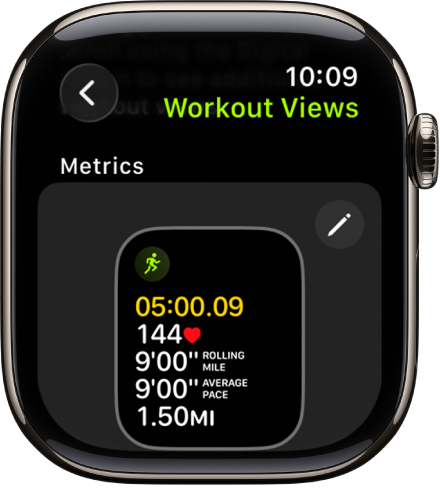
Make sure heart rate is always visible when you need it.
Add Heart Rate to Your Workout Display
- On your iPhone, open the Apple Watch app.
- Go to My Watch > Workout > Workout View.
- Select your preferred workout type (e.g., Outdoor Run).
- Tap Edit, then use the + button to add Heart Rate.
- Reorder it to the top for quick visibility.
- Tap Done.
You can display up to five metrics per screen. Prioritize heart rate if you use it frequently.
Warning: If heart rate isn’t added to your view, it won’t appear during workouts—even though it’s still being recorded.
Get Alerts for Abnormal Heart Rates

Your Apple Watch can warn you of potential issues.
Set Up High Heart Rate Notifications
Get alerted if your heart rate spikes while inactive:
- On Apple Watch, go to Settings > Heart > High Heart Rate Notifications.
- Toggle it on.
- Set your threshold (default: 120 BPM; adjustable from 100–150).
Alerts trigger only after 10 consecutive minutes above your limit—avoiding false alarms from brief spikes.
Enable Low Heart Rate Alerts
Useful for endurance athletes or those monitoring bradycardia:
- Go to Settings > Heart > Low Heart Rate Notifications.
- Turn it on and set your limit (default: 40 BPM; range: 40–50).
Activate Irregular Rhythm Detection
Detects signs of atrial fibrillation (AFib) over time:
- Open Settings > Heart > Irregular Rhythm Notifications.
- Follow setup steps (requires watchOS 5.1.2 or later).
- The watch analyzes background data for irregular patterns.
Notifications appear only after multiple episodes. Not a diagnosis—consult a doctor if alerted.
Review Long-Term Heart Trends in the Health App
Data becomes powerful when you track it over time.
Analyze Heart Rate Trends on iPhone
- Open the Health app.
- Tap Browse > Heart > Heart Rate.
- Explore:
– Daily, weekly, and monthly graphs
– Resting heart rate trends
– Walking average
– Heart rate variability (HRV)
– Workouts with BPM data
Tap “Show More Heart Rate Data” to see zone breakdowns, correlations with sleep, and mindfulness logs.
For best results, wear your Apple Watch 20+ hours per day.
Check Trends Directly on Apple Watch
Open the Fitness app > Heart Rate to view:
- Recent BPM history
- Daily averages
- Resting heart rate chart
The Fitness app replaced the Activity app starting with iOS 14—same data, new name.
Improve Reading Accuracy with Best Practices
Even advanced tech needs proper use. Avoid common errors.
Wear the Watch Correctly
- Fit: Snug but comfortable, about one finger width above the wrist bone.
- Too loose → sensor loses contact → inaccurate or no reading.
- Too tight → restricts blood flow → distorted BPM.
Keep Sensors Clean
Wipe the back of the watch daily with a soft, dry cloth, especially after workouts or swimming.
Avoid Problem Areas
- Don’t wear over tattoos—ink can reflect light and interfere.
- Avoid hairy wrists—hair prevents consistent skin contact.
Mind Environmental Factors
- Cold weather reduces accuracy (less blood flow to extremities).
- Intense vibration (e.g., off-road cycling) disrupts readings.
- Rapid heart rate changes (like sprinting) may cause brief lag.
Apple Watch is not a medical device. Use for fitness and wellness—not diagnosis.
Know What Your Apple Watch Model Can Do
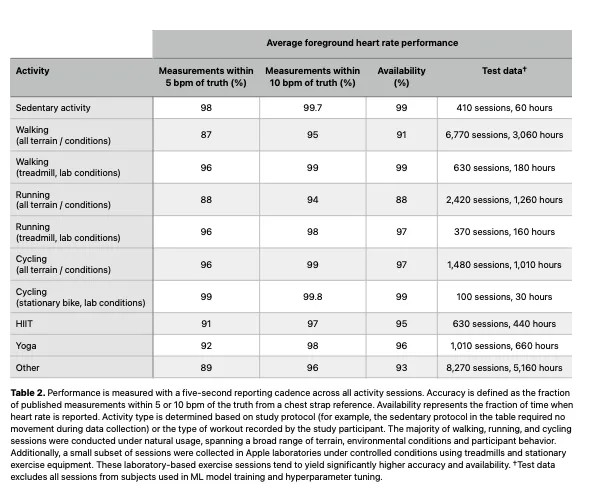
Not all models offer the same features.
| Feature | All Models | Series 4+ | Series 6+ | Series 7+ |
|---|---|---|---|---|
| Optical Heart Rate Sensor | ✅ | ✅ | ✅ | ✅ |
| Continuous Monitoring | ✅ | ✅ | ✅ | ✅ |
| High/Low Alerts | ✅ | ✅ | ✅ | ✅ |
| Irregular Rhythm Notifications | ✅ | ✅ | ✅ | ✅ |
| ECG App | ❌ | ✅ | ✅ | ✅ |
| Blood Oxygen (SpO2) | ❌ | ❌ | ✅ | ✅ |
| Sleep Tracking with HR | ❌ | ❌ | ❌ | ✅ |
| HRV Tracking | ✅* | ✅* | ✅ | ✅ |
*HRV available via Health app with compatible models and watchOS updates.
Newer models (Series 10, 11) offer faster sensors and improved low-light performance.
Avoid Common Mistakes That Skew Results
Small errors lead to unreliable data.
- ❌ Wearing the watch too loose during exercise
- ❌ Placing it over a tattoo or hairy skin
- ❌ Skipping sensor cleaning
- ❌ Expecting hospital-grade accuracy
- ❌ Disabling sleep tracking (misses resting HR)
- ❌ Relying on wrist readings during weightlifting—use fingertip method instead
Pro Tip: Calibrate your watch with GPS during outdoor runs for better motion and heart rate correlation.
Sync Heart Rate Data with Third-Party Apps
Share your data with your favorite fitness platforms.
Supported Apps via HealthKit
Heart rate syncs automatically with:
- Strava – for cycling and running analytics
- Nike Run Club – real-time coaching with BPM
- MyFitnessPal – calorie burn tracking
- Zwift – indoor cycling with live heart rate
- Peloton – monitor effort during classes
- MapMyRun – detailed post-run reports
- Garmin Connect – limited two-way sync
Enable access in the app’s iPhone settings under Health.
Summary: Master Heart Rate Tracking on Apple Watch
- ✅ Check BPM via the Heart Rate app or watch face complication.
- ✅ Use fingertip method when motion interferes.
- ✅ Swipe up to see resting, walking, and range data.
- ✅ Track live during workouts with real-time feedback.
- ✅ Enable alerts for high, low, or irregular rhythms.
- ✅ Review trends in the iPhone Health app.
- ✅ Wear snugly, keep clean, avoid tattoos for best results.
- ✅ Sync with Strava, Nike, Peloton, and more.
- ❌ Not a medical device—consult a doctor for health concerns.
Your Apple Watch is more than a smartwatch—it’s a powerful tool for understanding your heart health. By checking your heart rate regularly and knowing what the numbers mean, you gain control over fitness, recovery, and long-term wellness. Start today: raise your wrist, tap the heart, and see what your body’s telling you.




