
You glance at your wrist, expecting to see your step count like on other fitness trackers — but it’s not there. Frustrating, right? Unlike Fitbit or Garmin devices, the Apple Watch doesn’t show steps by default on its watch face. But here’s the good news: your steps are being tracked automatically, and you can access them in seconds with a few taps or a simple customization.
The Apple Watch uses advanced motion sensors — including the accelerometer, gyroscope, and barometer — to count every step you take throughout the day. This data syncs seamlessly with the Activity app on your watch and the Health app on your iPhone. While Apple doesn’t offer a native step complication, you can add one using trusted third-party apps to get that instant, at-a-glance view many users love.
In this guide, you’ll learn how to:
– View your real-time step count directly on your Apple Watch
– Add a step counter to your watch face for instant visibility
– Track weekly, monthly, and yearly trends on your iPhone
– Choose the best third-party apps for accuracy and simplicity
– Fix common issues like frozen complications or delayed updates
Let’s unlock your step data — no guesswork, no confusion.
Access Step Count in Activity App
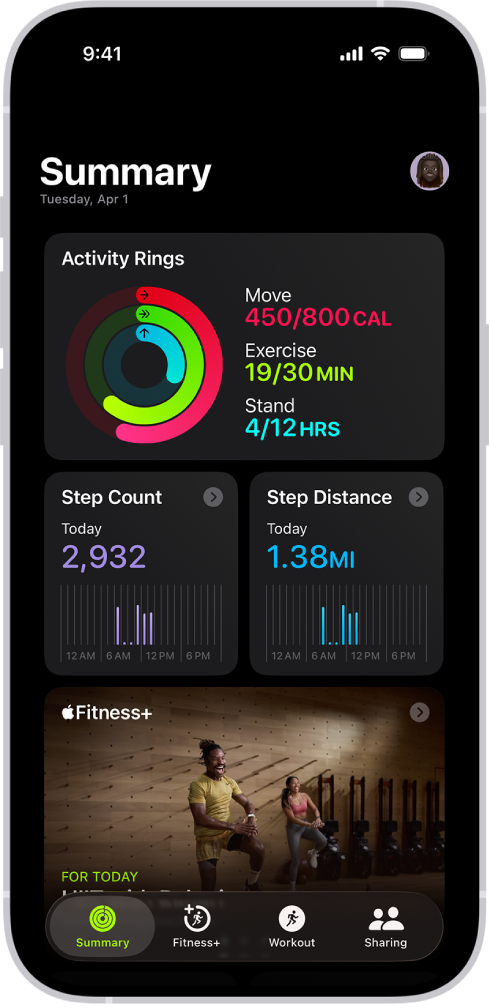
The fastest and most accurate way to check your steps on Apple Watch is through the built-in Activity app, which displays real-time data powered by Apple’s sensor fusion technology.
Open Activity App on Apple Watch
To see your current step count:
1. Press the Digital Crown to return to the app grid.
2. Tap the Activity app (the one with red, green, and blue rings).
3. Swipe up to expand the “Today” summary.
4. Scroll down until you see:
– Steps
– Distance
– Flights climbed
– Active calories
– Exercise minutes
This information updates continuously as you walk, run, or climb. No setup, no extra apps — just pure, system-level tracking.
Pro Tip: The step count here pulls directly from Apple Health, making it the most reliable source of truth for your daily activity.
Real-Time Accuracy and Syncing
Apple Watch combines inputs from the accelerometer, gyroscope, and GPS to detect steps with high precision. It learns your stride over time, especially after outdoor walks with your iPhone nearby.
For optimal accuracy:
– Wear the watch snugly on your non-dominant wrist
– Avoid loose fitting (can lead to undercounting)
– Calibrate by walking 10–15 minutes outdoors with your iPhone
Note: Activities with limited arm movement — like pushing a stroller, shopping cart, or carrying a baby — may result in lower step counts. In these cases, use the Workout app and select “Walk” to ensure accurate tracking.
Track Long-Term Trends in Health App

Want to compare last week’s steps to this week’s? Or see if you’re hitting 10,000 steps consistently? The Health app on iPhone is your go-to for historical data and long-term insights.
View Step History on iPhone
- Open the Health app.
- Tap Browse at the bottom.
- Go to Fitness > Steps.
- Explore:
– Daily totals
– Weekly, monthly, and yearly graphs
– Average steps per day
– Trends over 7, 30, 90, or 365 days
You can also tap “Show on Dashboard” to pin step data for faster access later.
This visual history helps identify patterns — like lower activity on weekends or progress after starting a new walking routine.
Set Goals and Monitor Progress
While Apple Watch doesn’t let you set a daily step goal natively, the Health app allows you to:
– Track consistency
– Spot dips in activity
– Share progress with family or doctors via Health Sharing
Pair this with notifications from third-party apps like DailySteps or Pedometer++ to stay motivated toward targets like 8,000 or 10,000 steps.
Expert Note: The Health app is the central hub for all fitness data — ideal for users focused on weight loss, improved mobility, or long-term wellness.
Add Step Counter to Watch Face
If you want to see your step count instantly, without opening an app, you’ll need to add a step complication using a third-party app. This brings Fitbit-style visibility to your Apple Watch.
Best Apps for Step Complications
Here are the top-rated, user-tested options:
DailySteps
- Free, no ads, no subscriptions
- Clean, minimalist complication
- Pulls data directly from Apple Health
- Designed for ease of use and reliability
How to Install:
1. Download DailySteps on your iPhone.
2. Open the Watch app.
3. Tap “My Watch” > “My Faces”.
4. Select your current watch face and tap Edit.
5. Choose an empty complication spot.
6. Pick DailySteps from the list.
7. Save — your step count now appears on the face.
Visual cue: The number updates every 10–15 minutes and shows total steps in bold, easy-to-read digits.
Duffy
- Lightweight and privacy-focused
- Displays steps and active minutes
- Minimal battery drain
- No data collection or tracking
Perfect for users who want a no-frills, secure way to track steps.
Pedometer++
- Most downloaded third-party pedometer
- Real-time step and distance tracking
- Highly customizable complication
- Syncs seamlessly with Apple Health
Some users report occasional delays due to Apple’s background refresh limits — not the app’s fault.
StepsApp
- Ultra-clean design
- Big, bold numbers
- Ideal for glanceable tracking
- Great for minimalists
If you hate clutter and just want one number — your steps — this is the app for you.
Pedometer (by Substantial-Pain1199)
- Works independently of iPhone
- Real-time updates on the watch
- Shows steps directly in app and as complication
Caution: Many apps are named “Pedometer” — double-check the developer to avoid clones.
MyFitnessPal (Alternative)
- Best if you use it for diet or calorie tracking
- Can display steps via complication
- Syncs nutrition and activity together
Not ideal as a standalone step tracker, but useful for holistic health monitoring.
How Often Do Complications Update?
Due to Apple’s energy-saving policies:
– Most step complications refresh every 10–15 minutes
– True real-time updates aren’t possible on the watch face
– For instant data: open the app or check the Activity app
Fix blank complications: Restart your watch or force-close and reopen the step app.
Choose Best Watch Face for Steps
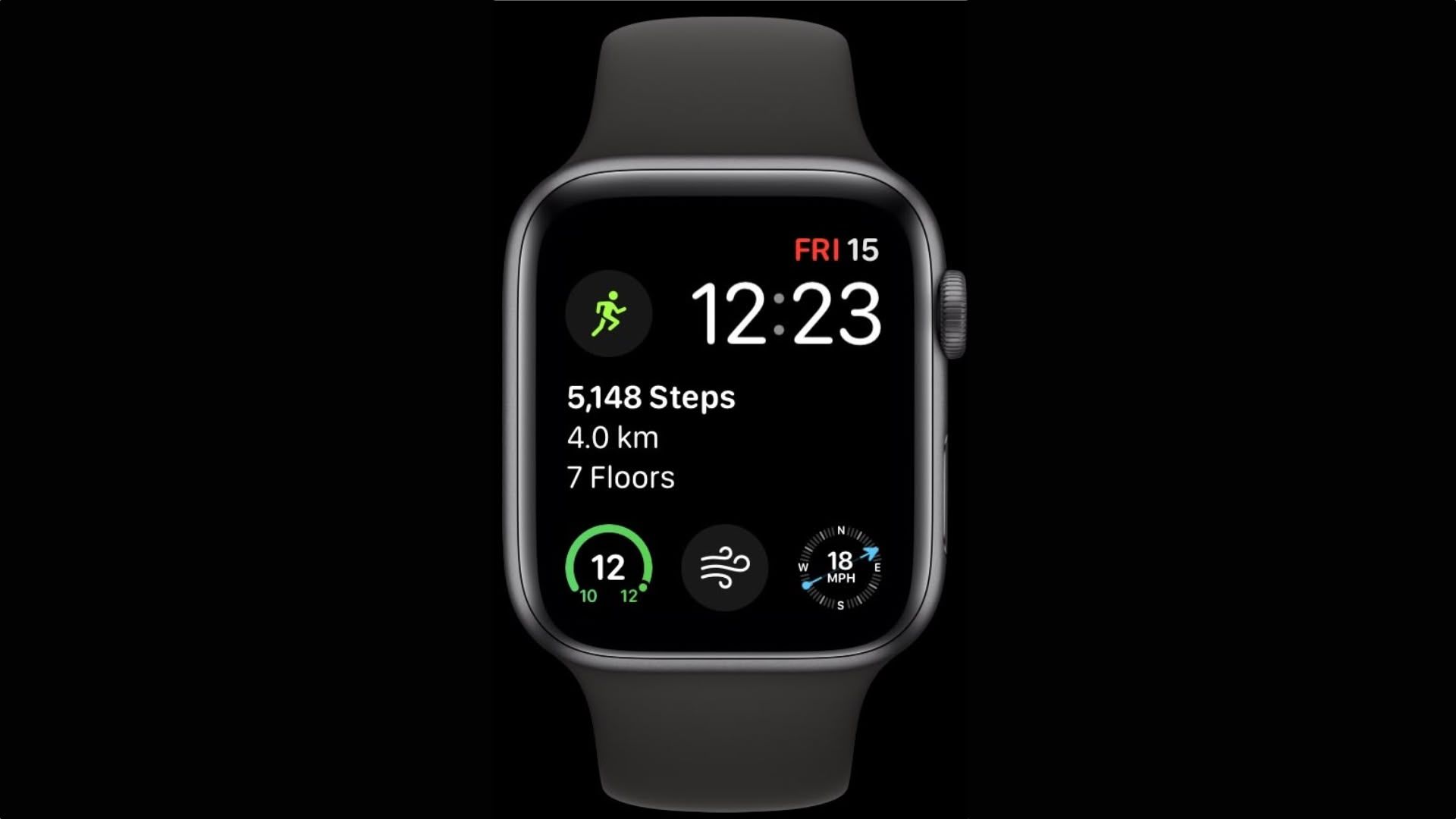
Not all watch faces support step complications. Pick one with flexible layout options to place your step counter where it’s most visible.
Recommended Watch Faces
Use these for maximum customization:
– Modular – Multiple slots; place steps at bottom center
– Simple – Clean look with central complication
– Numerals – Classic design with side or bottom options
– X-Large – Big digits with room for step count below
– Infograph – Dual-complication support; great for fitness metrics
Optimize Complication Placement
For best visibility:
– Place step counter in bottom center or lower-left
– Pair with heart rate or active calories for full context
– Avoid overcrowding — limit to 2–3 key complications
Pro Tip: Try Modular with steps at the bottom and heart rate on the right for ideal fitness visibility.
Fix Common Step Tracking Issues
Even with accurate sensors, users sometimes see missing data, delays, or frozen complications. Here’s how to fix them fast.
Step Count Not Updating?
Check these:
– ✅ Bluetooth/Wi-Fi connected between iPhone and watch
– ✅ Health permissions enabled for third-party apps
– ✅ Background app refresh turned on (Settings > General > Background App Refresh)
If still stuck:
– Force restart Apple Watch: Hold side button + Digital Crown until Apple logo appears
– Delete and reinstall the step app
– Unpair and re-pair watch (last resort)
Blank or Missing Complication?
Try this quick fix:
1. Open the Watch app on iPhone.
2. Go to My Faces.
3. Tap Edit on your watch face.
4. Remove the step complication.
5. Re-add it and save.
Most issues resolve after a restart or re-sync.
Inaccurate Step Counts?
Common causes:
– Watch worn too loose
– Limited arm swing (e.g., shopping cart, baby carrier)
– Incorrect dominant hand setting
Fix: Calibrate your watch by walking 10–15 minutes outdoors with iPhone nearby for GPS.
Compare Step Tracking Methods

Not sure which method works best for you? Here’s a clear breakdown.
| Method | Real-Time? | Watch Face Display? | Best For |
|---|---|---|---|
| Activity App | ✅ Yes | ❌ No | Instant, accurate step check |
| Health App (iPhone) | ⏱️ Near real-time | ❌ No | Long-term trends and analysis |
| DailySteps / Duffy | ⏱️ 10–15 min delay | ✅ Yes | Glanceable steps (Fitbit-style) |
| Pedometer++ | ⏱️ Delayed | ✅ Yes | Detailed tracking + distance |
| StepsApp | ⏱️ Delayed | ✅ Yes | Minimalist users |
Bottom line: Use Activity app for accuracy, DailySteps or Duffy for visibility, and Health app for trends.
Maximize Step Tracking Performance
Get the most from your Apple Watch with these pro tips.
Wear Watch Correctly
- Snug fit: Two fingers should fit under the band
- On non-dominant wrist: Improves motion detection
- Tighten during workouts: Prevents bounce and misreads
Enable Fitness Tracking
On iPhone:
1. Open Settings > Privacy > Motion & Fitness
2. Ensure Fitness Tracking and Health are enabled
3. In Watch app > Privacy, allow motion access
Without these, step data may not sync properly.
Avoid Common Mistakes
🚫 Don’t rely only on third-party apps — they depend on Apple Health
🚫 Don’t expect real-time complications — delays are normal
🚫 Don’t wear the watch too loose — causes undercounting
Quick shortcut: Swipe up from watch face > tap Activity > scroll to steps = fastest native method
Final Note: You now have everything you need to check, customize, and trust your step data on Apple Watch. Whether you want a glanceable number on your watch face or deep insights on your iPhone, the tools are there — you just need to set them up. Start with DailySteps or Duffy, add the complication, and enjoy the peace of mind that comes with knowing exactly how active you are — every single day.





