If your Apple Watch 10 ECG not working, you’re not alone. Thousands of users across Series 6 to Series 10 and Ultra models report the same frustrating issue: the ECG app resets during recording, fails to detect finger contact, or shows a blank heart rate. This guide delivers immediate troubleshooting steps, proven user fixes, and critical insights from real-world reports. Whether it’s a software glitch, dirty sensor, or deeper hardware flaw, we’ll help you restore ECG functionality—fast.
Fix ECG Settings & Region Restrictions
Enable ECG in Health Privacy
The ECG feature can be disabled without notice—especially after updates.
- Open the Apple Watch app on your iPhone.
- Go to My Watch > Privacy > Health > ECG.
- Toggle ECG ON.
- Restart your Apple Watch and test.
⚠️ If the toggle is grayed out, your Apple ID region may not support ECG.
Many users have reported that a recent iOS or watchOS update silently disables ECG access. Re-enabling it in privacy settings often resolves the issue in under a minute. If the toggle remains inactive, the problem likely lies with regional availability.
Confirm Your Region Supports ECG
Apple restricts ECG by country due to medical regulations.
- In the Apple Watch app, go to General > About > Region.
- Visit Apple’s Feature Availability page.
- If your region isn’t listed, ECG won’t work—even if the app appears.
💡 Solution: Change your Apple ID region to a supported country (e.g., U.S., U.K., Canada). Note: You’ll need a valid payment method for that region.
This is a common oversight for travelers or those who purchased their watch abroad. Even if your watch supports ECG, Apple’s servers will block the function if your account’s region doesn’t permit it.
Set Up ECG in iPhone Health App
Even if the app exists on your watch, setup must be completed on the iPhone.
- Open Health app > Browse > Heart > ECG.
- Tap Set Up and follow prompts.
- Agree to terms and confirm eligibility.
✅ This one-time step is required—even for returning users.
Some users mistakenly believe that once ECG was set up, it stays active forever. However, after a factory reset or software conflict, this setup must be redone. Skipping this step leads to a non-functional ECG app despite correct hardware and settings.
Restart & Update Software
Restart Apple Watch
A simple reboot clears temporary glitches.
- Press and hold the Side Button + Digital Crown.
- Wait for the Apple logo.
- Reopen the ECG app after startup.
⏱️ Time: 30 seconds.
✅ Success rate: High for minor software hiccups.
This is the fastest first step. Many users report that their ECG worked again immediately after a restart, especially after a failed recording attempt or app crash.
Close Background Apps
Leftover apps can interfere with sensor access.
- Double-press the Digital Crown.
- Swipe up on each app to close.
- Reopen ECG.
🛠️ User report: One person fixed a 6-month ECG failure with this single step (Reddit: Clementine1518).
Running apps in the background may lock sensor resources or cause conflicts. Closing them frees up system memory and allows the ECG app full access to the Digital Crown and heart sensors.
Update watchOS and iOS
Apple often patches ECG bugs in minor updates.
- On iPhone: Settings > General > Software Update.
- On Apple Watch: Settings > General > Software Update.
- Install any available updates.
📌 Example: watchOS 10.1 fixed erratic sensor behavior in some Series 9 and 10 units.
Outdated software is a leading cause of ECG failure. Apple has silently addressed multiple sensor bugs in patches, so keeping both devices updated is essential. If your watch hasn’t checked for updates recently, force a refresh by restarting both devices and checking again.
Fix ECG With AssistiveTouch Toggle
Turn Off AssistiveTouch
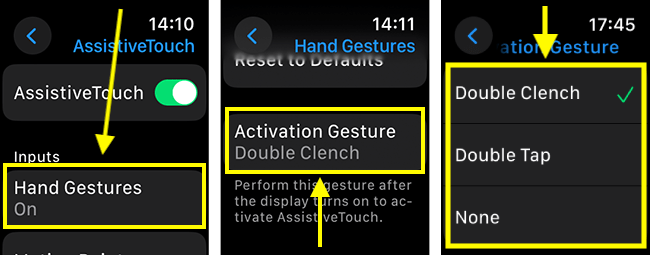
This accessibility feature can block ECG sensor input.
- On Apple Watch: Settings > Accessibility > AssistiveTouch.
- Set to OFF.
Even when not in use, AssistiveTouch can interfere with the electrical circuit needed for ECG readings. The sensor interprets the feature as an active input mode, preventing proper finger detection.
Try the Toggle Reset Trick
Even if AssistiveTouch is off, toggling it can reset sensor access.
- Turn AssistiveTouch ON.
- Restart the watch.
- Turn AssistiveTouch OFF.
- Test ECG.
🔄 User report: This fixed ECG for multiple users (colliemonster, BigJoe760)—even after Apple replaced their watches.
💡 Pro Tip: If ECG fails again, repeat the toggle. It works more often than expected.
This workaround has become a go-to fix across forums. It appears to reset internal permissions and sensor drivers, re-establishing communication between the Digital Crown and ECG module.
Clean Digital Crown & Back Sensor
Why Cleaning Works
Dirt, sweat, lotion, or moisture under the Digital Crown blocks electrical conductivity—your finger’s signal can’t reach the sensor.
🧼 Over 70% of resolved cases involved cleaning the crown.
The ECG requires a closed electrical circuit: your body → fingertip → Digital Crown → watch → wrist skin → back sensor. Any contamination breaks this circuit.
How to Clean the Digital Crown
Supplies:
- Cotton swabs
- 70–99% isopropyl alcohol
- Dental floss (waxed)
- Soft paper or toothpick (non-metal)
Steps:
- Dampen a cotton swab with alcohol.
- Wipe around the base of the crown.
- Gently insert dental floss between the crown and case—slide in and out.
- Use a damp paper corner to clean tight gaps.
- Let dry for 5–10 minutes.
✅ User success: “Fixed my Series 10 ECG after 3 weeks of failure” (Reddit: alphadsl).
This method dislodges microscopic debris that regular wiping misses. The floss acts like a tiny brush, scraping off grime that insulates the sensor.
Clean the Back Sensor
The heart rate sensor on the back must also be clean.
- Remove the band.
- Wipe the entire back crystal with an alcohol-dampened cloth.
- Use a soft toothbrush with warm soapy water if needed.
- Dry completely.
🧽 User report: “Washed with soap and toothbrush—ECG worked again” (EducatedDumbass-).
A dirty back sensor disrupts the return path of the ECG signal. Cleaning ensures consistent skin contact and accurate readings.
Advanced Cleaning (Last Resort)
Ultrasonic Clean in Isopropyl Alcohol
- Submerge Apple Watch in 99% isopropyl alcohol in an ultrasonic cleaner.
- Run for 10 minutes.
- Air dry for 1+ hours.
- Test ECG.
⚠️ Risks: May damage water seals or void warranty. Only try if other methods fail.
Acetone (Nail Polish Remover)
- Dampen a cotton ball with pure acetone.
- Wipe the crown base and contact points.
- Do not soak the watch.
⚠️ Warning: Can dull the finish. Use sparingly.
These methods are aggressive but effective for stubborn residue. Use only when standard cleaning fails, and always ensure the watch is completely dry before use.
Repair & Reset Options
Restart iPhone
Sometimes the iPhone’s Health app glitches and blocks ECG sync.
- Restart your iPhone.
- Reopen the Watch app.
- Try ECG again.
🔄 Why it works: Clears background app corruption.
The iPhone acts as the ECG’s processing hub. A frozen or corrupted Health app can prevent data transmission, making the ECG appear broken when it’s not.
Unpair and Re-pair Apple Watch
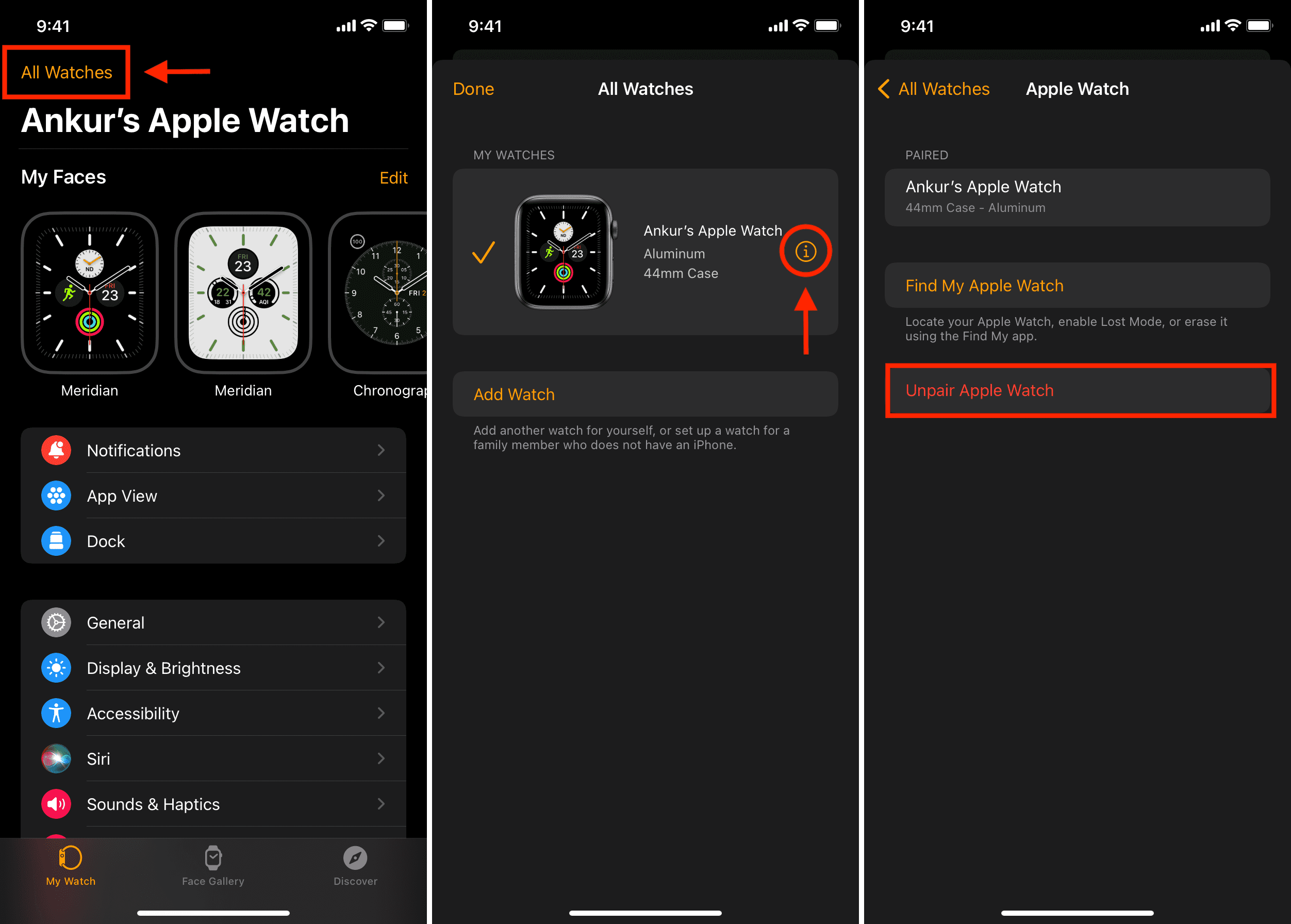
Fixes corrupted pairing data.
- Open Watch app on iPhone.
- Go to General > Reset > Unpair Apple Watch.
- Back up if desired.
- Re-pair as new.
✅ Clears software conflicts from old backups.
This is especially helpful if you restored from a backup after an update. Corrupted health data or misconfigured permissions can prevent ECG from functioning.
Factory Reset Apple Watch
Use this if ECG fails after re-pairing.
- On watch: Settings > General > Reset > Erase All Content and Settings.
- Or via iPhone: Watch app > General > Reset > Erase Apple Watch.
- Set up as new device (skip restore).
📉 Note: Some users report ECG still fails after reset—suggests hardware issue.
A factory reset eliminates all software variables. If ECG still doesn’t work, the problem is likely hardware-related.
Check for Hardware Failure

Test the Digital Crown
Signs of wear:
– Stiff or loose movement
– Clicking sounds when pressed
– Requires pulling slightly out to work (reported by Resident-Village631)
🛠️ Apple service note: Technicians have replaced watches for “abnormal crown noise” even without visible damage.
The Digital Crown is a precision component. Internal corrosion or wear can disrupt its electrical contact, breaking the ECG circuit.
Try Finger Contact Test
- Open ECG app.
- Place finger on crown—don’t press.
- Watch should detect contact within 2 seconds.
❌ If no bars appear or countdown doesn’t start: sensor or crown failure likely.
This quick test isolates the issue. No response means the hardware isn’t detecting input—either due to damage or deep contamination.
Apple Support & Warranty Tips
Can Apple Fix It?
Yes—but only if the issue is reproducible.
- Schedule a Genius Bar appointment or call Apple Support.
- Demonstrate the ECG failure live.
- If undetected, request escalation.
🧾 User report: “Apple said it was fine—until I showed it failing in-store” (ventbs).
Apple’s diagnostics may not catch intermittent issues. You must show the problem in real time.
Warranty & AppleCare+
- Standard warranty: 1 year.
- AppleCare+: 2 years, covers sensor failures.
💡 If ECG fails just after warranty ends, Apple may still help under goodwill—especially with multiple user reports.
Out-of-Warranty Options
Credit Card Protection
- Some cards offer extended warranty (e.g., Amex, Chase).
- One user got a full refund via card issuer (iReadECGs).
Submit Feedback to Apple
- Go to Apple Feedback – Watch.
- Describe: “Apple Watch 10 ECG fails to record—requires cleaning or reset.”
- More reports = higher chance of official fix.
Final Fixes Summary
| Solution | Speed | Success Rate |
|---|---|---|
| Clean Digital Crown | 5 min | ⭐⭐⭐⭐☆ |
| Toggle AssistiveTouch | 2 min | ⭐⭐⭐⭐☆ |
| Restart Watch | 1 min | ⭐⭐⭐☆☆ |
| Update watchOS | 10 min | ⭐⭐⭐☆☆ |
| Unpair & Re-pair | 20 min | ⭐⭐⭐☆☆ |
| Factory Reset | 30 min | ⭐⭐☆☆☆ |
| Ultrasonic Clean | 1+ hr | ⭐⭐⭐⭐☆ (risky) |
| Apple Replacement | 1–3 days | ⭐⭐☆☆☆ (may recur) |
Pro Tips & Warnings
✅ Do:
- Keep crown and back sensor clean and dry.
- Wear watch snugly—loose fit reduces contact.
- Use only your fingertip on the crown.
- Rest hand on a flat surface during recording.
❌ Don’t:
- Press the screen during ECG.
- Use wet hands if the watch is wet—dry both.
- Submerge in liquids outside Water Lock.
- Use abrasive cleaners or metal tools.
⚠️ Important:
- ECG is not a medical device. It can’t detect heart attacks, clots, or strokes.
- Always consult a doctor for chest pain, dizziness, or irregular rhythms.
What to Do Now
- Clean the Digital Crown with alcohol and floss.
- Toggle AssistiveTouch off (or toggle on/off with restart).
- Restart both watch and iPhone.
- Update to latest watchOS.
- If still failing, unpair and re-pair.
- Contact Apple Support if under warranty.
- Submit feedback to push for a permanent fix.
Your Apple Watch 10 ECG should work reliably—don’t accept “just live with it.” With the right fix, most users restore function in minutes. Keep your heart monitoring active, and stay persistent with Apple until this is resolved for good.