You’ve just unboxed your sleek new Apple Watch and can’t wait to start tracking workouts, receiving notifications, and paying with a tap—but before any of that happens, you need to connect it to your iPhone. The good news? Apple has designed the pairing process to be fast, intuitive, and mostly automatic. As long as your devices meet the requirements and you follow the correct steps, setup should take less than 15 minutes.
Whether you’re setting up your first Apple Watch or replacing an old one, this guide walks you through every stage of connecting your Apple Watch to your iPhone—step by step. You’ll learn how to pair via camera, manually, troubleshoot common errors, and ensure your device is fully activated and ready to use. We’ll also cover Activation Lock, cellular setup, and post-pairing tips for seamless daily use.
Confirm iPhone and Apple Watch Are Compatible
Before you begin, verify that both devices support pairing.
iPhone and Watch Model Requirements
Apple limits full functionality to recent models:
- Compatible iPhones: iPhone 11 or newer
- Supported Apple Watches: Apple Watch SE (any generation), Series 6 or later, Ultra (any model), Series 11, SE 3, and Ultra 3
Older iPhone or Watch models may connect but could lack features like ECG, blood oxygen monitoring, or Double Tap gestures.
Software Must Be Up to Date
Both devices must run compatible operating systems:
- iPhone: iOS 18 or later (the reference to “iOS 26” is likely a typo; current public versions are iOS 17/18 beta)
- Apple Watch: watchOS 10 or later
To update:
– On iPhone: Go to Settings > General > Software Update
– On Apple Watch: Open Settings > General > Software Update
Install any available updates before starting setup.
Enable Required Connectivity
Ensure:
– Bluetooth is on (check Control Center)
– Wi-Fi or cellular data is active on iPhone
– Devices are within 6 inches during pairing
Remove thick cases or screen protectors that might block NFC or camera detection.
Power On and Prepare Your Apple Watch
Start by turning on your Apple Watch correctly.
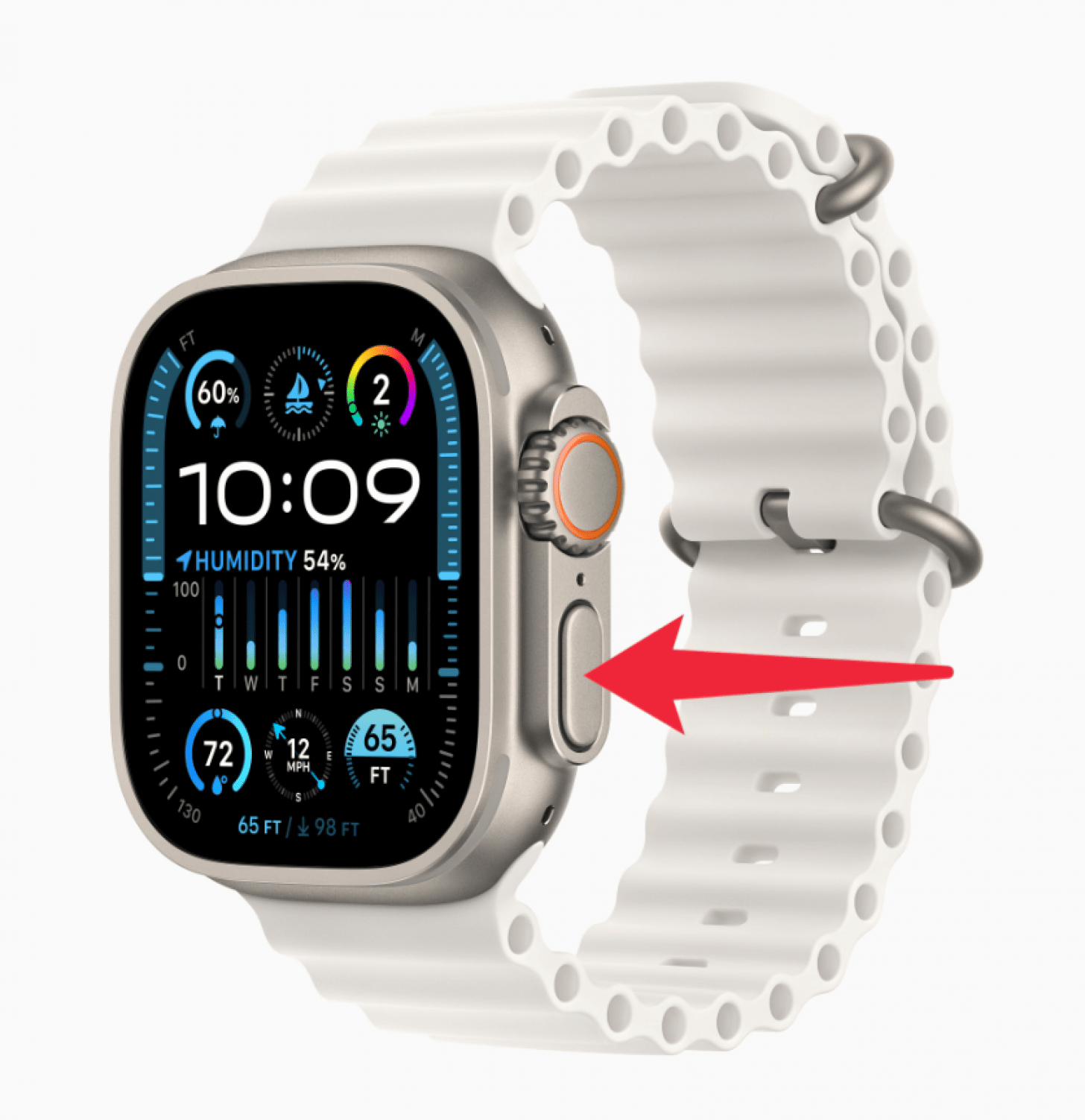
Turn On the Apple Watch
- Place the watch on your wrist
- Press and hold the side button until the Apple logo appears
- Wait for the pairing animation—a swirling circle or smiley face—to appear on screen
If it doesn’t power on:
– Charge for at least 30 minutes using the magnetic charger
– Try a different cable or wall adapter
– Force restart: Hold side button + Digital Crown for 10 seconds
Visual cue: The spinning animation means the watch is ready to pair. If you see a watch face instead, it’s already paired—unpair it first.
Start Pairing From Your iPhone
Now use your iPhone to initiate the connection.
Wait for Automatic Setup Prompt
- Unlock your iPhone
- Hold it near the powered-on Apple Watch
- Wait for “Use your iPhone to set up this Apple Watch” to appear
Tap Continue to begin.
If no prompt appears, proceed manually.
Open Apple Watch App Manually
- On iPhone, open the Apple Watch app
- Tap All Watches at the top
- Tap Add Watch
- Choose Set Up for Myself or Set Up for a Family Member
Pro tip: If replacing an old Watch, select Express Setup to transfer settings, apps, and preferences automatically.
Pair Using Camera or Manual Entry
Apple uses a secure visual method to link devices wirelessly.
Align Watch in iPhone’s Camera View
- Hold your iPhone so the Apple Watch face fits inside the on-screen circle
- Keep both devices steady
- Wait for “Your Apple Watch is paired” to appear
The connection uses Bluetooth and NFC for fast, secure pairing.
Pair Manually If Camera Fails
Tap Pair Apple Watch Manually at the bottom.
Then:
– A code appears on the Apple Watch
– Enter it on your iPhone
– Or tap i on the Watch screen to reveal the code
Common reasons for camera failure:
– Dirty screen or camera lens
– Low lighting
– Screen protector interference
– Distance too great
Expert note: You can also pair via Settings > Bluetooth on iPhone if the Watch appears in the list.
Choose Your Setup Option
Decide how to configure your Apple Watch.
Pick a Setup Path
Options include:
– Set Up for Myself (standard personal setup)
– Set Up for a Family Member (requires Family Sharing)
When replacing an old Watch:
– Express Setup: Copies all settings instantly
– Restore from Backup: Retrieves data from iCloud
– Set Up as New: Begin fresh with default options
If prompted, allow the iPhone to update—this ensures compatibility and can take several minutes. Do not skip.
Configure Watch Settings

Personalize your Apple Watch during setup.
Select Wrist and Set Passcode
Choose:
– Left or right wrist (affects screen orientation and gesture direction)
– Create a Passcode (required for Apple Pay and security)
To set passcode:
– Tap option on iPhone
– Enter digits directly on Apple Watch
You can skip this and add a passcode later in Settings > Passcode.
Accept Terms and Sign In
- Tap Agree to Apple’s Terms and Conditions
- Sign in with your Apple ID password
- Enable Find My if prompted—this activates Activation Lock
⚠️ Warning: If Activation Lock appears, the Watch is still linked to another Apple ID. You must enter the previous owner’s credentials to proceed.
Customize Health and Model-Specific Features
Tailor your Watch for fitness, safety, and convenience.
Update Health Profile
Enter accurate:
– Date of birth
– Height
– Weight
This ensures precise calorie burn, heart rate zones, and activity goals.
Enable health alerts:
– Emergency SOS
– Fall Detection
– Hearing Health
– Noise Monitoring
Activate Model-Specific Features
For Cellular Models
- Activate service during setup
- Must use same carrier as iPhone (except in Family Setup)
- Delay activation and set up later in Apple Watch app > Cellular
Note: Cellular isn’t available in all countries.
For Gesture-Supported Models
- Learn Double Tap (answer calls, take photos with a pinch)
- Adjust gesture sensitivity in Settings > Accessibility > Touch
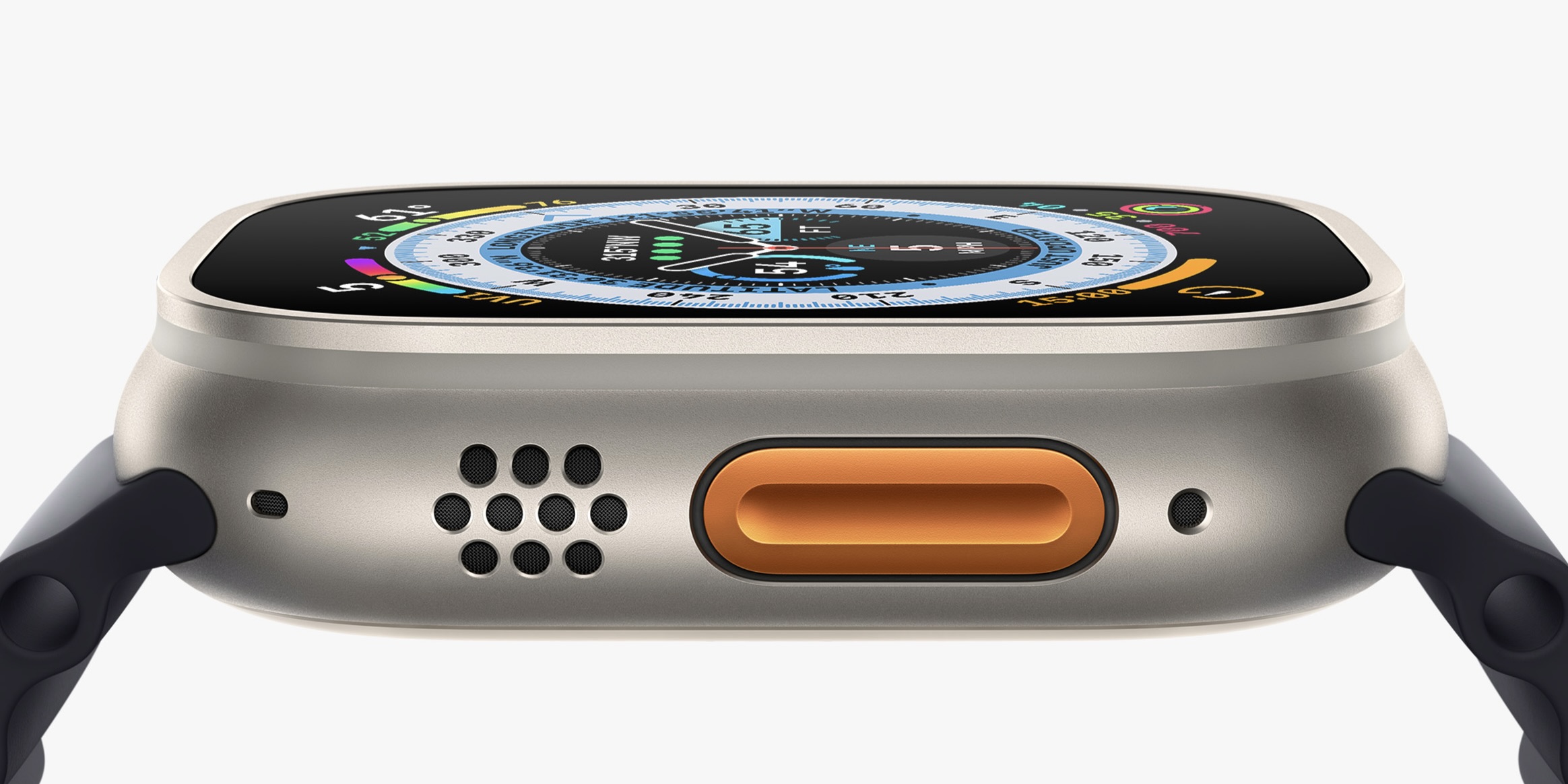
For Apple Watch Ultra
- Customize the Action Button (launch Workout, Flashlight, or custom app)
- Set Depth app units (feet/meters) for diving
Add Apple Pay and Finish Setup
Make your Apple Watch a payment device.
Add a Payment Card
- Open Wallet on iPhone or Apple Watch app > Wallet & Apple Pay
- Tap Add Card
- Scan card or enter details manually
- Verify with your bank (SMS or app approval)
- Set as Default payment method
Now pay by double-clicking the side button.
Let Devices Sync and Complete Setup
Allow time for full synchronization.
Keep Devices Close
- Don’t move iPhone far during sync
- Process takes 5–15 minutes, especially with large backups
- Watch may restart automatically
Finalize Setup
When done:
– Tap Done on iPhone
– Tap Start on Apple Watch
– Your chosen watch face appears
Message: “Your Apple Watch is ready to use”
💡 Tap Get to Know Your Watch for tutorials on gestures, apps, and features. Access later via Apple Watch app > Discover.
Once paired, your Watch reconnects automatically via Bluetooth when in range.
Fix Common Pairing Problems
Even with perfect prep, issues happen. Here’s how to solve them.
Apple Watch Shows Watch Face, Not Pairing Screen
Problem: Already paired to another iPhone
Solution:
1. On current iPhone, open Apple Watch app
2. Tap All Watches > “i” icon
3. Tap Unpair Apple Watch
4. Confirm—erases Watch and disables Activation Lock
5. Restart both and retry setup
You’ll need the Apple ID password of the current owner.
Activation Lock Appears
Problem: Linked to previous Apple ID
Solution:
– Enter the original Apple ID and password
– For secondhand watches, ask seller to remove via iCloud.com > Find My > Devices
– No bypass exists—this security feature cannot be skipped
Always verify Activation Lock status before buying used.
iPhone Can’t Detect Watch via Camera
Fixes:
– Clean iPhone camera and Watch screen
– Ensure bright lighting
– Remove case or screen protector
– Tap Pair Manually and enter code
– Try a different iPhone if possible
Pairing Process Freezes
Steps:
1. Restart Apple Watch: Hold side button + Digital Crown for 10 seconds
2. Restart iPhone: Hold side + volume button until slider appears
3. Reopen Apple Watch app > Add Watch
If still stuck:
– Reset network settings: Settings > General > Transfer or Reset iPhone > Reset > Reset Network Settings
Apple Watch Won’t Turn On
Solutions:
– Charge for 30+ minutes with Apple charger
– Press and hold side button until Apple logo appears
– Try different cable or power source
– Force restart: Hold side button + Digital Crown for 10 seconds
Forgot Passcode and Can’t Unpair
Fix:
1. Place Watch on charger
2. Press and hold side button until Power Off slider appears
3. Press and hold Digital Crown—Reset option appears in red
4. Tap Reset, confirm
5. Pair again—but Activation Lock remains active
You still need the original Apple ID and password.
Post-Setup Tips and Management
Now that your Watch is connected, keep it running smoothly.
Manage Watch From iPhone
Use the Apple Watch app to:
– Change watch faces
– Install or remove apps
– Adjust notifications
– Update software
– Manage cellular plans
– View battery level
Maintain Strong Connection
Your Watch uses:
– Bluetooth when iPhone is nearby
– Wi-Fi when iPhone is off
– Cellular (if enabled) for calls and streaming
All data syncs automatically when devices reconnect.
Use Family Setup for Kids or Elders
Set up a Watch for someone without an iPhone:
– Requires Family Sharing
– Parent manages settings via their iPhone
– Supports cellular with same or different carrier
Ideal for children, seniors, or dependents.
Final Checklist Before You Go
✅ iPhone 11 or newer
✅ iOS 18 or later installed
✅ Apple Watch charged and showing pairing animation
✅ Bluetooth and Wi-Fi on
✅ Apple ID signed in
✅ Activation Lock cleared (for used watches)
✅ Original charging cable used
If all steps are complete and your Watch still won’t connect, contact Apple Support or visit an Apple Store. Hardware issues are rare—but pairing problems are almost always fixable with a reset and retry.
Your Apple Watch and iPhone are now seamlessly connected. You can receive calls, track workouts, monitor heart rate, and stay in the loop—without ever pulling out your phone. Enjoy the freedom of a truly integrated Apple ecosystem.
Leave a Reply