
You didn’t buy an Apple Watch just to glance at the time—you wanted a smarter, healthier, more efficient life. Yet most users treat it as little more than a notification ticker, missing out on its true potential. Your Apple Watch is far more than a fitness tracker: it’s a 24/7 health guardian, personal coach, digital keychain, and productivity co-pilot—all wrapped around your wrist.
Whether you own an Apple Watch Series 9, Ultra 2, or SE, unlocking its full power starts with intentional setup. With the right tweaks, your watch can help you catch early signs of illness, sleep like an athlete, train smarter, and reduce screen time—all without touching your phone. This guide reveals how to go beyond basic use and transform your Apple Watch into a silent, powerful extension of your daily life.
Let’s unlock every hidden feature—from life-saving heart alerts to smart home automation and battery-saving hacks—so you finally get what you paid for.
Enable Life-Saving Health Features First
Your Apple Watch could detect a medical emergency before you even feel symptoms. Start here to harness its full health potential.
Use ECG & Irregular Rhythm Alerts to Catch AFib Early
If you own a Series 4 or later, you have access to an FDA-cleared ECG app that can detect atrial fibrillation (AFib) in just 30 seconds. Open the app, rest your finger on the Digital Crown, and let the watch analyze your heart rhythm. Results are saved in the Health app on your iPhone and can be shared with your doctor.
Equally important: Irregular Rhythm Notifications. Enable this in Health > Heart > Irregular Rhythm Notifications. Your watch will passively monitor your heart and alert you if it detects patterns consistent with AFib over time—no action required on your part.
These features have helped users discover undiagnosed heart conditions, sometimes preventing hospitalization.
Set Custom Heart Rate Alerts for Early Warnings
Avoid dangerous spikes or drops with personalized notifications. In the Health app, go to Heart > Heart Rate > Notifications and set:
- High Heart Rate Alert (e.g., over 120 bpm at rest)
- Low Heart Rate Alert (e.g., under 50 bpm when not training)
These can signal dehydration, illness, or overtraining—giving you time to rest or seek care.
Track Blood Oxygen & Sleep Trends Automatically
On Series 6 and newer, your watch measures SpO2 (blood oxygen) while you sleep. This data can reveal early signs of sleep apnea or respiratory issues, especially when tracked over time.
For deeper insights, use the Vitals app (available in watchOS 11+). After seven nights of consistent wear, it learns your baseline and warns you of deviations in heart rate, respiratory rate, and wrist temperature—helping you spot illness before symptoms appear.
Maximize Fitness with Pro-Level Tools
The Activity rings are more than eye candy—they’re a proven motivator. One user lost 45 pounds by committing to close them daily.
Skip Delays with Precision Start & Chain Workouts
Stop waiting 3 seconds to begin. Go to Settings > Workout > Precision Start and turn it on. Tap “Start,” and your workout begins instantly—perfect for high-intensity training.
Triathletes, take note: finish one workout, then tap “Resume” to start the next. Your watch keeps a single log, ideal for seamless transitions between swim, bike, and run.
Get Real-Time Coaching with Workout Buddy
Available on iPhone 15 Pro with Apple Intelligence, Workout Buddy acts as your AI fitness coach. Enable it in the Workout app > Bell icon. During runs or cycling, it delivers voice encouragement, adjusts music volume when speaking, and keeps you on pace—like a personal trainer on your wrist.
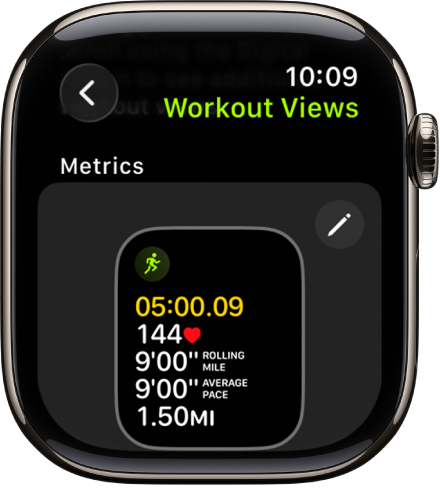
View On-Screen Pace & Cadence During Runs
During outdoor workouts, your watch displays real-time pace and steps per minute (cadence). Use this to avoid burning out early or improve running form. For best results, pair with AirPods Pro (3rd gen), which offer even more accurate heart rate tracking during intense sessions.
Unlock Deep Sleep & Recovery Insights
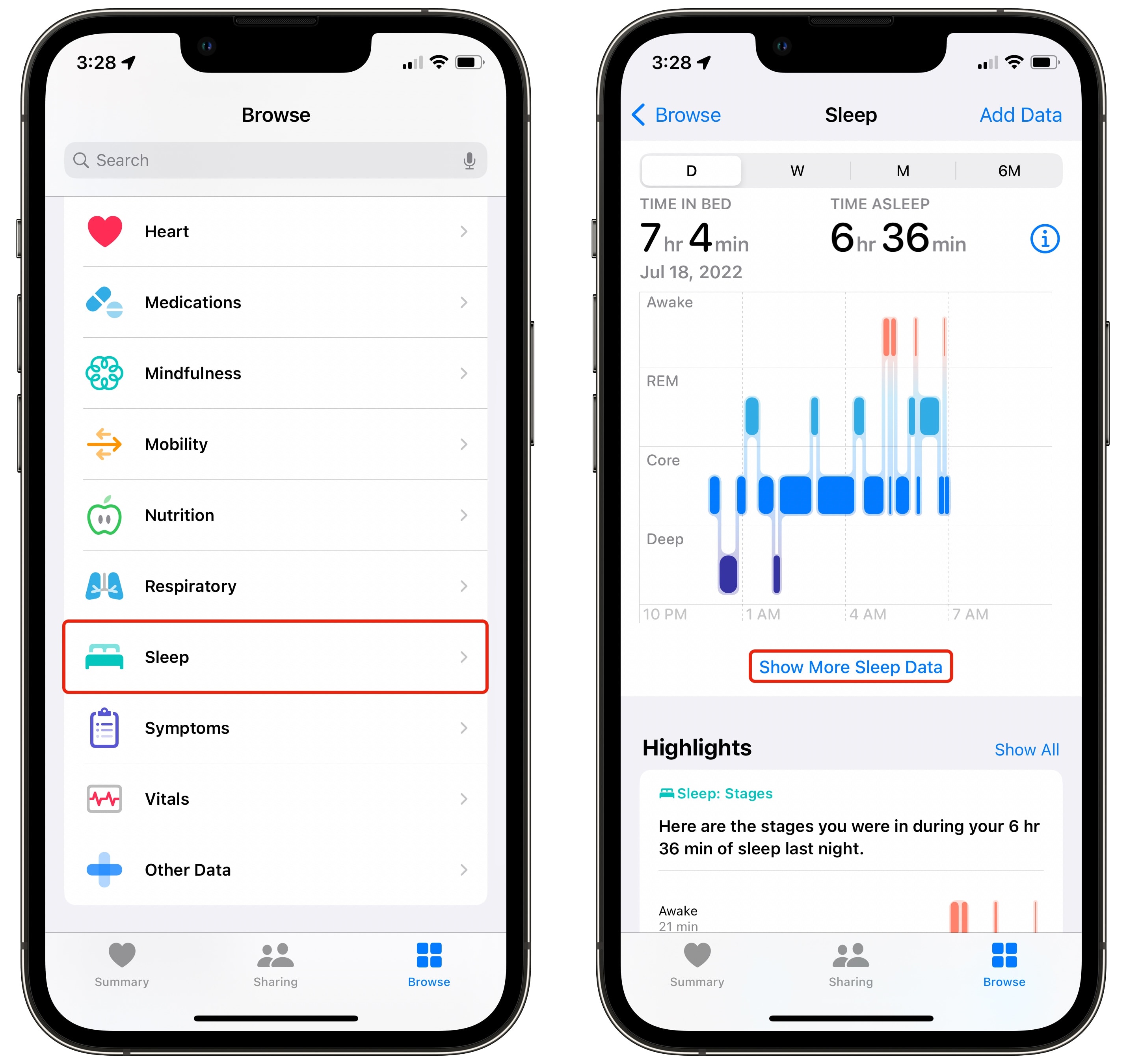
Sleep is where your Apple Watch delivers some of its most valuable data—far beyond just how long you were in bed.
Set Up Native Sleep Tracking with Wind Down Mode
In the Health app, tap Sleep > Get Started. Schedule bedtime and wake-up alarms. Enable Wind Down to automatically dim apps and reduce distractions as bedtime approaches.
Wear your watch to bed. By morning, your iPhone shows sleep duration, time in bed, and estimated sleep stages (light, deep, REM).
Check Your Daily Sleep Score
With watchOS 26, you receive a 0–100 Sleep Score based on consistency, duration, and rest quality. View it in the Sleep app > Last Night. Aim for 80+ consistently to support long-term health.
Wake Up Refreshed with Smart Alarms
Install Bevel, a third-party app that analyzes your sleep cycles. It wakes you during light sleep within a 30-minute window, so you rise feeling alert, not groggy.
Bevel also tracks recovery time, strain, and body battery, giving you Garmin-like insights into daily readiness.
Turn Your Watch Into a Daily Convenience Hub
Your Apple Watch can replace your wallet, keys, and even your phone—with the right setup.
Pay & Travel Without Your Phone
Double-press the side button to launch Apple Pay—even if your iPhone is off. It works with credit cards, transit passes (like Suica or Octopus), and student IDs.
With a cellular model, leave your phone behind and still make calls, send texts, and stream music.
Control Music & Podcasts Offline
Sync Apple Music playlists directly to your watch. Play to AirPods or use the built-in speaker. Download podcast episodes and adjust playback speed—no iPhone needed.
You can even control AirPods volume from your wrist, without asking Siri.
Screen Notifications Like a Pro
Use your watch to preview messages, reply by voice or emoji, and dismiss with a tap—reducing phone dependency.
To keep a notification on your iPhone without clearing it, press the Digital Crown instead of swiping away.
Silence Alerts with Simple Gestures
On Series 9 and newer:
- Wrist Flick: Turn your wrist over and back to mute calls or timers.
- Cover to Mute: Place your palm over the screen to silence an incoming call.
These are game-changers during meetings, workouts, or parenting moments.
Automate Your Life with Shortcuts & Focus Modes
Turn your Apple Watch into a smart assistant that works before you ask.
Create One-Tap Shortcuts
Use the Shortcuts app to automate tasks:
- “Good Morning”: Turns on lights, starts coffee, reads weather.
- “Workout Ready”: Enables Do Not Disturb, launches GPS, starts a playlist.
Add shortcuts to your watch face or Control Center for instant access.
Link Focus Modes to Watch Faces
Set different watch faces for different Focus modes:
- Work Focus: Shows calendar, 2-minute timer, ECG, water tracker.
- Driving Focus: Displays Maps, parking meter, weather.
- Sleep Focus: Activates Do Not Disturb and hides distractions.
When you enable a Focus, the matching face appears automatically—contextual tools at a glance.
Customize Your Watch Face for Speed

Your watch face is your command center. Make it work for your day.
Choose the Right Face Type
- Infograph: Up to 8 complications—ideal for power users.
- Modular/M Modular Ultra: Big center module for Activity rings or Maps.
- Chronograph Pro: Stopwatch with tachymeter for timing speed.
- Flow & Exacto Graph (Series 11+): Smooth second hand at 1Hz.
Add High-Value Complications
Prioritize usefulness:
- Teaching? Use a calendar complication to show “X minutes left in Y period.”
- Hiking? Show elevation, compass, and battery level.
- At Work? Add WaterMinder, Streaks, or a 2-minute timer.
Third-party apps like Bevel, DUO (2FA), and Omnifocus offer powerful complications.
Use Smart Stack for Contextual Tools
Swipe up to access Smart Stack. It learns your habits and suggests:
- Backtrack when hiking
- Workout when arriving at the gym
- Calendar before meetings
Pin your most-used widgets to the top for instant access.
Navigate Like a Pro with Haptic Feedback
Your Apple Watch is a GPS navigator for hikers, cyclists, and travelers.
Get Haptic Turn-by-Turn Directions
Apple Maps sends taps to your wrist:
- 3 double-taps = turn left
- 12 taps = turn right
No need to look at the screen—perfect for cycling or trail running.
Use Offline Maps & Backtrack
Download regions in Apple Maps on your iPhone, then sync to your watch. Enable Use Offline Maps Even When Connected to save battery.
For advanced trails, use Work Outdoors ($6)—a full Garmin-style GPS app with downloadable routes.
Track Tides & Underwater Depth (Apple Watch Ultra)
On Ultra models:
- Tides app shows high/low tide times.
- Depth app measures underwater depth and temperature.
- Set Auto Launch to open Depth when submerged.
Extend Battery Life with Smart Settings

Most users drain the battery by noon. Fix that.
Enable Low Power Mode
In watchOS 9+, Low Power Mode doubles battery life (up to 36 hours). It disables:
- Always-on display
- Background heart rate
- Blood oxygen scans
Activate it in Control Center > Battery icon.
Optimize Charging Habits
Turn on Optimized Battery Charging. It learns your routine, charges to 80%, then finishes just before you wake—reducing battery wear.
Reduce Complication Load
Each complication uses power. Stick to 3–5 per face. Remove non-essential ones.
Use Gestures & Voice Control Hands-Free
Control your watch without touching it—ideal for cooking, workouts, or gloves.
Master Series 9 Gestures
- Double Tap: Pinch two fingers twice to reply, scroll, or dismiss timers.
- Wrist Flick: Mute calls or alerts.
- Cover to Mute: Silence with your palm.
Use Siri Hands-Free
Raise your wrist and say “Siri” (no “Hey” needed). Ask:
- “What was my resting heart rate this morning?”
- “Start a 5-minute meditation”
- “Play my workout playlist”
Dictate notes, texts, or journal entries—no typing.
Integrate Third-Party Apps Wisely
Few third-party apps are worth it. These are:
- Bevel ($50/year): Advanced recovery, VO2 max, stress tracking.
- Work Outdoors ($6): Offline GPS for hiking and biking.
- WaterMinder or Waterllama: Hydration tracking with Apple Health sync.
- Streaks: Habit tracker with complications.
- Cardiogram or HeartWatch: Deep heart rate analytics.
Note: Most big apps (Google, Meta) don’t support Apple Watch due to App Store fees.
Tailor for Special Use Cases
Make your watch fit your role.
For Teachers
- Use calendar complication to show time left in class.
- Set silent timers to pace lessons.
- Eliminates 20+ phone checks per day.
For Parents
Set up an Apple Watch for Kids (no iPhone needed). Features:
- Location tracking
- Calls to approved contacts
- Schooltime mode to limit distractions
For Minimalists
Install only:
- Activity
- Messages
- Phone
- Timer
- Music
Disable all non-essential notifications. Use only for time, fitness, and emergencies.
Save Battery & Boost Performance
Keep your watch fast and lasting.
Delete Unused Apps
Remove: Tips, Cycle Tracking, Spotify (if you use Apple Music). Fewer apps = better performance.
Switch to List View
In Settings > App View, choose List View. Faster to scroll than grid.
Force Restart When Frozen
Hold side button + Digital Crown for 10 seconds. Use only when unresponsive.
Use Pro Tricks You Didn’t Know
These small hacks make a big difference.
Unlock Your Mac Automatically
Enable Unlock with Apple Watch in System Settings > Touch ID & Password. Walk up—Mac unlocks.
Take Screenshots
Enable in General > Enable Screenshots. Press side button + Digital Crown.
Eject Water After Swimming
Turn the Digital Crown while water lock is on. It clears water from the speaker.
Hear the Time Aloud
Tap the Mickey/Minnie face, or use two-finger tap + Siri to speak the time.
Activate Theater Mode
In Control Center, tap the theater mask. Screen stays dark, but haptics work—great for movies.
Use Handwashing Timer
Auto-starts when watch detects motion and water sound. Counts down 20 seconds.
The Apple Watch becomes most powerful when it disappears into your routine—working silently, efficiently, and meaningfully. Set it up with intention. Refine it monthly. And get the most out of every tap, ring, and vibration.





