
If your Apple Watch won’t connect to your iPhone, you’re not alone. This common issue can happen after a software update, switching to a new phone, or an accidental reset. The result? Missed notifications, unsynced workouts, and apps that won’t load. But most connection problems can be fixed quickly—and without losing your data. This guide walks you through every step to repair, re-pair, and fully restore syncing between your Apple Watch and iPhone.
Whether your watch is stuck on the setup screen, won’t pair, or simply stopped syncing, you’ll learn proven fixes that work. We’ll cover forced resets, manual pairing, iCloud backup recovery, and deep troubleshooting for stubborn sync failures. Most importantly, you’ll discover how to protect your health and fitness data—the one thing many users can’t afford to lose. Let’s get your devices communicating again.
Confirm Your Devices Meet Pairing Requirements
Before attempting repairs, verify your devices meet Apple’s essential pairing criteria. Many connection issues stem from overlooked basics.
Verify Device Compatibility and Software
Your iPhone must be an iPhone 6s or later running iOS 14 or higher (iOS 18 recommended). All Apple Watch models are supported as long as both devices run compatible operating systems. Mismatched software versions block pairing.
To check:
– iPhone: Go to Settings > General > Software Update
– Apple Watch: Open the Watch app on iPhone > General > Software Update
Update both devices if updates are available. iOS 18 requires watchOS 11, so ensure compatibility before upgrading.
Ensure Key Connection Conditions Are Met
For successful pairing, confirm the following:
– Bluetooth and Wi-Fi are enabled on both devices
– Airplane Mode is off
– Devices are within 1–2 feet of each other
– Both have at least 50% battery
– You’re signed in with the same Apple ID on both
– Two-factor authentication is active on your Apple ID
Pro Tip: Place both devices on charge during setup. Low battery can interrupt pairing and syncing.
Fix Apple Watch That Won’t Pair to iPhone
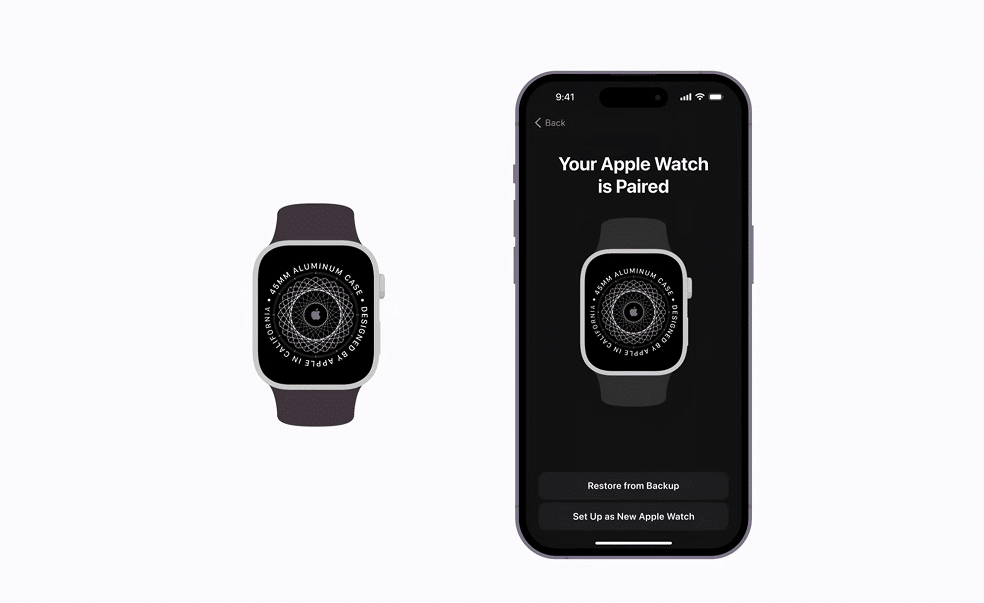
When your Apple Watch fails to pair, the most common cause is a leftover pairing state or software glitch. Let’s fix it.
Watch Shows Setup Screen? Start Pairing Now
If your Apple Watch displays a smiley face or pairing animation:
1. Open the Apple Watch app on your iPhone
2. Tap Start Pairing
3. Point your iPhone’s camera at the animation on the watch
4. Wait for “Apple Watch is Paired” confirmation
When prompted, choose Restore from Backup to recover health data, apps, and settings. This option only appears if a backup exists—typically created when unpairing through the Watch app.
Note: If you reset the watch instead of unpairing, no backup was made. You’ll need to set up as new and lose prior data.
Watch Doesn’t Show Setup Screen? Reset It First
If the watch boots to the home screen or freezes, it’s still paired. You must erase it.
Normal Reset (Passcode Known)
- On Apple Watch: Settings > General > Reset
- Tap Erase All Content and Settings
- Enter passcode
- Confirm with Erase All
The watch restarts into setup mode.
Force Reset (Unresponsive or Forgotten Passcode)
- Place watch on charger
- Press and hold Side Button until power slider appears
- Press and hold Digital Crown while still holding Side Button
- Hold both for 10 seconds until Reset appears
- Tap Reset, confirm
After reset, the watch shows the setup screen and is ready to pair.
Re-Pair After Switching to a New iPhone
Upgraded your phone? Follow this process to avoid data loss.
Unpair from Old iPhone First (Best Practice)
If you still have the old iPhone:
1. Open the Apple Watch app
2. Tap All Watches (top-left)
3. Select your watch
4. Scroll down and tap Unpair Apple Watch
5. Confirm with Apple ID password
Critical: This triggers an automatic iCloud backup of all watch data—health records, workouts, apps, and watch face layouts.
After unpairing, set up the watch on your new iPhone using the same Apple ID.
No Access to Old iPhone? You Can Still Pair
- Reset the Apple Watch (erase or force reset)
- Wait for the setup screen to appear
- Open Apple Watch app on new iPhone
- Tap Start Pairing
- Scan the animation or choose Pair Manually
During setup, you’ll see available backups. If none appear, you must set up as new—and lose all prior data.
Warning: Health data generated after the last backup is gone forever unless a backup exists.
Restore Missing Health and Activity Data
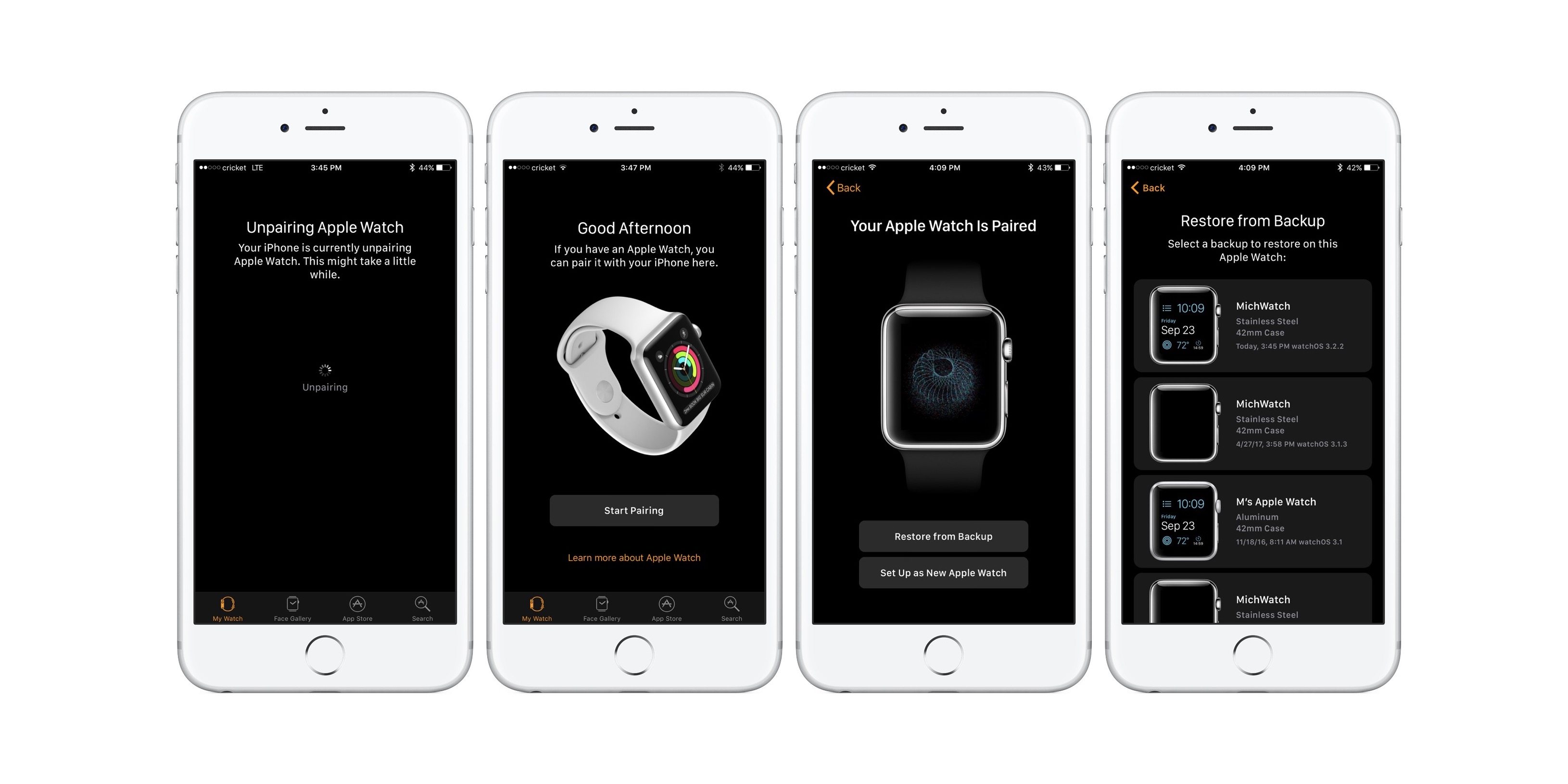
Recovering health and fitness data is often the top priority.
Confirm an iCloud Backup Exists
- On iPhone: Settings > [Your Name] > iCloud > Manage Storage
- Tap Backups
- Select your iPhone
- Scroll to see if Apple Watch data is listed
If present, your health, workouts, and app data are safe.
Restore During Setup
When re-pairing:
– Choose Restore from Backup
– Select the most recent backup
– Wait 10–30 minutes for sync
Open the Activity and Health apps to confirm your rings refill and data returns.
Fact: Data created between unpairing and re-pairing cannot be recovered unless the watch was briefly re-paired.
Fix Syncing Issues After Successful Pairing
Even when paired, your watch may stop syncing. Notifications, messages, or workout data stall.
Restart Both Devices
A simple reboot often fixes stuck syncs.
iPhone:
Swipe down Control Center > tap power icon > slide to power off > wait 10 seconds > restart.
Apple Watch:
Settings > General > Shutdown > slide to power off > hold side button to restart.
Wait 2–3 minutes. Sync usually resumes automatically.
Update iOS and watchOS
Outdated software breaks syncing.
- iPhone: Settings > General > Software Update
- Apple Watch: Watch app > General > Software Update
Install all pending updates. Ensure both devices run compatible versions.
Reset Sync Data (Safe and Fast)
Clears corrupted local sync caches—no data loss.
- On Apple Watch: Settings > General > Reset
- Tap Reset Sync Data
- Confirm
Contacts, calendars, and apps will re-sync from iPhone.
Use Case: Fixes frozen app installs, missing notifications, and stalled messages.
Use Manual Pairing When Camera Fails
If the iPhone won’t detect the pairing animation:
- Open Apple Watch app > Tap Start Pairing > Pair Manually
- On Apple Watch: Settings > Bluetooth
- Tap your iPhone when it appears
- Confirm matching code on both devices
Use Case: Works when camera is dirty, lighting is poor, or animation won’t load.
Fix Network and Connection Blocks
Bluetooth or Wi-Fi glitches can silently block pairing.
Reset iPhone Network Settings
Clears corrupted Bluetooth and Wi-Fi profiles.
- iPhone: Settings > General > Transfer or Reset iPhone > Reset > Reset Network Settings
- Enter passcode, confirm
- iPhone restarts
Warning: You’ll lose saved Wi-Fi passwords and Bluetooth connections.
After reset, re-enable Bluetooth and Wi-Fi, then retry pairing.
Check Apple System Status
Visit apple.com/support/systemstatus and check:
– iCloud
– Apple ID
– Find My
– Health Data Sync
If any service shows an outage, wait for Apple to resolve it.
Handle Forgotten Passcodes and Stuck Watches
Locked out or stuck on the Apple logo? Here’s how to recover.
Forgot Apple Watch Passcode?
You can’t bypass it—reset is required.
- Place watch on charger
- Force restart: Side Button + Digital Crown for 10 seconds
- Tap Reset when screen appears
- Confirm
After reset, re-pair and restore from iCloud backup.
Data Note: Only recoverable if iCloud backup was enabled.
Watch Stuck on Apple Logo?
Could be a failed update or software crash.
Force Restart
- Press and hold Side Button + Digital Crown for 10+ seconds
- Release when Apple logo reappears
If it loops, restore via computer.
Restore Using Mac or PC
- Connect Apple Watch to Mac (or PC with iTunes)
- Open Finder (Mac) or iTunes (PC)
- Select your Apple Watch
- Click Restore
After restore, set up and restore from backup.
Note: Last resort—use only if force restart fails.
Prevent Future Pairing Failures
Avoid repeat issues with these best practices.
Enable iCloud Backup
Ensure automatic backups:
– iPhone: Settings > [Your Name] > iCloud > iCloud Backup > On
Your Apple Watch backs up automatically when near the iPhone.
Update Software Regularly
Set both devices to update automatically:
– iPhone: Settings > General > Software Update > Automatic Updates
– Apple Watch: Updates install when iPhone is charging and nearby
Store Old iPhone Temporarily
When upgrading phones:
– Keep your old iPhone for 24 hours
– Unpair the watch from it first
– This ensures a clean backup before switching
Expert Tip: Never factory reset your old iPhone before unpairing the watch.
Verify Repair Success
After fixing the connection, confirm everything works.
Confirm Pairing Status
Open Apple Watch app > “My Watch” tab. Your watch should appear.
Test Key Functions
- Activity Rings: Open Activity app—rings should update
- Notifications: Send a text—watch should buzz
- Apple Pay: Make a small purchase
- Find My: Enable in Watch app > My Watch > Find My > On
- Health Sharing: Re-enable shared data if used
Allow 10–15 minutes for full sync. Keep devices close and charged.
When to Contact Apple Support
Try all steps first—but seek help if:
– Watch won’t reset or stays on Apple logo
– Pairing fails repeatedly despite correct steps
– Activation Lock appears after reset (requires original Apple ID)
– Hardware issues: screen unresponsive, won’t charge
– Health data missing after restore from backup
Activation Lock Tip: If the watch asks for an old Apple ID, it may be stolen. Provide proof of purchase to Apple for removal.
Final Note: Most Apple Watch–iPhone connection issues are fixable at home. The key is acting fast—especially to preserve health data. Always re-pair as soon as possible after unpairing. With iCloud Backup enabled and software up to date, you’ll avoid most problems. Follow this guide step by step, and your devices will be back in sync in minutes.




