
Is your Apple Watch Series 10 frozen, sluggish, or unresponsive after updating to watchOS 10? You’re not alone. Many users experience performance hiccups—apps crashing, Bluetooth dropping, or a completely locked screen—shortly after installing the latest software update. The good news? In most cases, a simple restart or force restart can fix the issue in under a minute—without deleting your data, apps, or health metrics.
Whether you’re using the sleek aluminum Series 10, rugged Ultra 2, or budget-friendly SE, knowing how to properly restart your watch is essential. But with watchOS 10’s redesigned shutdown interface, even long-time Apple users are confused. The familiar Power Off slider no longer appears immediately, and tapping randomly won’t help. This guide reveals the exact steps to restart or force restart your Apple Watch Series 10, including the hidden double-tap trick Apple doesn’t advertise.
You’ll also learn when to use each method, what actually happens during a reboot, and what to do if your watch still won’t turn on. By the end, you’ll be equipped to fix over 90% of software glitches confidently—and get back to tracking workouts, receiving calls, and staying connected.
Normal Restart: Turn Off and On Your Apple Watch 10
Use a normal restart when your Apple Watch is responsive but acting up—maybe it’s slow to load apps, notifications are delayed, or you just installed a new watchOS update. This soft reset clears temporary system caches and reloads core processes safely.
Use the Side Button Power Menu
- Press and hold the side button (located just below the Digital Crown).
- After a few seconds, the Power Off slider will appear at the top of the screen.
- Tap the power icon in the upper-right corner, then slide the bar from left to right.
- Wait for the screen to go completely black—this may take 10–15 seconds.
- Wait another 30 seconds, then press and hold the side button again until the Apple logo appears.
⚠️ Important: Never try to restart while charging. The Apple Watch won’t shut down if connected to the magnetic charger. Always disconnect first.
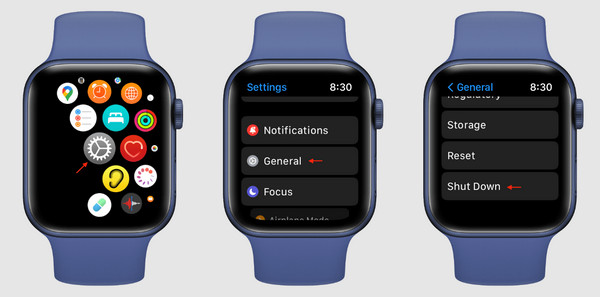
Restart via Settings App (watchOS 10 Method)
If you prefer navigating through menus, follow these steps:
- Press the Digital Crown to return to the Home screen.
- Open the Settings app (gear icon).
- Scroll down and tap General, then Shut Down.
- Now, double-tap the side button—this triggers the Power Off slider in watchOS 10.
- The slider will appear at the bottom center of the screen. Swipe it to power off.
- Once the screen is dark, press and hold the side button to power back on.
✅ This method works on all Apple Watch models running watchOS 10, including Series 10, Ultra 2, and SE.
❗ Don’t tap the side button too fast—doing it twice in quick succession might activate the Siren instead. Pause slightly between taps if needed.
Force Restart: Fix a Frozen or Unresponsive Apple Watch 10
When your watch is frozen, stuck on the Apple logo, or won’t respond to taps, a force restart is your best first step. This hard reset bypasses the operating system and forces a complete reboot—like holding the power button on a frozen computer.
How to Force Restart Apple Watch Series 10
- Press and hold both the Digital Crown and the side button at the same time.
- Keep holding for 10–15 seconds—don’t let go too early.
- The screen will go black.
- Release both buttons as soon as the Apple logo appears.
- Wait up to 60 seconds for the watch to fully boot and return to the home screen.
✅ No data is lost. A force restart is completely safe and non-destructive.
💡 Pro Tip: Use both thumbs to press evenly. Holding two buttons for 15 seconds can be tiring—this reduces strain and ensures consistent pressure.
⚠️ If the Apple logo doesn’t appear, keep holding. Some users give up after 8 seconds, but the reset may not trigger until 12–15 seconds. Only release when you see the logo.
The watchOS 10 Shutdown Quirk: Why the Power Slider Doesn’t Appear

One of the most common frustrations with watchOS 10 is the missing Power Off slider when trying to shut down through Settings. After tapping Shut Down, users see a loop of options: Power, Siren, Emergency SOS, but no obvious way to turn off the watch.
What Changed in watchOS 10?
- Apple redesigned the shutdown menu for accessibility and safety.
- Tapping Shut Down no longer shows the slider directly.
- Instead, you must double-tap the side button after entering the Shut Down screen to reveal the slider.
How to Unlock the Power Off Slider
- Go to Settings > General > Shut Down.
- On the next screen, double-tap the side button (wait a second between taps).
- The Power Off slider will appear in the bottom center.
- Swipe right to turn off the watch.
- To restart, press and hold the side button until the Apple logo appears.
🔍 This change is not documented clearly by Apple and has caused widespread confusion. Many users report swiping endlessly, thinking the watch is broken.
📌 Warning: If you double-tap too quickly, the Siren may activate instead. If that happens, press and hold the side button for 3 seconds to cancel.
What Actually Happens When You Restart?
A restart isn’t just turning your Apple Watch off and on—it’s a system-level refresh that clears glitches and resets core functions:
- System cache is wiped – temporary files, stuck app states, and corrupted processes are cleared.
- watchOS reloads – background services like Activity tracking, heart rate monitoring, and notifications restart cleanly.
- Apps reset – misbehaving apps close and relaunch properly.
- Bluetooth and Wi-Fi reset – reconnects to your iPhone and network with fresh handshake.
✅ Your health data, apps, settings, and watch face remain intact. Only a factory reset erases personal content.
When Should You Restart Your Apple Watch 10?
| Issue | Recommended Action |
|---|---|
| App keeps crashing | Force restart |
| Screen frozen or unresponsive | Force restart |
| Watch won’t wake or respond | Force restart |
| After installing watchOS 10 | Normal restart |
| Bluetooth disconnects frequently | Restart both watch and iPhone |
| Siren activates accidentally | Force restart to clear state |
| Podcast remote not showing | Restart or relaunch app |
| Watch charges but won’t turn on | Force restart after charging 5 minutes |
🔄 For connectivity issues, restart both devices. A fresh sync often resolves pairing problems.
Troubleshoot If Restart Fails
If your Apple Watch still won’t respond, don’t panic—follow these steps.
Step 1: Charge Before Restarting
- Connect to the magnetic charger.
- Wait 3–5 minutes—a dead battery may prevent startup.
- Look for a red lightning bolt or charging indicator.
🔋 Never attempt a restart on a fully drained battery. Charge first.
Step 2: Restart the Paired iPhone
- Hold side button + volume button (Face ID models) or side button (others).
- Slide to power off, then turn it back on.
- Once both devices are on, they may reconnect automatically.
🔄 Sync issues often resolve after restarting both devices.
Step 3: Reset Sync Settings
On your iPhone:
- Open the Apple Watch app.
- Go to General > Reset > Reset All Settings.
- Confirm—this resets Wi-Fi, Bluetooth, and Apple ID settings without deleting data.
Use this if your watch won’t pair or sync properly.
Step 4: Factory Reset (Last Option)
Only if all else fails:
- On Apple Watch: Settings > General > Reset > Erase All Content and Settings.
- Enter your passcode.
- Confirm erasure.
- Set up as new or restore from backup.
⚠️ This deletes all data. Ensure you have a recent backup first.
watchOS 10 Quirks That May Require a Restart
While not directly about restarting, these watchOS 10 bugs can trigger instability:
Podcast Remote Controls Moved
- The Now Playing screen now places skip and play buttons at the bottom for thumb access.
- If controls don’t appear:
1. Open Podcasts on the watch.
2. Tap the back button (top-left) twice.
3. Tap Now Playing again to switch to remote mode.
Spoken PIN Voice Issues
- Some users report the Eloquence voice reading out PIN numbers aloud, a privacy risk.
- Voices switch unpredictably between Eddie, Daniel, and Stephanie.
- Fix: On iPhone, go to Apple Watch app > Accessibility > Spoken Content > Voice and select Stephanie.
These glitches often clear after a force restart.
When to Contact Apple Support
Seek help if:
- The Apple logo appears but the watch won’t boot.
- It reboots in a loop (Apple logo → black screen → repeat).
- The screen stays black after multiple force restarts.
- No charging indicator appears with a known-good cable.
- There’s physical or water damage.
📍 Visit an Apple Store, use the Apple Support app, or call Apple for diagnostics.
Key Takeaways: Restart Apple Watch Series 10

- ✅ Force restart: Hold Digital Crown + side button for 10–15 seconds until Apple logo shows.
- ✅ Normal restart: Use side button menu or Settings > Shut Down.
- ⚠️ In watchOS 10, tap Shut Down, then double-tap the side button to reveal the power slider.
- 🔋 Always charge for 3–5 minutes before restarting a dead watch.
- 🔄 Restart both devices for sync, Bluetooth, or connection issues.
- 🛠️ Reset All Settings or Erase All Content only if software fixes fail.
- ❌ No data loss occurs during normal or force restarts.
Final Recommendation
A force restart should be your first fix for any Apple Watch Series 10 issue—freezing, lagging, or unresponsiveness. It’s fast, safe, and resolves most software glitches instantly.
Master the watchOS 10 shutdown quirk: remember that double-tapping the side button after selecting Shut Down is now required to power off. Stay updated to the latest watchOS version to reduce bugs and improve performance.
Keep this guide handy—next time your watch freezes, you’ll know exactly how to bring it back to life in under a minute.





