
You just crushed a 5K run, and your Apple Watch buzzes with that satisfying ding—another Exercise ring closed. Now you want to check your pace, see your route, or compare today’s effort to last week’s. But when you tap around, nothing shows up. No history. No maps. No splits. Where did your workout go?
You’re not alone. Thousands of Apple Watch users struggle to find their workout history because Apple splits fitness data across multiple apps—some of which aren’t even installed by default. The Health app collects everything but shows almost nothing. The Fitness app, where detailed sessions live, must be downloaded separately. And the Activity app, your main hub for long-term tracking, hides its best features behind subtle taps.
The good news? Once you know where to look, accessing your full workout history is fast and powerful. In this guide, you’ll learn exactly how to:
- View every past workout on your iPhone
- See GPS route maps and split times
- Review long-term fitness trends
- Rate and edit workout effort
- Fix missing workouts
- Avoid the most common mistakes
Let’s unlock your full fitness timeline—step by step.
Access All Past Workouts in the Activity App
The Activity app on your iPhone is your primary gateway to every workout you’ve ever recorded. It’s pre-installed and automatically syncs with your Apple Watch.
Navigate by Date to Find Specific Workouts
Want to see what you did last Tuesday or on a vacation hike three months ago? Here’s how:
- Open the Activity app on your iPhone.
- Tap the month name in the top-left corner (e.g., “April”).
- Scroll through the calendar to select a past date.
- Tap the day you’re interested in.
- Scroll down to the Workouts section at the bottom.
Each workout displays:
– Type (e.g., Outdoor Run, HIIT, Pool Swim)
– Duration
– Active calories
– Distance (if applicable)
Tap any entry to open full metrics, including heart rate, pace, elevation, and route maps.
Pro tip: Swipe left or right on the date bar to flip through days quickly—perfect for tracking weekly progress.
Use the Workouts Tab for a Complete List
Instead of jumping between dates, use the Workouts tab for a continuous scroll of every session:
- In the Activity app, tap Workouts at the bottom.
- Browse your entire workout history in reverse chronological order.
- Tap any session to view detailed stats.
This list includes every recorded workout since you started using your Apple Watch—no date limits, no filters.
Visual cue: Workouts with GPS tracking show a small map icon. Indoor sessions display a building icon.
Check Fitness Trends Over Time
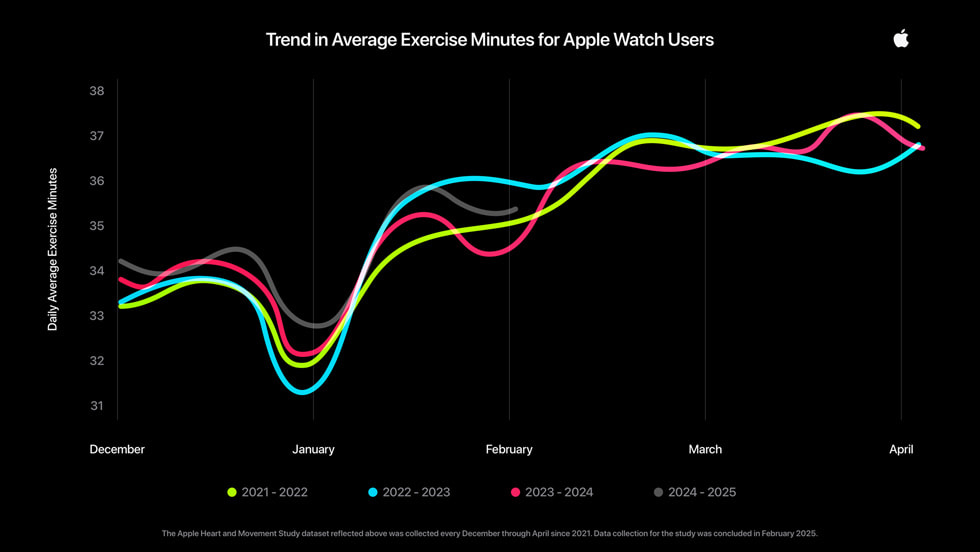
Apple doesn’t just store data—it analyzes it. The Trends tab reveals whether your fitness is improving or slipping.
- Tap Trends in the Activity app.
- Review 90-day rolling averages for:
– Weekly workouts
– Cardio fitness (VO2 max)
– Walking pace
– Recovery heart rate
– Exercise consistency
Green upward arrows mean improvement. Red downward arrows signal a decline. These insights help you adjust habits before performance drops.
Why it matters: A dropping VO2 max could indicate overtraining or illness. Slower walking pace might reflect fatigue or reduced mobility.
Review Workout Details in the Fitness App
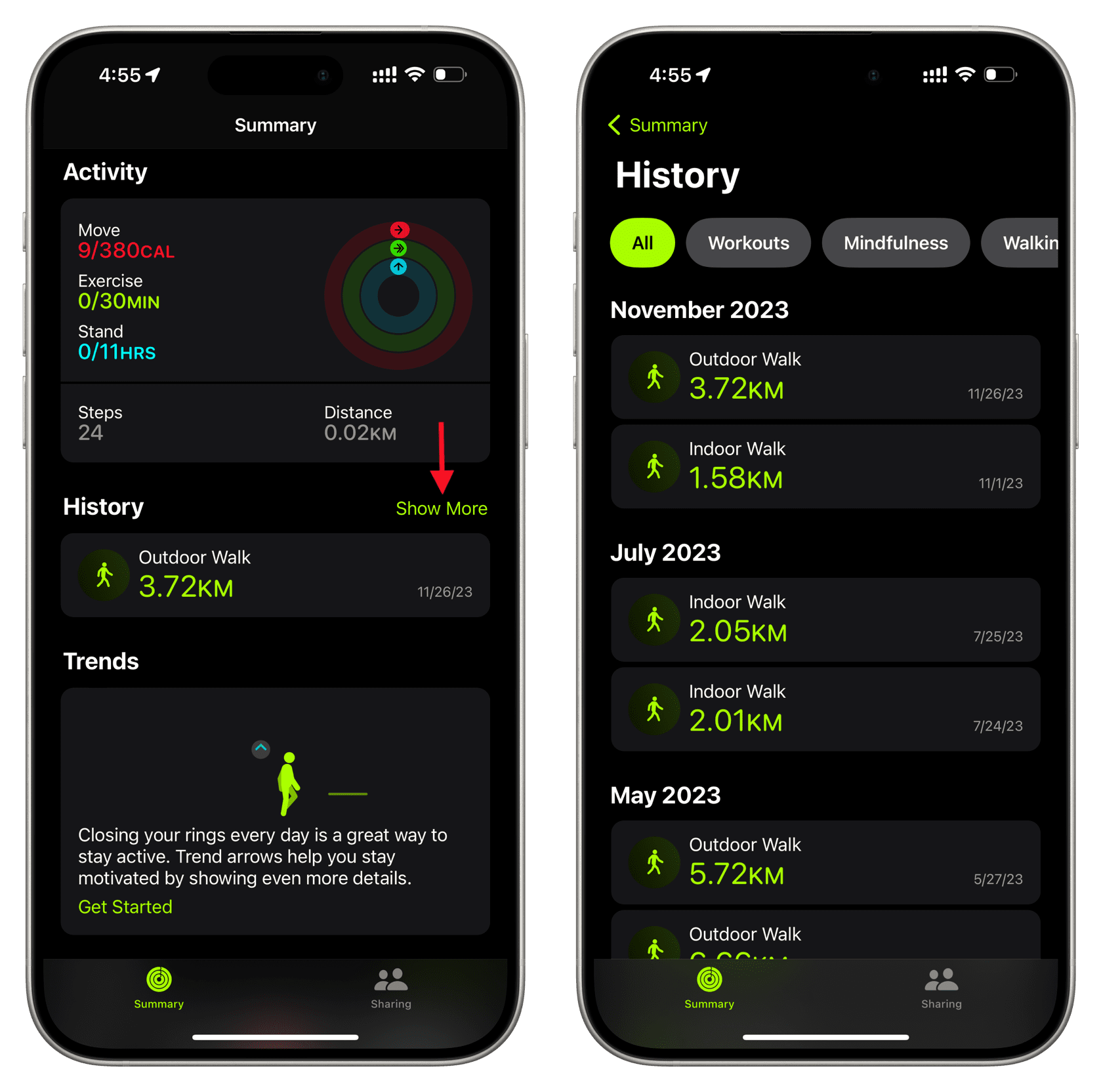
The Fitness app is where individual sessions come alive—with effort ratings, maps, and deeper analytics. But here’s the catch: it’s not pre-installed on older iOS versions.
Download and Set Up the Fitness App
If you don’t see the Fitness app on your iPhone:
- Open the App Store.
- Search for “Fitness” (published by Apple).
- Download the free app (requires iOS 16.1 or later).
- Open it and sign in with your Apple ID.
Once installed, it syncs automatically with your Apple Watch.
Note: The app icon looks like a white figure on a purple background—don’t confuse it with third-party fitness apps.
Browse and Analyze Past Sessions
To view your workout history:
- Open the Fitness app.
- Tap Sessions at the bottom.
- Scroll through your workout list.
- Tap any session to see:
– Duration and start time
– Distance and average pace
– Calories burned
– Average and peak heart rate
– Effort rating
– Route map (if GPS was active)
– Splits or laps
Pro tip: Swipe left on a session to delete or share it—great for sending your best runs to friends.
Edit Your Effort Rating Post-Workout
Apple uses your perceived exertion to personalize future goals. If a run felt harder than rated, fix it:
- Tap the workout in the Fitness app.
- Tap Effort.
- Drag the slider to adjust (Easy to Max).
- Tap Update.
This change improves the accuracy of your fitness assessments over time.
Check Today’s Workouts Directly on Apple Watch
You can’t scroll back through weeks of history on your wrist, but you can review same-day workouts and post-exercise summaries.
Open the Activity App on Watch
To see today’s sessions:
- Press the Digital Crown.
- Tap the Activity app.
- Scroll to the bottom of the screen.
- Tap any completed workout.
You’ll see:
– Duration
– Active calories
– Heart rate graph
– Distance (if tracked)
No maps, splits, or effort ratings are available here.
Review the Post-Workout Summary
Right after finishing a workout:
- Swipe right on the final screen.
- Scroll through stats using the Digital Crown.
- Tap the heart icon to view real-time heart rate (monitored for 3 minutes post-workout).
- Rate your effort using the slider.
- Tap the X to exit.
This is your only chance to rate effort immediately—though you can edit it later in the Fitness app.
View Route Maps and Splits for GPS Workouts
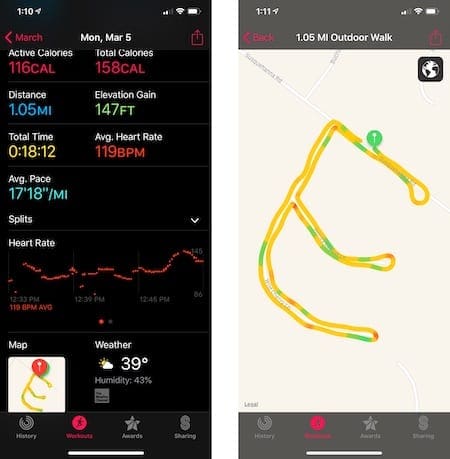
Want to see where you ran or how fast you swam each lap? You’ll need GPS tracking enabled.
Enable Route Tracking Before Your Workout
To ensure maps save:
- On iPhone, open the Watch app.
- Go to Privacy & Security > Location Services > Apple Watch Workout.
- Set to While Using or Always.
- When starting a workout, confirm “Route Tracking” appears below the workout name.
Without this, no map will be recorded.
Access GPS Data in the Activity App
To view your route:
- In the Activity app, tap a past outdoor workout.
- Scroll down to Route.
- Tap Show Map.
The map displays:
– Your full path
– Elevation changes
– Split times
– Weather during the workout
Pinch to zoom or drag to pan—ideal for reliving a scenic trail run.
Note: Indoor workouts (like treadmill runs or pool swims) don’t show maps unless manually tagged with location.
Analyze Splits and Laps
For runners and swimmers:
- Open a completed workout.
- Scroll to Splits (running) or Laps (swimming).
- Tap Show More to expand all intervals.
Each split shows:
– Time
– Pace
– Heart rate
Use this to spot pacing issues or recovery patterns.
Fix Missing Workouts: Troubleshooting Guide
Can’t find a workout you know you completed? Try these fixes.
Confirm You Ended the Workout Properly
Workouts only save if you manually end them:
- Swipe right > End in the Workouts app.
- Don’t just press the Digital Crown or let it time out.
Background recording continues until stopped—so an unfinished workout may not appear.
Force Sync Your Apple Watch
If data hasn’t transferred:
- Restart both iPhone and Apple Watch.
- Open the Activity app.
- Pull down to refresh.
Wait 2–5 minutes for sync to complete.
Check Location Permissions
For GPS tracking:
- Go to Settings > Privacy & Security > Location Services.
- Tap Apple Watch Workout.
- Select While Using or Always.
Without permission, no map is recorded.
Update Your Software
Outdated systems cause sync failures:
- On iPhone: Settings > General > Software Update
- On Apple Watch: Settings > General > Software Update
Install any pending updates.
Know What Data Is Saved and Where
What Stays Forever?
With iCloud enabled:
– All workouts
– Heart rate data
– Route maps
– Effort ratings
– Trends
Data is stored indefinitely unless deleted.
Supported Workout Types
Apple Watch tracks over 20 activities, including:
– Outdoor/Indoor Run, Walk, Cycle
– Pool and Open Water Swim
– HIIT, Yoga, Strength Training
– Elliptical, Rowing, Dance
Each captures relevant metrics like pace, stroke count, or heart rate zones.
No Long-Term History on Watch
The Apple Watch only shows:
– Today’s workouts
– Immediate post-workout summary
There is no calendar view or scrollable history on the device.
Avoid These Common Mistakes
Don’t Rely on the Health App
The Health app aggregates data but does not display workout lists, maps, or trends. Searching here for routes or session history leads nowhere.
Use:
– Activity app for history and trends
– Fitness app for session details
– Workouts app (on watch) to start/end sessions
Don’t Overlook the Workouts Tab
Many users miss the Workouts tab in the Activity app. It’s the fastest way to see every session in one list—far easier than navigating by date.
Don’t Skip Effort Ratings
Rating your effort helps Apple understand your exertion. Over time, this improves goal accuracy and workout suggestions.
Edit ratings anytime in the Fitness app > Sessions > Tap workout > Effort.
Final Note: Finding your Apple Watch workout history isn’t intuitive—but it’s powerful once you know the path. The Activity app holds your complete timeline, the Fitness app adds depth with maps and effort tracking, and your watch lets you review today’s efforts. With GPS on and software updated, your full fitness journey is just a few taps away. Stop guessing. Start reviewing. Your progress is waiting.




