
You wake up, glance at your Apple Watch, and check your step count—only to realize you forgot to look yesterday. Now you’re wondering: how to see yesterday’s steps on Apple Watch? You’re not alone. While the watch excels at tracking your daily progress in real time, it doesn’t show past-day step totals by default. But don’t worry—your steps are still there. Apple records every step, and with the right method, you can easily pull up yesterday’s count and beyond.
The Activity and Fitness apps focus on today’s goals, which makes historical data feel hidden. But it’s not gone. Whether you use built-in iPhone apps or third-party tools, you can access detailed step history, compare trends, and even analyze long-term walking patterns. In this guide, you’ll learn the fastest, most reliable ways to see yesterday’s steps, fix missing data, and set up your Apple Watch for seamless long-term tracking.
Use the Fitness App Calendar to View Yesterday’s Steps
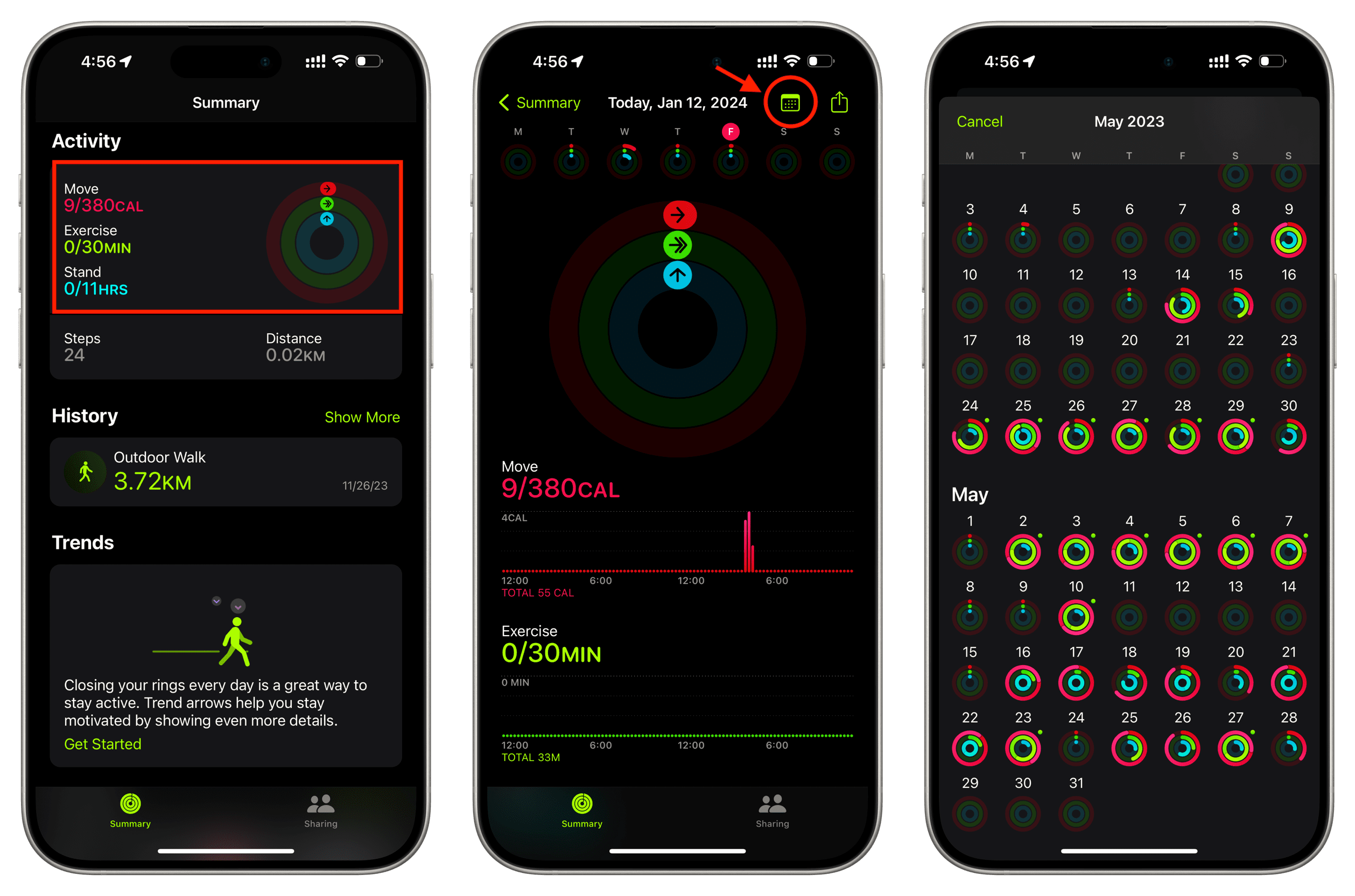
The easiest and most accurate way to see yesterday’s steps is through the Fitness app on your iPhone. This app is designed specifically for Apple Watch users and offers a clean, intuitive interface for reviewing past activity.
Open the Fitness App Summary
Launch the Fitness app on your iPhone and tap the Summary tab at the bottom. Here, you’ll see your current Activity rings: Move, Exercise, and Stand. These rings update in real time, but this screen also holds the key to your historical data.
Access the Calendar View
In the top-right corner of the Summary tab, tap the calendar icon (📅). This opens a full calendar of your activity history. Swipe left to go back in time, then tap yesterday’s date. Instantly, you’ll see a complete breakdown of your activity for that day, including:
- Total steps
- Distance walked
- Flights climbed
- Active calories (Move)
- Exercise minutes
- Stand hours
- Hour-by-hour ring progress
This view gives you a full snapshot of your day—not just steps, but how active you were overall.
Pro Tip: If you’ve been tracking for at least six months, scroll down to the Trends section. It compares your recent 90-day average to the past year, showing whether your walking, exercise, or cardio fitness is improving. A green upward arrow means progress; a red downward arrow suggests a decline, often with personalized tips like “Walk an extra 10 minutes a day.”
Check Weekly Step Totals
For a broader perspective, tap Weekly Summary in the Fitness app. This screen shows cumulative totals for the week, including total steps, distance, and exercise time. It’s ideal for tracking weekly goals or sharing progress with a fitness coach.
Note: The Fitness app pulls data directly from your Apple Watch. If yesterday’s steps are missing, ensure your watch is synced and charged overnight.
View Step History in the Health App
The Health app is the central hub for all your fitness data. Unlike the Fitness app, it stores every recorded step since you started using your iPhone or Apple Watch, offering unlimited historical access.
Navigate to Step History
Open the Health app on your iPhone and tap the Browse tab at the bottom right. Scroll down and select Fitness, then tap Steps. On the next screen, tap Show All Data.
A chronological list appears, showing your daily step count—including yesterday’s total. Scroll up or down to browse further back. Each entry displays the date and number of steps.
Alternative Path:
Health Data tab → Fitness → Steps → Show All Data
Use the Graph View for Daily Breakdowns
Back in the Steps screen, tap the graph to expand it. In the top-right corner, tap the clock icon. Now, swipe left or right across the graph to move between days. The total steps for the selected day appear above the chart.
Tap any bar on the graph to see minute-by-minute step activity for that day. This is useful for spotting patterns—like a lunchtime walk or evening stroll—and understanding how your activity is distributed.
Verify Data Sources for Accuracy
Tap Sources at the bottom of the Steps screen. Make sure Apple Watch or iPhone is listed. If not, your step data may not be syncing properly.
To fix this:
– Go to iPhone Settings > Privacy & Security > Motion & Fitness
– Ensure Fitness Tracking and Health are enabled
– Restart your Apple Watch and sync with iPhone
Warning: If steps aren’t syncing, your watch may be out of range, low on battery, or need a software restart.
Change iPhone Date to Simulate Yesterday’s View
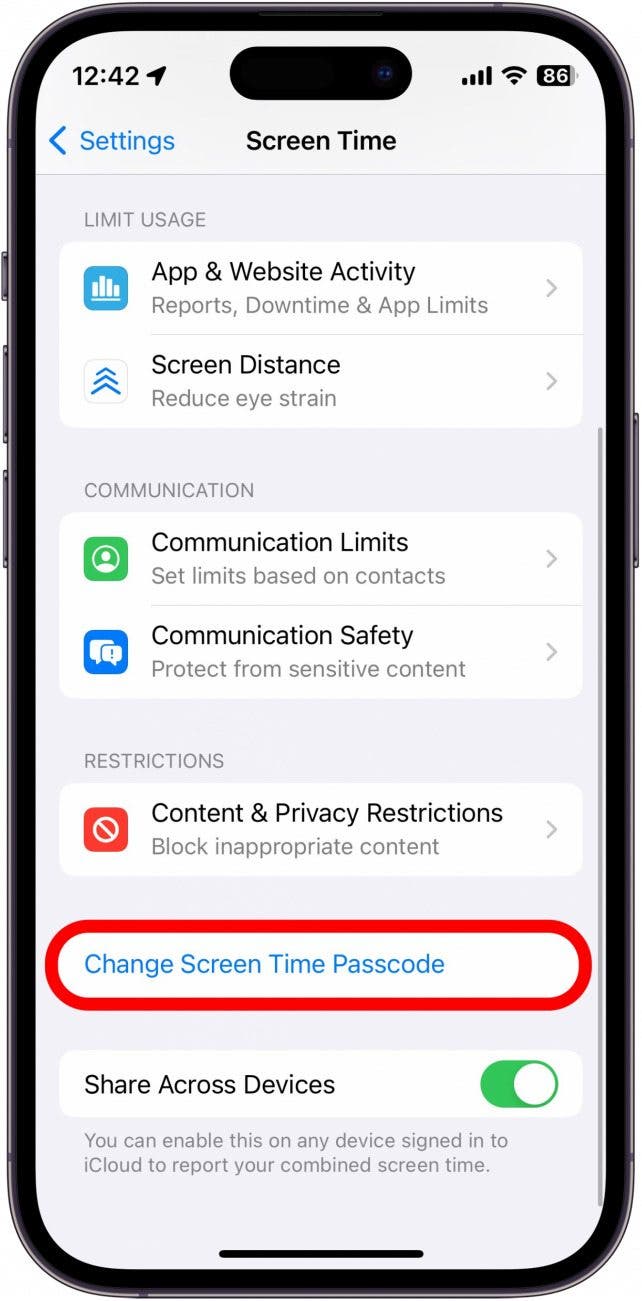
If you want to see yesterday’s data on your Apple Watch face, there’s a workaround: temporarily change your iPhone’s system date.
Set Date to Yesterday
Go to Settings > General > Date & Time on your iPhone. Turn off Set Automatically, then manually set the date to yesterday. Wait a few seconds for apps to refresh.
Now, open the Activity app on your Apple Watch. The rings will reflect yesterday’s progress, including steps, exercise, and stand hours.
On iPhone: Open the Fitness app to see the same historical view with full details.
Restore Automatic Date Immediately
After checking your data, return to Settings > Date & Time and re-enable Set Automatically. This ensures your notifications, calendar events, and apps stay in sync.
Caution: Changing the system clock can delay notifications, disrupt background app refresh, and affect time-sensitive services. Use this method only when necessary and revert immediately.
Install Third-Party Apps for Better Step Tracking
Many users find Apple’s native apps limited in reporting depth. Third-party apps offer better historical views, customizable watch faces, and long-term analytics.
Top Apps for Step History
| App | Key Features | Watch App | Best For |
|---|---|---|---|
| Pedometer++ | Real-time steps, 30-day graphs, customizable complications | Yes | Historical tracking & watch face integration |
| StepsApp | Minimalist design, goal tracking, daily trends | Yes | Low battery usage & clean UI |
| Human | Behavioral nudges, automatic walk detection | Yes | Daily motivation & insights |
| MyFitnessPal | Syncs steps with diet, weight, and exercise logs | No | Holistic health tracking |
| Moves (legacy) | Timeline view of walks/runs, automatic logging | No | Passive tracking (still works) |
Add a Step Complication to Your Watch Face
Want to see your step count at a glance? Set up a step complication:
- Install Pedometer++ or StepsApp from the App Store.
- Open the Watch app on your iPhone.
- Tap My Watch, then select a watch face or tap + to create a new one.
- Tap Customize, then select a complication ring.
- Choose your pedometer app and pick a display style: Steps only, Steps & Goal, or Progress ring.
- Tap Back, then Done to sync.
Now, your current step count appears directly on your watch face. Tap the complication to open the app and view yesterday’s steps and past-day trends.
Pro Tip: Pedometer++ shows a 30-day step graph when you tap the complication—ideal for quick trend checks.
Why Siri Can’t Show Yesterday’s Steps
You might try asking, “Hey Siri, how many steps did I take yesterday?” But Siri only reports today’s step count.
What Siri Can Do
- “Hey Siri, how many steps have I taken today?”
- “Hey Siri, what’s my distance walked?”
- “Hey Siri, how are my Activity rings?”
Siri pulls this data from the Health app but doesn’t support historical queries. There’s no voice command to access past-day steps.
Workaround: Use Siri to Open the App
Say:
“Hey Siri, open the Fitness app.”
Then tap the calendar icon to view yesterday’s data manually.
Limitation: Apple has not extended Siri’s health data access to historical days. Until that changes, manual review is required.
Fix Missing Step Data
Sometimes, yesterday’s steps don’t appear. Here’s how to fix common issues.
Enable Motion & Fitness Tracking
Go to iPhone Settings > Privacy & Security > Motion & Fitness. Make sure:
– Fitness Tracking is ON
– Health has permission to read and write data
Also, in the Watch app, go to:
– Privacy > Motion & Fitness > Fitness Tracking = ON
Restart and Re-pair Your Watch
If steps are missing:
1. Restart your Apple Watch (press and hold side button, then swipe).
2. Ensure Bluetooth is on and your watch is near your iPhone.
3. Open the Watch app and confirm pairing status.
Wait 10–15 minutes for data to sync.
Check Battery and Sync Status
A low-battery or disconnected watch won’t record steps. Keep your Apple Watch charged and within Bluetooth range of your iPhone for accurate tracking.
Note: If you walk without your iPhone, the Apple Watch stores steps and syncs later when in range.
Compare Step Trends Over Time
Beyond yesterday, you might want to track progress over weeks or months.
Use Fitness App Trends
After six months of consistent tracking, the Fitness app shows Trends under the Summary tab. It compares your:
– Walking distance
– Walking pace
– Exercise minutes
– Active calories
– Cardio fitness
A green upward arrow means improvement. A red downward arrow suggests decline, with personalized tips like “Walk an extra 10 minutes a day.”
Example: If your walking pace trend is down, it may signal reduced activity or recovery from injury.
Best Practices for Reliable Step Tracking
Ensure your step data is accurate and always available.
Wear Your Watch Consistently
For best accuracy, wear your Apple Watch daily. It uses motion, heart rate, and GPS to refine step counts. Taking it off for long periods may lead to undercounting.
Carry Your iPhone When Possible
Even with an Apple Watch, carrying your iPhone improves GPS and step calibration—especially during walks or runs.
Enable iCloud Backup
Go to Settings > [Your Name] > iCloud > iCloud Backup > Turn On. This ensures your Health and Fitness history is preserved if you lose or replace your iPhone.
Tip: Backups occur nightly when your iPhone is locked, charging, and on Wi-Fi.
While the Apple Watch doesn’t show yesterday’s steps on its face, your data is secure and accessible. Use the Fitness app calendar for quick checks, the Health app for full history, or third-party apps for enhanced tracking. With the right setup, you’ll never lose sight of your walking progress again.





