
You’ve seen the challenge everywhere: Walk 10,000 steps a day. It’s a fitness mantra shared by trainers, doctors, and wearable tech users alike. If you’re using an Apple Watch, you might assume setting this goal is simple—just like on other trackers. But here’s the truth: Apple does not allow you to set a 10,000-step goal in the Activity app. Unlike Fitbit or Garmin, Apple’s system doesn’t use step targets as part of its core fitness rings.
But don’t put down your watch yet. Your Apple Watch does track every single step you take—it just doesn’t let you turn that into a daily goal natively. The good news? With the right tools and a few smart workarounds, you can track, visualize, and achieve 10,000 steps every day—right from your wrist.
This guide shows you exactly how to bridge the gap between Apple’s calorie-focused system and your step-based goals. You’ll learn how to use third-party apps, customize your watch face, sync data seamlessly, and even convert steps into an equivalent Move goal that fits Apple’s ecosystem—all while staying motivated and on track.
Why Apple Watch Doesn’t Have a Step Goal
Apple designed the Activity rings around holistic health, not step counting. The three rings—Move, Exercise, and Stand—are built to encourage balanced daily movement:
- Move (red ring): Tracks active calories burned, regardless of activity type.
- Exercise (green ring): Rewards 30+ minutes of moderate or vigorous effort.
- Stand (blue ring): Promotes breaking up long periods of sitting.
Steps aren’t part of this system because Apple believes active calorie burn is a more accurate measure of effort than steps alone. A 45-minute strength training session may only generate 1,000 steps, but it still burns significant energy and builds fitness—something step counts can’t reflect.
Fun Fact: The 10,000-step goal originated in 1960s Japan as a marketing ploy for a pedometer called Manpo-kei (“10,000 steps meter”). It wasn’t based on medical research—it just sounded catchy. Apple’s Move goal, by contrast, is personalized and science-backed.
So while Apple doesn’t support step goals, it doesn’t ignore steps either. Your watch still records them—accurately and automatically.
How to View Your Daily Step Count on Apple Watch
Even without a step goal, your Apple Watch tracks every step you take. Here’s where to find it.
On Your Apple Watch:
- Open the Activity app
- Scroll down to the bottom of the screen
- Look for “Total Steps” and “Distance” under your daily summary
You’ll see your current step count updated in real time throughout the day.
On Your iPhone:
- Open the Activity app
- Tap today’s summary
- Scroll down to view:
– Steps
– Distance
– Flights climbed
For faster access, use the Health app:
1. Open Health > Tap Health Data
2. Go to Activity > Steps
3. Tap “Add to Favorites” so steps appear at the top of your Today tab
Now you can ask Siri: “Hey Siri, how many steps did I take today?” and get an instant voice response.
Use Pedometer++ to Set a 10,000-Step Goal
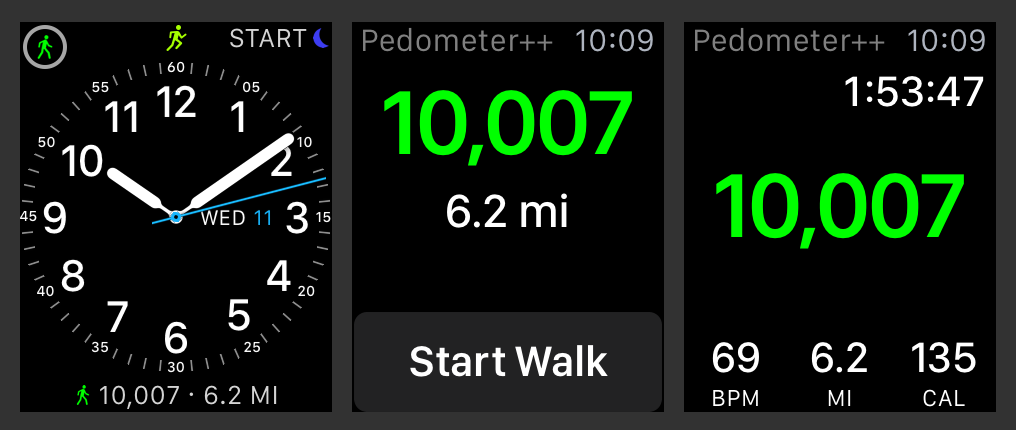
Since Apple doesn’t offer native step goals, third-party apps are your best solution. Pedometer++ is the top choice for step-focused users.
Why Pedometer++ Works:
- Syncs with Apple Health (no double-counting)
- Lets you set a custom 10,000-step goal
- Shows progress as a ring or number on your watch face
- Updates in real time
- Free with optional Pro upgrade
How to Set Your Goal:
- Download Pedometer++ on your iPhone
- Install the companion app on your Apple Watch
- Open Pedometer++ on iPhone
- Tap Goal > Set daily target to 10,000 steps
- Go to Settings > Health and enable sync
Your step count will now pull directly from Apple Health—ensuring accuracy.
Add Step Progress to Your Watch Face
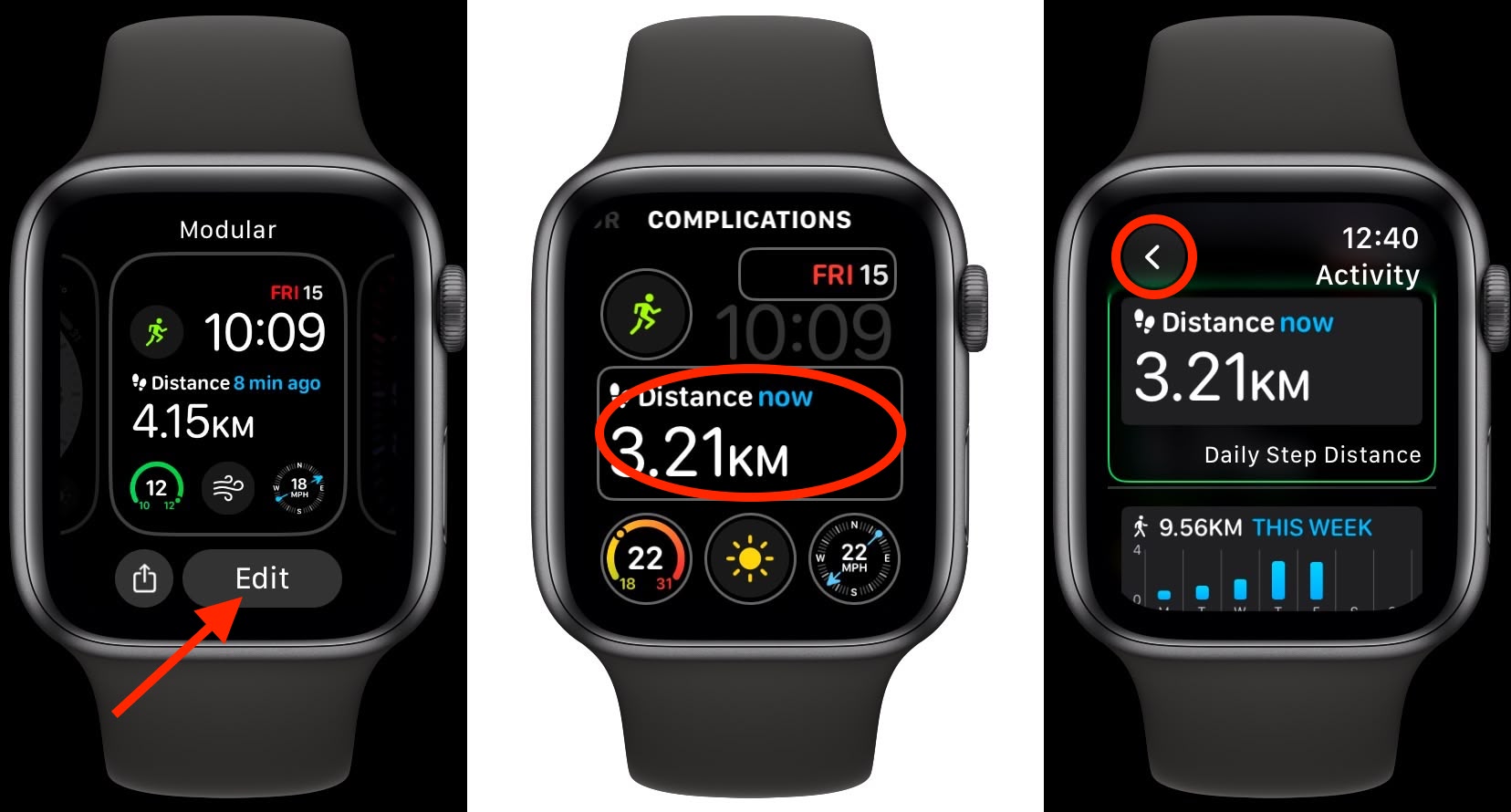
Seeing your progress at a glance keeps you motivated. Pedometer++ lets you add a step complication to your watch face.
How to Add It:
- Press and hold your Apple Watch face
- Tap Edit
- Choose a complication slot
- Select Pedometer++
- Pick your display style:
– Progress Ring: Fills as you approach 10,000
– Current Steps: Shows total count
– Goal %: Displays percentage completed
Save and exit. Now you’ll see your step progress every time you raise your wrist.
Pro Tip: Open Pedometer++ once a day to ensure background syncing. No need to keep it open—just launch it briefly.
Get Alerts When You Hit 10,000 Steps
Celebrate your success with a notification.
Enable Goal Alerts:
- Open Pedometer++ on iPhone
- Tap the Settings (gear) icon
- Go to Notifications
- Turn on Daily Goal Alert
- Choose when to be notified (e.g., “When goal is reached”)
You’ll get a tap or sound when you hit 10,000 steps—perfect for a quick victory dance.
Alternative Apps for Step Tracking
If Pedometer++ isn’t your style, try these:
Watch My Health
- Pulls step data from Apple Health
- Simple watch face complications
- Best for users who want minimal setup
HealthDash
- Full health dashboard: steps, heart rate, sleep, and more
- Highly customizable complications
- Ideal for data lovers who want everything in one place
All three apps sync with Apple Health, so your data stays accurate and centralized.
Convert 10,000 Steps to a Move Goal
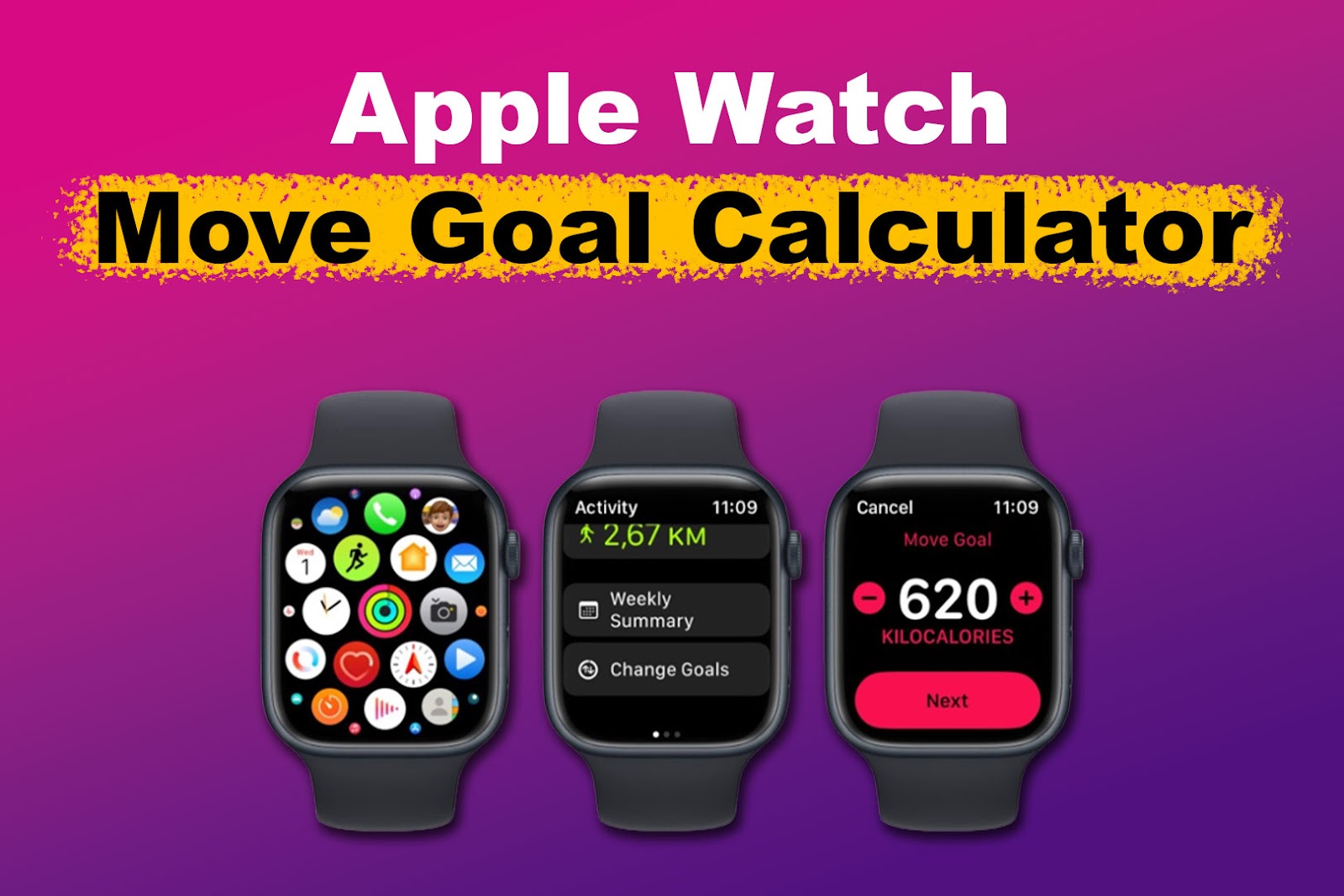
Want to stay within Apple’s system? Translate your step goal into an equivalent Move (calorie) goal.
How Many Calories Is 10,000 Steps?
It depends on your weight and pace:
| Weight | Estimated Active Calories |
|---|---|
| 150 lbs (68 kg) | 400–500 |
| 200 lbs (91 kg) | 500–600 |
A 30-minute brisk walk (~3,000 steps) burns about 150 active calories. So, setting a Move goal of 500 kcal is a realistic target that aligns with 10,000 steps for most people.
How to Set a Smart Move Goal
Apple helps you set a personalized goal over time.
Step-by-Step:
- Wear your Apple Watch for 7 days to establish a baseline
- Open the Activity app on iPhone
- Tap your Move ring
- Swipe up and tap Change Goals
- Set a new goal slightly above your average
Example: If you close 450 kcal most days, set 500 kcal.
Adjust as needed:
– Lower on rest days (350–400 kcal)
– Increase during active weeks (600+ kcal)
Expert Tip: Your goal should challenge you—but be achievable. Aim to close it 5–6 days a week, not every single day.
Combine Step Tracking with Apple’s Rings
Use a hybrid approach for balanced fitness:
| Metric | Purpose |
|---|---|
| Move Goal | Tracks all active calorie burn |
| Exercise Ring | Ensures 30+ mins of intentional movement |
| Stand Ring | Prevents sedentary behavior |
| Steps (Pedometer++) | Validates walking consistency |
This way, you get the full picture: total effort, structured activity, and daily movement.
Build a 10,000-Step Daily Routine
Here’s a realistic plan that hits both step and calorie goals:
| Activity | Steps | Duration | Active Calories |
|---|---|---|---|
| Morning walk | 3,000 | 30 mins | ~150 |
| Commute (walking) | 1,000 | 10 mins | ~50 |
| Lunch walk | 1,500 | 15 mins | ~75 |
| Evening walk/workout | 4,000 | 45 mins | ~225 |
| Throughout day (chores, standing) | 500+ | Ongoing | ~50–100 |
| Total | ~10,000 | — | ~500–600 kcal |
Result: You’ll likely close your Move ring and hit your step goal—without overexerting.
Why Apple Won’t Add Step Goals (And Why It’s Okay)
Apple sticks to calories because:
– It’s inclusive of all exercise types
– Yoga, swimming, and strength training burn energy but don’t generate steps
– A step-only goal ignores non-ambulatory fitness
“The 10,000-step goal is outdated,” says one Apple Support expert. “Apple’s system rewards real effort, not just footfalls.”
That said, steps are still useful—especially for building habits and reducing sitting time.
Request Step Goals from Apple
Want Apple to add native support? Submit feedback.
How to Do It:
- Visit Apple Feedback – Apple Watch
- Fill out the form
- Use this message:
“Please add the ability to set a daily step goal in the Activity app. Allow users to display step progress as a ring or watch face complication. This would improve usability for walking-focused users.”
Your voice matters. Thousands have already asked—add yours to the list.
Final Tips for Success
✅ Do:
- Use Pedometer++ to set and track 10,000 steps
- Add a step complication to your watch face
- Set a Move goal of 450–600 kcal to match step effort
- Check Health app for long-term trends
- Ask Siri for quick step updates
❌ Don’t:
- Ignore Exercise and Stand rings
- Set unrealistic goals—start at 8,000 if 10,000 feels hard
- Treat 10,000 steps as a universal health rule—it’s a guideline
Summary: Track 10,000 Steps on Apple Watch
| Task | Solution |
|---|---|
| Set 10,000-step goal | Use Pedometer++ |
| View steps daily | Activity app or Health app |
| See progress on watch face | Add Pedometer++ complication |
| Get goal alerts | Enable notifications in Pedometer++ |
| Sync data | Automatic via Apple Health |
| Replace steps with Move goal | Set 500 kcal for average adult |
Bottom Line: While the Apple Watch doesn’t support a native 10,000-step goal, you can easily achieve it using Pedometer++ and smart integration with Apple’s Activity system. Combine step tracking with Move, Exercise, and Stand goals for a balanced, motivating fitness routine that works for your lifestyle.
Start today: Install Pedometer++, set your goal, and take the first step—literally—toward 10,000.





