
Nothing is more frustrating than waking up late because your Apple Watch didn’t alert you — especially when you were certain you’d set an alarm. Whether it’s for your morning routine, a midday nap, or a medication reminder, knowing how to set an alarm on Apple Watch efficiently can make all the difference. The good news? It’s quick, intuitive, and fully customizable right from your wrist.
You don’t need your iPhone to set an alarm. The Apple Watch’s built-in Alarms app lets you create one-time or recurring alerts in seconds. Prefer voice commands? Siri can set alarms instantly with natural language like “Wake me up at 7 AM.” And if you’re serious about consistent sleep, the Sleep app integrates wake-up alarms with sleep tracking, so you rise on time while gaining insights into your rest.
In this guide, you’ll learn how to set, edit, delete, and customize alarms on your Apple Watch — including silent vibration-only alerts, syncing with your iPhone, and troubleshooting when alarms don’t go off. Plus, we’ll cover pro tips for heavy sleepers, shared bedrooms, and upcoming features like adjustable snooze times.
Set Alarm via Alarms App
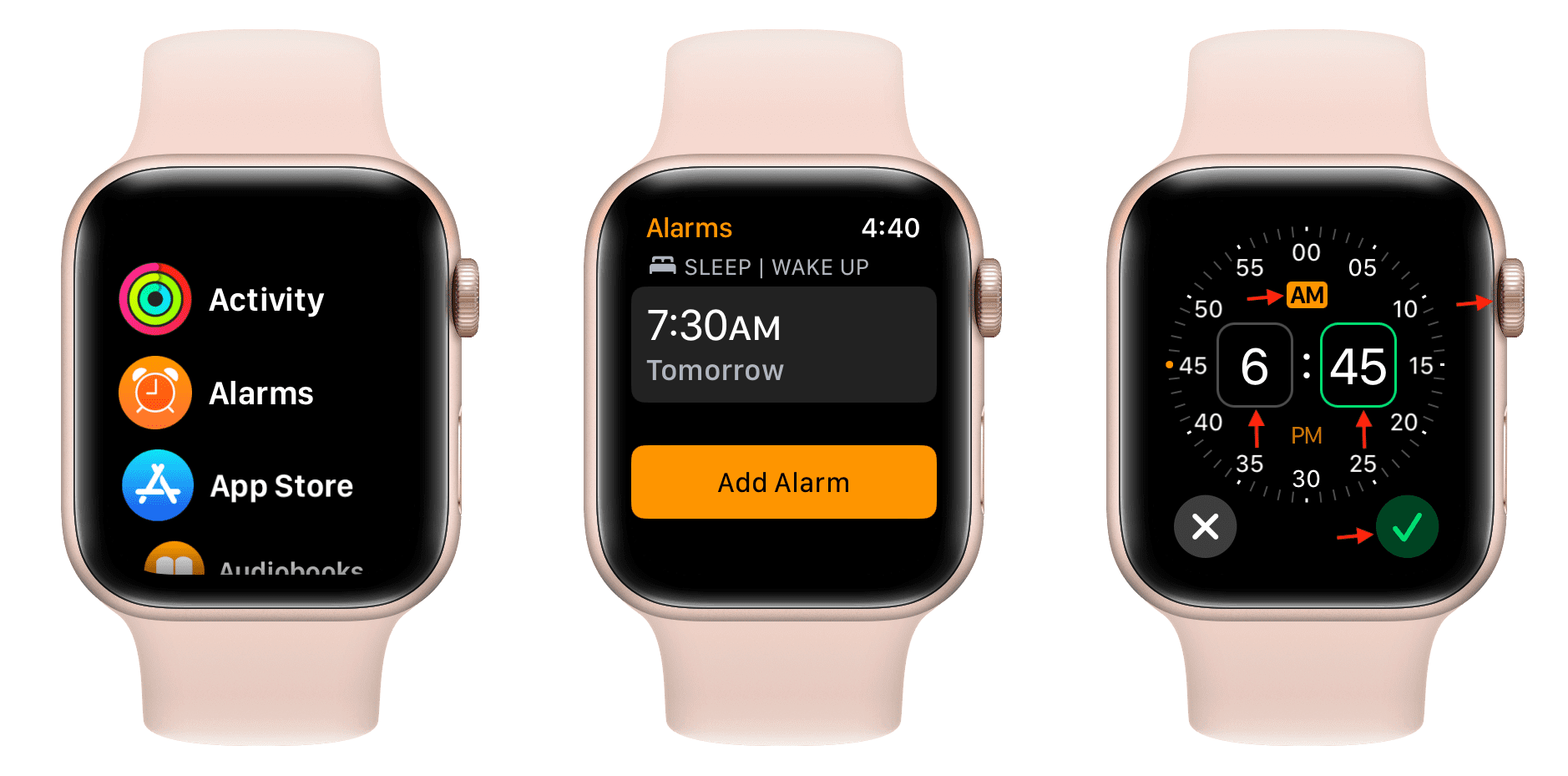
The fastest way to create a custom alert directly on your Apple Watch is using the Alarms app. This method gives you full control over time, recurrence, sound, and labels.
Create a New Alarm
- Tap the Alarms app icon on your watch face.
- Press the + button at the bottom.
- Turn the Digital Crown to adjust the hour and minute.
- Tap AM/PM to switch between morning and evening if needed.
- Tap the green checkmark to save.
By default, new alarms repeat daily. To change this, tap Repeat before saving and select specific days — or choose None for a one-time alert.
✅ Pro Tip: Toggle the switch next to any alarm to turn it on or off instantly — perfect for skipping a morning without deleting the entire schedule.
Customize Alarm Settings
After setting the time, tap the alarm to fine-tune details:
– Label: Add a name like “Gym” or “Medication” for clarity.
– Sound: Choose from built-in tones or set to None for silent vibration-only alerts.
– Snooze: Toggle off to prevent oversleeping.
– Repeat: Adjust days or disable recurrence.
These customizations make standard alarms ideal for non-daily events — workouts, naps, or meetings — without interfering with your regular wake-up routine.
Use Siri to Set Alarm
Need to set an alarm fast? Siri is your best friend — especially when your hands are busy or it’s dark.
Activate Siri and Speak
- Press and hold the Digital Crown until Siri appears.
- Say one of these:
– “Set an alarm for 7 AM.”
– “Wake me up at 6:30 every weekday.”
– “Set a 20-minute nap alarm.”
Siri confirms the alarm and adds it to your Alarms app immediately.
📌 Supported Commands:
– “Set a [day] alarm for [time]”
– “Set an alarm in [X] minutes”
– “Wake me up in 2 hours”⚠️ Note: Siri creates one-time alarms by default unless you specify recurrence like “every weekday” or “Monday through Friday.”
Set Sleep | Wake Up Alarm
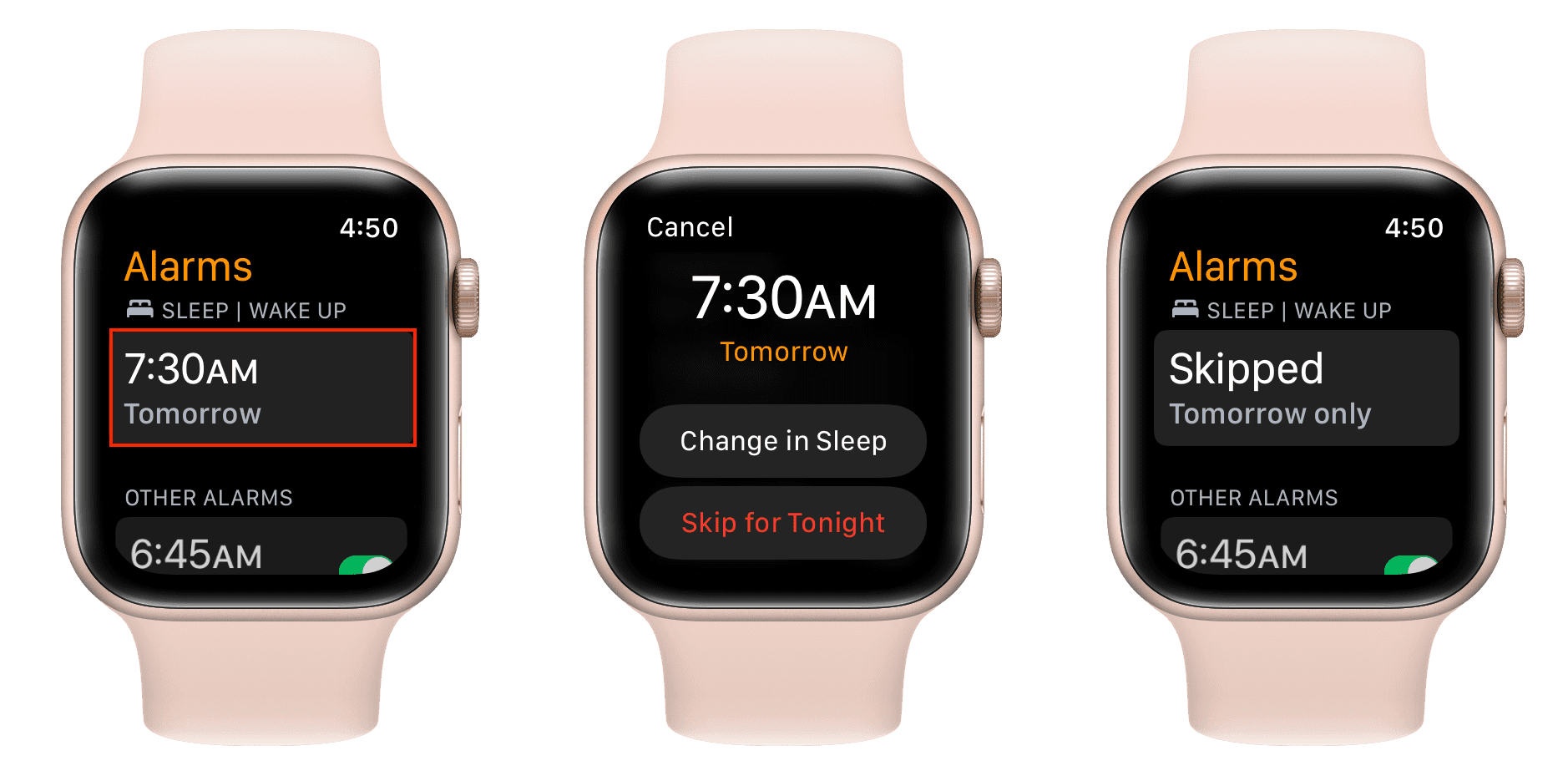
For consistent mornings with built-in sleep tracking, use the Sleep app to schedule a daily wake-up alarm.
Configure Wake-Up Time
- Open the Sleep app on your Apple Watch.
- Swipe to Next Schedule.
- Tap Wake Up.
- Use the Digital Crown to set your desired time.
- Ensure the toggle is green (on).
This creates a Sleep | Wake Up alarm that appears under the Sleep section in the Alarms app.
💡 Bonus: Even if you skip the alarm, your Apple Watch still tracks sleep duration and quality — no manual logging needed.
Skip One Night Temporarily
Don’t want to break your routine? Skip just one night:
1. Open Alarms app.
2. Tap the Sleep | Wake Up alarm.
3. Select Skip for Tonight.
The alarm returns automatically the next day — perfect for weekends or travel.
Choose the Right Alarm Type
Not all alarms are the same. Picking the right one ensures you wake up on time — without disturbing others.
When to Use Standard Alarms
Use the Alarms app when you need:
– One-time alerts (e.g., “45-minute nap”)
– Non-morning reminders (medication, meetings)
– Alarms without sleep tracking
– Independent scheduling from your daily routine
These alarms do not sync with the iPhone Clock app unless manually pushed.
When to Use Sleep | Wake Up Alarms
Use Sleep app alarms for:
– Daily wake-up routines
– Tracking sleep patterns
– Gentle, consistent haptic alerts
– Integration with Wind Down and bedtime goals
They appear on both Apple Watch and iPhone Clock app — ideal if you manage your schedule from your phone.
Edit or Delete an Alarm
Need to update or remove an alarm? It’s quick and easy.
Modify Alarm Details
- Open Alarms app.
- Tap the alarm you want to change.
- Adjust:
– Time
– Repeat days
– Sound
– Label
– Snooze setting
Changes save automatically when you exit.
Remove an Alarm
Option 1: Swipe to Delete
– In Alarms app, swipe left on the alarm.
– Tap Delete.
Option 2: Edit Mode
– Tap Edit in the top-right.
– Tap the red minus (-) icon.
– Confirm with Delete.
⚠️ Warning: There’s no undo. Deleted alarms must be recreated manually.
Customize Vibration and Sound
Tailor how your alarm wakes you — silently, loudly, or with stronger taps.
Set Vibrate-Only Alarm
Perfect for shared rooms:
1. Open Alarms app.
2. Tap an alarm.
3. Set Sound to None.
4. Go to Settings > Sounds & Haptics > Haptics and select Prominent.
Now your alarm uses strong vibrations only — no sound.
Enable Sound in Silent Mode
Before watchOS 11.4, alarms wouldn’t play sound in Silent Mode. Now, they can “break through.”
To enable:
1. Edit an alarm.
2. Scroll to Break Through Silent Mode.
3. Toggle On.
✅ Requirement: Your watch must run watchOS 11.4 or later.
With this on, both sound and vibration trigger — even if Silent Mode is active.
Manage Snooze Settings
Control whether you can snooze — or force yourself to get up.
Turn Off Snooze
To prevent oversleeping:
1. Open Alarms app.
2. Tap the alarm.
3. Tap Snooze.
4. Toggle to Off.
When the alarm triggers, only a Stop button appears — no snooze option.
⚠️ Caution: Covering the screen silences the alarm. If snooze is off, you might miss it entirely.
Upcoming: Custom Snooze Duration
Currently, snooze lasts 9 minutes. But starting with watchOS 26 (2025), users will be able to:
– Set snooze from 1 to 15 minutes
– Customize per alarm
– Adjust in alarm settings
This update will give greater flexibility for naps, shift workers, or personal routines.
Use Nightstand Mode as Bedside Clock
Turn your charging Apple Watch into a smart nightstand clock.
Enable Nightstand Mode
- Open Settings on Apple Watch.
- Tap General > Nightstand Mode.
- Toggle On.
🔌 Activation: Automatically turns on when your watch is charging and lying flat.
Features in Nightstand Mode
- Displays time, date, and battery level
- Shows an alarm icon if one is active
- Lights up when you tap the screen or nudge the table
- Plays a distinct chime when alarm triggers
When the alarm sounds:
– Press the side button to stop
– Press the Digital Crown to snooze
💡 Pro Tip: Place your watch on a hard surface — vibrations resonate better and may help deep sleepers wake up.
Sync Alarms with iPhone
Decide whether alarms trigger on both devices or just your wrist.
Get iPhone Alarms on Apple Watch
To feel iPhone alarms on your wrist:
1. Set an alarm in the iPhone Clock app.
2. Open the Watch app on iPhone.
3. Tap My Watch > Clock.
4. Turn on Push Alerts from iPhone.
Now, when your iPhone alarm rings, your Apple Watch vibrates and displays the alert — perfect for leaving your phone across the room.
Use Apple Watch Independently
To avoid double alerts:
1. In the Watch app (iPhone), go to My Watch > Clock.
2. Turn off Push Alerts from iPhone.
3. In iPhone Clock app, disable any Sleep schedule.
This setup lets you wake up silently via wrist vibration — ideal for partners or roommates.
Troubleshoot Alarm Issues

Is your alarm not working? Here’s how to fix common problems.
Alarm Doesn’t Sound
Check these settings:
– Silent Mode: If on pre-watchOS 11.4, sound is blocked. Update and enable Break Through Silent Mode.
– Haptics Off: Go to Settings > Sounds & Haptics > Haptics — ensure it’s not set to Off.
– Alarm Disabled: Verify the toggle is green in the Alarms app.
– Watch Not Worn: Sleep | Wake Up alarms only trigger when on your wrist.
– Low Battery: Charge overnight to ensure alarm functions.
iPhone Still Rings After Apple Watch Alarm
Stop duplicate alerts:
– In Watch app (iPhone), turn off Push Alerts from iPhone.
– Disable Sleep schedule in iPhone Clock app.
Vibration Too Weak
For stronger taps:
– Set Haptics to Prominent in Settings > Sounds & Haptics.
– Wear the watch snugly — loose fit reduces haptic feedback.
– Place on nightstand in Nightstand Mode to amplify vibrations.
Best Practices for Every Sleeper
Optimize your alarm setup based on your habits and environment.
For Heavy Sleepers
- Use Prominent Haptics
- Enable Break Through Silent Mode
- Place watch on a hard surface (e.g., wood nightstand) to enhance vibration and sound
- Keep Snooze off to prevent hitting it unconsciously
For Light Sleepers or Shared Rooms
- Set Sound to None
- Use Prominent Haptics for silent wake-up
- Keep Break Through Silent Mode off to avoid sound leakage
- Label alarms clearly (e.g., “6:30 AM – Wake Up”) for quick identification
For Naps and Daytime Reminders
- Use Siri for instant setup: “Set a 45-minute nap alarm”
- Label alarms clearly
- Disable Snooze to avoid oversleeping
- Use standard alarms instead of Sleep schedule for flexibility
Setting an alarm on Apple Watch is simple, but mastering it — with custom vibrations, smart syncing, and silent wake-ups — transforms your daily routine. Whether you’re rising quietly beside a partner or need a strong jolt to start the day, your Apple Watch adapts to your life. With upcoming features like adjustable snooze times and deeper sleep insights, it’s more than just an alarm clock — it’s your personal wake-up system.





