
Your Apple Watch buzzes during a crucial presentation. A bright screen flashes in a dark bedroom. A late-night message breaks your focus. If unwanted alerts are disrupting your peace, you’re not alone. Learning how to silence Apple Watch notifications puts you back in control—without sacrificing important alerts. The Apple Watch offers multiple smart, customizable ways to mute sounds, stop vibrations, and dim the display. Whether you need instant quiet for a meeting, scheduled silence for sleep, or selective alerts during work, Apple has a solution. This guide walks you through every method—from one-tap fixes to automated routines—so you can silence your watch exactly when and how you want, without accidentally missing alarms or emergency alerts.
Silent Mode: Mute Sounds Instantly
Silent Mode disables all audible alerts but keeps haptic (vibration) feedback active. It’s the fastest way to stop beeps and chimes while still feeling taps on your wrist.
Turn On Silent Mode
-
On Apple Watch:
1. Press the side button.
2. Swipe up to open Control Center.
3. Tap the bell icon with a slash (🔇). -
On iPhone:
1. Open the Watch app.
2. Tap My Watch.
3. Go to Sounds & Haptics.
4. Toggle Silent Mode on.
Important: Alarms and timers still play sound, even when charging. Silent Mode does not silence them.
When to Use Silent Mode
- Quiet offices where vibrations are acceptable
- Libraries, classrooms, or study sessions
- Any situation where you want sound off but still need to feel alerts
⚠️ Limitation: Haptics remain on. For total silence, you must disable vibrations separately.
Theater Mode: Silent + Dark Screen
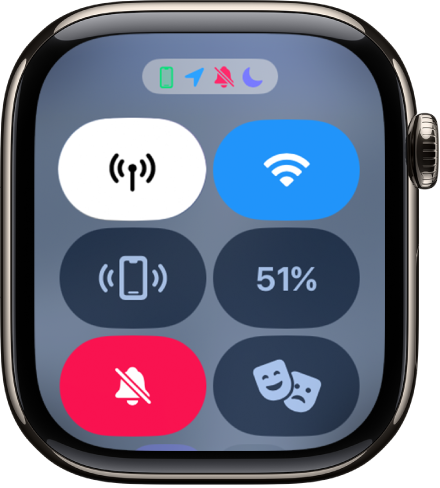
Theater Mode disables sound, stops the screen from waking when you raise your wrist, and hides visual alerts. It’s ideal for dark environments like movie theaters or presentations.
Enable Theater Mode
-
On Apple Watch:
1. Swipe up to open Control Center.
2. Tap the theater mask icon (🎭). -
On iPhone:
1. Open Watch app.
2. Tap My Watch > General > Theater Mode.
3. Toggle it on.
Visual cue: A gray mask icon appears at the top of the screen when active.
Wake Your Watch in Theater Mode
- Tap the screen
- Press the side button
- Turn or press the Digital Crown
Stop Vibrations in Theater Mode
Theater Mode does not disable haptics by default. To silence vibrations:
- Open Settings on Apple Watch.
- Go to Sounds & Haptics.
- Toggle Haptic Alerts off.
✅ Pro tip: Combine Theater Mode + Haptics Off for complete silence in meetings, movies, or meditation.
Do Not Disturb: Block All Alerts Temporarily
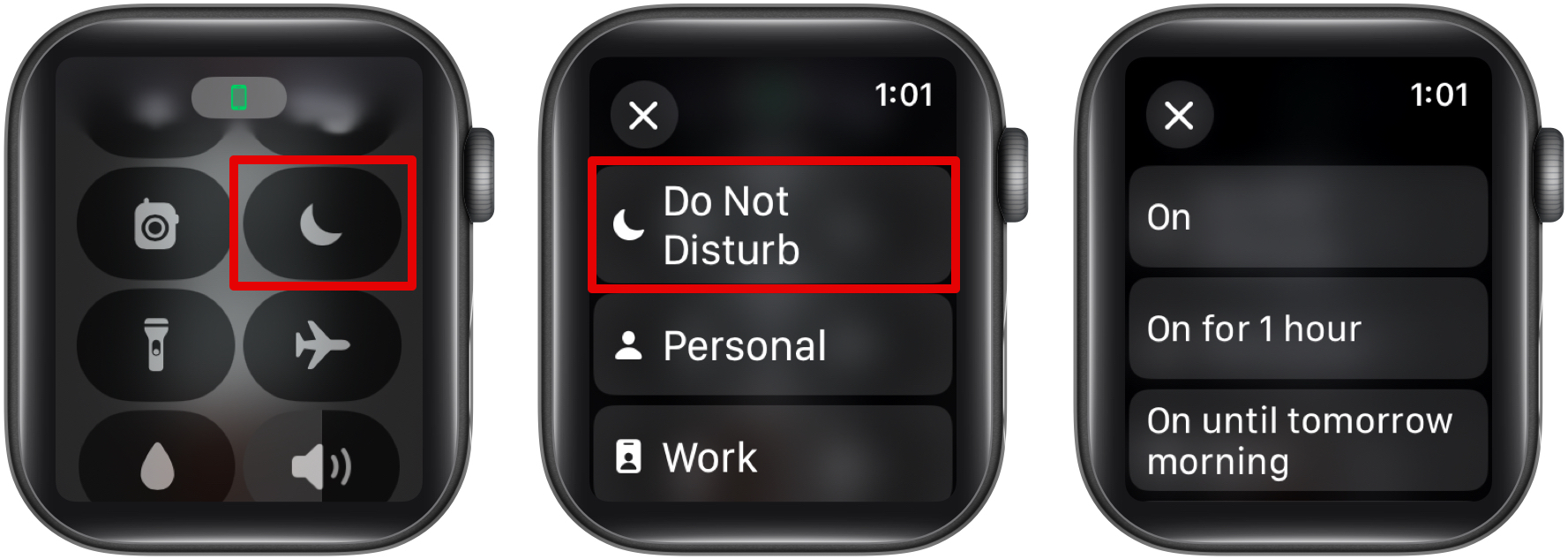
Do Not Disturb (DND) stops both sound and haptic alerts. It’s perfect for short breaks, naps, or focused work sessions.
Activate DND on Apple Watch
- Swipe up to open Control Center.
- Tap the crescent moon icon.
- Choose:
– On (until manually turned off)
– On for 1 hour
– On until I leave (location-based)
– On until event ends (linked to calendar)
Schedule DND via iPhone
- Open the Clock app.
- Tap Do Not Disturb.
- Set a repeating schedule (e.g., 10 PM – 7 AM).
Stop DND from Syncing to iPhone
By default, DND on Apple Watch silences your iPhone too. To silence only the watch:
- On iPhone, go to Settings > Focus > Do Not Disturb.
- Turn off Sync Across Devices.
✅ Now, your watch stays quiet while your phone keeps alerting—ideal for light sleepers or parents.
Focus Modes: Custom Notification Rules
Focus Modes let you create personalized alert profiles—like “Work,” “Sleep,” or “Personal”—with specific apps, people, and devices allowed.
Create a Focus to Silence Notifications
- On iPhone, open the Watch app.
- Tap Focus.
- Tap + to create a new Focus (e.g., “Quiet Hours”).
-
Configure:
– Allowed Notifications: Choose apps (e.g., only Messages from family).
– People: Allow calls from selected contacts.
– Apps: Permit specific alerts (e.g., Slack but not Instagram).
– Devices: Select Apple Watch only.
– Schedule: Set time (e.g., 8 PM – 8 AM).
– Automation: Turn on when charging or arriving home. -
Tap Add to Apple Watch.
✅ The Focus appears in Control Center for one-tap access.
Use Sleep Focus for Nighttime Silence
- Open Watch app > Focus.
- Tap Sleep.
- Set bedtime and wake-up time.
- Enable Wind Down to start DND, dim the screen, and launch a mindfulness session.
🌙 Sleep Focus automatically silences notifications and disables haptics.
Bedtime Mode: Auto-Silence Overnight

Bedtime Mode is a sleep-focused version of Do Not Disturb that syncs with your sleep schedule.
Set Up Bedtime Mode
- Open Watch app on iPhone.
- Tap Sleep.
- Toggle Bedtime Mode on.
- Set bedtime and wake-up time.
- Enable Wind Down for a calming pre-sleep routine.
What Happens During Bedtime Mode
- Notifications silenced
- Haptics disabled
- Screen shows “Good Night”
- Alarm still works (sound + haptics)
- Automatically ends at wake-up time
🔋 Also reduces background activity to save battery.
📱 Requires watchOS 7 or later and the Sleep app.
Disable Haptics: Stop All Vibrations
Even in silent or theater mode, your watch may still vibrate. To stop all haptics:
Reduce Haptic Strength
- On Apple Watch, open Settings.
- Go to Sounds & Haptics.
- Drag Haptic Strength to minimum.
- Turn off Prominent Haptic.
Turn Off Haptics Completely
In Sounds & Haptics, toggle Haptic Alerts off.
⚠️ Warning: This disables all vibrations, including:
– Heart rate alerts
– Fall detection
– Emergency SOS
– Alarms
Use only if you’re okay missing critical alerts.
Prevent Cross-Device Syncing
By default, silencing your watch also silences your iPhone and Mac. To silence only the Apple Watch:
- On iPhone, go to Settings > Focus.
- Select your active Focus (e.g., Do Not Disturb, Sleep).
- Tap People, Apps, or Options.
- Disable Sync Across Devices.
✅ Now you can mute your wrist while keeping phone alerts on.
💼 Ideal for:
– Office workers
– Light sleepers
– Parents who need phone alerts but quiet wrists
Manage App-Specific Notifications
Stop alerts from specific apps like Slack, Gmail, or Instagram.
Block App Notifications
- On iPhone, open Watch app.
- Tap My Watch > Notifications.
- Select an app.
- Choose:
– Notifications Allowed: Off
– Alert Style: None
– Sounds & Haptics: Off
✅ You can also disable Mirror iPhone to set different alert rules on the watch.
Create a Shortcut to Silence Watch Only
No native shortcut exists, but you can create an automation:
Make a “Silence Watch” Shortcut
- Open Shortcuts app on iPhone.
- Tap Automation > +.
- Choose trigger: Time, Location, or Manual.
- Add action: Set Do Not Disturb.
- Select This Device Only.
- Turn off Ask Before Running.
- Save.
🕒 Example: Set to run daily at 10 PM.
⚠️ Cannot target individual apps, but great for nightly silencing.
Real-World Scenarios: Which Mode to Use
In a Meeting
Use: Do Not Disturb (1 hour)
Why: Stops sound and haptics instantly. No screen wake.
At the Movies
Use: Theater Mode + Haptics Off
Why: No sound, no light, no vibrations.
Sleeping
Use: Bedtime Mode or Sleep Focus
Why: Scheduled, automatic, includes wind-down.
Focused Work
Use: Custom Work Focus
Why: Allows work apps (Slack, Email) but blocks social media.
Parenting Time
Use: Personal Focus (Watch-only)
Why: Phone stays alert; watch stays silent.
Overnight Charging
Use: Bedtime Mode
Why: Silent, battery-saving, alarm still works.
Troubleshooting Common Issues
Watch Still Vibrates in Theater Mode
Cause: Haptics are on by default.
Fix: Go to Settings > Sounds & Haptics > Haptic Alerts and turn off.
DND Silences iPhone Too
Cause: Sync Across Devices is on.
Fix: On iPhone, go to Settings > Focus > [Mode] > Sync Across Devices → turn off.
Alarms Don’t Sound When Charging
Myth: Silent Mode blocks alarms.
Truth: Alarms always sound when charging.
Fix: Check Ringer and Alerts volume in Sounds & Haptics.
Can’t Wake Watch in Theater Mode
Cause: User expects wrist raise to work.
Fix: Tap screen, press side button, or turn Digital Crown.
Bedtime Mode Doesn’t Turn On
Cause: Sleep schedule not set.
Fix: Open Watch app > Sleep > Set Schedule.
Third-Party App Alerts Still Appear
Cause: App bypasses Focus.
Fix: On iPhone, go to Settings > Notifications > [App] > Allow Notifications During → remove from list.
Expert Tips for Better Control
Layer Modes for Total Silence
- Combine Theater Mode + Haptics Off for zero distractions.
- Use Focus + Automation (e.g., turn on when connected to car Bluetooth).
Use Wind Down for Better Sleep
- Schedule 15–30 minutes of screen dimming and mindfulness.
- Exclude work apps from Sleep Focus.
Test Your Alarms Monthly
- Even with all silencing, alarms must work.
- Go to Settings > Sounds & Haptics > Ringer and Alerts → increase volume.
Reduce Phantom Vibrations
- Lower haptic strength.
- Disable notifications for low-priority apps (e.g., fitness streaks, promo emails).
Shorten Screen Wake Time
- Open Settings > Display & Brightness.
- Set Wake Duration to Short.
- Reduces light disruption in dark rooms.
Check Battery Usage
- Open Battery widget on Apple Watch.
- Identify apps using the most power.
- Disable notifications for battery-hungry apps.
Final Recommendations
To silence Apple Watch notifications only:
- Create a Custom Focus (e.g., “Quiet Watch”).
- Allow no apps or people.
- Disable Sync Across Devices.
- Activate manually or on schedule.
For nightly silence, use Bedtime Mode—it’s automated, battery-friendly, and includes wind-down.
For instant quiet, use Theater Mode or Do Not Disturb—but disable haptics separately if needed.
✅ Bottom Line: No single method fits all. Match the mode to your need:
– Speed → Theater Mode or DND
– Automation → Focus or Bedtime
– Granular Control → Focus + App Settings
– Watch-Only Silence → Focus with Sync Off
Master these tools, and your Apple Watch becomes a silent partner—alerting you only when it truly matters.





