
Is your Apple Watch suddenly narrating your day—reading messages aloud, announcing notifications, or describing every tap on the screen? You’re not imagining it, and you’re definitely not alone. Many Apple Watch users experience unexpected voice output that can feel intrusive, confusing, or even embarrassing in quiet settings like meetings or public transit. The good news? Your watch isn’t haunted—it’s just a setting (or two) that’s been turned on, likely by accident.
The primary reason your Apple Watch starts talking is due to accessibility features like VoiceOver, Siri Announcements, or Voice Feedback being activated unintentionally. These tools are designed to help users with visual or hearing impairments navigate their devices more easily, but they can trigger unexpectedly during a workout, after a software update, or from a simple wrist bump. The best part? You can silence your Apple Watch in seconds—and prevent it from happening again—with just a few taps.
This guide walks you through every verified fix, setting path, and troubleshooting step to stop unwanted voice output on your Apple Watch. Whether you’re dealing with constant screen narration, Siri reading your texts aloud, or phantom voice alerts, we’ll help you diagnose the cause and apply the right solution—fast, safely, and without losing any data.
Stop VoiceOver Instantly

If your Apple Watch is narrating every button, app, and menu, VoiceOver is almost certainly enabled. This screen reader feature describes on-screen elements aloud and is incredibly useful for low-vision users—but a nightmare when turned on by mistake.
Triple-Press the Digital Crown
- Fastest fix: Press the Digital Crown three times quickly.
- You’ll hear a confirmation: “VoiceOver Off.”
- This disables VoiceOver immediately, even if you can’t navigate the screen.
Important: This only works if Accessibility Shortcut is enabled and set to VoiceOver. If nothing happens, the shortcut may be disabled or assigned to another feature.
Use Siri to Turn Off VoiceOver
If triple-pressing doesn’t work:
– Raise your wrist and say “Hey Siri”, or press and hold the Digital Crown.
– Say clearly: “Turn VoiceOver off.”
– Siri will confirm and disable it instantly.
This hands-free method is ideal when VoiceOver is interfering with navigation.
Disable VoiceOver via Watch Settings
To manually turn it off:
1. On your Apple Watch, open Settings.
2. Tap Accessibility.
3. Select VoiceOver.
4. Toggle it Off.
Note: When VoiceOver is active, you can’t tap normally. To select an item, tap once to highlight, then double-tap to open.
Prevent Accidental VoiceOver Activation
Many users report VoiceOver turning on randomly—especially during exercise or when adjusting the watch. The culprit? The Accessibility Shortcut.
Turn Off Accessibility Shortcut
- Open the Watch app on your iPhone.
- Go to Accessibility.
- Scroll to the bottom and tap Accessibility Shortcut.
- Uncheck VoiceOver (or all options if not in use).
Why this matters: With this shortcut disabled, a triple-press of the Digital Crown won’t activate VoiceOver—eliminating 90% of accidental activations.
User verified: “I never meant to turn VoiceOver on. After disabling the shortcut, it never came back—even when I pressed the crown fast.”
Stop Siri from Announcing Messages
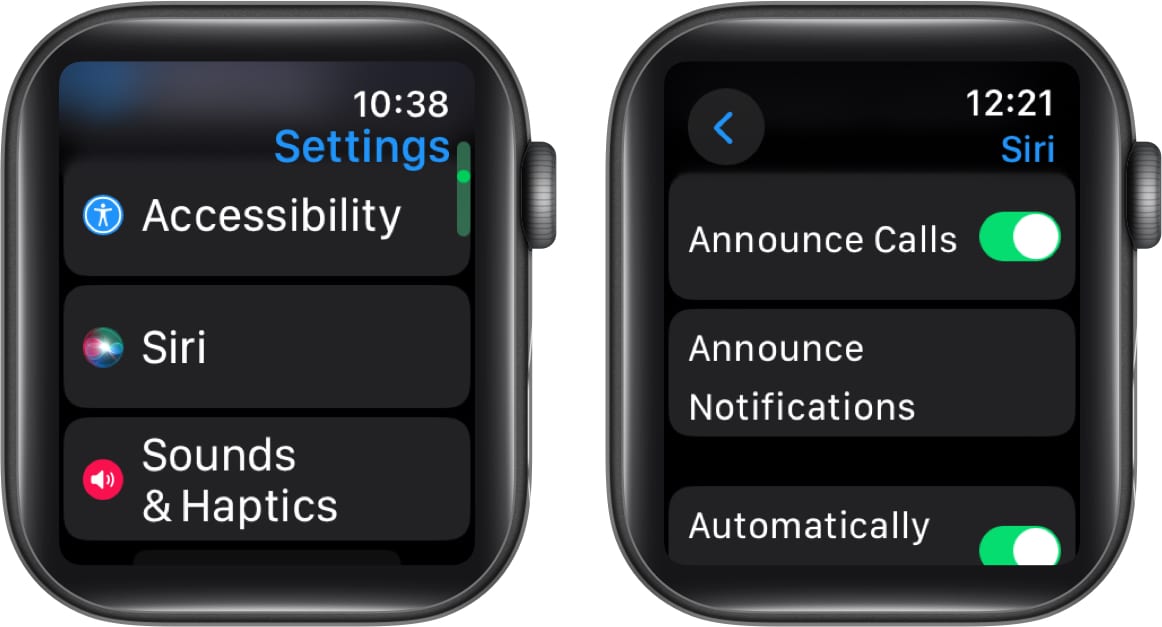
Even with VoiceOver off, your Apple Watch may still speak through Siri Announcements, especially when using AirPods.
Turn Off Announce Messages with Siri
- Open the Watch app on iPhone.
- Tap Siri.
- Disable:
– Announce Messages with Siri
– Speak Notifications
Key detail: These settings control whether Siri reads messages aloud only when headphones are connected. If your watch speaks only with AirPods in, this is the source.
User insight: “I didn’t touch any settings, but my watch started reading texts. Turning off ‘Announce Messages’ fixed it instantly.”
Disable Voice Feedback

Voice Feedback makes your Apple Watch speak responses during dictation—like when replying to a message by voice.
Set Voice Feedback to Off
- Open the Watch app on iPhone.
- Go to General > Accessibility > Voice Feedback.
- Choose:
– Off – No spoken responses
– Headphones Only – Speaks only when headphones are connected
– Always On – Default for some users
Recommended: Set to Off or Headphones Only to avoid public voice output.
Example: If you dictate “See you soon,” your watch might reply aloud, “See you soon,” causing awkward moments.
Turn Off Live Listen
Live Listen turns your iPhone into a remote microphone, streaming sound to your Apple Watch—commonly used with hearing aids.
Stop Live Listen
- Open Watch app on iPhone.
- Go to Accessibility > Audio/Visual.
- Tap Live Listen.
- Tap Stop (● with a line).
Visual clue: A green microphone icon on your watch face means Live Listen is active.
Fix: Tap the icon or disable it in settings to stop audio streaming.
Disable App-Specific Announcements
Some apps—like WhatsApp, Messages, or Slack—can trigger independent voice alerts.
Turn Off Per App
- Open Watch app on iPhone.
- Tap Notifications.
- Select an app (e.g., Messages).
- Turn off Announce Notifications.
Pro tip: Review all messaging apps. One enabled app is enough to trigger Siri voice alerts.
Reset All Settings (If Talking Persists)
If voice output continues despite turning off all known features, a settings reset can clear corrupted preferences.
Steps:
- Open Watch app on iPhone.
- Go to General > Reset.
- Tap Reset All Settings.
- Confirm.
What’s affected:
– Wi-Fi passwords cleared
– Privacy permissions reset
– All system settings restoredWhat’s safe:
– Apps, music, photos, and health data remain intactUser result: “After resetting, the random voice stopped. It must’ve been a glitch.”
Troubleshoot Common Issues
Why Does VoiceOver Keep Turning On?
- Cause: Accessibility Shortcut enabled + accidental triple-press.
- Fix: Disable Accessibility Shortcut in iPhone Watch app.
Design note: The Digital Crown is sensitive. Tight bands or wrist movement can trigger multiple presses.
Prevention: Wear the watch slightly looser or disable the shortcut permanently.
Watch Speaks Without VoiceOver or Headphones
- Check: Speak Notifications or Voice Feedback in Siri and Accessibility settings.
- Even if VoiceOver is off, these can still trigger speech.
Microphone Icon Stuck On?
- May indicate active listening.
- Fix: Restart Apple Watch or check Voice Memos for ongoing recordings.
Keep Apple Watch Updated
Older watchOS versions may have bugs causing unintended voice behavior.
Update Your Watch
- On iPhone, open Watch app.
- Go to General > Software Update.
- Install any available updates.
Why update? Apple regularly fixes issues with accessibility features, Siri, and voice controls.
Example fix: watchOS 9.4 patched a bug causing VoiceOver to activate after wake.
Best Practices to Prevent Talking
Avoid future surprises with these proactive steps:
- Disable Accessibility Shortcut unless actively using VoiceOver, Zoom, or Grayscale.
- Set Voice Feedback to Headphones Only to prevent public voice responses.
- Review notification settings monthly—updates may re-enable announcements.
- Avoid rapid Crown presses—can mimic triple-press.
- Restart weekly—clears temporary glitches.
Summary: Settings That Make Apple Watch Talk
| Feature | Location | How to Turn Off |
|---|---|---|
| VoiceOver | Watch: Settings > Accessibility | Toggle Off |
| Accessibility Shortcut | iPhone: Watch app > Accessibility > Shortcut | Uncheck VoiceOver |
| Announce Messages with Siri | iPhone: Watch app > Siri | Toggle Off |
| Speak Notifications | iPhone: Watch app > Siri | Toggle Off |
| Voice Feedback | iPhone: Watch app > General > Accessibility | Set to Off |
| Live Listen | iPhone: Watch app > Accessibility > Audio/Visual | Tap Stop |
| App Announcements | iPhone: Watch app > Notifications > [App] | Disable “Announce” |
Final Tips and Warnings
- VoiceOver is essential for many users. While it can be annoying when enabled by accident, respect its purpose.
- Never use destructive fixes like “demolishing your Apple Watch with a bulldozer”—these are jokes and will destroy your device.
- Software fixes always work. If your Apple Watch is talking, a setting is turned on. Find it, turn it off, and you’re done.
Quote from user guide: “The suggestion to ‘demolish your Apple Watch with a bulldozer’ is not recommended and will permanently destroy the device.”
✅ Triple-press Digital Crown to disable VoiceOver
✅ Turn off Accessibility Shortcut on iPhone
✅ Disable “Announce Messages with Siri”
✅ Set Voice Feedback to Off or Headphones Only
✅ Turn off Live Listen if enabled
✅ Reset All Settings if issues persist
✅ Update to latest watchOS version
Follow these steps, and your Apple Watch will stay silent—unless you want it to speak. You’re back in control.




