
You’re glancing at the time, checking a heart rate alert, or mid-rep during a workout—then suddenly, the Now Playing screen hijacks your Apple Watch display. Without any input from you, the music interface pops up, disrupting your focus. This automatic behavior happens whenever audio starts on your iPhone, HomePod, or connected Bluetooth device. While Apple designed it for convenience, many users find it intrusive and unnecessary.
The good news: you can stop the Now Playing screen from appearing automatically. But it’s not as simple as flipping one switch. Apple has layered this feature across multiple system settings—Auto-Launch Audio Apps, Live Activities, Return to App, and Background App Refresh—so full control requires adjusting several options in the right order.
In this guide, you’ll learn exactly how to disable automatic Now Playing pop-ups on your Apple Watch. We’ll walk through every setting, explain which ones matter most, and show you how to permanently prevent unwanted screen takeovers—without losing the ability to manually control music when you actually want to. Whether you use Apple Music, Spotify, or YouTube, these steps work across all apps and models.
Disable Auto-Launch Audio Apps (Most Important Step)
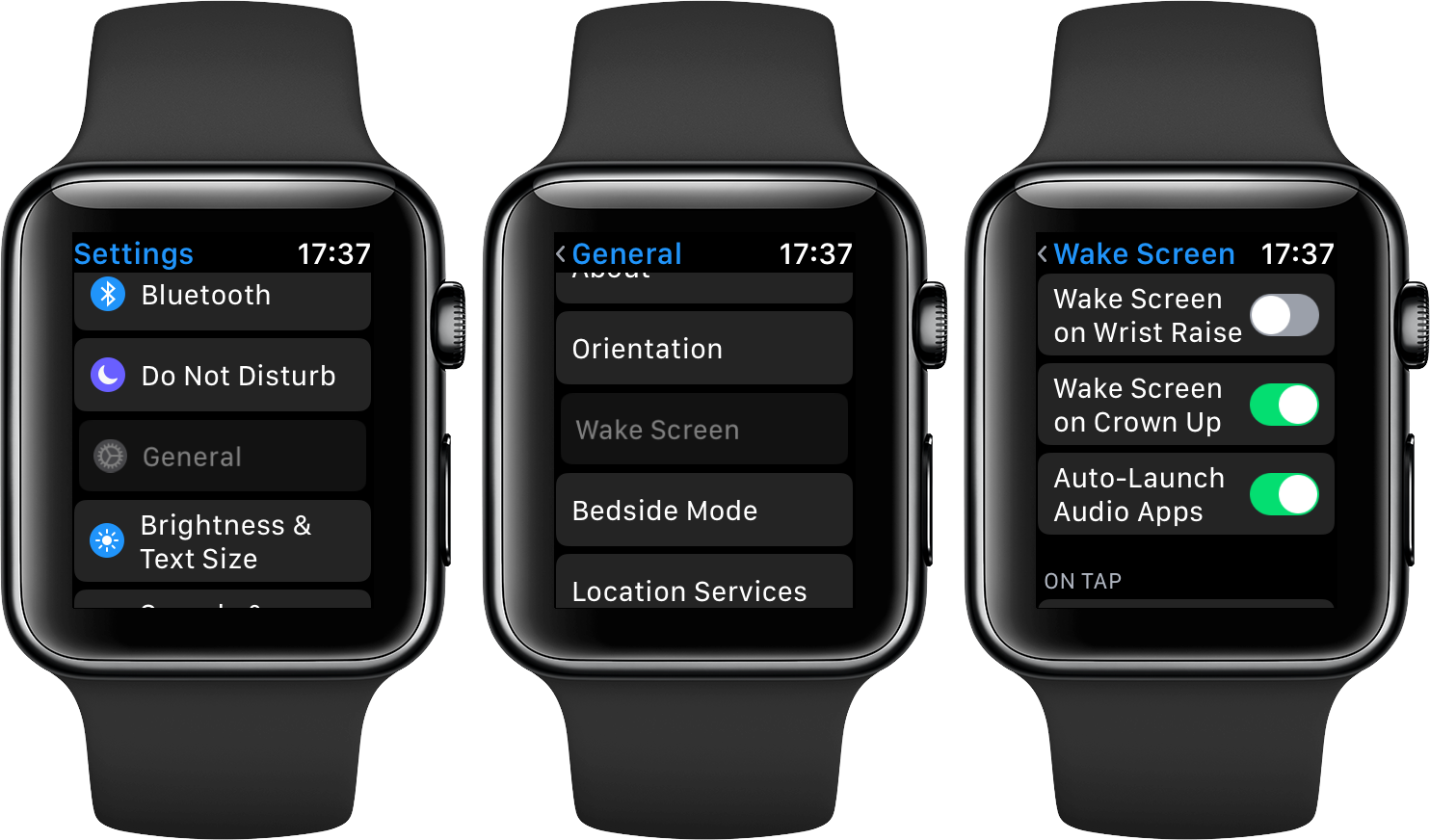
This is the primary trigger for automatic Now Playing screen activation. If this setting is on, your watch will launch music controls every time audio starts on a connected device.
Turn It Off Directly on Your Apple Watch
- Press the Digital Crown to open the Home screen.
- Tap the Settings app (gear icon).
- Scroll down and select Display and Brightness.
- Look for Auto Launch Audio Apps.
- Toggle it Off.
✅ This stops Apple Music, Spotify, Podcasts, and other audio apps from auto-opening when playback begins.
⚠️ On older versions of watchOS (7 and earlier), this setting was under Settings > General > Wake Screen. It moved in watchOS 8, so don’t look for it there.
Use the iPhone Watch App (If Missing on Watch)
Sometimes the setting doesn’t appear directly on the watch. In that case:
- Open the Watch app on your iPhone.
- Go to the My Watch tab.
- Tap Display and Brightness.
- Find Auto-Launch Audio Apps and toggle it Off.
🔁 Changes sync instantly. This method often works even when the option is missing on the watch itself.
💬 Many users report that turning off this single setting resolves 80% of unwanted interruptions.
Control Media Live Activities (watchOS 9+)

Starting with watchOS 9, Apple introduced Live Activities, which can display real-time updates—including music playback—on your watch face or screen. Even if Auto-Launch is off, Live Activities can still trigger a Now Playing pop-up.
Adjust Media App Behavior
- On your Apple Watch, go to Settings.
- Tap General > Auto-Launch and Live Activities.
- Select Media Apps.
- Choose one of three options:
– Off – No media notifications or pop-ups.
– Smart Stack – Shows playback info only in your watch face’s Smart Stack (non-intrusive).
– Open App – Launches Apple Music or Spotify directly (this is what causes screen takeovers).
✅ Smart Stack is the best compromise: you can still see what’s playing without the screen jumping away from your current app.
🚫 Avoid Open App—this defeats the purpose of disabling auto-launch.💬 “Switching to Smart Stack stopped the constant interruptions during my runs.” – User: Forigma
Stop Return to Now Playing After Inactivity
Even if you exit the Now Playing screen, your Apple Watch might snap back to it after a few seconds of inactivity. This is due to the Return to App feature.
Disable Return to App for Music
- Press the Digital Crown to return home.
- Open Settings.
- Go to General > Return to Clock.
- Scroll down and tap Music.
- Turn off Return to App.
- Repeat for Now Playing if it appears as a separate entry.
✅ This prevents the watch from automatically returning to music controls after you’ve closed them.
🔁 If the change doesn’t take effect, restart your Apple Watch—some users report settings require a reboot to apply.
Turn Off Background App Refresh for Now Playing
Even with auto-launch disabled, the Now Playing app can still respond to audio events if it’s allowed to refresh in the background.
Steps to Disable
- On Apple Watch, open Settings.
- Tap General > Background App Refresh.
- Find Now Playing in the list.
- Toggle it Off.
⚠️ This alone won’t stop screen takeovers if Auto-Launch or Live Activities are enabled.
✅ But combined with other steps, it removes another vector for unwanted activation.
Remove Now Playing App (Nuclear Option)
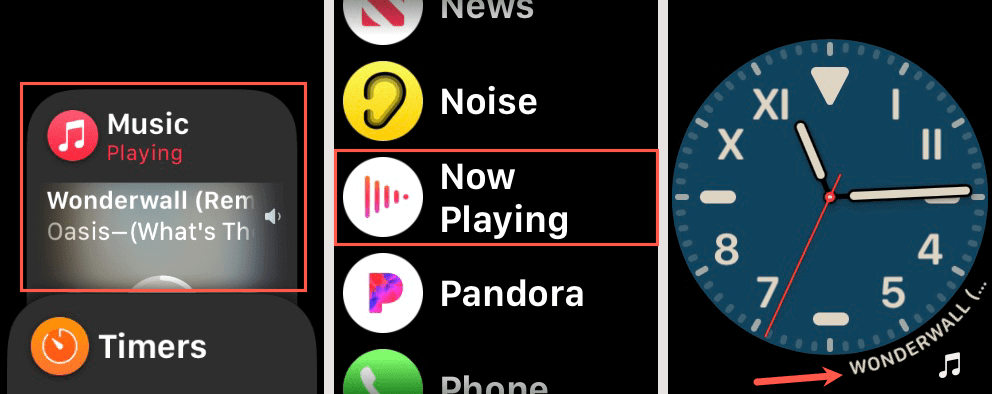
If nothing else works, delete the Now Playing app entirely. This is the only guaranteed way to stop it from appearing—ever.
How to Remove
- On your iPhone, open the Watch app.
- Tap the My Watch tab.
- Scroll down to Now Playing.
- Tap it and select Remove App.
- Confirm the deletion.
✅ Once removed, the Now Playing screen cannot appear automatically or manually.
❌ You lose quick access to playback controls—but you can still manage music in other ways (see FAQs).💬 “I tried everything. Only deleting the app finally fixed it.” – User: wholemilklatte
Why the White Dot Still Appears
Even after disabling all settings, you may still see a small white dot at the top of your watch face when audio is playing.
What Is the White Dot?
- A system-level playback indicator.
- Shows when audio is playing via AirPlay, Bluetooth, or Handoff.
- Not part of the Now Playing app—it’s built into the OS.
Can You Hide It?
❌ No. Apple does not provide any setting to disable this indicator.
🔄 It disappears only when:
– Audio stops.
– Playback switches to a different device.
– You disconnect the Bluetooth source.
⚠️ The dot can obscure the red notification badge, making it harder to spot new alerts.
Fix Now Playing After iOS/watchOS Updates
After a software update, Apple sometimes resets your preferences, turning Auto-Launch or Live Activities back on.
Common Reset Issues
- Auto-Launch Audio Apps turns back on.
- Media Apps revert to Open App.
- Return to App re-enables for Music.
Prevention Tips
- Re-check all settings after every iOS or watchOS update.
- Use the Full Disable Checklist below to verify each step.
- Consider removing the Now Playing app if resets happen frequently.
💬 “I thought I’d fixed it, but after an update, it came back.” – User: HeraSakYant
Block Third-Party App Triggers
Spotify, YouTube Music, and other third-party apps can bypass Apple’s system controls and trigger their own playback screens.
Stop Spotify or YouTube from Auto-Opening
- Open the Watch app on your iPhone.
- Go to My Watch.
- Scroll down to the app (e.g., Spotify).
- Tap it and select Remove App.
✅ Or, disable Background App Refresh for the app in Watch Settings > General > Background App Refresh.
🔊 Some apps activate playback even when closed—removal is the most effective fix.
Full Disable Checklist (Step-by-Step)
Follow these steps in order to completely stop Now Playing from appearing:
-
Disable Auto-Launch Audio Apps
→ Watch: Settings > Display & Brightness > Auto Launch Audio Apps → Off -
Set Media Apps to Smart Stack or Off
→ Watch: Settings > General > Auto-Launch and Live Activities > Media Apps → Smart Stack -
Turn Off Return to App for Music
→ Watch: Settings > General > Return to Clock > Music > Return to App → Off -
Disable Background Refresh for Now Playing
→ Watch: Settings > General > Background App Refresh > Now Playing → Off -
(Optional) Remove Now Playing App
→ iPhone: Watch app > My Watch > Now Playing > Remove App -
Reboot Apple Watch
→ Hold side button > Slide to power off > Restart -
Verify After Updates
→ Recheck settings post-update
✅ Completing all steps ensures zero automatic pop-ups.
FAQs: Common Questions Answered
Can I still control music manually?
✅ Yes. Even with Now Playing disabled:
– Tap the music icon (if visible) at the top of the screen.
– Use Siri: “Skip this song” or “Pause music.”
– Open Apple Music or Spotify manually from the Home screen.
Does this work on all Apple Watch models?
✅ Yes. These steps apply to:
– Apple Watch Ultra, Ultra 2
– Series 4 through Series 9
– SE (1st and 2nd gen)
As long as you’re running watchOS 8 or later, the settings are available.
Why does Now Playing come back after restarting?
Some users report settings reset after:
– Software updates
– Restarting devices
– Unpairing and re-pairing the watch
✅ Fix: Re-apply the settings. Consider deleting the app if resets are frequent.
Can I hide the white playback dot?
❌ No. It’s a system-level indicator tied to audio routing.
💡 Workaround: Stop playback or switch audio output to remove it.
Final Tips for a Clean Watch Face
- Use Smart Stack for non-intrusive music info.
- Remove unused music apps from your watch.
- Recheck settings monthly—especially after updates.
- Restart your watch after making changes to ensure they apply.
🔄 Apple prioritizes convenience, but with the right setup, you can have both control and functionality.
Bottom Line: The Now Playing screen doesn’t have to hijack your Apple Watch. By disabling Auto-Launch Audio Apps, adjusting Live Activities, and optionally removing the app, you can stop automatic pop-ups for good. The white dot may linger, but the full-screen takeover? That’s entirely preventable. Take back your screen—without sacrificing control.




