
You’ve just unboxed your new Apple Watch, charged it up, and held it close to your iPhone—only to be met with silence. No “You’ve Got an Apple Watch” prompt. No pairing animation. The screen might be stuck on the Apple logo, show a red disconnect icon, or repeatedly ask for an Apple ID you can’t remember. If you’re seeing any of these signs, you’re dealing with one of the most common frustrations among Apple users: Apple Watch not pairing.
The good news? This issue is almost always fixable. Whether you’re setting up a new device, transferring your watch to a new iPhone, or recovering from a reset, this guide delivers every proven troubleshooting step—straight from Apple’s support framework and real-world user successes. We’ll walk you through compatibility checks, network resets, manual pairing, Activation Lock fixes, and even data recovery after a reset. By the end, you’ll know exactly what to do when your Apple Watch refuses to connect.
Let’s get your devices talking again—fast.
Confirm Your Devices Meet Pairing Requirements
Before diving into complex fixes, rule out the basics. Most pairing failures stem from overlooked compatibility or software issues.
Check iPhone and Apple Watch Compatibility
Not all iPhones can pair with every Apple Watch model. Apple enforces strict pairing rules:
– iPhone 6s or later is required for Apple Watch models running watchOS 6 and earlier.
– For Apple Watch Series 9, Ultra 2, and SE (3rd gen), you need an iPhone 8 or later running iOS 17 or higher.
– While the iPhone 13 and Apple Watch SE (3rd gen) are compatible, users have reported pairing failures due to software glitches—not hardware incompatibility.
Also, ensure your iPhone runs iOS 13 or later. Older iOS versions block pairing, even if the hardware supports it.
Verify Software and Battery Levels
Outdated software is a top cause of pairing failure:
– Update your iPhone: Go to Settings > General > Software Update.
– Your Apple Watch may require a firmware update before pairing—especially after a factory reset.
– Charge both devices:
– iPhone: At least 50% battery.
– Apple Watch: Fully charged. Older models like Series 4 often fail to pair with low or degraded batteries.
Fix Bluetooth, Wi-Fi, and Network Issues
Poor connectivity is a silent saboteur of Apple Watch pairing.
Enable Bluetooth and Disable Airplane Mode
Bluetooth must be active on both devices:
– On iPhone: Open Control Center.
– Tap the Bluetooth icon to ensure it’s on.
– Confirm Airplane Mode is off (no orange airplane icon).
– On Apple Watch: Swipe up from the watch face.
– A green iPhone icon means connected.
– A red ❌ or red iPhone icon means disconnected.
– If Airplane Mode is on, swipe down and disable it.
Warning: Even if Bluetooth appears active, corrupted settings can block pairing. If basic checks fail, reset network settings.
Reset iPhone Network Settings
Corrupted network data often causes invisible pairing blocks:
1. Go to Settings > General > Transfer or Reset iPhone > Reset.
2. Tap Reset Network Settings.
3. Enter your passcode and confirm.
4. Restart your iPhone and reconnect to Wi-Fi.
This clears saved Wi-Fi networks, Bluetooth pairings, and cellular settings. Many users report success only after this step—especially when switching from Wi-Fi to mobile data during pairing.
Try Manual Pairing When Auto-Detection Fails
If your iPhone doesn’t detect the watch automatically, force a manual connection.
Pair from the Apple Watch App
- Open the Apple Watch app on your iPhone.
- Tap Start Pairing.
- Select Pair Manually.
- A six-digit code will appear on your Apple Watch.
- Enter that code on your iPhone.
Note: If no code appears, the watch may be frozen. Proceed to reset.
Switch to Mobile Data or Change Wi-Fi Networks
Network restrictions can silently block pairing:
– Turn off VPNs on your iPhone—even inactive ones can interfere.
– Try pairing on a different Wi-Fi network or use cellular data only.
– Avoid public or restricted networks (e.g., schools, workplaces).
User Success: One customer fixed pairing by turning off Wi-Fi and using LTE—no other changes needed.
Reset the Apple Watch the Right Way
When pairing stalls or fails repeatedly, a full reset is often the solution.
Unpair via iPhone (Safest for Data Recovery)
If you still have the original iPhone:
1. Open Apple Watch app > My Watch > All Watches.
2. Tap the “i” icon next to your watch.
3. Tap Unpair Apple Watch.
4. Confirm. This:
– Erases the watch.
– Removes Activation Lock.
– Creates an automatic backup.
Afterward, pair the watch again and restore from the latest backup.
Key Benefit: This method preserves your apps, settings, and activity history.
Erase Without a Paired iPhone
If the original iPhone is gone:
1. On Apple Watch: Settings > General > Reset > Erase All Content and Settings.
2. Confirm twice.
3. Wait for the watch to restart.
Warning: Activation Lock remains active. You’ll need the original Apple ID and password to pair again.
Reset Without Knowing the Passcode
Forgot your passcode? You can still erase:
1. Place the watch on its charger.
2. Press and hold the side button until the Power Off slider appears.
3. Don’t slide—press and hold the Digital Crown instead.
4. When “Erase All Content and Settings” appears, tap Reset and confirm.
After reset, pairing requires the original Apple ID and password.
Fix Stuck or Frozen Pairing Screens
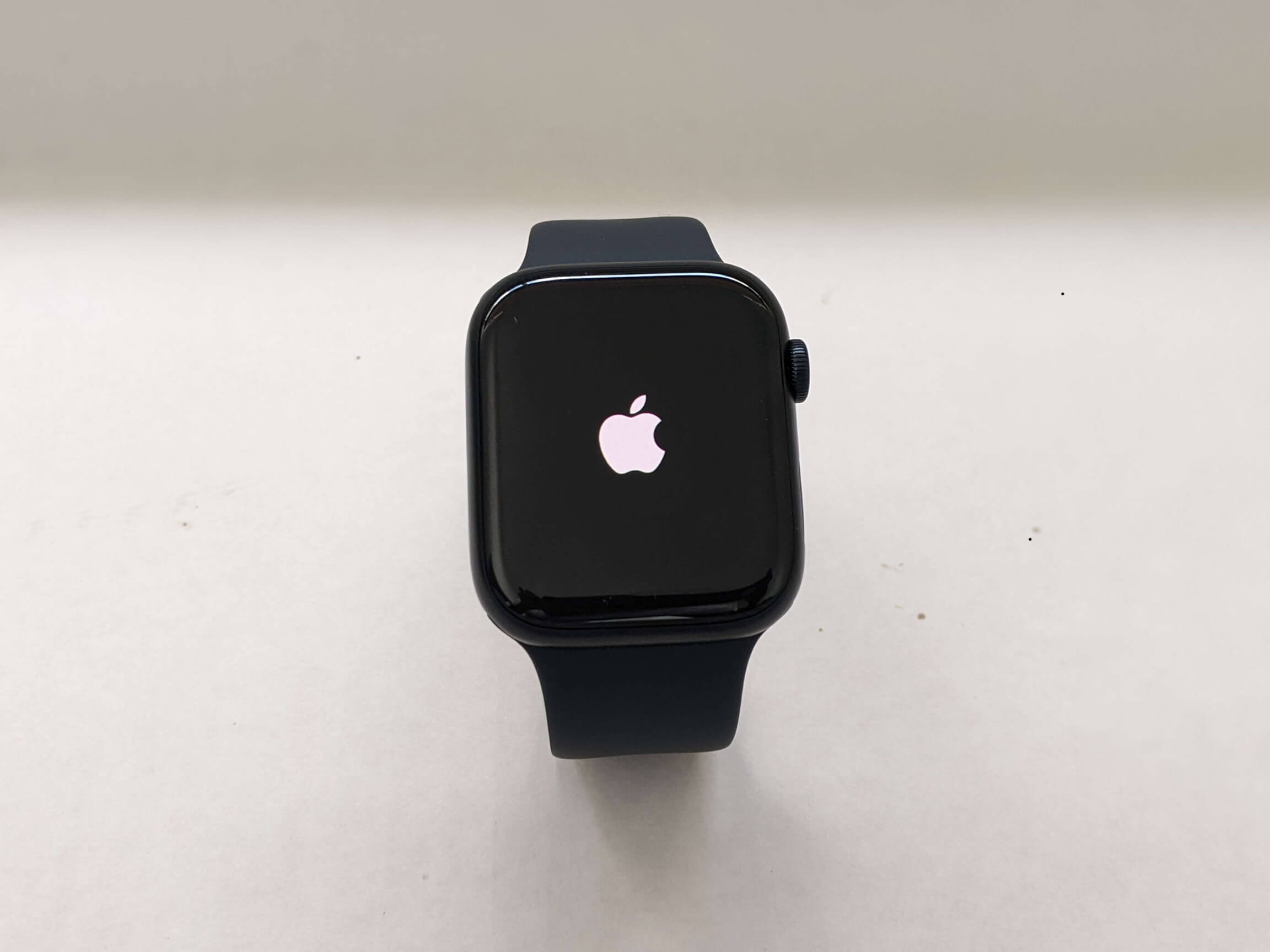
If your watch shows a black screen with the Apple logo or a particle animation that never progresses, it’s likely stuck.
Force Restart the Watch
- Press and hold the Digital Crown + Side Button.
- Keep holding until the Apple logo appears (10–15 seconds).
- Release and wait for restart.
- Try pairing again.
If the animation persists:
– Place the watch on the charger.
– Repeat the force restart.
– Try manual pairing.
Clear Old Pairing Data from iCloud
If the watch was previously paired but not unpaired:
– The iPhone may still “see” it in the background.
– Go to Settings > [Your Name] > iCloud > Find My > Devices.
– Select the Apple Watch and Remove from Account.
This clears Activation Lock and allows a clean setup.
Solve Activation Lock Issues

Activation Lock prevents unauthorized use but can block legitimate users.
Enter the Original Apple ID and Password
After erasing the watch without unpairing:
– You’ll be prompted for the Apple ID and password used during initial setup.
– This cannot be bypassed.
– Even if the password has changed, the current password for that account will work.
Remove a Secondhand Watch from iCloud
If you bought a used Apple Watch:
– The seller must remove it from their account.
– Steps:
1. Go to iCloud.com > Find My > Devices.
2. Select the Apple Watch.
3. Click Remove from Account.
Alternative: Seller can remove via iPhone: Settings > [Apple ID] > Find My > Devices > Apple Watch > Remove.
Alert: Many trade-in watches fail to pair because Apple didn’t remove them from iCloud. Always verify before purchase.
Recover Forgotten Apple ID or Password
If you can’t remember:
– On iPhone: Settings > Passwords > Search for Apple or iCloud.
– Authenticate with Face ID or Touch ID to view stored credentials.
– If lost, use iforgot.apple.com for recovery.
Fix iPhone App and Software Conflicts
Sometimes the problem isn’t the watch—it’s the phone.
Delete and Reinstall the Apple Watch App
A corrupted app can prevent detection:
1. Press and hold the Apple Watch app.
2. Tap Remove App > Delete App.
3. Restart your iPhone.
4. Reinstall the app from the App Store.
5. Open it and try pairing.
User Confirmed: This fixed pairing for multiple users with no other changes.
Update iPhone Software
An outdated iOS version can block pairing:
– Go to Settings > General > Software Update.
– Install any available updates.
– After updating, try pairing again.
Critical: iOS updates often include fixes for watchOS compatibility and pairing bugs.
Transfer Watch to a New iPhone Successfully
Switching phones? Follow these steps to avoid pairing failure.
Unpair from the Old iPhone First
If the watch is still linked:
– It won’t pair with the new phone.
– Solution: Unpair using the original iPhone (see above).
If the old iPhone is gone:
– Erase the Apple Watch.
– Ensure it’s removed from iCloud.
Restore from Backup on the New iPhone
After pairing:
– Choose Restore from Backup in the Watch app.
– Select a backup from the same Apple ID.
– Your apps, settings, and activity data will sync back.
Note: Enable iCloud Health sync to preserve health data: Settings > [Apple ID] > iCloud > Health > On.
Finish Incomplete Pairing
If pairing started during iPhone setup but wasn’t completed:
1. Open Apple Watch app > My Watch > All Watches.
2. Tap Finish Pairing.
3. Keep the watch on your wrist and unlocked.
4. Follow on-screen steps.
Final Note: Nearly every “Apple Watch not pairing” issue can be fixed with the right steps. Start with basic checks, escalate to resets, and don’t skip network or app troubleshooting. Always unpair properly before selling or switching devices. If stuck, Apple Support has tools you don’t. With patience and this guide, your watch will be back on your wrist in no time.





