
If your Apple Watch isn’t syncing with your iPhone, you’re not alone. This common but frustrating issue can prevent notifications from appearing, delay workout data, and block app updates or music transfers. The good news? In most cases, the problem isn’t hardware-related—it’s a software hiccup, connectivity glitch, or misconfigured setting that can be resolved quickly. Whether you’re seeing a red 📞 icon, missing Activity rings, or apps that won’t sync, this guide walks you through every proven fix, from simple checks to full re-pairing, so you can get your devices communicating seamlessly again.
Check Bluetooth, Wi-Fi, and Device Proximity
Before diving into complex fixes, confirm your devices can actually communicate.
Keep iPhone and Apple Watch Within 1–2 Feet
Apple Watch relies on Bluetooth and Wi-Fi to sync, both of which weaken with distance or interference. Place your devices side by side, avoiding thick walls, metal surfaces, or crowded wireless environments.
Visual clue: A red 📞 icon or red X on your watch face means the connection is broken.
Confirm Bluetooth and Wi-Fi Are On
Both connections must be active for reliable syncing.
On iPhone:
- Open Control Center (swipe down from top-right on iPhone X or later).
- Tap Bluetooth and Wi-Fi to ensure they’re enabled (blue or highlighted).
- Go to Settings > Bluetooth—your Apple Watch should appear in the list.
On Apple Watch:
- Press the side button to open Control Center.
- Ensure Bluetooth and Wi-Fi are turned on.
Pro tip: Even GPS-only models use Wi-Fi to maintain sync when Bluetooth is blocked.
Turn Off Airplane Mode
Airplane Mode disables all wireless signals.
- On iPhone: In Control Center, tap the Airplane Mode icon (airplane symbol) to disable.
- On Apple Watch: Open Control Center and disable if the icon is orange.
Disable Low Power Mode
This setting limits background activity, including syncing.
- iPhone: Settings > Battery > Low Power Mode → toggle off.
- Apple Watch: Open Control Center → tap the Low Power Mode icon to disable.
Why it matters: Syncing health data, messages, and apps often halts when Low Power Mode is active.
Allow Time for Automatic Sync
After fixing connectivity, give the system a moment.
- Keep both devices awake and unlocked.
- Open the Activity app on both to prompt a sync.
- Wait 5–10 minutes, especially after a workout or iOS update.
User insight: Many report a 2–5 minute delay before run data appears on the iPhone—don’t panic if it doesn’t happen instantly.
Restart iPhone and Apple Watch
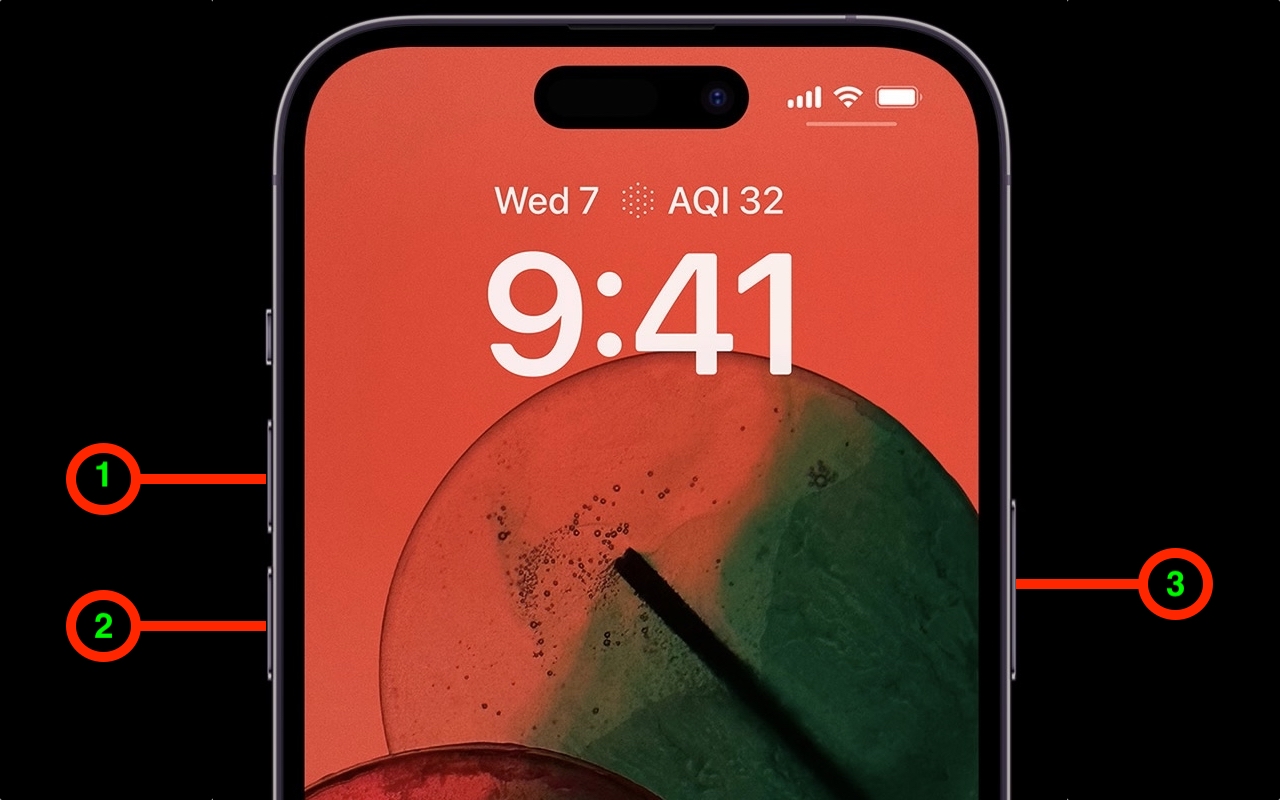
A reboot clears temporary glitches that block syncing.
Restart iPhone
- Press and hold the side button + volume down (iPhone 8 or later).
- Slide to power off.
- Wait 30 seconds, then press the side button to restart.
Restart Apple Watch
- Go to Settings > General > Shut Down → slide to power off.
- Hold the side button until the Apple logo appears.
Alternative: Force restart by holding side button + Digital Crown for 10+ seconds.
Wait 2–3 minutes after restart—devices should reconnect automatically.
Refresh Wireless Connections by Toggling Airplane Mode
Quickly reset Bluetooth and Wi-Fi without manual toggling.
- On iPhone, open Control Center → tap Airplane Mode.
- Wait 10 seconds → tap again to disable.
- Repeat on Apple Watch via Control Center.
This forces both devices to re-establish wireless links—often fixing stuck sync states.
Charge Your Apple Watch to Enable Sync
Some data (like music, photos, or ECG) only syncs when the watch is charging.
- Place Apple Watch on charger.
- Confirm charging light appears.
- Leave it for 10–15 minutes with iPhone nearby.
Key insight: Large data batches require power. Charging also helps maintain stable Bluetooth.
User shortcut: Take a screenshot on your Apple Watch while charging—this can trigger a sync with the iPhone’s Photos app.
Reset Sync Data to Clear Corrupted Cache
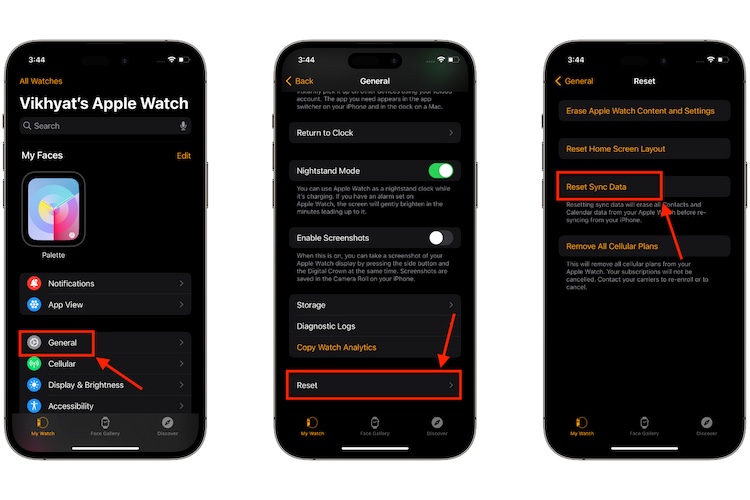
This removes synced content (contacts, calendars) from your watch and forces a fresh sync—without deleting iPhone data.
Steps:
- Open Watch app on iPhone.
- Tap General > Reset.
- Select Reset Sync Data → confirm.
What Happens:
- Watch removes synced data.
- iPhone data remains safe.
- Re-sync begins automatically in 5–10 minutes.
Best for: Missing calendar events, unsynced contacts, or Activity rings not updating.
Update iOS and watchOS to the Latest Version

Outdated software is a top cause of sync issues.
Update iPhone
- Go to Settings > General > Software Update.
- Install latest iOS (iOS 18.6 or later recommended).
- Ensure iPhone is charged and on Wi-Fi.
Update Apple Watch
- Open Watch app > General > Software Update.
- Download and install latest watchOS.
- Keep both devices close and charged.
Warning: Mismatched OS versions (e.g., watchOS 11 on iOS 17) can break compatibility.
Exit Beta Software Programs
Beta versions often introduce sync bugs.
Opt Out:
- On iPhone: Settings > General > Software Update.
- Tap Beta Updates → select Off.
- Install the latest public iOS version.
User feedback: Over 80% of beta testers resolved sync issues after switching back to stable releases.
Reinstall Problematic Apps
If only certain apps (e.g., Music, Calendar) fail to sync:
Steps:
- Delete the app from iPhone.
- Restart both devices.
- Reinstall from App Store.
- Open Watch app > My Watch > [App Name] → enable sync.
Real case: One user fixed Music sync by deleting and reinstalling the iPhone Music app before re-pairing.
Reset iPhone Network Settings
Clears corrupted Bluetooth, Wi-Fi, and cellular profiles.
Steps:
- iPhone: Settings > General > Transfer or Reset iPhone > Reset > Reset Network Settings.
- Enter passcode → confirm.
After reset:
– Reconnect to Wi-Fi.
– Apple Watch will auto-reconnect if nearby.
Note: This won’t delete photos or apps—just network settings.
Unpair and Re-pair Apple Watch
Use this if the Watch app doesn’t recognize your watch or syncing won’t start.
Remove Old Pairings
- Open Watch app > All Watches.
- Tap info (i) next to any old or lost watches.
- Tap Unpair Apple Watch → enter Apple ID to disable Activation Lock.
Unpair Current Watch
- Tap info (i) next to your watch.
- Tap Unpair Apple Watch → confirm.
- This erases the watch and removes Activation Lock.
Re-pair
- Turn on Apple Watch (hold side button).
- Bring it close to iPhone.
- Wait for “Set Up New Apple Watch” prompt.
- Tap Continue → follow setup steps.
Alternative: Open Watch app > Start Pairing > Set Up Apple Watch if no prompt appears.
Warning: Unpairing erases all data. Back up first via Watch app > All Watches > [Your Watch] > Back Up Now.
Factory Reset Apple Watch Manually
Use if the watch is unresponsive or won’t pair.
Steps:
- On Apple Watch: Settings > General > Reset > Erase All Content and Settings.
- Enter passcode.
- For GPS + Cellular models:
– Choose Keep if re-pairing to same iPhone.
– Choose Remove if switching devices. - Tap Erase All.
After reset, pair as new.
User verification: One user resolved persistent sync failure only after a full manual erase—not just unpairing.
Fix Common Special Cases
Activity or Health Data Missing
Workout completed but not in iPhone’s Activity or Health app?
Fixes:
- Open Activity app on both devices.
- Toggle Bluetooth off/on on iPhone.
- Reset Sync Data.
- Restart both devices.
- Ensure permissions: Settings > Privacy & Security > Motion & Fitness → enable Fitness Tracking and Health access.
Watch Paired But Not in Watch App
Devices connected, but watch missing from All Watches list?
Cause:
Corrupted pairing record.
Fix:
Unpair and re-pair (as detailed above).
Pro tip: This often happens after iOS updates or switching Wi-Fi networks.
Switching to a New iPhone
Want to transfer Apple Watch to a new phone?
Steps:
- On new iPhone, open Watch app.
- Tap Start Pairing.
- Hold old Apple Watch near new iPhone.
- Follow Quick Start prompts.
- Sign in with Apple ID to disable Activation Lock.
No old iPhone? Manually erase Apple Watch → pair as new.
Using Multiple Apple Watches
Only one Apple Watch can sync at a time.
To switch:
- Unpair current watch.
- Pair the new one.
- Data syncs from iPhone to the active watch.
Note: You can’t sync two watches simultaneously to one iPhone.
Prevent Future Sync Issues
Keep your devices running smoothly with these habits:
- Update both devices regularly—don’t skip iOS or watchOS updates.
- Restart Apple Watch weekly to clear cache.
- Avoid beta software unless essential.
- Charge nightly—especially after workouts.
- Limit Low Power Mode during active tracking.
- Skip thick screen protectors or metal cases that block sensors.
When to Contact Apple Support
If all else fails:
- Visit Apple Support online or book an Apple Store appointment.
- Bring both devices for diagnostics.
- Technicians can:
- Run deep network tests.
- Use Apple Configurator for advanced resets.
- Replace faulty hardware if needed.
Hardware note: Bluetooth or Wi-Fi module failures are rare but possible—especially in older models (Series 3–5).
Quick Fix Reference Table
| Symptom | Best Fix |
|---|---|
| Red 📞 icon on watch | Check Bluetooth, Wi-Fi, Airplane Mode; restart |
| Activity data not syncing | Wait 5–10 min; reset sync data; restart |
| Watch missing in Watch app | Unpair and re-pair |
| Music or Photos not syncing | Reinstall app; charge watch |
| After iOS update, no sync | Reset network settings; exit beta |
| Persistent failure | Erase Apple Watch and re-pair |
Final Note: Over 95% of Apple Watch sync issues are resolved with software fixes. Start with connectivity checks and restarts, then move to resets or re-pairing if needed. Your data is safe—most stays on the iPhone or in iCloud. Only in rare hardware cases is service required. Follow this guide step by step, and your Apple Watch will be back in sync fast.





