

Your iPhone won’t pair with your Apple Watch. The red X lingers on the watch face, notifications aren’t syncing, or the setup screen won’t appear—even after multiple restarts. This is one of the most common frustrations in the Apple ecosystem, but nearly every case is fixable. Whether you’re setting up a new iPhone, switching devices, or dealing with a sudden disconnection, this guide delivers actionable, step-by-step solutions backed by Apple’s official protocols and real user experiences.
Most pairing failures stem from Bluetooth or Wi-Fi conflicts, outdated software, Activation Lock, or corrupted pairing data. The good news? Even if your old iPhone is broken or lost, you can still regain control of your Apple Watch. Let’s diagnose the issue and get your devices communicating again.
Check iPhone and Watch Connectivity Status
Before attempting resets or erases, verify both devices are ready to connect.
Confirm iPhone Settings Are Correct
Your iPhone must have key wireless features enabled—even if you don’t use them daily.
- Disable Airplane Mode: Swipe down from the top-right corner (or up from bottom on older models) to open Control Center. If the airplane icon is highlighted, tap it to turn it off.
- Enable Bluetooth and Wi-Fi: Both are required during pairing. Even though Bluetooth handles the initial link, Wi-Fi helps complete the secure handshake.
- Keep iPhone unlocked and awake: The Watch app needs access to system services. Avoid letting the screen sleep during setup.
Pro Tip: If settings appear correct but pairing still fails, restart your iPhone. A soft reboot clears temporary glitches that can block communication.
Read Apple Watch Connection Indicators
The watch face gives instant feedback about its status.
- Red iPhone icon or red X: Devices are disconnected.
- Green iPhone icon: Successfully connected.
- Stuck on Apple logo or swirling particle animation: Watch is booting, frozen, or stuck in setup mode.
If the watch is unresponsive, perform a force restart (detailed later) to regain control.
Restart Both Devices to Clear Glitches
A simple restart resolves over 50% of connection issues.
Force Restart Your iPhone
- Press and hold the Side button and either Volume button.
- Slide to power off.
- Wait 30 seconds, then press and hold the Side button until the Apple logo appears.
Note for iPhone 14 and later: Press and release Volume Up, then press and hold the Side button to trigger Emergency SOS—keep holding to power off.
Restart Your Apple Watch
- Press and hold the Side button until the Power Off slider appears.
- Swipe to turn off.
- Wait 30 seconds, then press and hold the Side button until the Apple logo returns.
After both devices reboot, open the Watch app and attempt pairing again.
Update iOS and watchOS to Fix Compatibility Issues

Outdated software is a leading cause of failed connections.
Update Your iPhone
- Go to Settings > General > Software Update.
- Download and install any available iOS update.
- Do not interrupt the installation—ensure the phone remains charged and connected.
Critical Tip: Pairing an iPhone on iOS 15 with a watch running watchOS 8 may fail. Always match or align OS versions closely.
Update Your Apple Watch
- Open the Watch app on your iPhone.
- Tap General > Software Update.
- Ensure:
– Watch is on the charger.
– Battery is above 50%.
– iPhone is nearby and connected to Wi-Fi.
The update can take 45 minutes or more. Stay close and do not close the app.
Reset iPhone Network Settings to Fix Bluetooth Conflicts
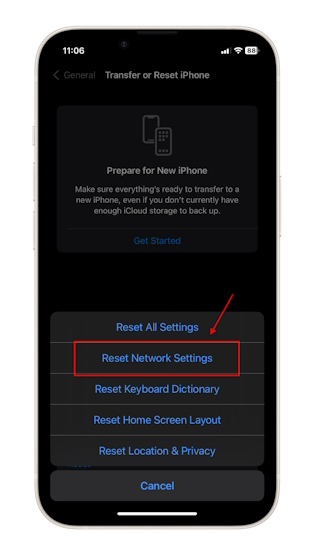
Corrupted network profiles can block Apple Watch pairing.
How to Reset Network Settings
- Go to Settings > General > Transfer or Reset iPhone > Reset > Reset Network Settings.
- Confirm the action.
- Reboot your iPhone.
- Reconnect to Wi-Fi.
Warning: This erases all saved Wi-Fi networks and Bluetooth pairings. You’ll need to re-pair headphones, speakers, and other accessories.
After resetting, open the Watch app and try pairing again—many users report success at this stage.
Manually Pair Your Apple Watch
If the “Set Up Apple Watch” prompt doesn’t appear, initiate pairing manually.
Use the Watch App to Pair
- Open the Watch app on your iPhone.
- Tap All Watches > Add Watch.
- Hold your iPhone close to the Apple Watch.
- Use the iPhone camera to scan the animated pairing code on the watch screen.
Visual Cue: The watch must display a spinning globe or pairing code. If it doesn’t, restart or force restart the watch first.
User Hack: Some users succeed by slightly covering the iPhone camera lens to force focus on the watch animation.
Unpair from Old iPhone (If Still Available)
To cleanly transfer to a new phone, unpair from the old one first.
Steps to Unpair Correctly
- Open the Watch app on the old iPhone.
- Tap All Watches.
- Tap the “i” icon next to your Apple Watch.
- Select Unpair Apple Watch.
- Confirm: This erases the watch and disables Activation Lock.
Result: The watch resets automatically and is ready to pair with your new iPhone—no security blocks.
Fix Connection When Old iPhone Is Gone or Unavailable
No access to the old phone? You can still pair—but Activation Lock may interfere.
Erase the Apple Watch
- Press the Digital Crown to access the Home screen.
- Go to Settings > General > Reset > Erase All Content and Settings.
- Enter your passcode if prompted.
- Confirm Erase All.
Important: If Activation Lock is active, the watch will ask for the previous Apple ID and password after reset.
Bypass Activation Lock Legitimately
- You’re the original owner: Contact Apple Support with proof of purchase (receipt or order confirmation).
- You bought it used: Ask the seller to remove it via iCloud.com/find.
- No access? Pairing will fail. Activation Lock cannot be bypassed without authorization.
Support Contact: Call 1-800-APL-CARE (1-800-275-2273) or chat online at apple.com/support.
Remove Apple Watch from iCloud Devices List
Stale iCloud records can prevent new pairing.
How to Delete from Your Account
- On your new iPhone, go to Settings > [Your Name] > Devices.
- Find your Apple Watch in the list.
- Tap it and select Remove from Account.
If not listed: The device may still be tied to an old account. Erase the watch first, then retry.
After removal, restart both devices and attempt pairing.
Reinstall the Watch App to Fix Corruption
A corrupted Watch app can silently block pairing.
Delete and Reinstall the App
- Press and hold the Watch app icon.
- Tap Remove App > Delete App.
- Reboot your iPhone.
- Open the App Store and re-download the Watch app.
- Open it and try pairing again.
User Confirmed: “I tried everything—this was the one that finally worked. Never would’ve guessed the app itself was the problem.”
Force Restart Apple Watch When It’s Frozen
Use this when the watch won’t respond or is stuck.
How to Force Restart
- Press and hold the Side button and Digital Crown for 10–15 seconds.
- Release when the Apple logo appears.
After restarting, check if the pairing screen loads or if the green iPhone icon returns.
Factory Reset If Stuck on Apple Logo or Setup Screen
If the watch won’t progress past the Apple logo or animation:
Full Erase Procedure
- Force restart (as above).
- If still stuck: Go to Settings > General > Reset > Erase All Content and Settings.
- Wait for the process to complete.
- Attempt pairing with your iPhone.
Warning: This deletes all apps, workouts, settings, and personal data. Only use if necessary.
Resolve Activation Lock Errors
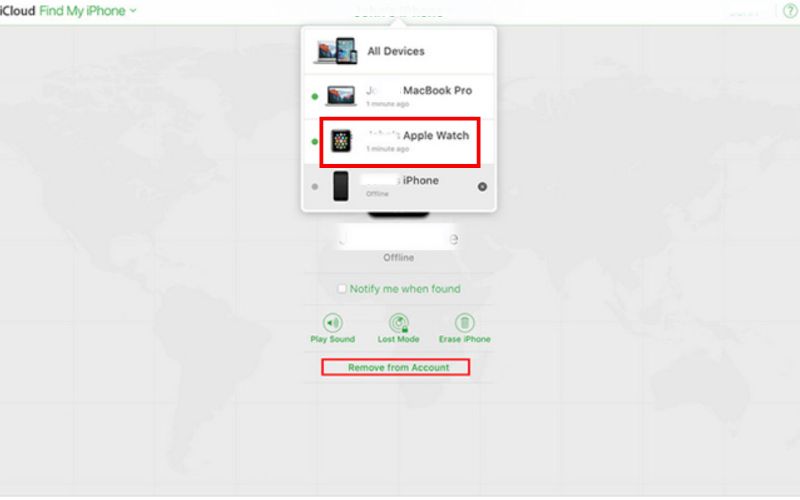
Activation Lock prevents unauthorized use but can block legitimate owners.
What Triggers It?
- The watch wasn’t unpaired from the previous iPhone.
- Find My was enabled when the old phone was lost, sold, or reset.
How to Remove It
- Visit iCloud.com/find.
- Sign in with the original Apple ID.
- Select the Apple Watch under All Devices.
- Click Remove from Account.
No access to the ID? Only Apple Support can help—provide proof of ownership.
Restore Data After Successful Pairing
Once connected, recover your apps, settings, and health data.
Restore During Setup
- Choose Restore from Backup.
- Select the most recent backup.
- Wait—sync can take 30+ minutes.
Requirement: Backups must be encrypted to include Health and Activity data.
Enable iCloud Health Sync for Future Safety
- On iPhone: Settings > [Your Name] > iCloud > Health > Toggle ON.
- Repeat on other Apple devices.
Note: Without iCloud sync or encrypted backup, Health data is lost permanently if the iPhone is gone.
Fix Partial Sync Issues After Pairing
Watch pairs, but music, apps, or notifications don’t work.
Complete a Stalled Pairing
- Open Watch app > My Watch tab.
- If “Pairing Not Complete” appears, tap it.
- Keep the watch on your wrist, unlocked, and near the iPhone.
Time Estimate: Up to 10 minutes. Do not interrupt.
Reinstall Problematic Apps
If apps like Spotify or Strava fail:
1. Delete from the watch (long press > Remove).
2. Reinstall via the Watch app on iPhone.
When to Contact Apple Support
Some issues require expert help.
Seek Support If:
- Activation Lock won’t deactivate.
- Watch stays on Apple logo after multiple resets.
- No pairing prompt appears, even manually.
- Critical data recovery is needed and no backup exists.
Support Options
- Phone: 1-800-APL-CARE (24/7)
- Online Chat: apple.com/support
- Genius Bar: Schedule via Apple Store app
User Experience: “Apple Support guided me through a hidden reset mode. Took 20 minutes—and fixed everything.”
Quick Fix Checklist: 10-Step Solution Path
| Step | Action | Why It Works |
|---|---|---|
| 1 | Restart iPhone and Apple Watch | Clears temporary glitches |
| 2 | Check Airplane Mode, Bluetooth, Wi-Fi | Ensures connectivity |
| 3 | Update iOS and watchOS | Fixes compatibility bugs |
| 4 | Reset iPhone network settings | Clears corrupted profiles |
| 5 | Unpair from old iPhone (if available) | Removes Activation Lock |
| 6 | Erase Apple Watch (if old phone is gone) | Prepares for new pairing |
| 7 | Delete and reinstall Watch app | Fixes app corruption |
| 8 | Remove watch from iCloud devices | Clears stale records |
| 9 | Manually pair via Watch app | Bypasses auto-detection failure |
| 10 | Contact Apple Support | Resolves Activation Lock or hardware issues |
Final Advice: Always unpair your Apple Watch before selling or resetting your iPhone. Enable iCloud Health sync and encrypted backups to protect your data. While connection issues are frustrating, every common problem has a solution—most within your control. With the right steps, your iPhone and Apple Watch can be back in sync in under an hour.





