

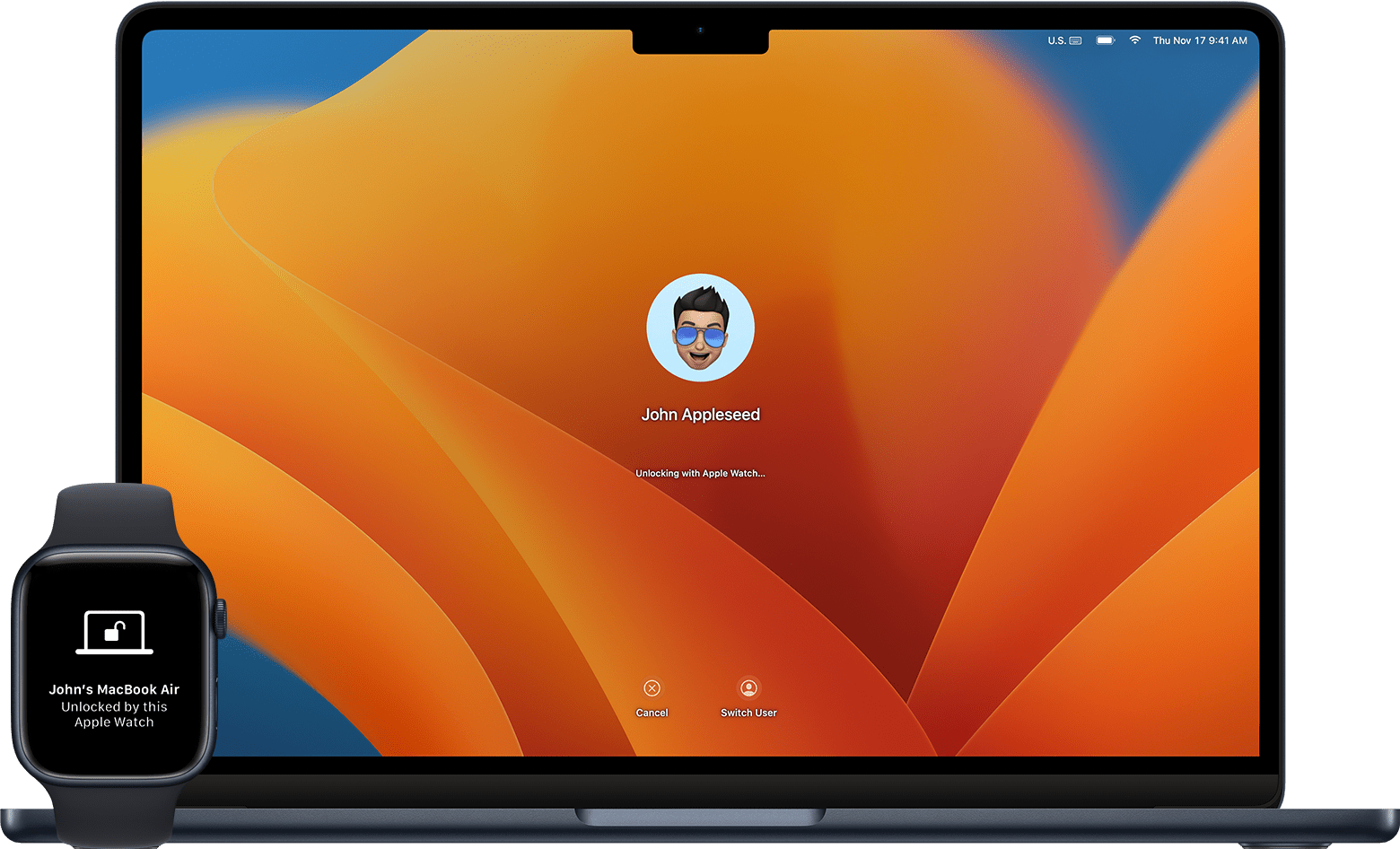
Tired of typing your password every time you wake your Mac? With unlock Mac with Apple Watch, Apple delivers a seamless, secure solution that lets you access your computer the moment you approach—no manual login required. This feature, officially called Auto Unlock, uses your unlocked Apple Watch as a trusted device to authenticate you via Bluetooth and Wi-Fi. As long as your watch is on your wrist and nearby, your Mac unlocks automatically when you open the lid or press a key.
But it’s not just about convenience. Auto Unlock maintains strong security by requiring two-factor authentication, end-to-end encryption, and continuous presence detection. It won’t work if your watch is locked, removed, or out of range. And after every restart, you’ll still need to enter your password once—a smart safeguard to ensure you never lose access.
In this guide, you’ll learn how to set up Auto Unlock, troubleshoot common issues, optimize performance, and understand exactly when and how it works. Whether you’re using a MacBook Pro in clamshell mode or waking your iMac daily, this feature can save you time—without compromising security.
Compatible Mac and Watch Models
Check Your Mac Compatibility
Auto Unlock works on Macs from mid-2013 onward, provided they run macOS 10.13 High Sierra or later. Specific supported models include:
- MacBook Pro (13-inch, 2016 or later; 15-inch, mid-2013 or later)
- MacBook Air (13-inch, 2018 or later)
- iMac (5K, 2017 or later; others from mid-2013+)
- Mac mini (2018 or later)
- Mac Studio (2022+)
- Mac Pro (Late 2013+ with T2 or Apple Silicon)
To verify your model: Click the Apple menu → About This Mac → check the year and model name.
Older Macs may lack the necessary Bluetooth LE (Low Energy) and secure enclave support required for seamless device handoff, which is why the mid-2013 cutoff exists.
Confirm Watch and OS Support
Your Apple Watch must meet these criteria:
- Paired with an iPhone running iOS 15 or later
- Running current watchOS (10+ recommended)
- Signed into the same Apple ID as your Mac
Without these conditions, the unlock option won’t appear in settings. Also, ensure your Apple Watch has Handoff enabled under Settings > General.
Enable Auto Unlock: Step-by-Step
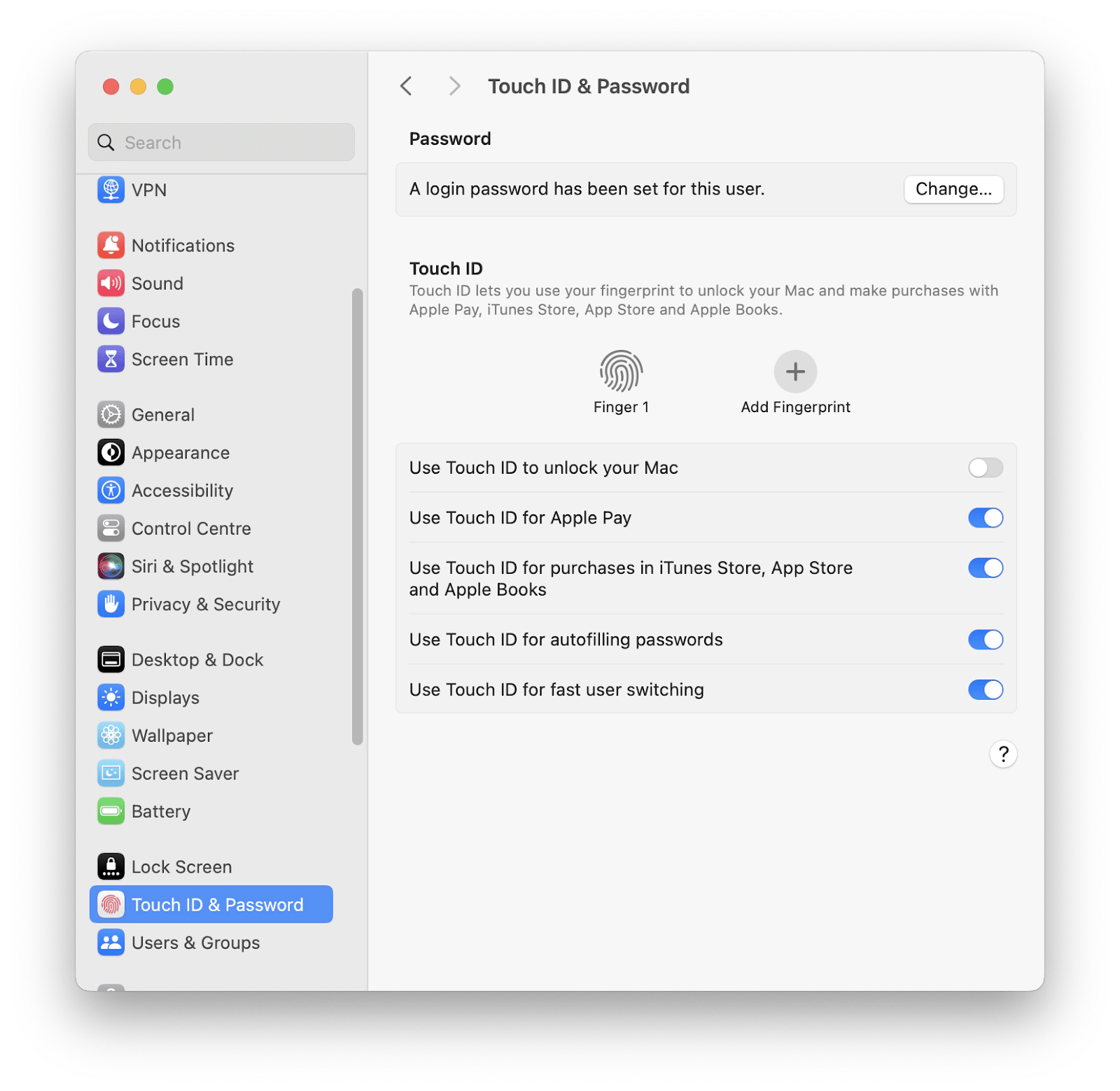
For macOS Ventura and Later
- Go to Apple menu → System Settings
- Scroll down and select Touch ID & Password
- Find the Apple Watch section
- Toggle on “Use Apple Watch to unlock apps and your Mac”
- Enter your Mac password to confirm
If multiple watches are paired, choose which ones can unlock your Mac.
For macOS Monterey and Earlier
- Open System Preferences
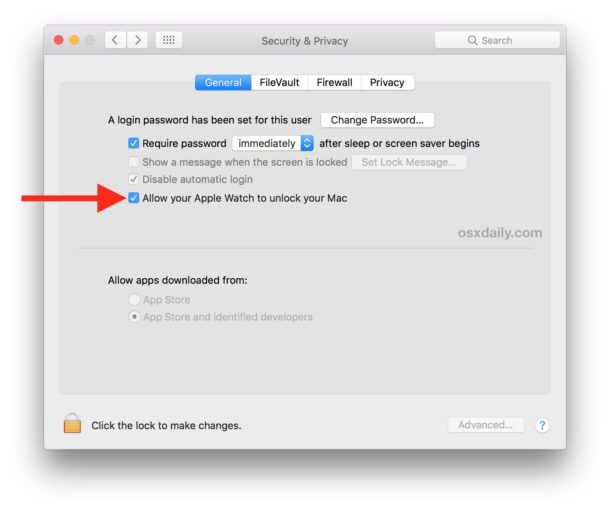
- Click Security & Privacy → General
- Check the box: “Use Apple Watch to unlock apps and your Mac”
- Authenticate with your password
After enabling, you may see a “Syncing…” message—wait for it to complete before testing.
Pro Tip: Restart your Mac after setup to ensure the feature activates properly.
Prerequisites: What You Must Have
Same Apple ID and 2FA
Both your Mac and Apple Watch must:
– Be signed into the same Apple ID
– Have two-factor authentication (2FA) enabled
If 2FA isn’t set up, you’ll be prompted to enable it before Auto Unlock works.
Required Device Settings
| Device | Must Have |
|---|---|
| Apple Watch | Passcode enabled, Bluetooth/Wi-Fi on, worn on wrist |
| Mac | Wi-Fi and Bluetooth enabled, same Apple ID |
| iPhone (paired) | Bluetooth and Wi-Fi on, same Apple ID |
Critical: The Apple Watch must have a passcode set. Without it, Auto Unlock is disabled for security reasons.
How Auto Unlock Works in Practice
Trigger: Waking Your Mac
Auto Unlock activates when:
– You open the lid of your MacBook
– You press a key or mouse to wake the display
– The Mac detects your unlocked Apple Watch nearby (~3–5 feet)
No extra steps—just approach and start working.
Conditions for Success
For automatic unlock to work, all of the following must be true:
– Apple Watch is on your wrist and unlocked
– Watch is charged and powered on
– Both devices are on the same Wi-Fi network
– Bluetooth is enabled on both devices
– You haven’t restarted your Mac since last login
If any condition fails, you’ll need to enter your password manually.
First Use After Restart: Manual Password Required
Why You Must Type It Once
After a full shutdown or restart, Auto Unlock is temporarily disabled. You must manually enter your Mac password one time to reactivate it.
This prevents unauthorized access if someone powers off your Mac and tries to unlock it later.
Once you log in, Auto Unlock resumes normally—until the next reboot.
User Experience Note: Most people report only needing to type their password once every 1–2 weeks, unless they frequently restart.
Unlock in Clamshell Mode: Yes, It Works
Using Mac with Closed Lid
Auto Unlock functions perfectly even when your Mac is in clamshell mode (lid closed, external monitor connected).
Simply wake the Mac with your keyboard or mouse—your Apple Watch will unlock it instantly, as long as it’s nearby and unlocked.
Ideal for desktop setups with mechanical keyboards or compact workspaces.
Fix: Apple Watch Won’t Unlock Mac
Basic Troubleshooting Checklist
When Auto Unlock fails, start here:
- ✅ Both devices on same Wi-Fi network
- ✅ Bluetooth enabled on Mac and Watch
- ✅ Same Apple ID signed in
- ✅ Apple Watch passcode is set
- ✅ Watch is unlocked and on wrist
- ✅ Feature is toggled on in System Settings
If all look good but it still fails, proceed to advanced fixes.
Fix: Devices on Same Network, But Different Bands
Problem: 2.4GHz vs 5GHz Wi-Fi
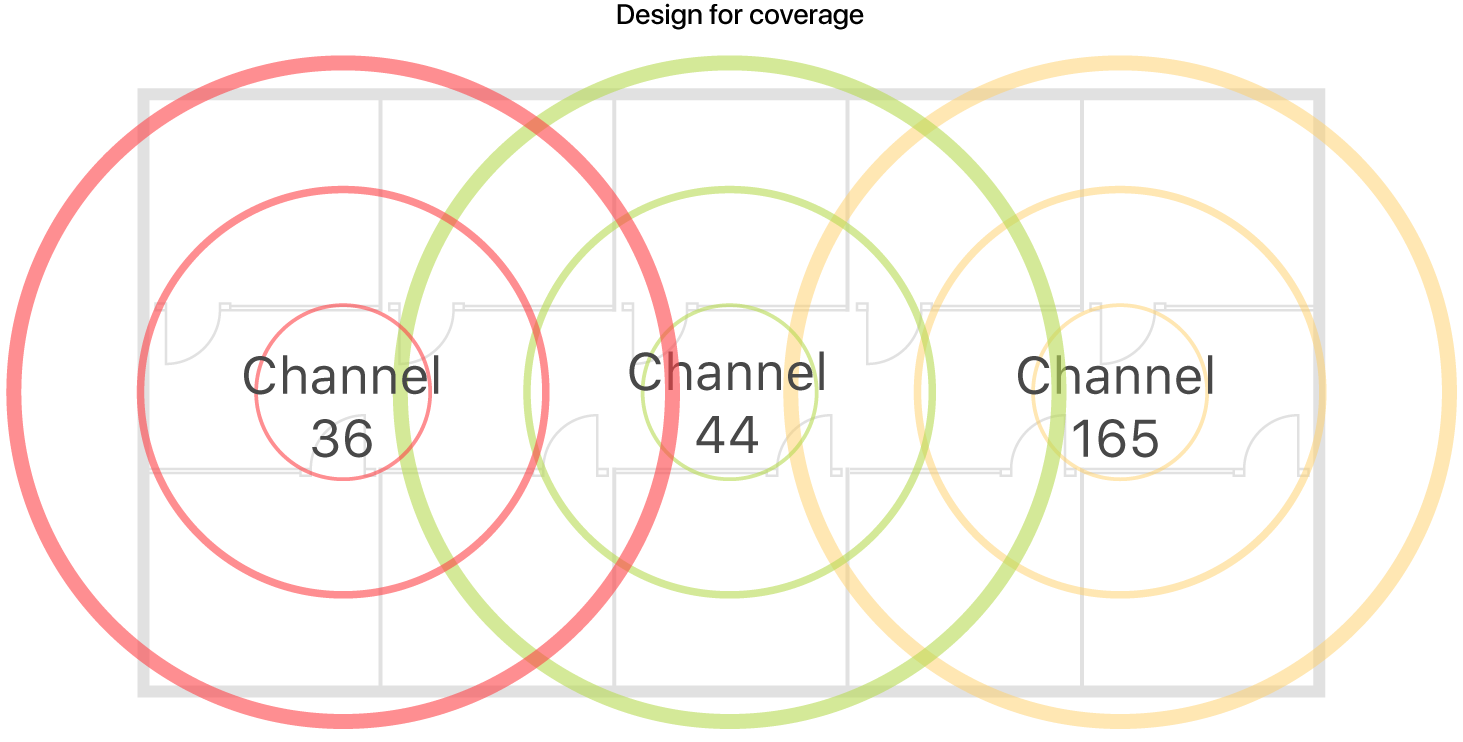
Even if your Mac and watch connect to the same SSID, being on different Wi-Fi bands (e.g., one on 2.4GHz, one on 5GHz) can break Auto Unlock.
Apple treats them as separate subnets, disrupting Handoff and continuity services.
Solutions That Work
- Rename Wi-Fi bands differently (e.g., “Home-2.4” and “Home-5”)
- Forget the 2.4GHz network on all devices
- Force all devices to use 5GHz only
- Use bridge mode on secondary routers to unify subnets
- Disable DHCP/NAT on access points to prevent segmentation
Users report 5GHz-only networks significantly improve reliability.
Reset Auto Unlock: Delete Keys and Re-Pair
When Sync Fails Permanently
If Auto Unlock shows “Syncing…” forever or stops working after updates, reset internal pairing data.
Step 1: Clear Keychain Entries
- Open Keychain Access on Mac
- From the View menu, select Show Invisible Items
- Search for:
–"Auto Unlock"→ delete all results
–AutoUnlock→ delete these 4 items:tlktlk-nonsyncclassAclassC
Step 2: Remove Local Files
- Open Finder
- Press Cmd+Shift+G, type:
~/Library/Sharing/AutoUnlock - Delete:
–ltk.plist
–pairing-records.plist
Step 3: Re-enable Feature
- Go to System Settings → Touch ID & Password
- Toggle Auto Unlock back on
- Enter password and wait for “Syncing…” to finish
Warning: This resets Auto Unlock across all Macs linked to your watch.
Fix: Restart Devices to Restore Connection
Restart Apple Watch
- Press and hold Digital Crown + Side Button
- Hold until Apple logo appears (~10–15 seconds)
- Release and wait for full boot
This clears Bluetooth/Wi-Fi stack issues.
Restart Paired iPhone
Some users found that restarting the iPhone paired to the watch fixed Auto Unlock failures.
Recommended order:
1. Restart iPhone
2. Wait for Apple Watch to reconnect
3. Restart Apple Watch
4. Re-enable Auto Unlock on Mac
Other Verified Fixes That Work
Toggle Auto Unlock Off and On
- Turn off Auto Unlock in settings
- Close System Settings
- Shut lid of Mac (put to sleep)
- Reopen and re-enable the feature
This forces a re-sync.
Disable Automatic Logout
Go to:
– System Settings → Privacy & Security → Advanced
– Uncheck “Log out automatically after inactivity”
Auto Logout can disable Auto Unlock unexpectedly.
Update All Devices
Install latest:
– macOS (e.g., 15.1.1 fixes Sequoia bugs)
– watchOS (especially for Series 9 and Ultra 2)
– iOS on paired iPhone
Outdated software is a top cause of failure.
Use Apple Watch to Approve System Actions
Beyond Unlocking: Secure Authentication
Your Apple Watch doesn’t just unlock your Mac—it can also approve sensitive actions:
- View saved passwords in Keychain
- Install apps from the App Store
- Confirm admin-level system changes
- Authorize purchases and payments
How to Approve Requests
When prompted:
1. A notification appears on your Apple Watch
2. Double-click the side button to confirm
3. No password needed on Mac
All communication is end-to-end encrypted, ensuring no credentials are exposed.
Security: How Safe Is Auto Unlock?
Built-in Protection Layers
Auto Unlock is designed with multiple safeguards:
- Watch must be unlocked: Fails if watch is locked (e.g., taken off wrist)
- Proximity required: Uses Bluetooth LE and Wi-Fi to confirm proximity
- Two-factor authentication: Apple ID with 2FA adds account-level security
- Encrypted pairing: All data exchanged is securely encrypted
It does not bypass FileVault or work for guest accounts.
You’re always in control—your watch is a physical token, not a backdoor.
Optimize Performance: Pro Tips
Keep It Reliable Daily
| Tip | Why It Helps |
|---|---|
| Keep watch charged and worn | Prevents unlock failure due to power-off |
| Stay on 5GHz Wi-Fi | Reduces interference, improves sync |
| Avoid duplicate SSIDs across bands | Prevents network confusion |
| Update all devices regularly | Ensures bug fixes and compatibility |
| Test weekly | Catch issues before they disrupt workflow |
Users who follow these tips report near-perfect uptime.
Known Bugs and Fixes
| Issue | Solution |
|---|---|
| Fails after macOS Sequoia 15.0.1 | Update to 15.1.1 or later |
| Watch connects to 2.4GHz, Mac on 5GHz | Force all devices to 5GHz only |
| Bluetooth drops unexpectedly | Toggle off/on or restart watch |
| Auto Logout disables feature | Disable automatic logout in settings |
Apple continues to refine Auto Unlock—patches often resolve lingering bugs.
Final Note: Seamless, Secure, and Worth It
Unlocking your Mac with your Apple Watch is one of the most underrated features in Apple’s ecosystem. Once set up correctly, it just works—saving you seconds every time you wake your Mac, whether at home, in the office, or in clamshell mode.
Yes, there are occasional hiccups after updates or network changes. But with the right setup—same Apple ID, 2FA, 5GHz Wi-Fi, and updated software—Auto Unlock delivers frictionless access without sacrificing security.
If you own both a compatible Mac and Apple Watch, enabling this feature isn’t just convenient—it’s a natural extension of how Apple devices should work together.
Try it. Reset the keys if needed. Stick with it through the first restart. And soon, you’ll wonder how you ever lived without it.





