If your Apple Watch isn’t tracking activity—steps aren’t updating, workouts aren’t recording, or your Move ring is frozen—you’re not imagining it. Thousands of users report missing data, stalled progress, and unresponsive sensors despite staying active. The good news? In nearly all cases, the issue isn’t a broken watch—it’s a fixable software glitch, misconfigured setting, or corrupted health data. This guide walks you through every proven solution, from quick resets to deep system fixes. You’ll learn how to restore step counting, revive your Activity rings, and stop tracking failures before they ruin your fitness goals—all with clear, step-by-step instructions backed by real user success.
Restart iPhone and Apple Watch Immediately
Before diving into complex troubleshooting, restart both devices—it’s the fastest fix for frozen or missing activity data. Software bugs from recent updates or background crashes can freeze motion sensors or halt data syncing between your watch and iPhone.
Always Restart iPhone First
Why? Your Apple Watch sends activity data to your iPhone. If the phone’s Health app or sync process is stuck, restarting the watch alone won’t help.
– Restart your iPhone using the standard method for your model.
– Once it’s fully back on, restart your Apple Watch to complete the reset cycle.
How to Restart a Responsive Apple Watch
- Press and hold the side button until the power slider appears.
- Swipe to power off.
- Wait 30 seconds, then press and hold the side button again until the Apple logo appears.
Force Restart If Watch Is Frozen
If your watch won’t respond or is stuck on the Apple logo:
– Press and hold both the side button and Digital Crown for 10 seconds.
– Release when you see the Apple logo.
This forces a system reset without deleting your data and often restores tracking within minutes.
Re-enable Fitness Tracking Permissions
One of the most common causes of Apple Watch not tracking activity is disabled permissions, especially after an iOS or watchOS update. If Fitness Tracking is off, your watch can’t record steps, exercise, or heart rate—no matter how much you move.
Check iPhone Watch App Settings
- Open the Watch app on your iPhone.
- Go to My Watch > Privacy.
- Ensure Fitness Tracking and Heart Rate are toggled ON.
If either is off, tap to enable it. This allows your watch to collect motion and health data.
Verify iPhone Privacy Settings
- Go to Settings > Privacy & Security > Motion & Fitness.
- Confirm Fitness Tracking and Health are enabled.
These settings are often disabled by Screen Time restrictions, parental controls, or update resets. If restricted, the Activity app can’t update.
Enable Permissions on Apple Watch
On your watch:
– Open Settings > Privacy & Security > Health.
– Make sure Fitness Tracking and Heart Rate are active.
If the toggle is greyed out, the issue may be deeper—unpairing the watch may be required (see later fix).
Fix Location and System Services
GPS and motion tracking rely on Location Services. If disabled, outdoor walks and runs won’t record distance, pace, or calories—and your Activity app may not register exercise minutes.
Turn On Location Services
- On iPhone, go to Settings > Privacy & Security > Location Services.
- Ensure it’s ON.
- Scroll down and find Apple Watch Workout.
- Set it to While Using—this allows GPS tracking during workouts.
Enable Critical System Services
Under Location Services > System Services, turn on:
– Motion Calibration & Distance
– Wi-Fi Networking
– Mobile Network Search
These services help your watch fine-tune motion data, improve step accuracy, and maintain sensor reliability. Disabling them can cause step count failures or inaccurate calorie burn.
Optimize Sensor Performance
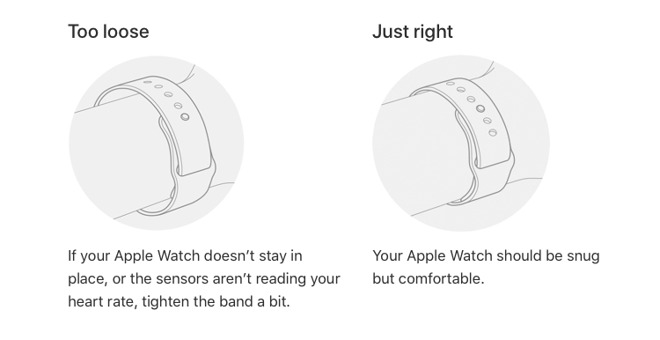
Even with correct settings, poor sensor contact can stop tracking. The optical heart rate sensor and accelerometer must detect movement and blood flow to record activity.
Wear the Watch Snugly
- Wear it on the top of your wrist, not the side.
- Fit should be snug—one finger should fit between band and skin.
A loose fit tricks Wrist Detection into thinking the watch is off, pausing all tracking.
Avoid Tattoos and Dirt
- Don’t wear over wrist tattoos—ink can block or reflect the green LED sensors, preventing heart rate and motion detection.
- Clean the back of the watch weekly with a dry, soft cloth to remove sweat, dirt, and debris.
Confirm Sensor Activity
During a workout, check if the green LEDs on the back light up. If they don’t:
– Try restarting the watch.
– Reposition it higher on your wrist.
– Persistent failure may indicate hardware damage.
Recalibrate for Accurate Activity Tracking
Outdated calibration data leads to inaccurate or missing tracking. Apple Watch uses your stride length and motion patterns to estimate steps, distance, and calories. If this data is wrong, your Move and Exercise rings may not fill.
Complete a 20-Minute Outdoor Walk
Take a continuous 20-minute walk outdoors with your iPhone nearby (in pocket or bag). Choose an open area with clear sky for GPS signal. This helps your watch:
– Learn your stride length
– Sync motion with GPS data
– Improve Move and Exercise ring accuracy
Avoid treadmills—GPS is required for calibration.
Reset Fitness Calibration Data
If tracking remains broken:
1. On iPhone, open Watch app > Privacy > Reset Fitness Calibration Data.
2. Confirm the reset.
3. Then, repeat the 20-minute walk to rebuild accurate data.
Note: This does not delete your Activity history—it only resets motion learning.
Update Software and Reset Sync Data

Outdated software is a common cause of tracking bugs. Apple regularly releases updates to fix sensor performance, battery drain, and workout reliability.
Install Latest watchOS
- Open Watch app > General > Software Update.
- If an update is available, install it.
Ensure your watch is charged above 50% and connected to Wi-Fi.
Keep iPhone Updated
Go to Settings > General > Software Update and install the latest iOS version. Incompatible iOS and watchOS versions can disrupt syncing.
Reset Sync Data After Changes
If you recently changed iCloud storage or restored from backup:
– Go to Watch app > General > Reset > Reset Sync Data.
This clears corrupted sync history and forces a full re-sync of Activity and Health data.
Unpair and Re-pair Apple Watch
When settings are unresponsive or Fitness Tracking is greyed out, unpairing is the definitive fix. It rebuilds the device connection and clears deep system errors.
Standard Re-pair Process
- Open Watch app > My Watch > General > Reset > Unpair Apple Watch.
- Your iPhone will back up the watch automatically.
- After unpairing, set it up again—choose Restore from Backup to keep your data.
Fix Greyed-Out Fitness Tracking
If Fitness Tracking can’t be toggled, unpairing is often the only solution. This issue affects some Apple Watch SE and Series 3 models after iCloud sync failures. A clean pair resets system-level permissions.
Delete Bad Weight Data in Health App
Incorrect weight entries from smart scales can break Move ring calculations. Users report entries like 1 kg, 16.7 lbs, or 20 lbs when actual weight is over 150 lbs. This corrupts calorie burn estimates and stops the ring from updating.
Remove Wrong Weight Entries
- Open Health app > Browse > Weight > Show All Data.
- Scroll through and delete any obviously incorrect values.
Focus on recent entries from devices like Withings or Fitbit.
Disconnect Problematic Apps
- Tap Data Sources & Access under Weight.
- Find the app sending bad data.
- Tap it and select Revoke Access.
Wait 1–2 hours—your Move ring should resume updating.
Stop Third-Party App Conflicts
Apps that sync with Health can interfere with Activity tracking. Paused workouts or faulty data may block step counting.
End All Active Workouts
Check your watch for active or paused workouts in third-party apps. Swipe up and end them. Even a background session can prevent new tracking.
Remove Suspicious Apps
Temporarily delete third-party fitness apps from your watch. Test Activity tracking. If fixed, reinstall one at a time to find the culprit.
Diagnose Hardware Failure
If all software fixes fail and sensors remain inactive, hardware may be damaged.
Signs of Hardware Issues
- Green LEDs never light up
- Heart rate shows “Not Available”
- Problem persists after unpairing and re-pairing
- Multiple users report same issue on Series 3 or SE models
Contact Apple Support
If hardware failure is suspected:
– Visit getsupport.apple.com for remote help
– Book a Genius Bar appointment for diagnostics
– Use mail-in service for out-of-warranty repairs
– Request replacement if under warranty
Apple can run tests to confirm sensor or logic board failure.
Prevent Future Tracking Issues
Avoid recurrence with simple habits:
– Monthly 20-minute outdoor walk to maintain calibration
– Clean sensors weekly with a dry cloth
– Check Health app monthly for bad data
– Enable automatic updates on both devices
– Avoid poorly integrated apps—read reviews first
The Move ring is especially sensitive to weight data errors—check the Health app first when tracking fails. With consistent maintenance, your Apple Watch will stay accurate and reliable.
Leave a Reply