
If your Apple Watch keeps restarting—cycling through the Apple logo every few seconds or minutes—you’re likely frustrated and worried. This boot loop issue affects models from Series 3 to Ultra 2 and often strikes after a software update, app install, or following a low-battery event. While it looks serious, in most cases, the problem is software-related and fixable without repair.
The reboot cycle can happen while charging, during use, or even when idle. Some users see temporary improvement after a restart, only for the loop to return hours later. But here’s the good news: 90% of these issues are resolved with troubleshooting steps, not hardware replacements.
In this guide, you’ll learn how to stop the endless restart cycle, identify hidden triggers like third-party apps or notification bugs, and apply proven fixes—from force restarts to clean setups—that real users and Apple Support have confirmed. You’ll also discover when it’s time to contact Apple and how to prevent the issue from coming back.
Let’s get your Apple Watch stable and reliable again.
Force Restart Immediately to Break the Cycle
When your Apple Watch is stuck in a reboot loop, a force restart is your fastest, safest first step. It doesn’t erase data and often interrupts software glitches causing the crash loop.
How to Perform a Force Restart
- Press and hold the Digital Crown and the side button at the same time.
- Keep holding for 10–30 seconds—even if the screen goes black.
- Release when you see the Apple logo appear.
- Wait 1–2 minutes for the watch to boot fully.
✅ Pro Tip: Do this while charging. A weak or unstable battery can prevent successful recovery. Plug your watch into a known-good charger during the process.
⚠️ Don’t panic if the logo disappears and reappears. This is normal during recovery—especially if the system is still unstable.
When to Repeat the Force Restart
- If the loop returns within minutes, repeat the force restart up to three times.
- Many users report needing multiple attempts before the system stabilizes.
- After the third try, move on to software troubleshooting.
🔄 User Success (Ultra 2 owner): “After three force restarts while charging, it finally stayed on and completed an update.”
Update iOS and watchOS to Fix Known Bugs
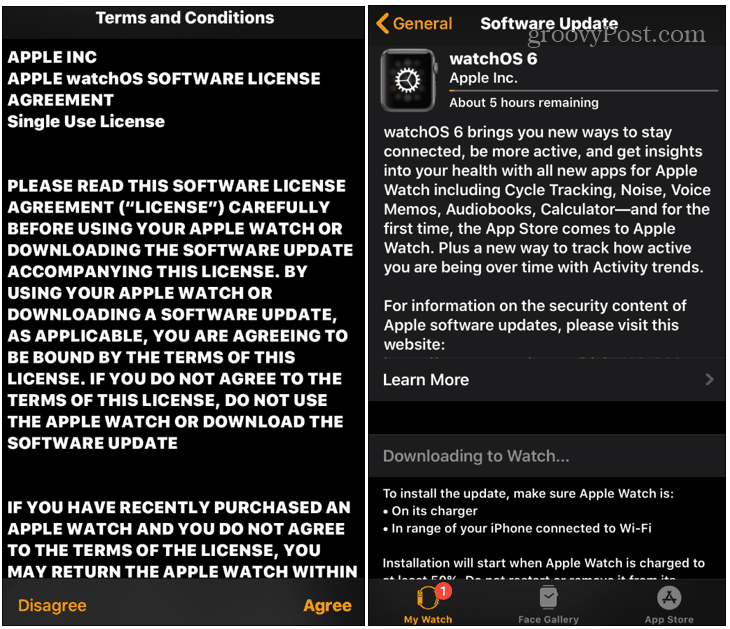
Many reboot loops are triggered by software bugs introduced in specific iOS or watchOS versions—like iOS 18.1.1 or watchOS 11.2 and 11.4. These updates can cause instability in notification handling or app compatibility, leading to repeated crashes.
A mismatch between your iPhone and Apple Watch OS versions can also trigger the problem.
How to Update Both Devices
On iPhone:
1. Open Settings > General > Software Update.
2. Install the latest iOS version.
On Apple Watch:
1. Open the Watch app on your iPhone.
2. Tap General > Software Update.
3. If an update is available, follow the prompts.
4. Keep your watch on the charger, near your iPhone, and connected to Wi-Fi.
⏳ Wait time: Updates can take 15–30 minutes. Never interrupt the process.
✅ Pro Tip: Always update your iPhone first, then the watch. This ensures compatibility and reduces sync errors.
What If No Update Appears?
- Check for pending installs in the Watch app.
- Try restarting both devices and checking again.
- If no update shows, your issue may be caused by a problematic app or notification—move to the next fix.
Disable Problematic Notifications to Stop Crashes
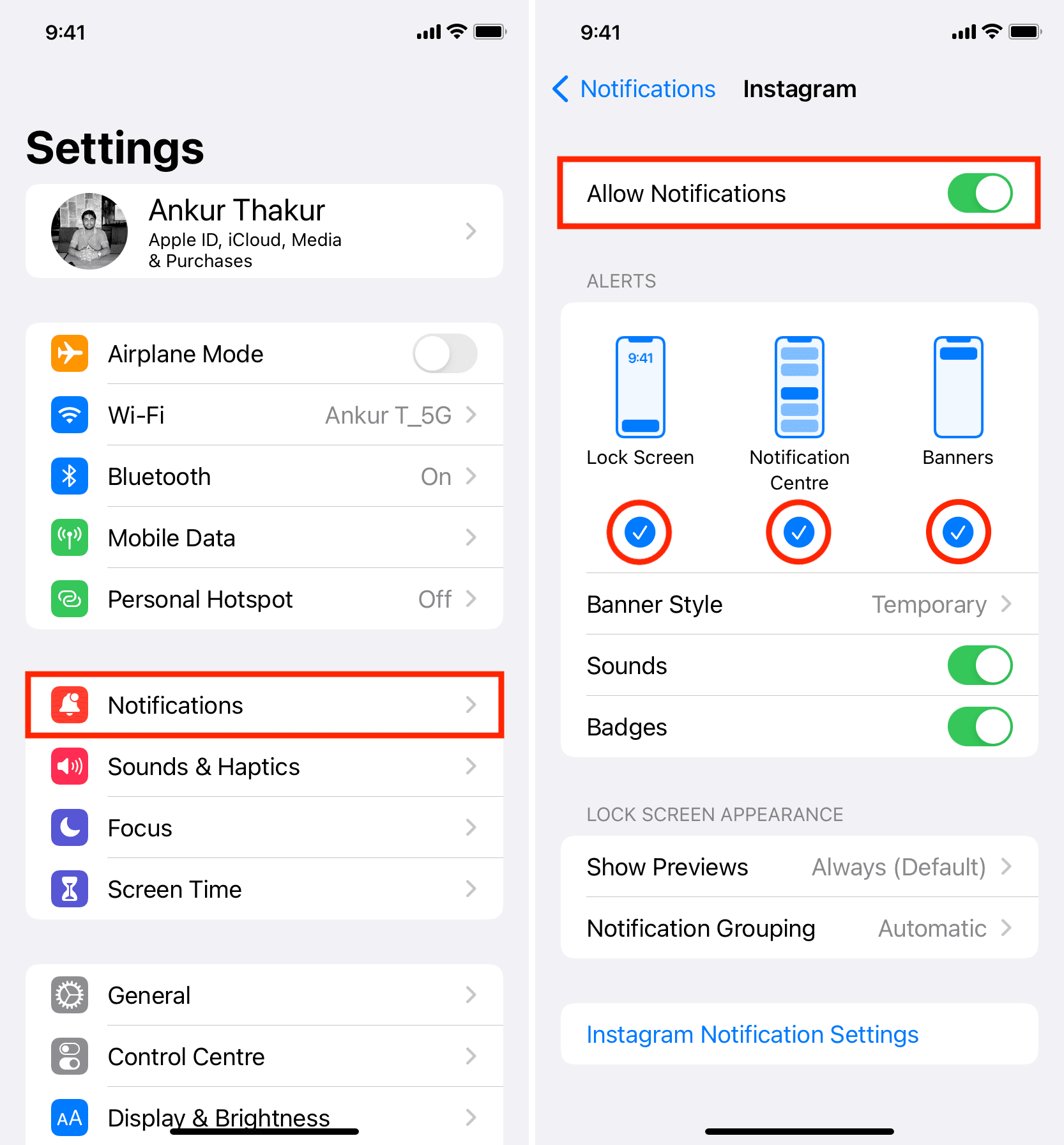
One of the most common—and surprising—triggers for Apple Watch rebooting is mirrored iPhone notifications, especially from Instagram. Even if the app isn’t installed on your watch, these alerts can overload the system and cause crashes.
🔍 User Insight (newfiechic): “Disabling Instagram notifications stopped the reboots. Re-enabling them brought the loop back.”
🔗 Root Cause Confirmed (melandkai): “Same issue across two watches—only resolved when I changed iPhone notification settings.”
How to Turn Off Mirrored Alerts
- Open the Watch app on your iPhone.
- Tap Notifications.
- Under Mirror iPhone Alerts From, turn off all apps.
- Also disable Notifications Indicator (Settings > Notifications > Show in Notification Center).
Wait 24–48 hours to see if reboots stop.
🕒 Patience needed: Some users report it takes up to two days for the system to stabilize after disabling high-volume alerts.
Re-enable Apps One at a Time
Once your watch is stable:
– Re-enable notifications for one app at a time.
– Wait 6–12 hours between each.
– If reboots return, permanently disable that app’s mirroring.
🛑 High-risk apps: Instagram, Facebook, Twitter/X, and messaging apps with rich media alerts.
Uninstall Third-Party Apps That Cause Crashes
Poorly coded or outdated third-party apps can trigger background crashes, consume memory, or destabilize watchOS—even when you’re not using them.
📊 User Evidence (Yaser Herrera): “Analytics logs showed the Tile app was crashing every 5 minutes. Uninstalling it fixed the loop.”
🧩 User Fix (p8blr): “Removed all third-party apps—problem gone. Re-adding them one by one revealed the culprit.”
How to Remove Non-Essential Apps
From iPhone:
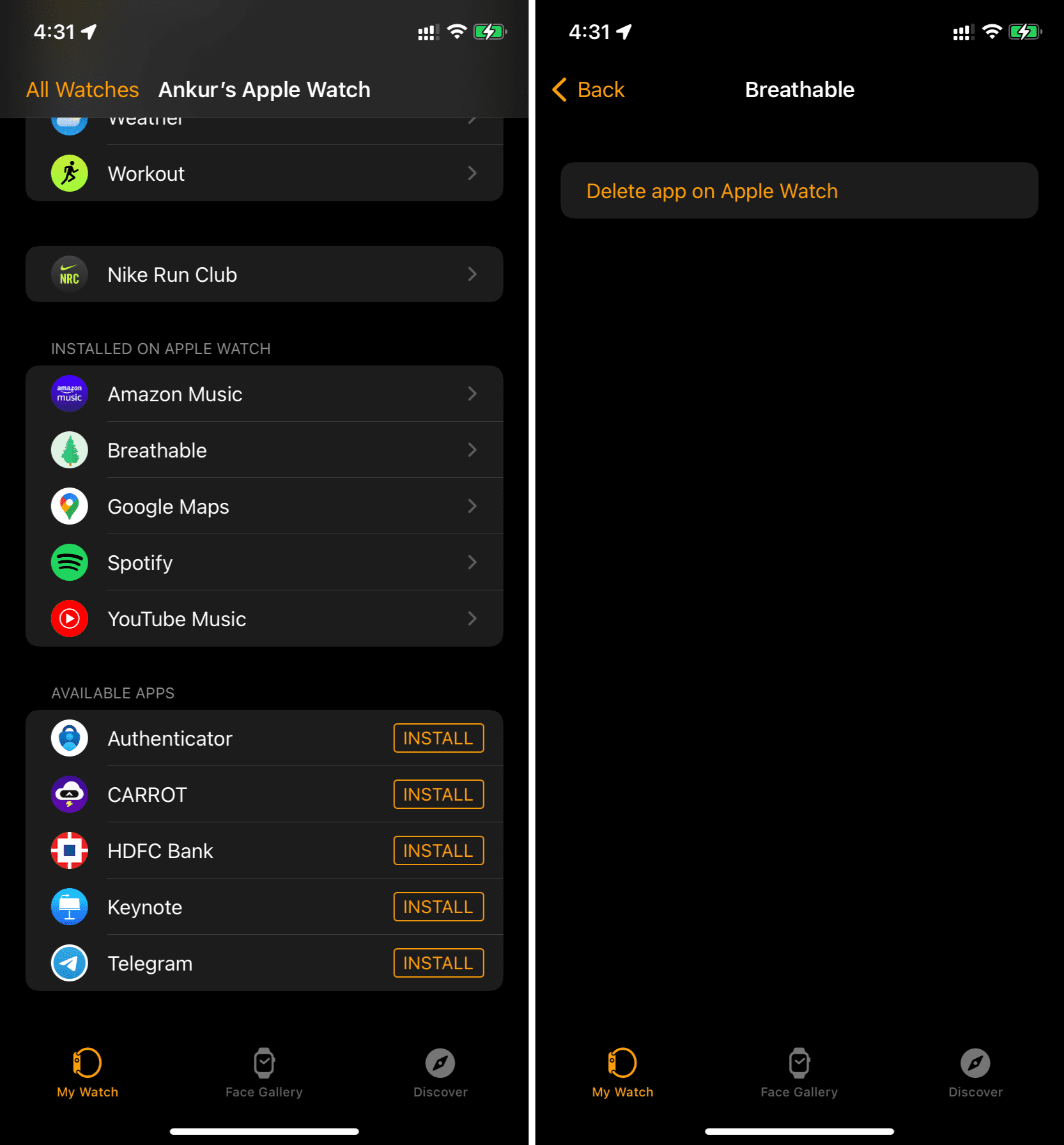
1. Open Watch app > My Watch > Apps.
2. For each third-party app, turn off Show App on Apple Watch or tap X to delete.
From Apple Watch:
1. Long-press the app icon.
2. Tap X to delete.
✂️ Pro Tip: Disable Automatic App Install (Watch app > General > Automatic App Install) to prevent future conflicts.
Test with a Clean Watch Face
- Use a simple watch face like Simple Time or Activity Digital.
- Remove all complications.
- Observe for 24 hours.
If stable, re-add complications one at a time to find the trigger.
Unpair and Re-Pair Apple Watch to Fix Sync Errors
Corrupted pairing data or sync conflicts between your iPhone and watch can cause recurring instability—even after updates or app removals.
Re-pairing resets this link and clears hidden errors.
How to Re-Pair Your Apple Watch
- Open Watch app on iPhone.
- Tap My Watch > All Watches > Select your watch.
- Tap Unpair Apple Watch > Confirm.
- Wait for the backup to finish.
- Turn off Apple Watch.
- Power it back on and follow setup to re-pair.
- Choose Restore from Backup.
⚠️ Warning: If the issue returns after restore, your backup may contain corrupted data.
Factory Reset and Set Up as New to Eliminate Corrupted Data
Many users report that restoring from backup reintroduces the problem. Corrupted settings, app data, or notification rules can survive a reset and trigger the loop again.
Setting up as new avoids this.
How to Perform a Factory Reset
Option 1: From Watch
1. Go to Settings > General > Reset.
2. Tap Erase All Content and Settings.
3. Confirm.
Option 2: From iPhone
1. After unpairing, choose Erase Apple Watch when prompted.
How to Set Up as New
- During setup, do not restore from backup.
- Manually install essential apps.
- Re-enable notifications one by one.
✅ User Success (SKova): “After reset and re-pair without restore, reboots stopped permanently.”
🔄 Pattern Confirmed: “Every time I restored, the issue came back. Setting up as new fixed it.”
Reset Both iPhone and Apple Watch (Nuclear Option)
If the loop persists after a clean Apple Watch setup, the iPhone’s settings or backup may be corrupted.
This nuclear option is rare but necessary in stubborn cases.
How to Reset Both Devices
- Unpair Apple Watch via iPhone.
- On iPhone: Go to Settings > General > Transfer or Reset iPhone > Erase All Content and Settings.
- After reset, set up iPhone as new—do not restore from backup.
- Update to latest iOS.
- Pair Apple Watch and set up as new.
💡 User Result (Lunchbox48): “This was the only permanent fix after months of issues and Apple Support calls.”
🛠️ Time required: 1–2 hours. Worth it for long-term stability.
Check for Hardware Issues as a Last Resort
While most loops are software-related, consider hardware if:
– Watch has been dropped or exposed to water.
– Battery drains abnormally fast.
– Charging port is damaged or loose.
– Screen flickers or shows artifacts.
⚠️ Apple Store Report (kropka1): “Told I needed $229 repair—but factory reset fixed it. Confirms software, not hardware.”
Try the Tap Method (Gentle Physical Fix)
- Remove watch from wrist.
- Gently tap the sides with a closed fist.
- Or massage the screen to reseat loose internal cables.
📌 Note: Internal connectors can loosen over time, especially on older models.
❌ Avoid risky fixes like the freezer or oven method—these can cause condensation, damage, or void your warranty.
Use Diagnostic Logs to Find the Real Culprit
Your iPhone keeps logs of system crashes—use them to identify the app or process behind the loop.
How to Access Analytics Data
- On iPhone: Settings > Privacy & Security > Analytics & Improvements > Analytics Data.
- Search for:
–WatchApp Extension
–Watch
– App names likeInstagram,Tile - Look for repeated crash entries.
🔍 User Discovery (Yaser Herrera): “Logs showed Tile was crashing every 5 minutes. Removed it—no more reboots.”
What to Look For
- Multiple entries with the same app name.
- Crash timestamps matching reboot frequency.
- Entries containing
EXC_CRASH,watchOS, orSpringBoard.
Save logs and share with Apple Support if needed.
Prevent Future Reboots with These Best Practices
Keep your Apple Watch stable long-term:
- Keep iOS and watchOS updated.
- Avoid installing unnecessary apps on the watch.
- Disable mirrored notifications for high-alert apps (Instagram, social media).
- Check storage monthly—delete unused apps or music.
- Use original Apple charger and cable.
- Clean side button and charging port regularly.
- Set up new watch without restoring if issues recur.
🔄 Golden Rule: If problems return after restore, don’t restore from that backup again.
When to Contact Apple Support
Get professional help if:
– Reboots continue after clean setup (no restore).
– Watch shows physical damage, battery swelling, or water exposure.
– Device won’t respond to force restart or charging.
– Charging port is damaged or won’t hold connection.
Repair Costs
- Out of warranty: $229 (US), €390 (EU).
- Under warranty or AppleCare+: free for hardware issues.
Support Options
- Apple Support Website: support.apple.com/apple-watch-service
- Genius Bar Reservation
- Mail-in Repair
- Apple Authorized Service Provider
📢 Apple is aware: Engineering teams are investigating bugs tied to Instagram, third-party apps, and watchOS updates. Reporting your issue helps speed up fixes.
Final Note: The Apple Watch keeps restarting issue is mostly software-driven and fixable. Start with a force restart, then disable problematic notifications, remove third-party apps, and update both devices. If it persists, factory reset and set up as new—don’t restore from backup. Only after all else fails should you consider hardware repair. With this guide, you’re equipped to fix it—and keep it fixed.





