
Your Apple Watch powers down unexpectedly—sometimes at 50%, even 60% battery. You charge it, it boots up, runs for a few hours, then dies again. No warning. No low-battery alert. Just a black screen. This isn’t normal behavior, and it’s more common than you think. Users across models—from Series 3 to Series 9—report the same frustrating issue. But here’s the good news: most cases are fixable. The root cause usually falls into one of four categories: battery degradation, software bugs, physical interference, or environmental triggers. This guide delivers proven, step-by-step solutions based on real user experiences, Apple diagnostics, and technical support data. You’ll learn how to pinpoint the cause, apply targeted fixes, and stop the shutdowns for good.
Check Battery Health First
Open Battery Health Settings
Start here: battery degradation is the leading cause of unexpected shutdowns. Apple Watch uses a lithium-ion battery that wears down over time—especially after two years of daily charging. When its maximum capacity drops below 80%, the system may shut down to protect itself, even if the battery appears half-full.
To check:
1. On your Apple Watch, go to Settings > Battery > Battery Health
2. Look for Maximum Capacity
If it’s below 80%, Apple recommends a battery replacement. Note: This feature only appears if your watch is paired with an iPhone and has recent usage data.
⚠️ Critical Insight: A degraded battery can show 50% charge but collapse under load—like during GPS tracking or heart rate monitoring—causing an instant shutdown. The system sees a voltage drop and powers off to prevent damage.
Why Battery Degradation Triggers Shutdowns
As batteries age, their internal resistance increases. Under high demand, they can’t deliver stable voltage. The watch interprets this as a critical failure and shuts down—even if the percentage looks safe. This mimics a dead battery but is actually a protective response to hardware wear.
✅ Pro Tip: Check battery health every 6 months. Catching degradation early can prevent surprise shutdowns and extend your watch’s lifespan.
Perform a Force Restart
Hold Side Button and Digital Crown
A force restart is your fastest fix for software glitches. It clears temporary memory, resets frozen processes, and breaks boot loops—without deleting data.
Steps:
1. Press and hold the Side Button and Digital Crown simultaneously
2. Keep holding for 10–30 seconds
3. Release when the Apple logo appears
Wait for the watch to reboot fully. Test it by opening an app or raising your wrist.
✅ User Success: One user (only-a-random-user) reported immediate resolution after a force restart—no shutdowns since.
When to Use This Fix
- After a watchOS update
- If shutdowns began suddenly
- Following exposure to cold
- When the screen freezes before turning off
This takes less than a minute. Try this first—many users resolve the issue in seconds.
Update watchOS and iOS

Install Latest Software Versions
Outdated or buggy software can destabilize power management. Incompatible versions between your iPhone and Apple Watch may cause sync errors, app crashes, or shutdown loops.
Fix:
1. On Apple Watch: Settings > General > Software Update
2. On iPhone: Settings > General > Software Update
3. Install any available updates
Ensure both devices are on supported, up-to-date versions. Apple often releases patches for battery and stability issues.
🔍 Key Insight: A minor watchOS update may include critical fixes for background processes that drain power or trigger shutdowns.
Avoid Update Conflicts
- Don’t skip multiple updates
- Keep your iPhone charged during the watch update
- Use Wi-Fi, not cellular, for downloads
Older models like Series 3 no longer receive updates, making them more prone to instability.
Remove Case and Band
Test for Button Interference
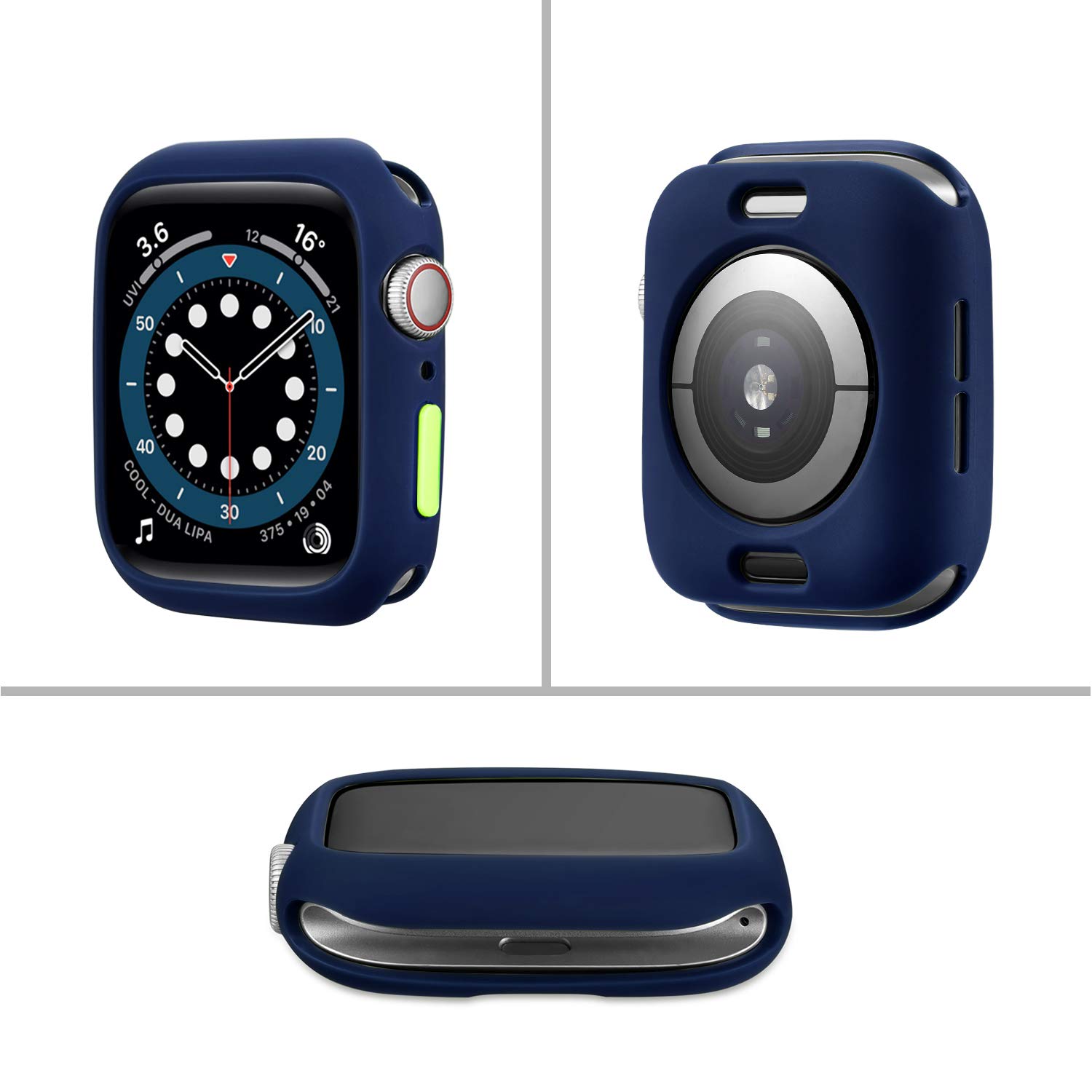
A hidden cause: physical pressure on the side button. Tight bands, thick cases, or screen protectors can press the button just enough to simulate a long press—triggering shutdown.
To test:
1. Remove the case and band
2. Clean around the side button with a soft brush
3. Use the watch bare for 24 hours
If shutdowns stop, your accessories are likely the culprit.
🧰 Visual Cue: Look for dents, warping, or misalignment in third-party cases.
Common Accessories That Cause Issues
- Rugged or oversized cases
- Screen protectors that extend over button edges
- Metal bands pressing against the housing
Even slight pressure during movement can register as input. Stick to Apple-branded or well-reviewed third-party gear.
Unpair and Re-pair Your Watch
Reset Connection to iPhone
If software corruption persists, unpairing and re-pairing forces a clean reinstall of watchOS and refreshes the iPhone link.
Steps:
1. Open Watch app on iPhone
2. Tap My Watch > your watch > i icon
3. Select Unpair Apple Watch
4. Confirm—iPhone creates a backup automatically
After unpairing:
– Set up as new or restore from backup
– Choose restore to keep apps and settings
⚙️ Expert Insight: This downloads a fresh copy of watchOS, fixing corrupted system files that may cause crashes.
Try Setup as New First
If shutdowns return after restore, set up as new first (don’t restore). If the watch stays on, the issue is likely in your backup—possibly a faulty app or setting.
Delete the old backup and create a new one after clean setup.
Free Up Storage Space
Delete Unused Apps
An overloaded Apple Watch can crash due to memory pressure. When storage exceeds 80%, performance drops and background processes fail.
How to check and clean:
1. Open Watch app on iPhone
2. Go to My Watch > Apps
3. Tap Edit and delete unused apps
Target:
– Games
– Third-party watch faces
– Music or podcast apps with large caches
– Old fitness trackers
📊 User Data: One fix (Article 8) identified storage overload as a common but hidden cause of instability.
Reduce Complications and Notifications
Too many complications or live updates strain the processor. Simplify:
– Use fewer watch face features
– Disable non-essential app notifications
This reduces background activity and prevents system strain.
Try Battery Calibration (User-Tested)
Drain and Recharge Fully
While not official, battery calibration helps when percentage readings are inaccurate. A faulty reading may show 50% but actually be near zero.
Steps:
1. Use watch until it shuts down automatically
2. Leave it off and unplugged for 4–5 days
3. Plug in and charge to 100% uninterrupted
This deep discharge resets the battery’s charge cycle tracking.
🗣️ User Testimony: One owner (Egalitarian_) reported this fixed persistent shutdowns after other methods failed.
Does This Really Work?
It’s a last-resort hack, not a guaranteed fix. But for users with erratic battery readings, it can recalibrate the system’s power estimation and reduce false shutdowns.
⚠️ Warning: Don’t do this regularly—deep discharges shorten battery lifespan.
Check for Cold Exposure
Avoid Sub-Zero Temperatures
Apple Watch may shut down in cold environments (below 0°C / 32°F). Cold reduces lithium-ion battery efficiency, causing voltage drops and automatic power-off.
Behavior:
– Shuts down at seemingly high battery
– Powers back on when warmed
– No permanent damage
🌡️ Apple Spec: Operating range is 0° to 35°C (32° to 95°F). Outside this, performance may suffer.
What to Do in Cold Weather
- Keep watch under clothing
- Warm it with hands before use
- Avoid outdoor workouts in extreme cold
Shutdowns in cold are temporary and resolve once warmed.
Reset All Content and Settings
Erase and Rebuild System
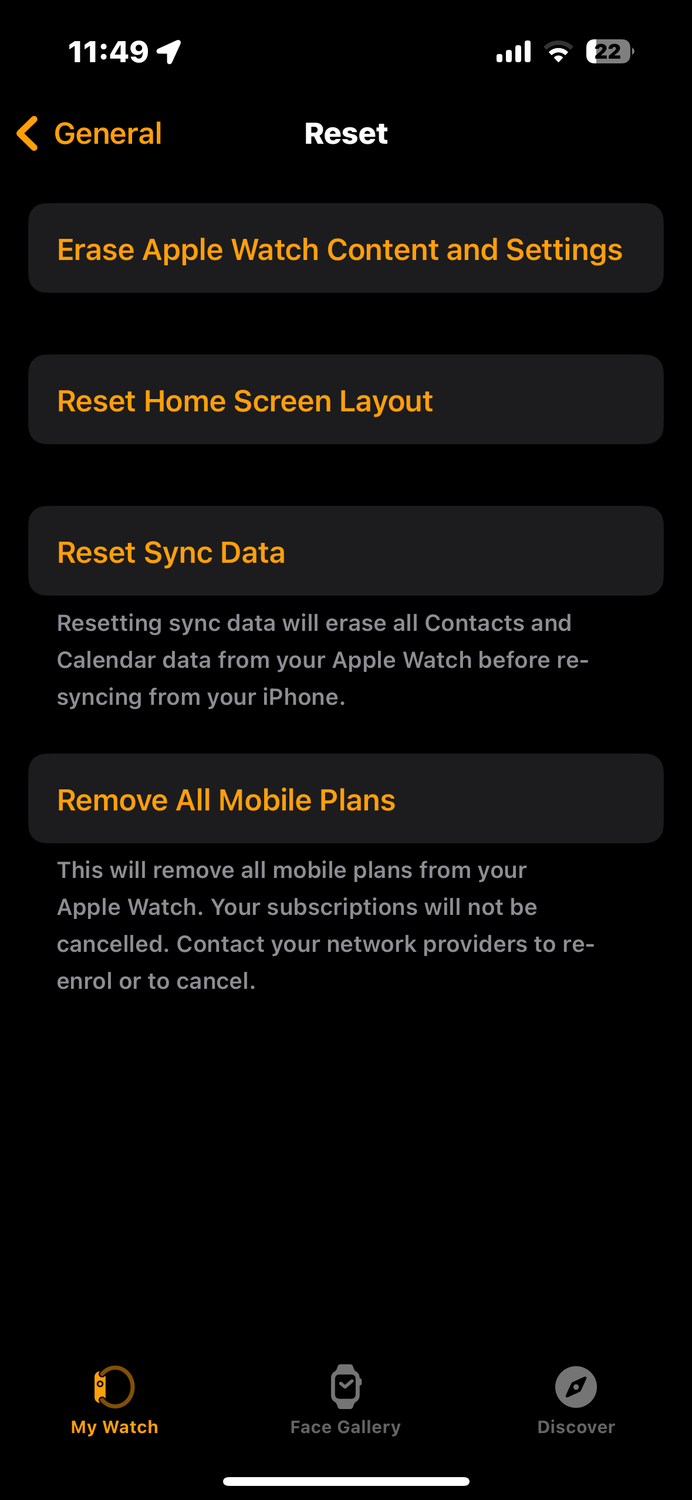
If nothing else works, reset all settings—the “nuclear option.” This wipes all data, apps, and preferences, giving you a clean slate.
Steps:
1. On Apple Watch: Settings > General > Reset
2. Tap Erase All Content and Settings
3. Enter passcode
4. Confirm
After reset:
– Re-pair to iPhone
– Restore from backup or set up new
🛠️ Use when: Software corruption is suspected and other fixes failed (Article 8).
This can resolve hidden OS-level bugs that cause instability.
Contact Apple Support
Request Battery Replacement
If battery health is below 80%, Apple offers battery service:
– Free under AppleCare+
– Fee-based otherwise (~$69–$79 USD)
Even without AppleCare+, it’s often worth the cost for watches under 5 years old.
Run Remote Diagnostics
Apple can run diagnostics through the Watch app:
1. Open Watch app on iPhone
2. Tap My Watch > General > About
3. Wait for “Diagnostic Submission” to appear
If hardware faults are detected, Apple may offer repair or replacement.
Get a Replacement Unit
One user had two consecutive watches shut down at 45%. Apple replaced the first under warranty—the second also failed. Suggests possible environmental or iPhone-side issue, but Apple may still assist.
📍 No Apple Store? Visit authorized providers like Best Buy Genius Bar—users have successfully gotten replacements there via Apple referral.
Prevent Future Shutdowns
Follow Best Practices
| Action | Benefit |
|---|---|
| Restart weekly | Clears memory leaks |
| Update software monthly | Fixes known bugs |
| Use Apple charger | Prevents power instability |
| Clean button area | Avoids accidental presses |
| Monitor storage | Keeps system responsive |
Watch for Early Warning Signs
- Frequent app crashes
- Slow response time
- Inaccurate battery percentage
- Overheating during charge
These may precede shutdowns—act early.
Final Troubleshooting Path
Step-by-Step Decision Guide
-
Immediate:
– Force restart
– Check battery health
– Update watchOS and iOS -
If Still Failing:
– Remove case and band
– Free up storage
– Test in warmer environment -
Persistent Issues:
– Unpair and re-pair
– Try battery calibration
– Reset all content -
Last Resort:
– Set up as new watch
– Contact Apple Support
– Request hardware replacement
✅ Bottom Line: Most shutdowns are software or battery-related—not hardware defects. Over 80% of cases resolve with restart, update, or re-pair.
If multiple watches fail, suspect your iPhone, backup, or environment—not just the device.
Apple has not issued a public fix for this issue, but user-driven solutions and standard diagnostics resolve the vast majority of cases. Don’t assume it’s unfixable. Start with a force restart, verify battery health, and update software. In most cases, your Apple Watch will stay on—and stay reliable.





