
If you’ve recently updated your Apple Watch and suddenly can’t find the Control Center, you’re not alone. Many users are confused after discovering that swiping up no longer opens Control Center on Apple Watch—especially following the release of watchOS 10. What used to be a simple upward swipe now leads to the App Switcher, leaving essential settings like Airplane Mode, flashlight, or battery controls just out of reach.
The good news? Apple didn’t remove Control Center—it redesigned it. Now, accessing this powerful menu depends entirely on your watchOS version. Whether you’re using an older Apple Watch Series 3 or the latest Ultra 2, knowing the correct method ensures you can toggle settings in seconds, not minutes. This guide walks you through exactly how to access Control Center on Apple Watch, why the change happened, what to do if it’s not working, and how to customize it for maximum efficiency—all based on official functionality and real-world troubleshooting.
Open Control Center Based on Your watchOS Version
The way you open Control Center changed dramatically with watchOS 10, released in 2023. If you’re struggling to access it, the issue likely comes down to software—not hardware.
For watchOS 10 and Later (2023+ Models)
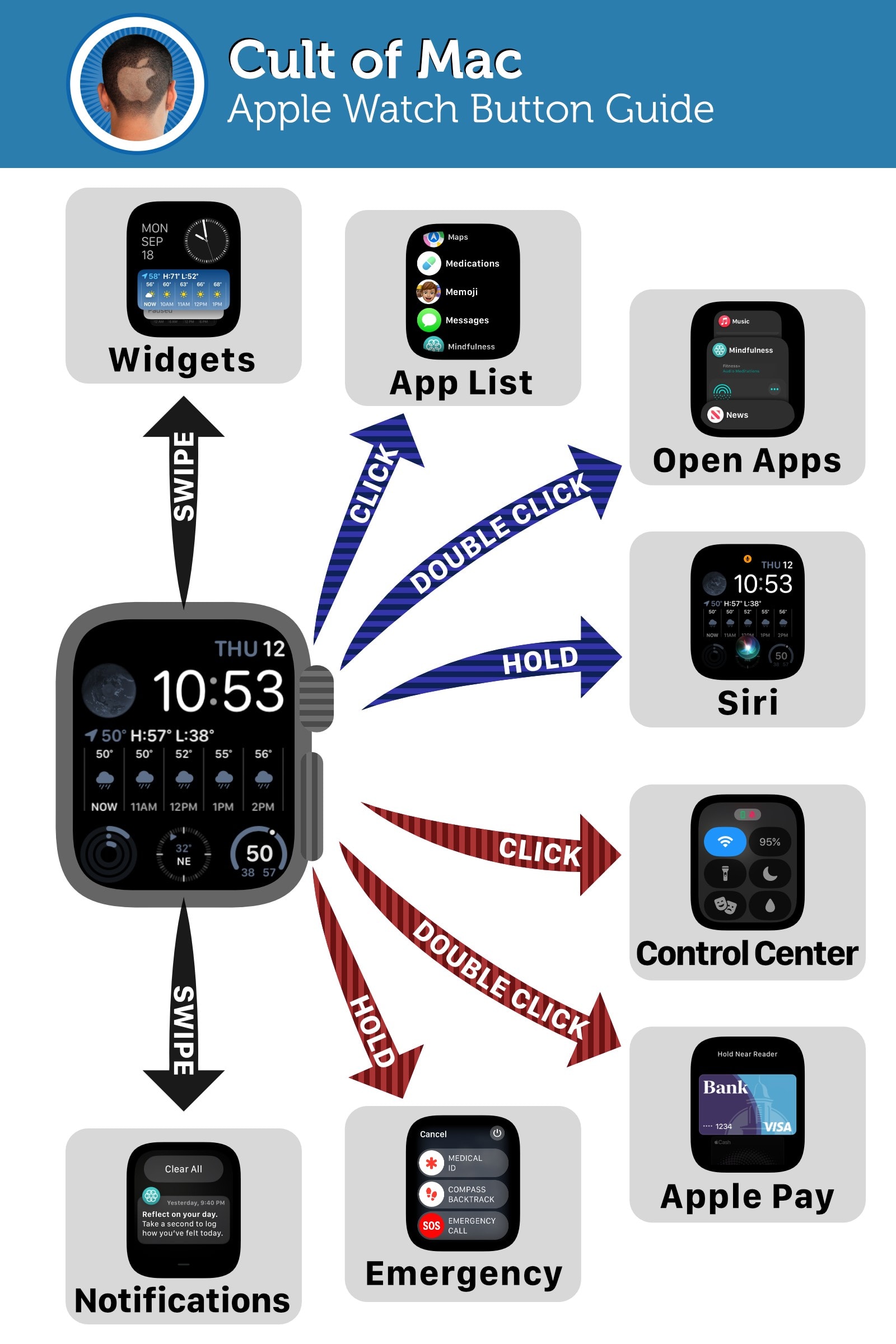
Starting with watchOS 10, Apple replaced the swipe-up gesture with a single tap of the side button.
- Quickly press and release the flat oval side button.
- Do not hold the button—holding triggers the power-down screen and Emergency SOS countdown.
✅ Works on: Apple Watch SE (2nd gen), Series 4 and newer, Ultra models—any device running watchOS 10 or higher.
This redesign made access faster and more intuitive, aligning the Apple Watch experience closer to iPhone’s Control Center behavior. It also freed up the swipe-up gesture for a new function: the App Switcher.
For watchOS 9 and Earlier (Including Series 3)
On older software versions, the method remains unchanged:
- Swipe up from the bottom edge of the screen.
- Works from any app or watch face—no button needed.
❗ Critical Note: Apple Watch Series 3 only supports up to watchOS 9, meaning swipe-up is the only way to open Control Center on that model. The side button will never open Control Center, regardless of how fast you tap it.
Why Swiping Up No Longer Works After watchOS 10

After updating to watchOS 10, many users found their muscle memory failing. A swipe-up no longer brings up brightness, battery, or Wi-Fi toggles—it shows recently used apps instead.
That’s because:
– Swipe-up now opens the App Switcher, letting you quickly jump between open apps.
– Control Center moved to the side button for one-touch access.
This change improves navigation flow but requires relearning. If you’re used to swiping, you may accidentally cycle through apps instead of turning off Bluetooth or enabling Do Not Disturb.
💡 Pro Tip: Think of the side button as your universal shortcut hub:
– One tap = Control Center
– Two taps = Apple Pay
– Long press = Power options and SOS
Retrain your reflex: tap fast and release.
What You Can Do in Control Center
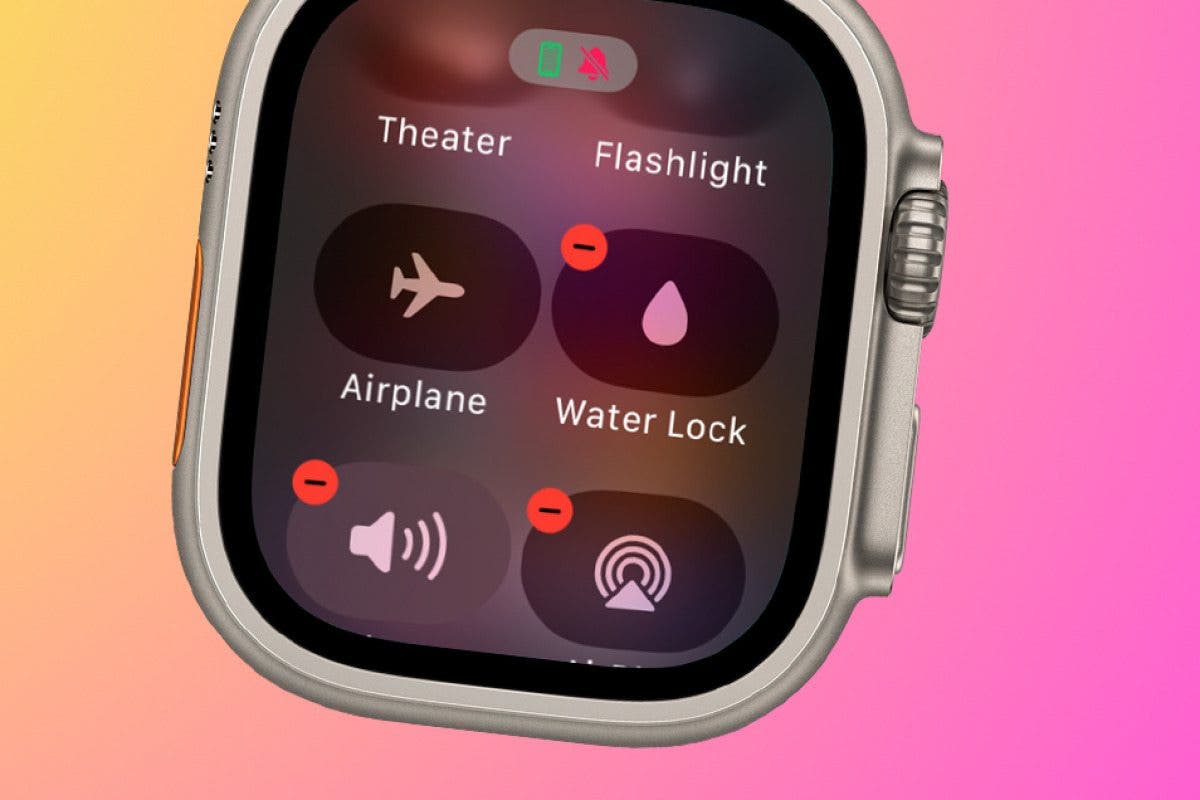
Once opened, Control Center displays a scrollable grid of toggles for instant access to your most-used settings. Here’s what’s available by default:
Core Functions at a Glance
- Airplane Mode: Cut all wireless signals instantly
- Wi-Fi & Cellular: Toggle network connections
- Bluetooth: Disconnect earbuds or reconnect devices
- Do Not Disturb / Focus: Silence notifications or set a custom Focus mode
- Theater Mode: Prevent screen wake and mute sounds (great for meetings)
- Silent Mode: Mute alerts while keeping haptics active
- Flashlight: Illuminate dark spaces using your watch screen
- Ping iPhone: Make your phone ring—even on silent
- Battery & Low Power Mode: View charge level and extend battery life
- Volume & AirPlay: Adjust playback volume or switch audio output
🔄 Smart Visibility: Some controls appear only when relevant. For example, Volume shows up only during music playback.
Check Real-Time Status at the Top
At the very top of Control Center, a row of small icons gives you a system-wide snapshot:
- Battery percentage
- Connectivity status (Bluetooth, Wi-Fi, Cellular)
- Location Services (arrow icon)
- Microphone/Camera usage indicators
- Health sensor activity (heart rate, ECG, fall detection)
- Active Focus mode (e.g., moon for Do Not Disturb)
💡 Tap any icon to dive into related settings. For example, tap the battery icon to see detailed usage or enable Low Power Mode.
How to Close Control Center Properly
To exit Control Center:
1. Turn your wrist away (uses motion sensor), or
2. Press the side button again
Both actions return you to the previous screen or watch face instantly.
⚠️ Avoid holding the side button—this brings up the power menu and risks triggering Emergency SOS.
Customize Your Control Center Layout
Make Control Center work for you by adding, removing, or reordering controls.
How to Edit Controls
- Open Control Center (tap side button or swipe up).
- Scroll to the bottom and tap Edit.
- To:
– Add a control: Tap the green +
– Remove one: Tap the red −, then Remove
– Rearrange: Drag the three-line handle next to each item
✅ Popular Additions:
– Timer
– Camera Remote
– Dark Mode toggle
– Backlight (brightness control)
– Accessibility shortcuts
Customizing reduces scrolling and puts your most-used tools front and center.
Fix: Side Button Opens SOS Instead of Control Center
One of the most common complaints: pressing the side button triggers Emergency SOS instead of Control Center. This happens when the system detects a long press.
Adjust Click Speed for Better Response
- On your iPhone, open the Apple Watch app.
- Go to Settings > Accessibility > Side Button Click Speed.
- Choose:
– Default (<1 second)
– Slow (up to 1 second)
– Slowest (up to 2 seconds)
✅ Recommended: Use Slow or Slowest if you have difficulty releasing the button quickly. This setting prevents accidental SOS calls and improves reliability for Apple Pay (double-press).
Troubleshoot When Control Center Won’t Open
If Control Center is unresponsive, try these fixes:
Restart Your Apple Watch
- Press and hold the side button until the Power Off slider appears.
- Tap the power icon in the upper-right corner (don’t slide).
- Wait for the Apple logo to appear.
✅ This resolves many post-update glitches.
Use AssistiveTouch (Accessibility Alternative)
If buttons are hard to use:
1. On Apple Watch: Settings > Accessibility > AssistiveTouch
2. Turn it on
3. Use the on-screen menu to:
– Open Control Center
– Trigger Apple Pay
– Call SOS
– Power off
Ideal for limited mobility or damaged hardware.
Use Siri When Control Center Fails
Even if Control Center is inaccessible, Siri can perform nearly all its functions.
Quick Voice Commands
- “Hey Siri, turn on Airplane Mode”
- “Hey Siri, flashlight on”
- “Hey Siri, ping my iPhone”
- “Hey Siri, enable Do Not Disturb”
- “Hey Siri, what’s my battery level?”
✅ Enable “Listen for ‘Hey Siri'” in Watch settings for hands-free use—perfect during workouts or commutes.
Model-Specific Access Rules
Not every Apple Watch works the same way. Know your model to avoid confusion.
Apple Watch Series 3
- Final OS: watchOS 9
- Access Method: Swipe up only
- No side-button Control Center
❗ You cannot open Control Center with the side button on Series 3—no exceptions.
Apple Watch SE, Series 4 and Newer
- Supports watchOS 10+
- Uses side button tap to open Control Center
- Full customization and dynamic controls
✅ Includes SE (1st/2nd gen), Series 5–10, and Ultra models.
Real-World Scenarios and Best Actions
| Situation | Best Control Center Move |
|---|---|
| Boarding a plane | Turn on Airplane Mode, re-enable Wi-Fi manually |
| In a meeting | Enable Theater Mode to silence alerts |
| Lost iPhone at home | Tap Ping iPhone to locate it |
| Walking at night | Turn on Flashlight for visibility |
| Swimming or showering | Activate Water Lock before exposure |
| Low battery | Enable Low Power Mode via Battery control |
| Need focus time | Select a Focus mode (e.g., Work, Sleep) |
Using Control Center in these moments saves time over digging through menus.
Common Mistakes to Avoid
- ❌ Holding the side button → Triggers Emergency SOS
- ❌ Swiping up on watchOS 10+ → Opens app switcher
- ❌ Ignoring click speed settings → Repeated SOS triggers
- ❌ Not customizing controls → Forces scrolling past unused toggles
✅ Fix muscle memory: Practice tapping the side button quickly and releasing.
Final Tips for Smooth Use
- Update regularly for optimal performance
- Customize your layout with top-used tools
- Adjust Side Button Click Speed if timing is tricky
- Use Siri as a backup for instant access
- Check status icons for connectivity and privacy cues
By understanding how to access Control Center on Apple Watch—especially after watchOS 10—you regain full control over essential settings. Whether managing battery life, silencing alerts, or finding your phone, one tap puts everything within reach. Stay informed, stay in control, and make the most of your Apple Watch every day.





