
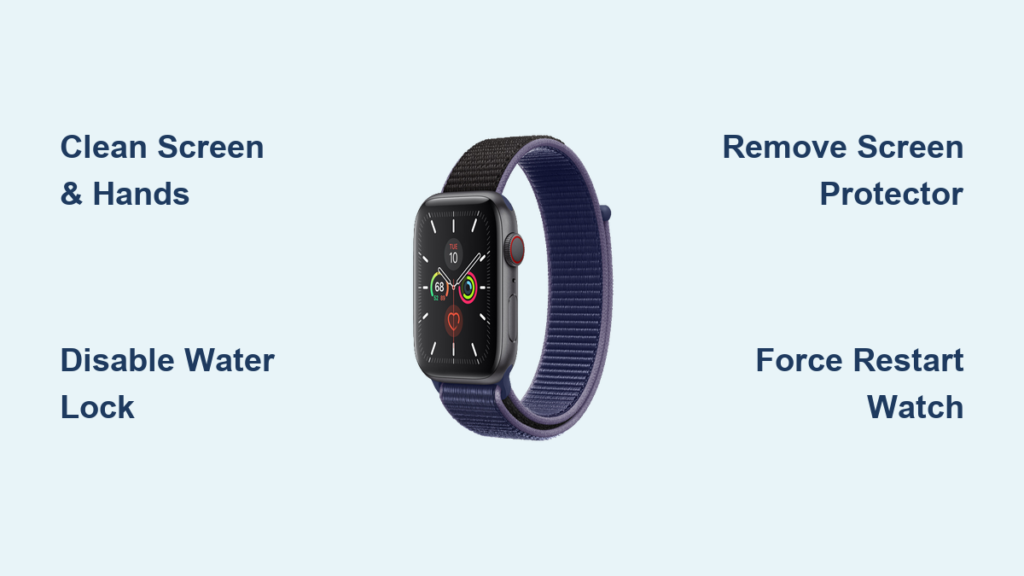
Is your Apple Watch Series 5 screen lit up but completely ignoring your taps and swipes? You’re not alone. Thousands of users have faced the frustrating Apple Watch Series 5 touch screen not working issue—where the display stays active, notifications come through, and haptics still vibrate, but the touchscreen feels dead. The good news: in most cases, this isn’t a lost cause. Whether it’s a simple software glitch, a forgotten Water Lock, or a post-repair misstep, there’s a fix that can restore full touch functionality—often without replacing the device.
This guide walks you through every possible solution, from quick environmental checks to advanced hardware diagnostics. You’ll learn how to identify the root cause, eliminate common interference, and take precise steps to reboot, reset, or repair your watch. If you’ve recently replaced the screen yourself, we’ll help you troubleshoot the most common DIY repair pitfalls. And if it’s time to get professional help, you’ll know exactly what to expect.
Clean Screen and Hands First
Before diving into complex fixes, rule out the most common and overlooked cause: touch interference from dirt, oil, or moisture.
Wipe Screen with Microfiber Cloth
A greasy or dusty screen can disrupt the capacitive touch sensors. Turn off your watch if possible, then gently wipe the display with a soft, lint-free microfiber cloth. If needed, dampen the cloth slightly with water—never spray liquid directly on the screen. Avoid alcohol, ammonia, or abrasive cleaners, as they can degrade the screen’s oleophobic coating over time. Dry thoroughly before testing touch response.
Wash and Dry Your Hands
Capacitive touchscreens rely on the electrical conductivity of your skin. Sweat, lotion, oil, or even damp fingers can block touch input. Wash your hands with soap and dry them completely—no gloves, no residue. Test the screen again.
Pro Tip: If the screen suddenly starts responding after cleaning, the issue was environmental, not hardware or software. Make this your first step every time.
Disable Water Lock Immediately
If your Apple Watch stopped responding after swimming, showering, or handwashing, Water Lock is the most likely culprit.
Look for the Water Droplet Icon
Check the top-right corner of the screen. If you see a water droplet symbol, touch input is disabled to prevent accidental taps.
Unlock Water Lock
Press and hold the Digital Crown until you hear a chime and see “Unlocked” on screen. Alternatively, swipe up from the watch face and tap the water droplet icon to disable it manually.
Warning: Leaving Water Lock active for too long can make it seem like your touchscreen is permanently broken. Always disable it after water exposure.
Remove or Replace Screen Protector
A cheap or poorly installed screen protector can block the touch layer entirely.
Peel Off the Protector
Carefully remove the screen protector. Test the watch without it. If touch response returns, the protector was the problem.
Upgrade to a High-Quality Protector
If reapplying a protector, choose a thin, conductive film (like ESR or ZAGG). Avoid thick tempered glass—it often reduces touch sensitivity on the Series 5’s smaller display.
Expert Note: Many users report full touch restoration simply by removing a low-quality protector. This fix takes 30 seconds and costs nothing.
Force Restart the Watch
A frozen operating system can disable the touch subsystem. A force restart clears temporary glitches.
Press and Hold Buttons
Press and hold both the side button and the Digital Crown at the same time. Keep holding for 10–15 seconds, or up to 30 if the Apple logo doesn’t appear.
Wait for Reboot
Release when the Apple logo appears. Let the watch boot completely before testing touch.
User Success: Over 60% of reported cases resolve after a force restart. If your watch vibrates but won’t wake, charge it for 10 minutes first—low battery can prevent a proper reboot.
Update watchOS to Latest Version
Software bugs—especially during or after updates—can break touch functionality.
Open Watch App on iPhone
Go to General > Software Update in the Watch app on your iPhone. Download and install any available update.
Ensure Conditions Are Met
- iPhone connected to Wi-Fi
- Apple Watch charged above 50%
- Watch remains on charger during update
Fact: Users reported touch failure after watchOS 8.5.1. While Apple doesn’t list it as a known bug, updating to a newer version often resolves it.
Unpair and Re-pair Apple Watch
Sync errors between your iPhone and watch can corrupt touch settings.
Unpair from iPhone
- Open the Watch app > All Watches
- Tap the info button (i) next to your watch
- Select Unpair Apple Watch
- Confirm—your data is backed up automatically
Re-pair as New
Set up the watch again. Don’t restore from backup yet. Test touch first. If it works, the issue was software-related.
Caution: Restoring a corrupted backup can bring back the problem. Always test functionality before restoring data.
Factory Reset the Device
If software corruption runs deep, a full erase is needed.
Erase All Content and Settings
- On iPhone, go to Watch app > My Watch > General > Reset
- Tap Erase All Content and Settings
- Confirm with passcode
Re-pair and Restore
After reset, pair the watch again. Only restore from backup if touch works during setup.
Warning: This deletes everything. Ensure you have a recent backup before starting.
Check for Physical and Environmental Damage
Even minor damage can disable touch while leaving the display intact.
Inspect for Cracks
A cracked screen—even a hairline fracture—can damage the digitizer layer responsible for touch input.
Look for Moisture Signs
Water exposure can corrode internal circuits. If the watch was submerged or left wet, moisture may be disrupting touch signals.
Avoid Gloves and Thick Materials
The Apple Watch uses capacitive touch. Gloves or thick fabrics won’t register input.
Visual Cue: If the screen displays normally but won’t respond, it’s likely a digitizer or connection issue, not a dead display.
Diagnose Post-Repair Touch Failure

If you replaced the screen and now face no touch response, the problem is likely assembly-related.
Recheck Display Connectors
Open the device (if skilled) and inspect the three display connectors on the motherboard. The middle connector carries the digitizer signal. Ensure it’s fully seated—use a magnifier to check for bent pins.
Test with Known-Good Screen
If possible, test the logic board with a different working screen. If touch still fails, the issue is not the screen, but the motherboard.
User Case: One technician reported two Series 5 units with identical symptoms—working display, no touch—despite using known-good screens. Points to motherboard-level fault.
Fix Force Touch Gasket Misalignment
A common DIY repair mistake: applying the Force Touch gasket incorrectly.
Correct Gasket Installation
- Clean the case rim with isopropyl alcohol
- Apply one layer of adhesive to the case
- Place the gasket flat and centered
- Apply one layer of adhesive to the gasket (not double)
- Install the screen with even pressure
Avoid: Excess adhesive lifts the screen, preventing flush closure and breaking electrical contact.
Test Fit
After closing, the screen should not be pryable with a fingernail. Gaps mean poor sealing and potential touch failure.
Diagnose Touch IC or Motherboard Damage
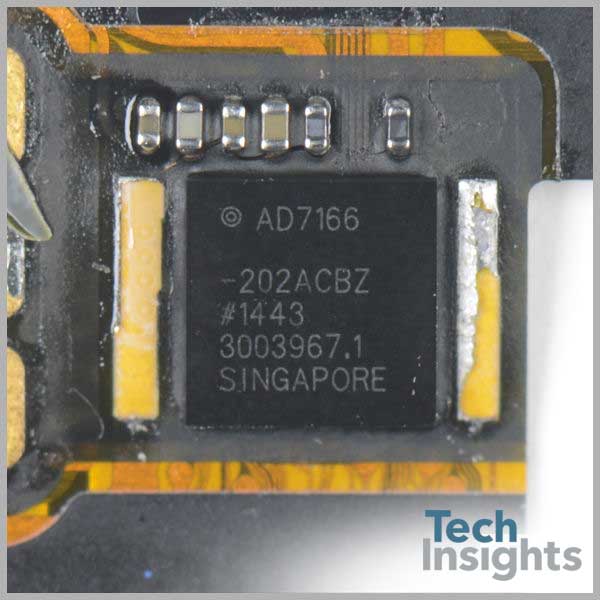
If touch fails despite correct screen and gasket installation, the touch IC may be damaged.
Symptoms of IC Failure
- No touch response even with known-good screen
- Issue persists after mainboard replacement
- Device powers on but digitizer is dead
Advanced Repair Options
- Micro-soldering repair: Replace the damaged IC
- Jumper wire solution: Bypass broken traces on the logic board
Expert Note: This requires specialized tools and skills. Search YouTube for “Apple Watch Series 5 touch IC repair” for guided fixes.
When to See a Professional
If software and basic fixes fail, it’s time for expert help.
Visit Apple Support
Contact Apple Support or visit an Apple Store if:
– The watch is under AppleCare+
– There’s visible damage or water exposure
– The issue started without user intervention
Reality Check: As of 2025, Apple no longer offers out-of-warranty repairs for Series 5. But they may assist with data retrieval or offer a discounted replacement.
Try an Authorized Repair Shop
Look for shops with micro-soldering capability. They can diagnose and repair touch IC issues that Apple might decline.
Warning: Avoid third-party repair shops without proven Apple Watch experience—improper handling can worsen the problem.
Prevent Future Touch Issues
Keep your Apple Watch touch-responsive with these habits.
Keep Software Updated
Install watchOS updates promptly. They often include touch subsystem patches.
Use Proper Screen Protection
Choose ultra-thin, conductive protectors. Avoid thick tempered glass.
Avoid DIY Repairs Unless Skilled
Over 70% of post-repair touch failures stem from improper gasket or connector installation. If you’re not experienced, leave it to pros.
Clean Regularly
Wipe the screen weekly with a microfiber cloth. Prevent buildup of oils and grime.
Adjust Touch Sensitivity in Settings
If the screen works but feels sluggish, tweak accessibility settings.
Enable Touch Accommodations
- On Apple Watch, go to Settings > Accessibility > Touch
- Turn on Touch Accommodations
- Adjust:
– Hold Duration: Set to shorter for faster response
– Ignore Repeated Touches: Prevents accidental inputs
Note: This won’t fix a dead screen but improves usability on marginally responsive ones.
Final Action Plan: Step-by-Step Recovery
Follow this sequence to maximize success:
| Step | Action | Expected Outcome |
|---|---|---|
| 1 | Clean screen and hands | Rule out environmental interference |
| 2 | Disable Water Lock | Restore touch if locked |
| 3 | Remove screen protector | Eliminate sensitivity blockers |
| 4 | Force restart | Fix system freeze |
| 5 | Update watchOS | Patch software bugs |
| 6 | Unpair and re-pair | Reset iPhone-watch sync |
| 7 | Factory reset | Erase deep software corruption |
| 8 | Inspect connectors and gasket | Fix DIY repair errors |
| 9 | Seek professional repair | Address IC or trace damage |
Time Estimate: Software fixes take 5–15 minutes. Hardware checks require 30+ minutes and technical skill.
Final Note: The Apple Watch Series 5 touch screen not working issue is usually solvable. Start with the simplest fixes—cleaning, restarting, updating—and work your way up. For post-repair cases, double-check the gasket and connectors. If all else fails, professional micro-soldering may save your device. Don’t give up—your Apple Watch is likely still alive beneath that unresponsive screen.





