

You’re waiting for a critical message, maybe a job offer or a family emergency, but your Apple Watch remains silent—no vibration, no screen wake, nothing. Chances are, Do Not Disturb is turned on. While this mode is great for undisturbed sleep or focused work, leaving it active too long can cause you to miss important alerts. Knowing how to turn off Do Not Disturb on Apple Watch quickly and effectively ensures you stay connected when it matters most.
The good news? Turning off Do Not Disturb is fast and simple—whether you’re doing it directly from your wrist or managing it through your iPhone. In this guide, you’ll learn multiple methods to disable the feature, prevent it from turning on accidentally, and customize exceptions so you never miss a crucial call again. Let’s restore your notifications and take control of your Apple Watch experience.
Turn Off Do Not Disturb From Apple Watch
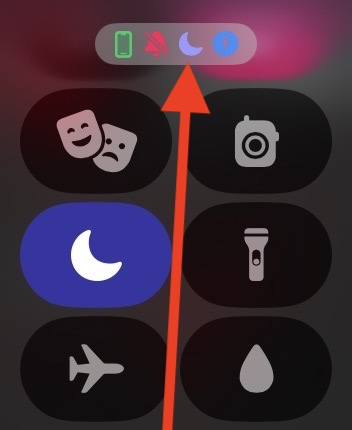
The fastest way to silence silence is right on your wrist. You don’t need your iPhone nearby—just a quick swipe and tap.
Open Control Center
Start by swiping up from the bottom of your watch face to open Control Center. This menu gives you instant access to essential settings like brightness, Airplane Mode, and, of course, Do Not Disturb.
Look for the crescent moon icon—this is the visual indicator for Do Not Disturb. If the icon appears purple or filled in, the mode is currently active and silencing your alerts.
Visual Cue: When Do Not Disturb is on, your watch won’t buzz or light up for notifications—even if your phone rings.
Tap to Disable
Tap the crescent moon icon once. It will immediately turn gray, signaling that Do Not Disturb has been disabled. Your watch will now resume normal notification behavior: vibrating, lighting up, and chiming as usual.
This method works across all Apple Watch models—from the original Series 1 to the latest Ultra 2—and is ideal when you’re on the go and need to react fast.
Pro Tip: If the icon doesn’t respond, ensure Theater Mode isn’t active. Theater Mode disables screen wake and alerts just like Do Not Disturb, but uses a stage mask icon in Control Center. Tap it to disable.
Disable Do Not Disturb Using iPhone
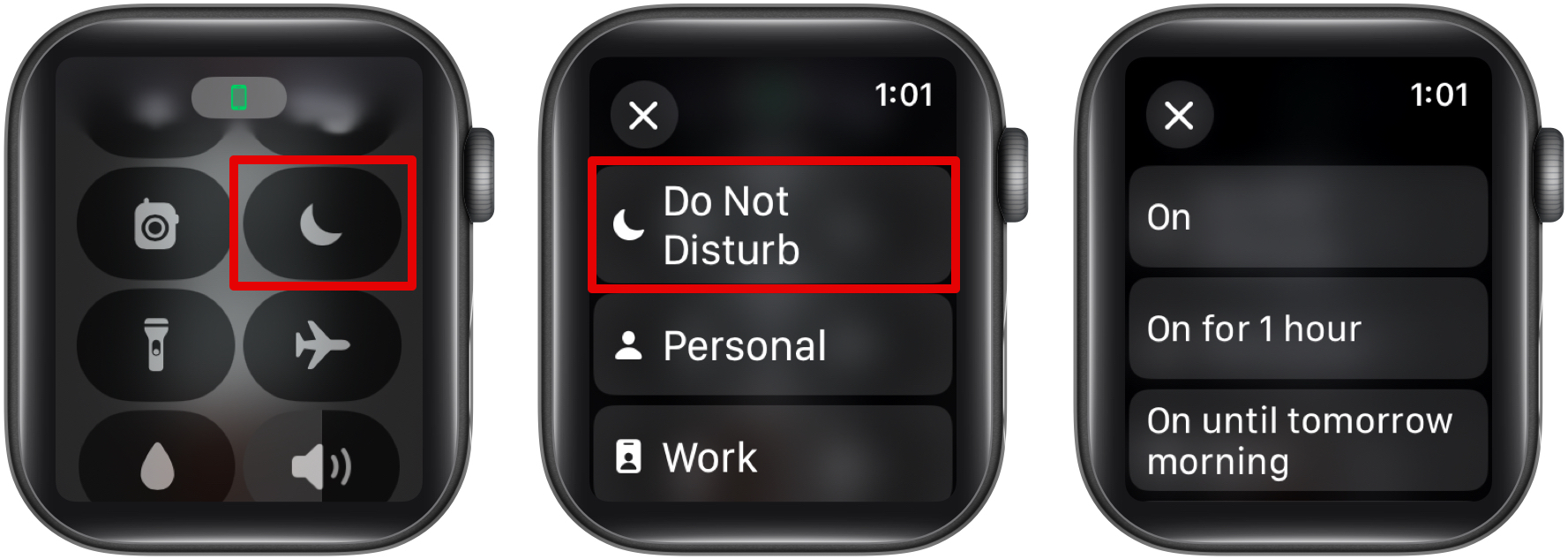
If you prefer managing settings from a larger screen, you can control your Apple Watch’s Do Not Disturb mode directly from your iPhone.
Open the Watch App
On your iPhone, launch the Watch app and make sure you’re on the My Watch tab. Scroll down until you see Do Not Disturb and tap it.
At the top of the screen, you’ll see a toggle switch labeled Do Not Disturb. If it’s green, the feature is active on your watch.
Toggle Off
Tap the switch to turn it off. The toggle will turn gray, and your Apple Watch will instantly stop silencing notifications.
Because Apple Watch syncs closely with your iPhone, this change applies immediately to your wearable. This method is especially useful if your watch is unresponsive or if you want to double-check settings from a more detailed interface.
Note: Disabling Do Not Disturb on your iPhone also turns it off on your Apple Watch—unless you’ve customized Focus settings independently.
Check for Scheduled Do Not Disturb
Sometimes, Do Not Disturb keeps turning back on—even after you’ve disabled it. Why? It’s likely running on a schedule.
View Scheduled Times
In the Watch app on your iPhone, tap Do Not Disturb, then select Scheduled. Here, you’ll see if a recurring time range has been set—like 10:00 PM to 7:00 AM every night.
If scheduled, your Apple Watch will automatically re-enable Do Not Disturb at the start time, regardless of manual changes.
Turn Off Auto-Schedule
To stop automatic activation:
- Tap Scheduled.
- Toggle the switch to off.
- Tap Done.
Now, Do Not Disturb will only activate when you manually turn it on—giving you full control over when your watch goes silent.
Warning: Leaving the schedule on means your watch will silence notifications again tonight. Disable it unless you actually want nightly quiet hours.
Fix: Do Not Disturb Won’t Turn Off
What if you tap the crescent moon, but the mode stays active? Or your watch remains silent despite toggling it off? Here’s how to troubleshoot.
Force Restart Apple Watch
A software glitch might be freezing the setting.
Press and hold the side button until the Power Off slider appears. Swipe to power down, wait 30 seconds, then press and hold the side button again to restart.
Once rebooted, swipe up to open Control Center and tap the crescent moon icon again. This often resolves frozen settings.
Check iPhone’s Do Not Disturb Settings
Your Apple Watch mirrors your iPhone’s Do Not Disturb status by default.
Go to Settings > Focus > Do Not Disturb on your iPhone. If it’s still on there, your watch will stay silent—even if you turned it off locally.
Turn it off on your phone to fully restore notifications.
Disable Theater Mode
Theater Mode silences alerts and keeps the screen dark—similar to Do Not Disturb—but it uses a stage mask icon in Control Center.
To turn it off, swipe up on your Apple Watch and tap the mask icon. Once disabled, your watch will wake normally and deliver alerts.
Allow Calls During Do Not Disturb
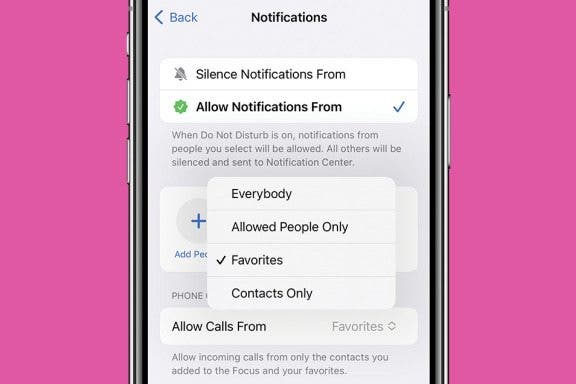
You don’t always need to turn Do Not Disturb off completely. Sometimes, you just want to silence most notifications but stay reachable by key people.
Permit Favorites or Specific Contacts
In the Watch app on your iPhone, go to Do Not Disturb > Allow Calls From.
You can choose:
– No one – Blocks all calls
– All Contacts – Lets anyone in your address book ring through
– Favorites – Only your favorite contacts can bypass the silence
– Selected Contacts – Pick specific individuals manually
Example: Set it to Favorites so your partner, child, or doctor can still reach you during quiet hours.
This way, you keep distractions at bay but remain available for emergencies.
Customize Do Not Disturb Exceptions

Beyond calls, you can allow alerts from specific apps or people—even when Do Not Disturb is on.
Use iPhone’s Focus Settings
Apple Watch pulls its Do Not Disturb rules from your iPhone’s Focus system.
On your iPhone, go to Settings > Focus > Do Not Disturb.
Tap People to allow messages from certain contacts, or Apps to let through alerts from specific apps—like your calendar, workout tracker, or alarm.
These exceptions sync automatically to your Apple Watch. So even in silent mode, priority alerts will vibrate and appear on your wrist.
Tip: In watchOS 9 and later, you can use Focus Filters to fine-tune which apps deliver alerts during Do Not Disturb—like showing only work-related notifications during Focus hours.
Prevent Accidental Activation
Many users unknowingly trigger Do Not Disturb—especially at night—by placing their watch face-down or raising their wrist in certain positions.
Avoid Wrist Detection Triggers
If you often wake up to a silenced watch, you might be accidentally enabling Do Not Disturb while sleeping.
While you can’t disable wrist-based activation directly, you can:
– Avoid wearing your watch face-down
– Use Sleep Focus instead (recommended)
Use Sleep Focus Instead
Sleep Focus automatically enables Do Not Disturb during your bedtime and turns it off in the morning.
Set it up in the Health app on your iPhone:
1. Open Health > Browse > Sleep
2. Tap Full Schedule & Options > Focus
3. Enable Sleep Focus and set your bedtime
Your Apple Watch will silence itself nightly and wake you with alerts in the morning—no manual toggling needed.
Do Not Disturb and Cellular Calls
If you own a GPS + Cellular Apple Watch, Do Not Disturb affects more than just app alerts—it silences cellular calls and messages too.
Even when your iPhone is off, in another room, or out of range, your watch won’t alert you to incoming calls unless:
– The caller is in your Allow Calls From list
– The message comes from an allowed contact or app
Turning off Do Not Disturb restores full connectivity—so you can receive calls and texts directly on your wrist, no phone required.
Pro Tip: Use Focus Filters to allow only essential apps (like Messages or Phone) during quiet times, reducing noise without missing key alerts.
Quick Reference: How to Turn Off Do Not Disturb
| Method | Steps |
|---|---|
| From Apple Watch | Swipe up > Tap crescent moon icon |
| From iPhone | Open Watch app > Do Not Disturb > Toggle off |
| Stop Auto-Schedule | Watch app > Do Not Disturb > Scheduled > Toggle off |
| Fix Stuck Mode | Restart watch or check iPhone Focus settings |
Bookmark this table for quick access when silence becomes a problem.
Final Note: Knowing how to turn off Do Not Disturb on Apple Watch puts you back in control of your notifications. Use Control Center for instant access, or manage schedules and exceptions from your iPhone. Prevent future issues by using Sleep Focus or allowing key contacts to break through the silence. With these tools, you decide when quiet time ends—and when connection begins.





