

You raise your wrist, but your Apple Watch is dark, frozen, or displaying nothing but a passcode screen. No time. No date. Just silence. If your Apple Watch isn’t showing time, you’re not alone—thousands of users across Series 4 to Ultra 2 have faced this same issue. Whether it started after a watchOS update, a sync glitch, or seemingly out of nowhere, the problem is usually fixable without visiting an Apple Store.
Most cases stem from software hiccups, misconfigured settings, or misunderstood display behaviors—not hardware failure. The time should always be visible when your watch is on your wrist and powered on. If it’s not, this guide will help you diagnose and resolve the issue in minutes. We’ll cover everything from quick restarts to model-specific quirks, so you can get your time back—fast.
Restart Devices Immediately
Before diving into complex fixes, restart both your Apple Watch and iPhone. This simple step resolves the majority of time display issues by clearing temporary software glitches and re-establishing the Bluetooth connection that syncs time and display settings.
Perform Standard Restart
If your Apple Watch responds to touch:
1. Press and hold the side button until the power slider appears.
2. Swipe to power off.
3. Wait 10 seconds, then press the side button again to turn it back on.
Then, restart your iPhone:
– Press and hold the side button + volume button until the power slider appears.
– Slide to power off, wait 10 seconds, then power it back on.
✅ Why this works: A restart clears corrupted cache, resets Bluetooth pairing, and forces the watch to re-sync time from your iPhone. Many users report the time reappearing immediately after this step.
Force Restart Unresponsive Watch
If your watch is frozen, stuck on a black screen, or displaying endless privacy text (common after a failed watchOS 11.6.2 update), a standard restart won’t work. You need a force restart:
1. Press and hold both the side button and the Digital Crown.
2. Keep holding for 10–15 seconds.
3. Release when the Apple logo appears.
⚠️ Critical: This is essential if your Series 8 or Ultra is stuck on scrolling legal text after an update. Some users report needing to leave the watch charging for 2–4 hours before a force restart works—don’t give up too soon.
Enable Always-On Display
On newer models, the Always-On Display keeps the time visible even when your wrist is down. If it’s disabled or malfunctioning, your watch may appear blank—when it’s actually just dimmed.
Check Always-On Settings
- On your Apple Watch: Open Settings > Display & Brightness.
- Tap Always-On and ensure it’s ON.
- Adjust brightness if the dimmed time is hard to read.
💡 Note: The screen dims significantly when your wrist is down but still shows time, date, and complications. It brightens when you raise your wrist or tap the screen.
Model Compatibility Matters

Not all Apple Watches support Always-On:
– ✅ Series 7, 8, 9, Ultra, Ultra 2: Full support.
– ⚠️ Series 5, 6: Limited dimming; screen may look off.
– ❌ Series 4 and earlier: No Always-On. Screen turns off completely until raised.
❗ If you own a Series 6 or older, expecting to see time when your wrist is down is unrealistic. Tap the screen or raise your wrist to wake it—this is normal behavior.
Fix Time Display Settings
Even if your hardware works perfectly, wrong settings can hide the time or delay its appearance.
Set Return to Clock to Always
If your watch stays on an app or notification instead of showing the clock:
1. Open the Watch app on your iPhone.
2. Go to General > Return to Clock.
3. Select Always.
✅ Result: After checking a message or using an app, your watch instantly returns to the clock face—no more hunting for the time.
Enable Set Automatically
Incorrect time syncing usually traces back to this setting:
1. On iPhone: Settings > General > Date & Time.
2. Turn on Set Automatically.
Also verify in the Watch app:
– My Watch > Clock > Time Zone > Set Automatically = ON.
⚠️ Without this, your Apple Watch may show the wrong time or fail to update across time zones—especially after travel.
Reset Manual Time Offset
Did someone set the watch ahead by +15 minutes to “avoid being late”? This hidden setting can make it seem like the time is broken:
1. On Apple Watch: Settings > Clock.
2. Tap +0 min and ensure it’s set to zero.
📌 Common mistake: Users forget this setting and think their watch is malfunctioning when it’s just showing the wrong time on purpose.
Adjust Watch Face Configuration
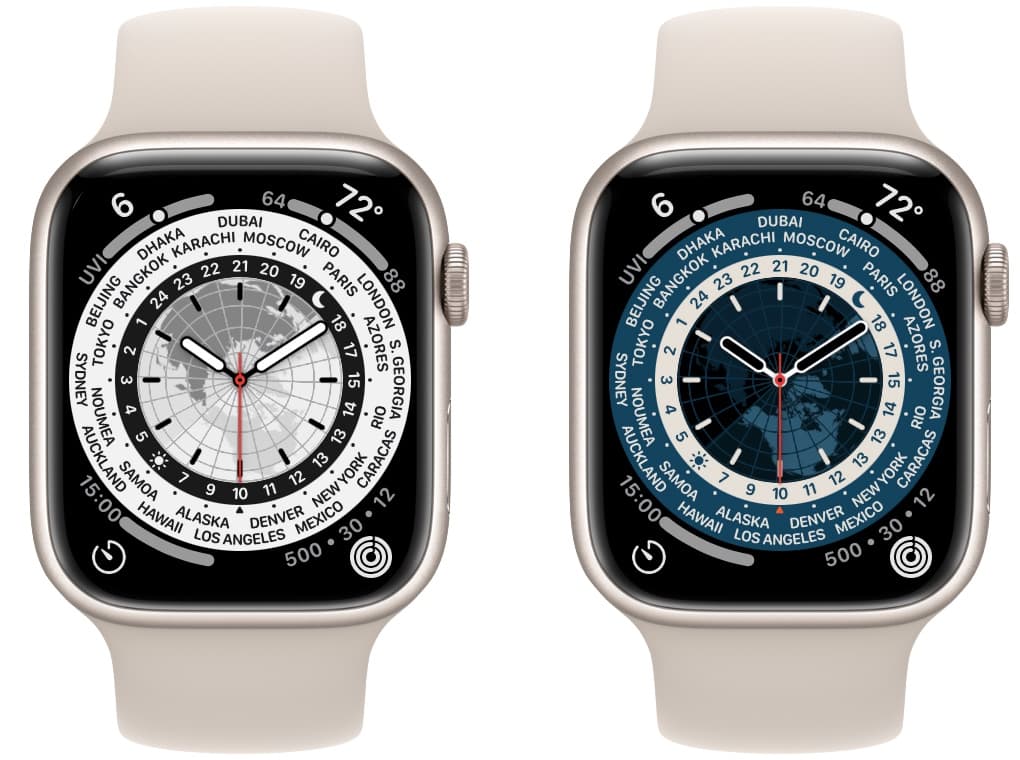
Some watch faces—especially photo or custom ones—hide the time if not set up correctly.
Choose a Time-First Watch Face
Stick to faces designed for readability:
– Modular
– Infograph
– Simple
– Numerals
Avoid heavily animated or cluttered faces that prioritize design over function.
Edit Complications to Show Time
Even on photo faces, you can add time elements:
1. Press firmly on the watch face to enter edit mode.
2. Tap Edit.
3. Select a complication slot and choose Time or Analog Clock.
✅ Pro tip: Test the face by lowering your wrist—does the time remain visible in dim mode? If not, switch to a simpler face.
Address Wrist Detection & Locking
If your Apple Watch thinks it’s not on your wrist, it locks—and while the time should still show, complications disappear, and the screen may dim.
Tighten the Band
Loose fit breaks skin contact, triggering automatic lock:
– Adjust the band so the sensors on the back maintain contact.
– Not too tight—just enough for consistent detection.
📌 Symptom: Time appears briefly when raised, then the passcode screen covers it. This means the watch locked mid-gesture.
Enable Unlock with iPhone
Skip the passcode when your iPhone is nearby:
1. On iPhone: Settings > Apple Watch > Unlock with iPhone.
2. Toggle it ON.
✅ Benefit: Your watch stays unlocked when your iPhone is unlocked and close—ideal for wet hands or quick glances.
Re-Pair Your Apple Watch
If the time still doesn’t show, corrupted pairing data may be to blame. Re-pairing refreshes the connection without losing your data.
Unpair and Re-Pair Safely
- Open Watch app on iPhone.
- Tap My Watch > General > Reset > Unpair Apple Watch.
- Confirm—your data is backed up automatically.
- Set up the watch again using the backup.
✅ Outcome: Clears sync errors, resets Bluetooth, and reinstalls watchOS settings cleanly. Verified by users: “No data loss. It re-indexes the file system and fixes hidden glitches.”
Erase and Reset as Last Resort
When all else fails, a full reset can resolve deep software corruption.
Erase All Content and Settings
- On Apple Watch: Settings > General > Transfer or Reset > Erase All Content and Settings.
- Enter your passcode.
- Follow setup steps afterward.
🛠️ If the watch is unresponsive:
– Try a force restart first.
– Then, from iPhone: Watch app > General > Reset > Erase Apple Watch Content and Settings.
Handle Post-Update Failures
After a watchOS 11.6.2 update, some users report being stuck on Apple account or privacy text screens—no time, no response.
Symptoms
- Screen shows scrolling legal text.
- Touch and buttons don’t work.
- Watch appears paired but unresponsive.
Recovery Steps
- Force restart immediately (side button + Digital Crown, 10–15 seconds).
- If no response, leave it charging for 2–4 hours—the update may still be processing.
- Try erasing via iPhone in the Watch app.
- If still frozen, contact Apple Support—remote diagnostics or service may be needed.
📌 Real case: Series 8 users affected post-update. Some recovered after long charging; others needed Apple intervention.
Prevent Future Issues
Avoid recurrence with these best practices.
Keep Software Updated
Ensure both devices run the latest versions:
– iPhone: iOS 17 or later.
– Apple Watch: Latest watchOS.
✅ Why: Updates fix bugs, improve sync, and patch display issues.
Use Time-Friendly Habits
- Restart both devices weekly to clear cache.
- Avoid manual time adjustments—use automatic sync.
- Pick simple watch faces for daily use.
- Check battery health—93% or higher is fine; below 80%, consider service.
💡 Pro tip: Enable Low Power Mode temporarily if Always-On drains battery, but re-enable when possible for time visibility.
Know When to Contact Apple
Some issues aren’t fixable at home.
Seek Support If
- The screen is permanently black or frozen.
- Digital Crown or side button doesn’t respond.
- Display shows cracks, discoloration, or lines.
- Time stays wrong after full reset and re-pair.
- Problem returns immediately after fixes.
📞 Apple can run diagnostics, force recovery mode, or replace hardware if needed.
Final Note: The time should always be visible when your Apple Watch is on your wrist and powered on. If it’s not, the fix is usually a quick setting change or restart. Always start simple—most cases are software-related, not hardware failures. By following this guide, you’ve covered every known cause and solution for Apple Watch not showing time, from common glitches to rare update disasters. Stay synced, stay visible, and keep your time in sight.





